Getting Started
Provides initial procedures for getting started with the device.
Components
|
|
|
|
| XPass Q2 | Wall Bracket | Quick Guide | Open Source Software Guide |
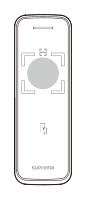
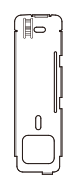
|
|
|
|
|
| Connection Cables | Fixing Screws x2 | Bracket Fixing Screw (Star Shaped) | Diode | 120 Ω Resistor |
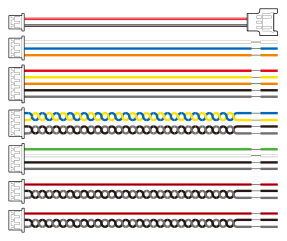



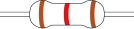
- Components may vary according to the installation environment.
- When assembling the product with the bracket, you can use the included bracket fixing screw (Star Shaped) instead of the product fixing screw for enhanced security.
Name and function of each part
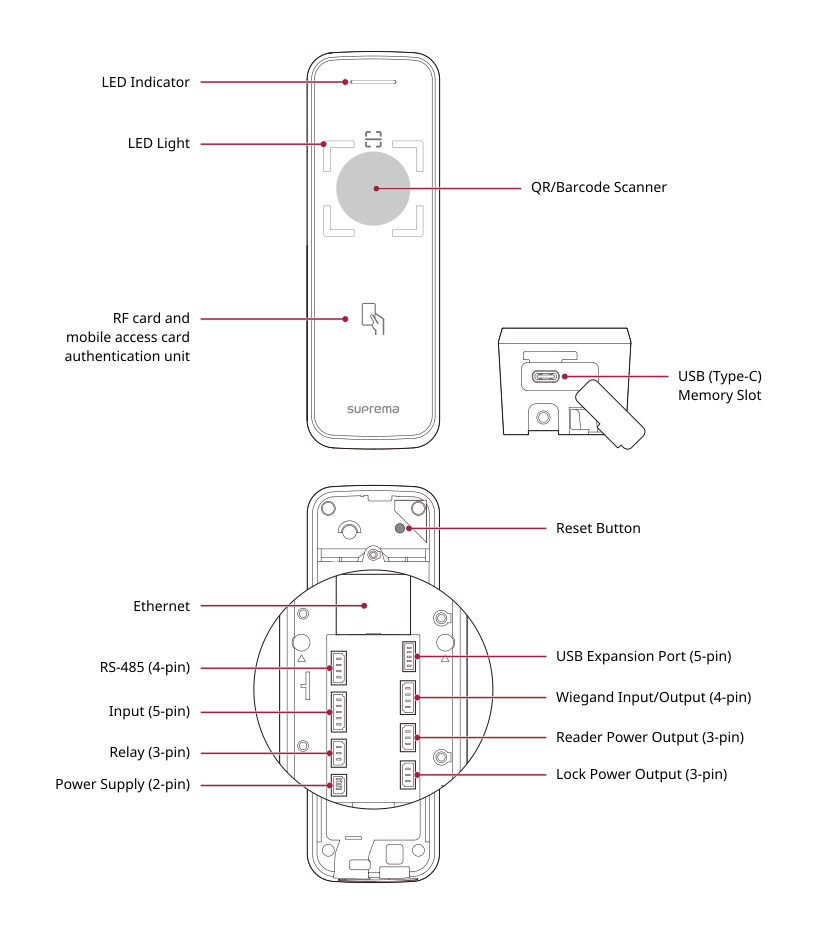
-
LED Indicator: Indicates the operational status of the device with the color of the LED.
-
Green: Authentication success.
-
Red: Authentication failure.
-
Blue/Cyan blinking: Normal operation.
-
Blue/Green blinking:
-
When setting DHCP to use, unable to retrieve IP address.
-
When in Slave mode, the connection to the master device is disconnected.
-
-
Red/Purple blinking: Device is locked.
-
Green blinking: Waiting for input.
-
-
LED Light: The LED turns on automatically when motion is detected near the QR/Barcode scanner.
-
QR/Barcode Scanner: Scans QR/Barcode credentials for access.
-
RF card and mobile access card authentication unit: Part to scan a RFID card or mobile access card for entrance.
-
USB (Type-C) Memory Slot: Connects the USB memory.
-
Reset Button
-
Initializes network settings. For more information on initializing network settings, refer to Initialize Network Settings.
-
Deletes all information and certificates stored on the device and initializes the settings. For more information on factory initialization, refer to Factory default.
-
-
Ethernet: Connect the Ethernet cable.
-
RS-485 (4-pin): Connect the RS-485 cable.
-
Input (5-pin): Connect the input cable.
-
Relay (3-pin): Connect the Relay cable.
-
Power Supply (2-pin): Connects the power supply cable.
-
USB Expansion Port (5-pin): Connect other accessory products.
-
Wiegand Input/Output (4-pin): Connect the Wiegand Input/Output cable.
-
Reader Power Output (3-pin): Connect the reader power output cable.
-
Lock Power Output (3-pin): Connect the lock power output cable.
Cables and connectors
Power

| Pin | Name | Color |
|---|---|---|
| 1 | PWR +VDC | Red (White stripe) |
| 2 | PWR GND | Black (White stripe) |
Relay

| Pin | Name | Color |
|---|---|---|
| 1 | RLY NO | White |
| 2 | RLY COM | Blue |
| 3 | RLY NC | Orange |
RS-485

| Pin | Name | Color |
|---|---|---|
| 1 | 485 TRXP | Blue |
| 2 | 485 TRXN | Yellow |
| 3 | 485 GND | Black |
| 4 | SH GND | Gray |
Input

| Pin | Name | Color |
|---|---|---|
| 1 | INPUT0 | Red |
| 2 | INPUT1 | Yellow |
| 3 | INPUT2 | Orange |
| 4 | INPUT GND | Black |
| 5 | SH GND | Gray |
Wiegand Input and Output

| Pin | Name | Color |
|---|---|---|
| 1 | WG D0 | Green |
| 2 | WG D1 | White |
| 3 | WG GND | Black |
| 4 | SH GND | Gray |
Reader/Lock Power Output

| Pin | Name | Color |
|---|---|---|
| 1 | DC OUT | Red (black stripe) |
| 2 | DC GND | Black |
| 3 | DC GND | Gray |
Notes on QR/Barcode and Device License
Correct QR/Barcode Authentication Method
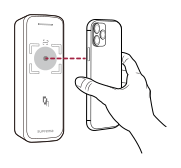
You can issue a QR/barcode to the user for use as a means of authentication. Scan the QR/Barcode as instructed to improve recognition.
-
Keep a distance of 5-15 cm between the device’s scanner and the QR/Barcode.
-
Position the QR/Barcode in the center of the scanner.
-
If authenticating with a QR/barcode downloaded to a mobile device, adjust the brightness of the mobile device to ensure the screen is clearly visible.
-
QR/Barcode scanning may take longer or fail if the position, distance, or lighting is inadequate.
Barcode types and minimum readable size
The following are examples of the minimum barcode sizes that can be read for each barcode type.
Actual read rates may vary depending on print quality, encoding, lighting, camera resolution, shooting distance, and other conditions.
Basic support
This product natively supports QR Code.
| Barcode type | Minimum readable size | Example value (character count) |
|---|---|---|
| QR Code | 1 cm | 32 alphanumeric characters |
When the Camera QR license is applied
| Barcode type | Minimum readable size | Example value (character count) |
|---|---|---|
| QR Code | 1 cm | 32 alphanumeric characters |
| Micro QR Code | 1 cm | 32 alphanumeric characters |
| Aztec | 1 cm | 32 alphanumeric characters |
| PDF417 | 3 cm | 32 alphanumeric characters |
| Data Matrix | 1 cm | 32 alphanumeric characters |
| Code 39 | 5 cm | 16 alphanumeric characters |
| Code 128 | 3 cm | 16 alphanumeric characters |
| EAN-8 | 1.5 cm | 8 digits (7 data + 1 checksum) |
| EAN-13 | 2 cm | 13 digits (12 data + 1 checksum) |
| UPC-A | 2 cm | 12 digits (11 data + 1 checksum) |
| UPC-E | 1.5 cm | 8 digits (7 data + 1 checksum) |
Notes for device license
-
Using additional QR/Barcode authentication methods requires a separate device license. Contact the place of purchase to issue a device license.
-
The device license file is an encrypted file and cannot be modified arbitrarily.
-
Device licenses are issued based on device ID. If the device ID is changed in an unusual way, the warranty service for the license is not provided.
-
For detailed information on device licenses, please refer to the BioStar X Administrator Guide.