Installation
Minimum System Requirements
| Item | Small Business Server | Medium Business Server | Enterprise Business Server | |
|---|---|---|---|---|
| Environment | Total Devices | 50 | 150 | 1000 |
| System requirement | OS | Microsoft Windows 10 or later (64-bit) | ||
| CPU | 2 GHz dual-core | 4 GHz quad-core | 4 GHz, 16-core | |
| RAM | 8 GB | 16 GB | 64 GB | |
| Communication | Supports the Standard Transmission Control Protocol (TCP/IP) networking communication protocol between servers, clients, and devices. | |||
| Supports Dynamic Host Configuration Protocol (DHCP) or Static IP address. | ||||
| Supports network configuration. | ||||
| Supports Network Time Protocol (NTP). | ||||
| Supports HTTPS communication protected by Secure Socket Layer (SSL) between the client (web browser) and platform. | ||||
| Encryption | Supports AES-256 for Fingerprint Template, and Face Template. | |||
| Supports AES-256 for Fingerprint Template and Face Template (Optional). | ||||
Plugin Installation
-
Run the installation file (setup.exe) as an administrator.

-
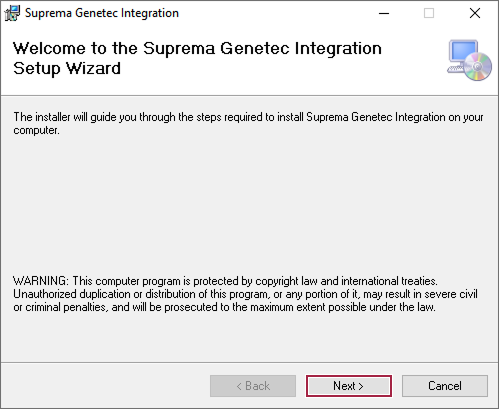
Click Next.
-
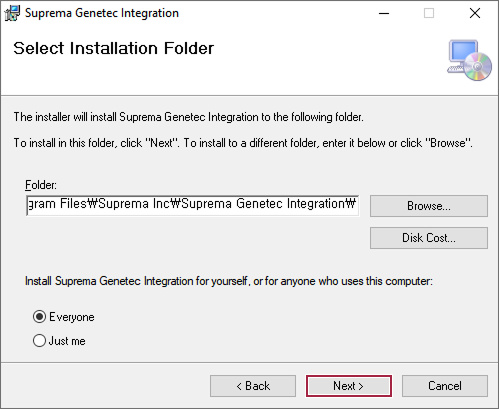
Set the path where Suprema Plugin will be installed, then click Next.
-
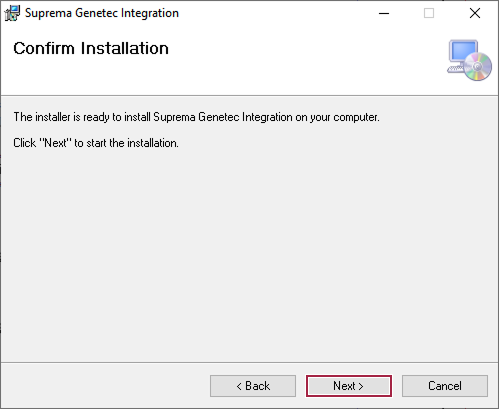
If the installation is ready, click Next.
-
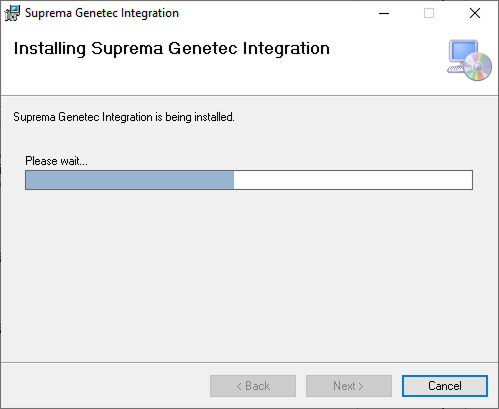
The installation will begin. Please wait until it completes successfully.
-
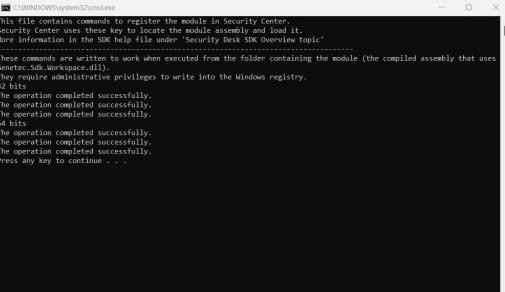
Once the installation is complete, a command prompt window will appear. Press any key to close the window.
-
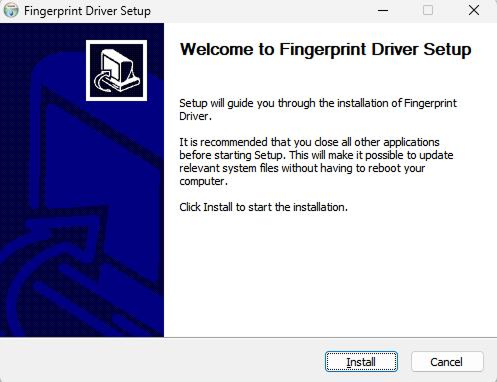
The Biomini Slim2 (Fingerprint Enrollment Device / USB type) driver installation will start. Click Install.
-
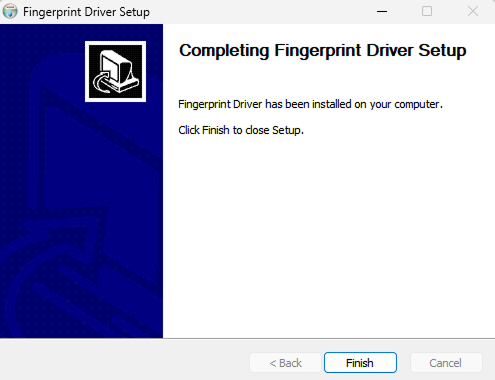
Click Finish.
-
Return to the Plugin installation windows and click Close.
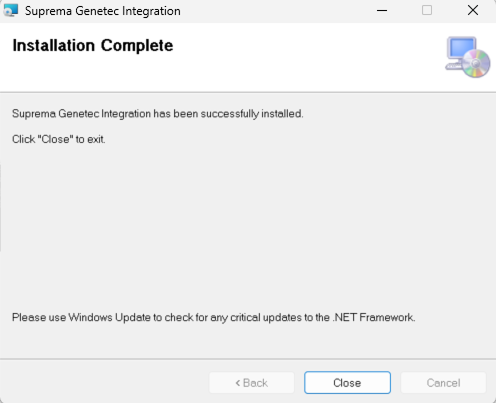
-
Press Any Key to complete.
Added Suprema Plugin in Genetec Config Tool
-
Run the Genetec Config Tool.

-
Click the Plugins under Tasks.

-
Click Add an entity under the Plugins screen, then select Plugin from the list.
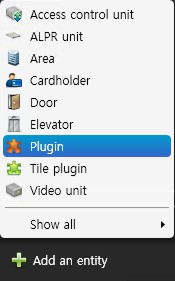
-
In Select plugin type, select Suprema Extractor Plugin and click Next.
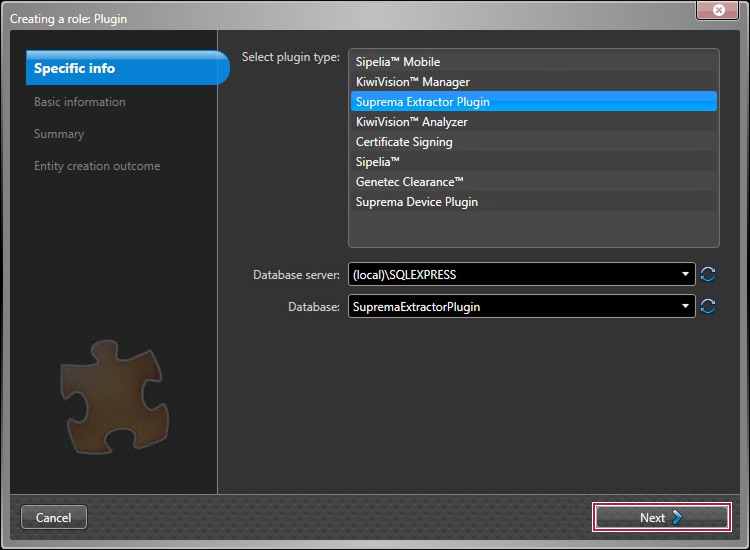
-
Enter the Entity name and Entity description, then click Next.
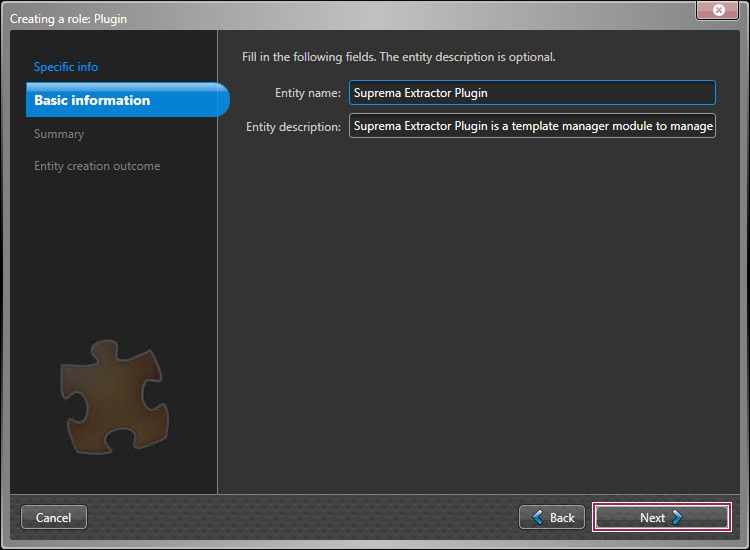 Info
InfoThe Entity description is optional.
-
Verify the information and click Create.
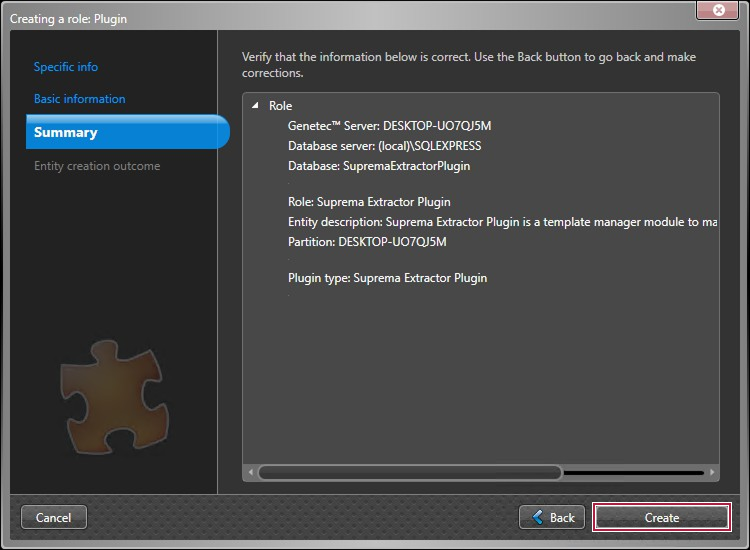
-
The Suprema Extractor Plugin will be created. Click Close.
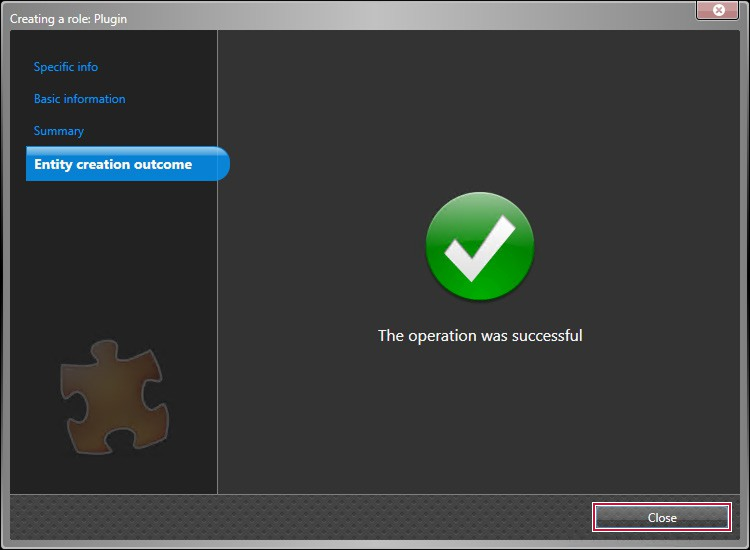
-
Click Add an entity under Plugins screen, then select Plugin from the list.
-
In Select plugin type, select Suprema Device Plugin and click Next.
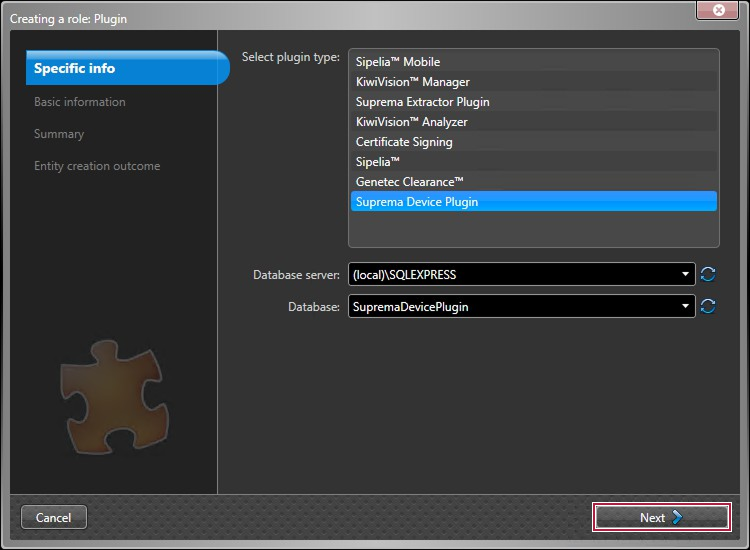
-
Enter the Entity name and Entity description, then click Next.
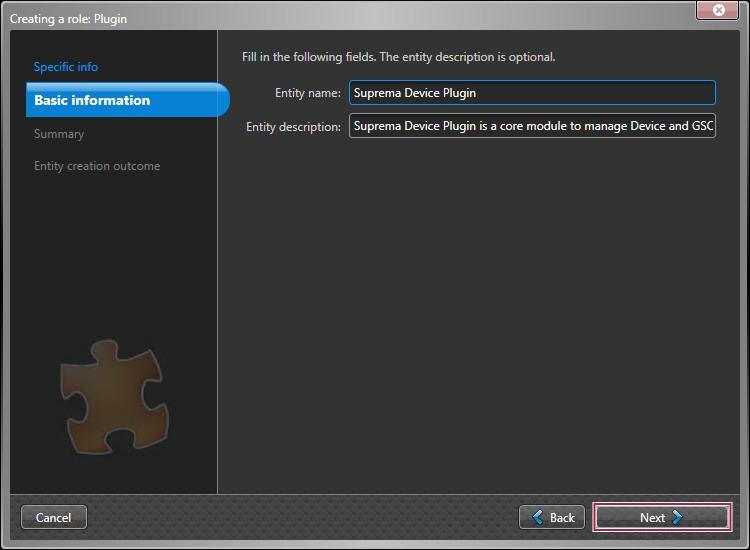 Info
InfoThe Entity description is optional.
-
Verify the information and click Create.
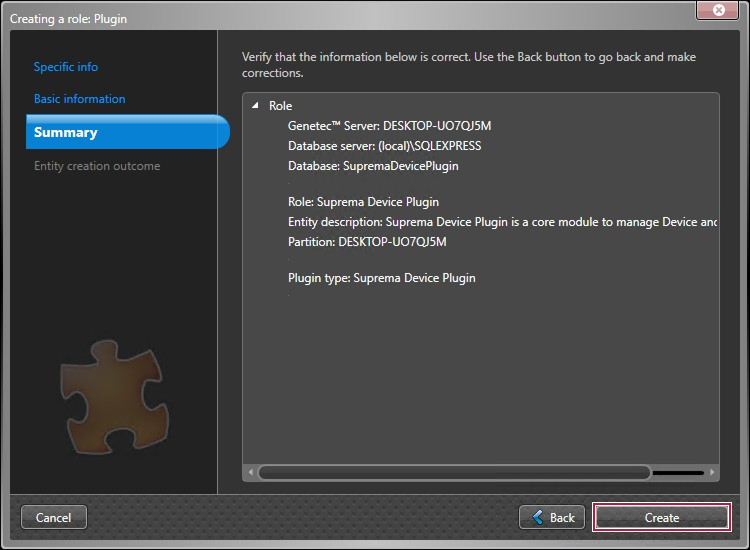
-
The Suprema Device Plugin will be created. Click Close.
-
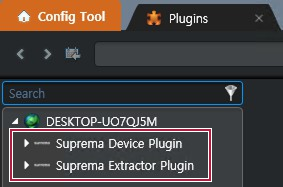
The addition of the Suprema Plugin is complete.