Biometric Readers and Credentials
BioStar Air now supports biometric readers and biometric credentials to enhance secure access control. Register and configure compatible biometric devices, such as BioStation 3 (BS3) and BioEntry W3 (W3), to authenticate users via facial authentication. The feature supports both single and two factor authentication, enhancing flexibility and security.
-
Register readers: Use the BioStar Air mobile app to register biometric readers.
-
Device setting: Go to the BioStar Air Portal → Device Management → Registered Devices to configure the device facial authentication setting.
-
Face credential setting: Go to the BioStar Air Portal → User Management → Users to add or edit users. Activate the facial credential in the Credential Detail section.
Before start
-
BioStar Air-compatible firmware must be installed for the biometric reader to operate normally.
-
Up to two face templates can be used per user.
-
For advanced configuration, refer to the BioEntry W3 or BioStation 3 user guide.
-
Enroll at least two credentials to use two-factor authentication. For example, enroll both RF card and face credentials.
Step-by-step instructions
Register biometric device
Verify that BioStar Air-compatible firmware is installed on the BioEntry W3 or BioStation 3. Models whose names end with -AIR already include the default firmware supplied by Suprema.
Launch the BioStar Air app on the mobile device and sign in with the administrator ID and password. Register the device in the same way as any other reader.
For more information about registering devices, see Register and Delete Devices.
Configure reader
-
Log in to the BioStar Air Portal with an administrator account.
-
Click Device Management → Registered Devices in the left sidebar.
-
Click the biometric reader in the device list.
-
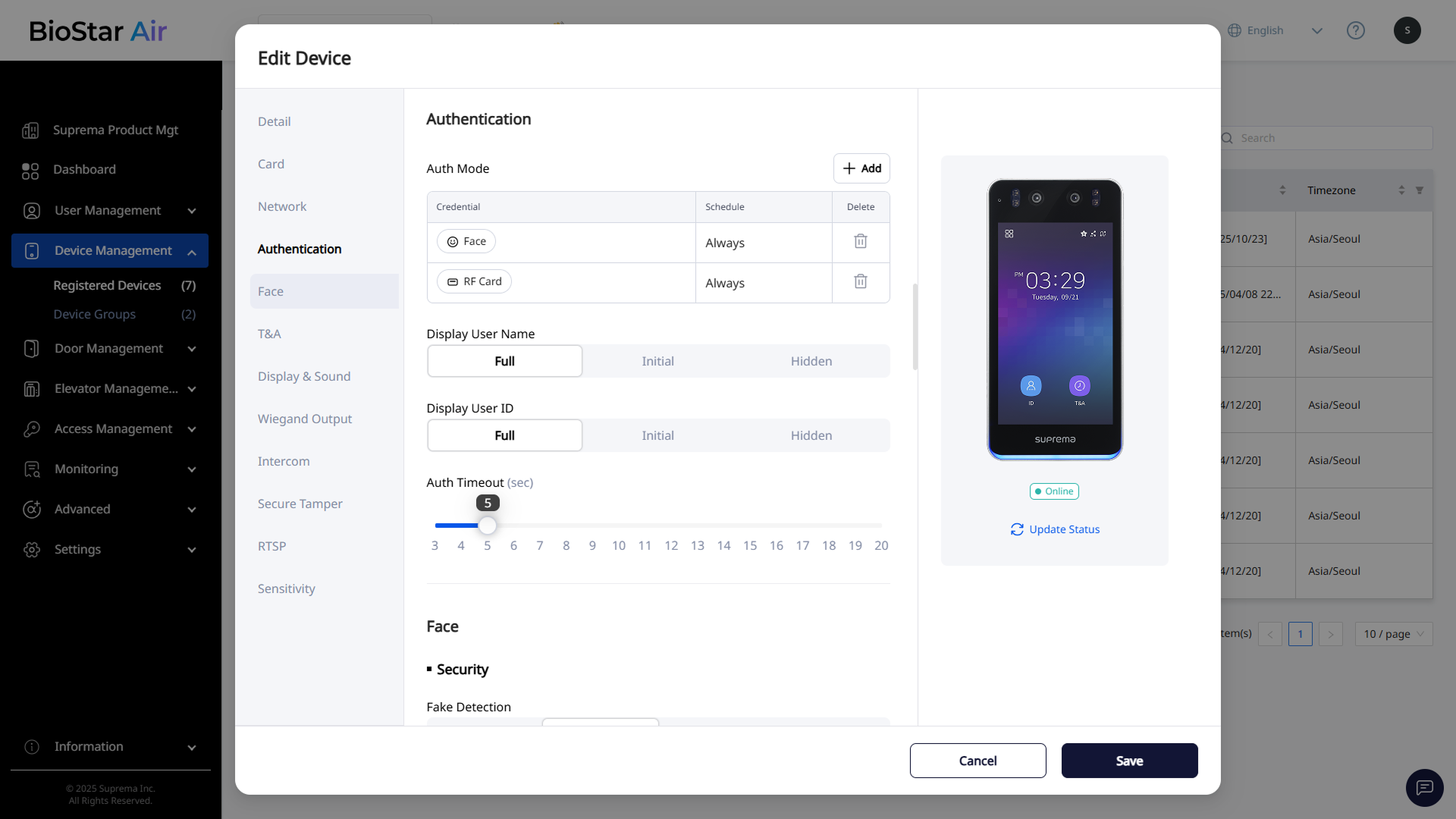
When the Edit Device window appears, go to the Authentication section.
-
Set Auth Mode.
-
Single-factor: Authenticate with either an RF card or facial authentication.
-
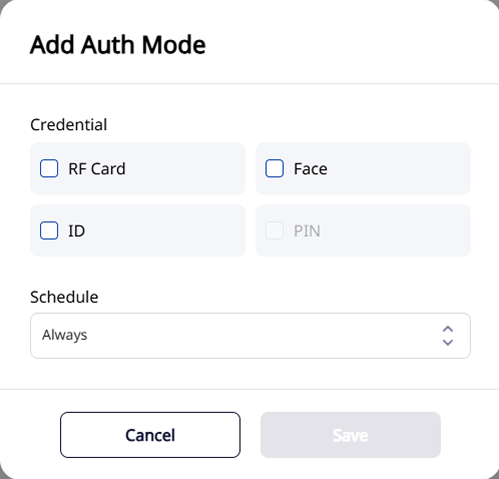
Two-factor: Delete either the RF card or facial authentication factor, then re-enroll both to enable two-factor authentication. Click Add and combine desired authentication methods.
-
-
Set Auth Timeout. If the credential is not authenticated within the specified time, authentication will fail.
-
Configure the following options in the Face section.
- Fake Detection
- Motion Sensor Sensitivity
- Maximum Head Pose Angle
- Detection Distance
-
Configure additional options.
- Duplicate Check
- Enrollment Time
- Mask Detection
For more information about the settings in the Authentication section, see Device Information and Configuration Options.
Enroll user faces
-
Click User Management → Users in the left sidebar.
-
Open the window to add a new user or edit an existing user.
-
Add a new user: Click Add User in the upper right of the user list.
-
Edit an existing user: Select the user in the list, then click .
-
-
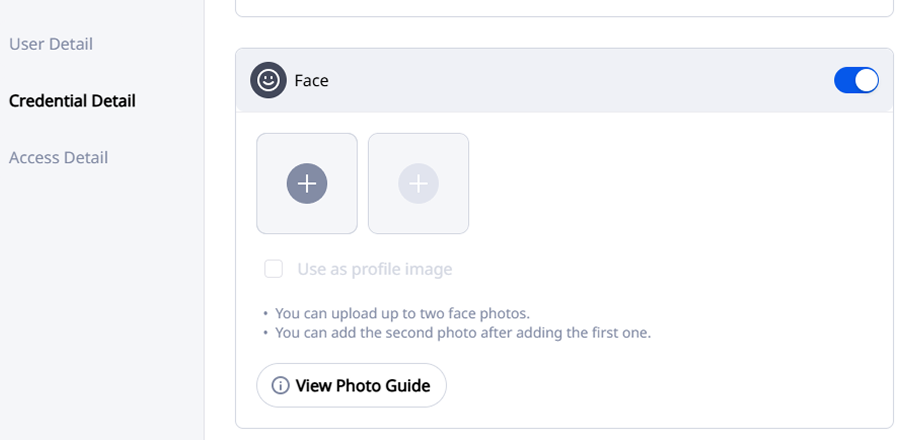
From the user information window, go to the Credential Detail section and enable the Face credential.
-
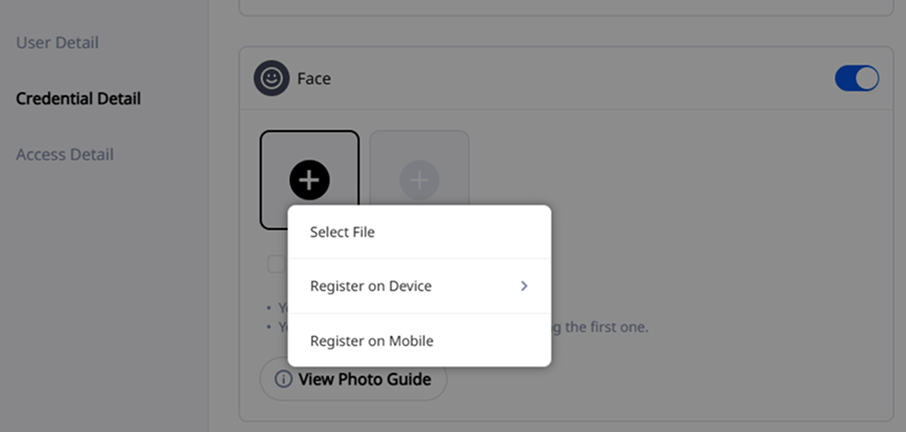
Click and add the facial template.
-
Select File: Select a photo file stored locally
-
Register on Device: Use the connected biometric reader (BioEntry W3 or BioStation 3)
-
Register on Mobile: Scan the QR code sent to the user’s mobile device and enroll the face from the mobile device
Only two face photos can be uploaded per user. Generally, one photo is sufficient.
-
-
Click Save to complete face enrollment.
For more information about uploading user profile photos in bulk, see Add Users in Bulk.