Time & Attendance (T&A)
BioStar Air records shift and break times to provide basic T&A tracking and integrates with external T&A systems or exports the data. BioStar Air is not a complete T&A system, but it supports event logging and API integration with payroll and T&A systems. It also generates basic working hours reports.
Refer to the following video to watch a video guide on T&A configuration.
T&A events
The following T&A events can be recorded. T&A events are logged and can be exported as a CSV file or retrieved through the API.
-
Shift start
-
Shift end
-
Break start
-
Break end
Configure T&A
Follow these steps to enable and configure T&A settings.
-
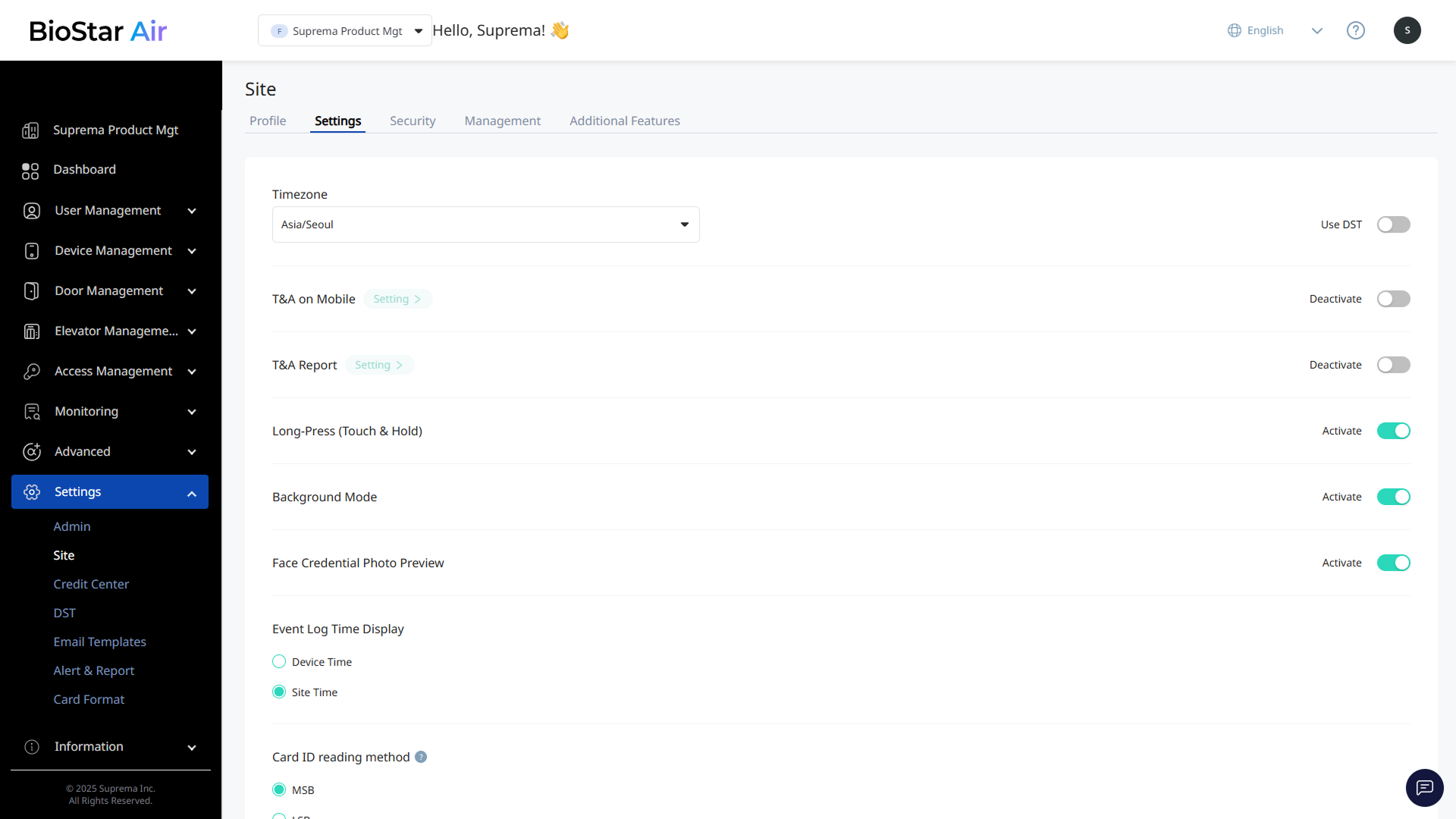
Click Settings → Site in the left sidebar.
-
Click Settings at the top of the screen.
-
Activate T&A on Mobile.
-
When the message window appears, click the Confirm button.
-
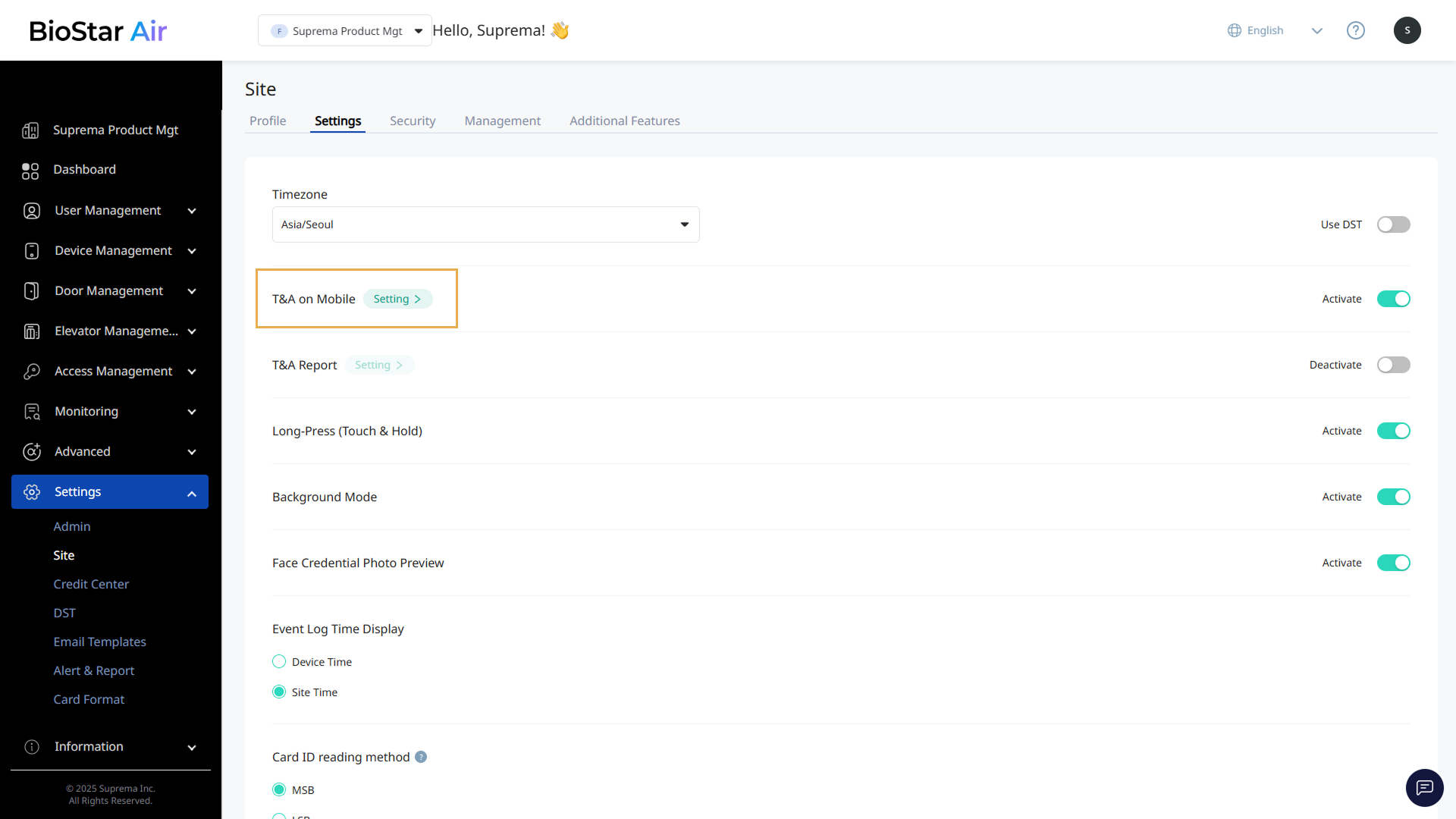
In T&A on Mobile, click Setting.
-
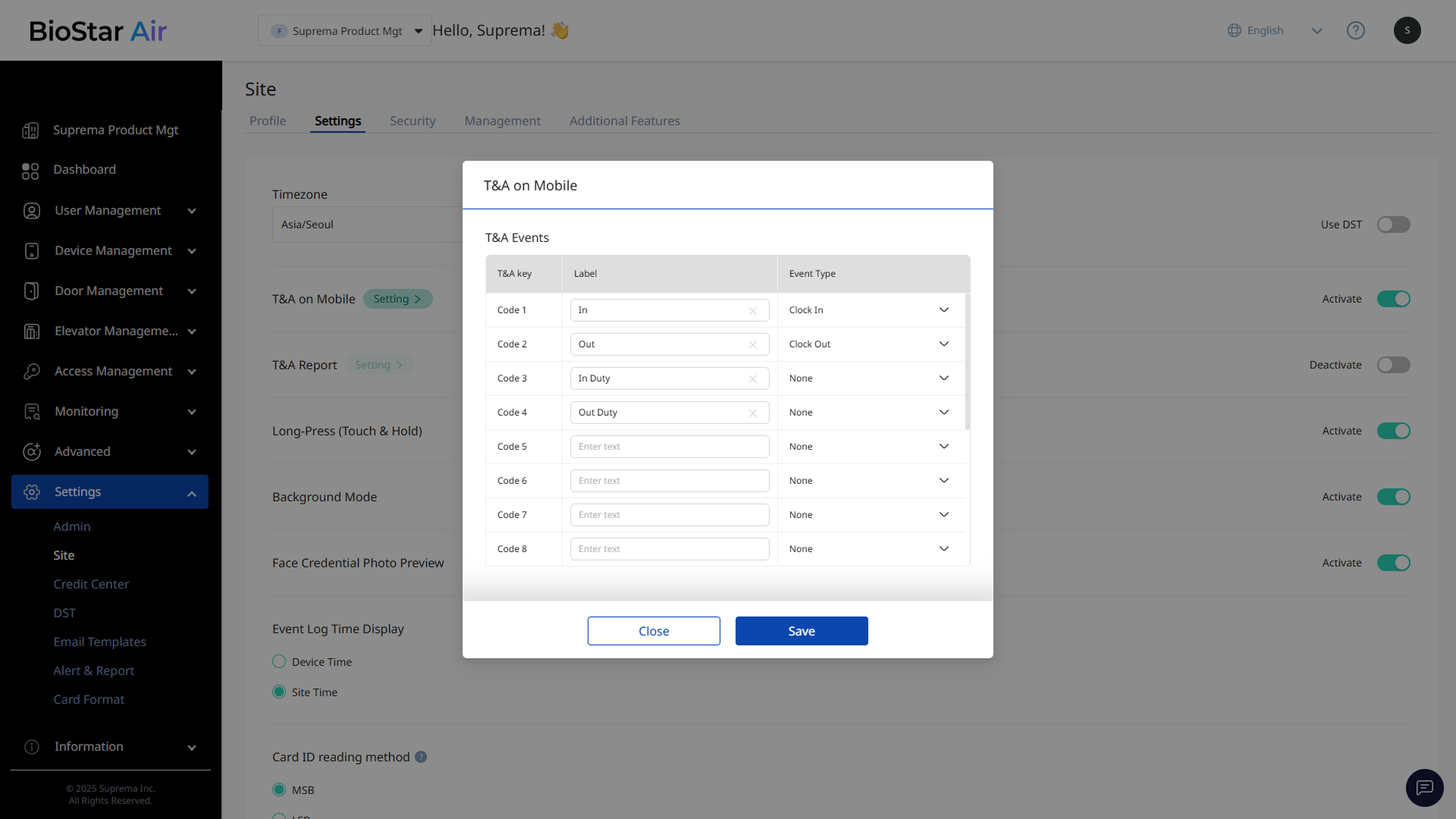
When the T&A on Mobile window appears, set the label for T&A key.
For example, Shift start, Shift end, Break start, Break end
-
Select whether the event type for T&A key is Clock-In or Clock-Out.
-
Click Save to save the settings.
Configure T&A on devices
After activating T&A on Mobile, specify the devices that will use it.
-
Click Device Management → Registered Devices in the left sidebar.
-
In the device list, click the device to configure for T&A.
-
When the Edit Device window appears, go to the T&A section.
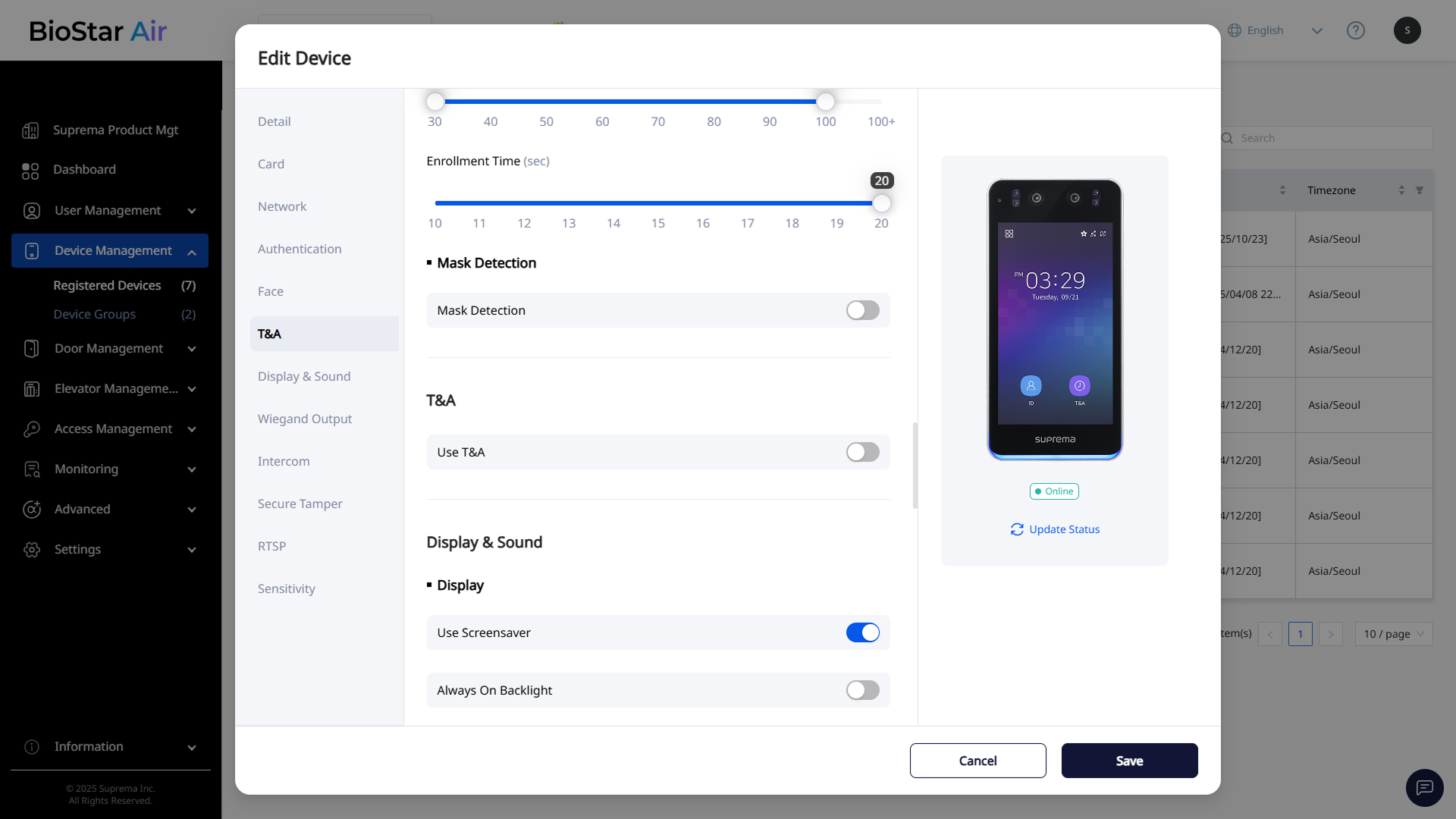
The image above is an example screen and may differ from the actual screen. -
Click the toggle for Use T&A to enable T&A.
-
Click Save to save the settings.
-
When T&A Mode is set to Mobile, the T&A is Required option is available for mandatory T&A selection during access authentication.
-
T&A event labels are managed at the site level and cannot be changed per device.
T&A Mode
A device records T&A events in several ways. Select the desired attendance mode in T&A Mode.
-
User Selects: When the attendance key appears on the screen, the user selects the attendance event during authentication.
-
By Schedule: Records clock-in and clock-out times based on the defined schedule. For example, events between 8:00 AM and 12:00 PM are recorded as Clock-In, while events between 1:00 PM and 5:00 PM are recorded as Clock-Out.
-
Last Choice: The user continues to use the last selected attendance event.
-
Fixed: Assigns a fixed T&A code to the device. Each authentication on that device records the same T&A event. Use this option to designate the device for clock-in or clock-out.
-
Mobile: Requires the user to select a T&A code before authentication. The selected T&A event is recorded with the access log.
Supported attendance management modes may vary depending on the device model. For more information, refer to the device-specific T&A modes in Device Information and Configuration Options.
View and export T&A logs
T&A events are saved to the event log and can be reviewed or exported to a CSV file.
-
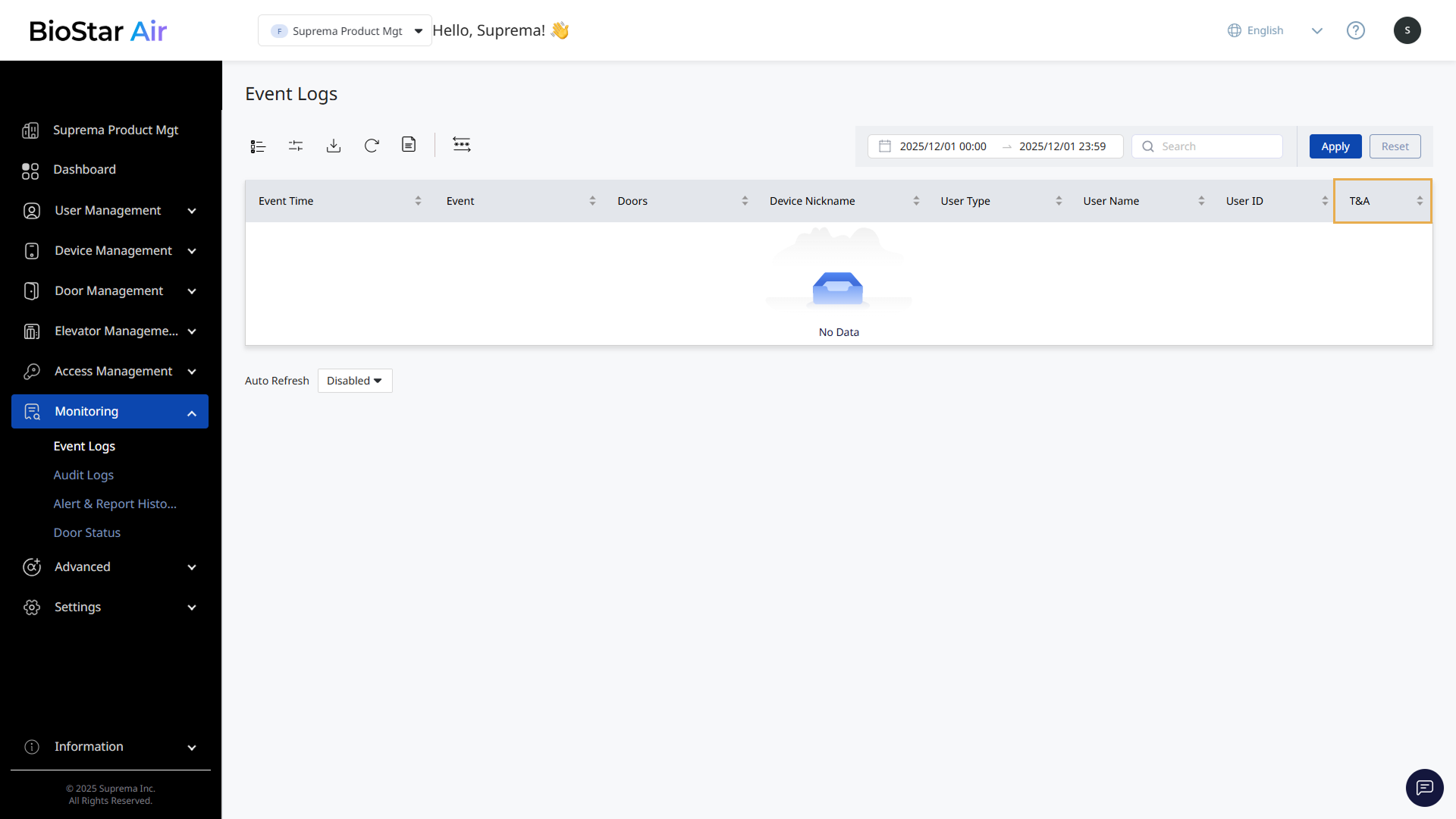
Click Monitoring → Event Logs in the left sidebar.
-
Locate the T&A column in the log table.
-
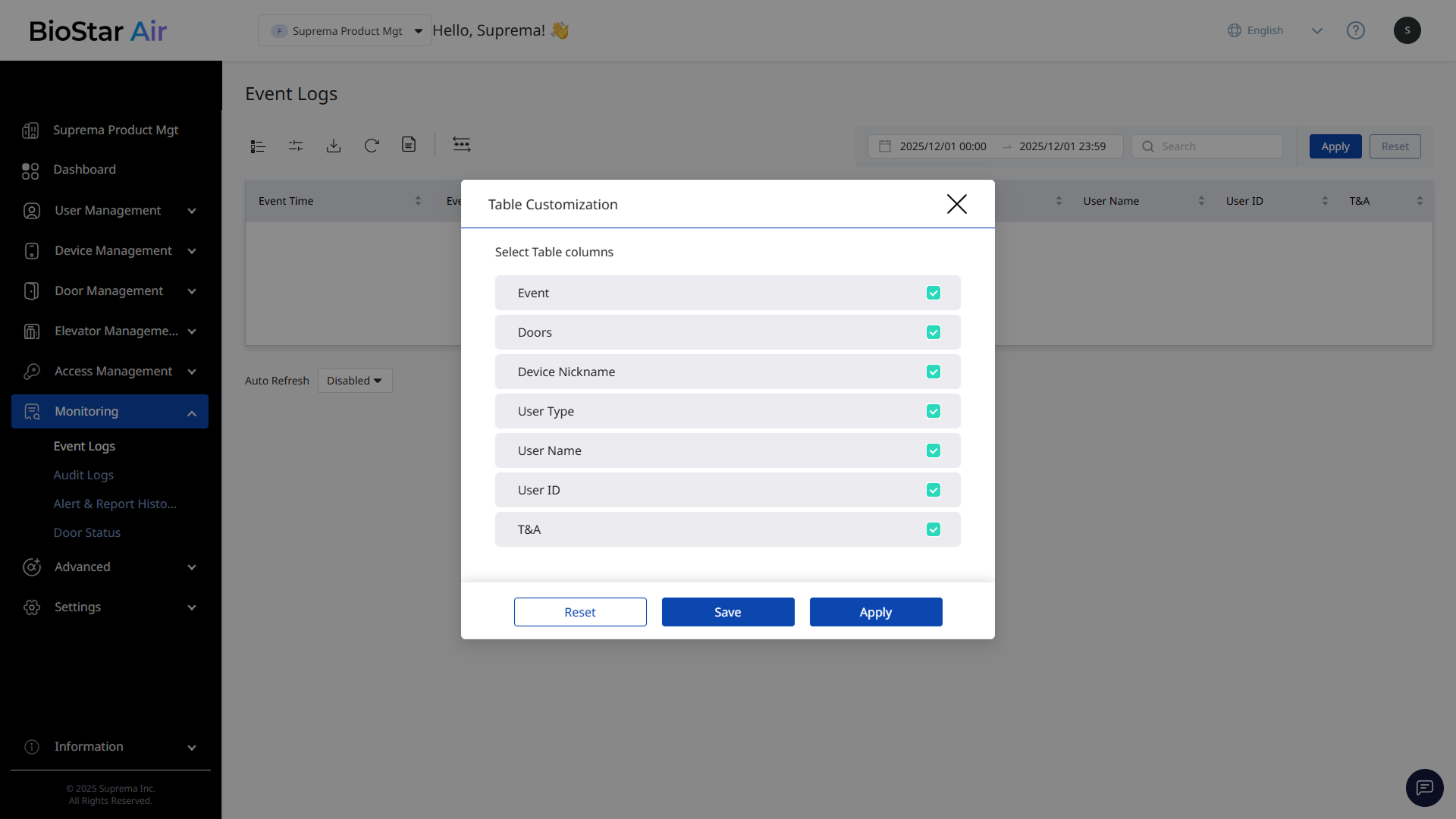
Click at the top of the log table to customize the view and move the T&A column for better visibility.
-
Click and select Download CSV to download the data as a CSV file.