Configure Airfob Patch and Tag
The Airfob Patch and Tag upgrade an existing access control reader or door lock to work with BioStar Air mobile credentials.
-
Airfob Patch: An energy-harvesting device for wired readers and intercoms that attaches without additional wiring.
-
Airfob Tag: Fits battery-powered devices such as door locks using a coin-cell battery.
-
The Airfob Patch and Tag are compatible with MIFARE 1K technology but are not compatible with 125 kHz low-frequency readers or locks.
-
They authenticate encrypted Bluetooth BioStar Air credentials from a mobile device and operate by emulating a MIFARE RFID signal. They attach to readers and locks with tape and require no wiring.
Configuration steps
Install the Airfob Patch or Tag and register it to the BioStar Air app. Follow these steps to configure the device.
Run the app
-
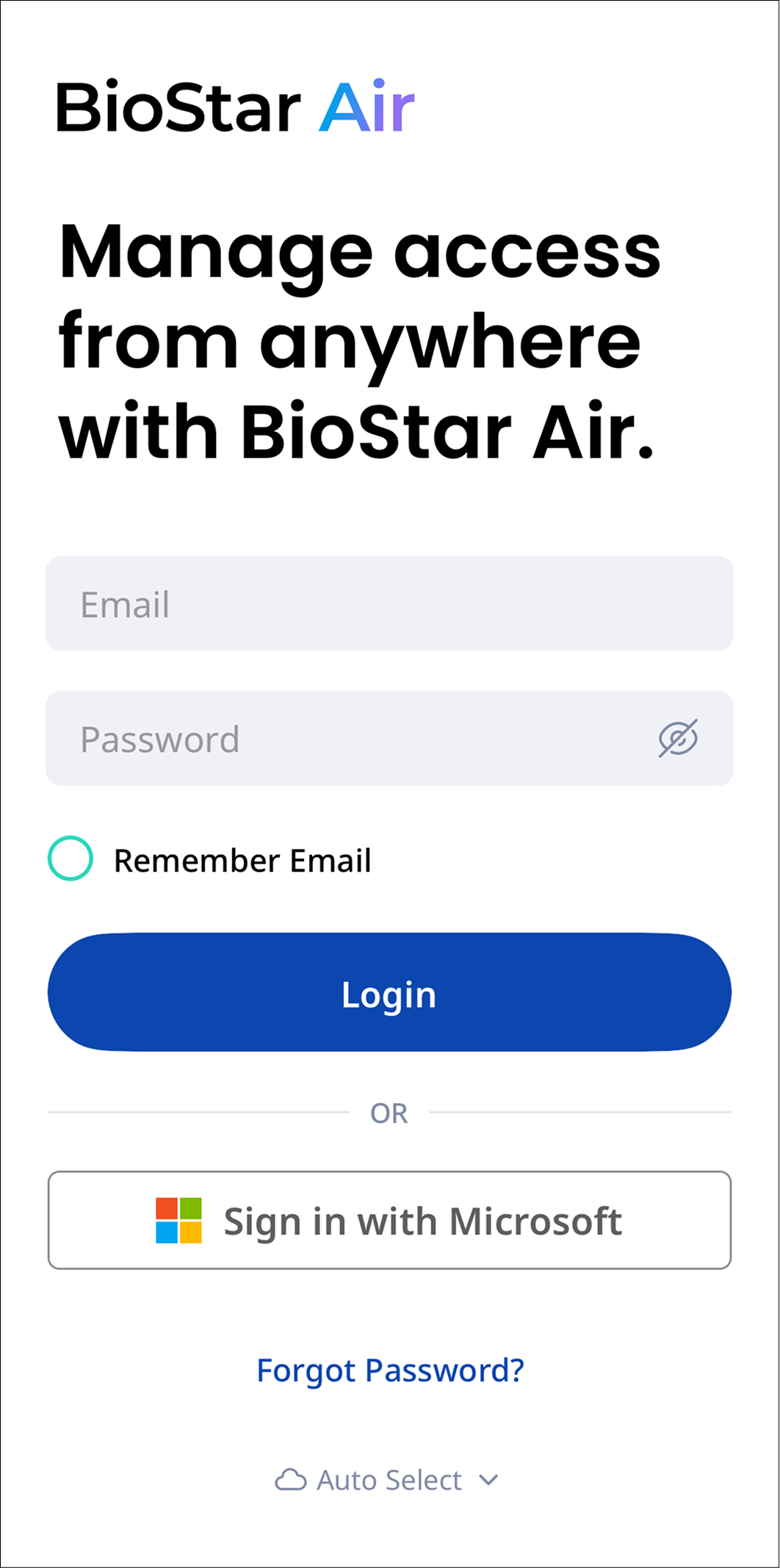
Run BioStar Air on your mobile device.
-
Sign in to the site where the Airfob Patch or Tag is registered.
Go to device settings
-
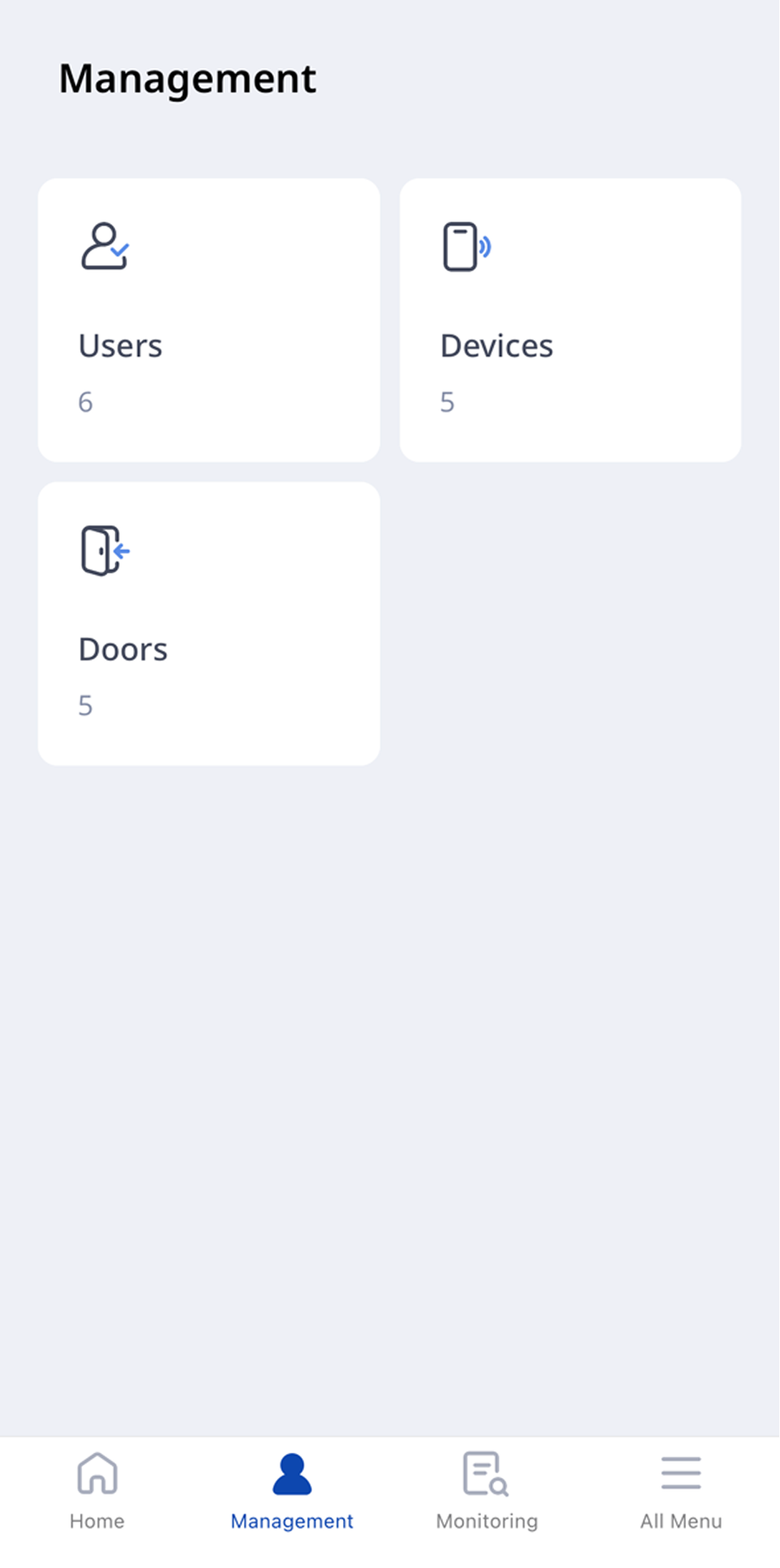
On the BioStar Air home screen, tap Management at the bottom.
-
To view the registered devices, tap Devices.
-
Select the Airfob Patch or Tag from the device list.
Enable BLE mode
-
Hold the mobile device close to the unit.
-
Activate the BLE Mode in the app.
Set the card ID output method
-
Scroll to Card ID Output Method and tap Edit.
-
Tap Select next to User Card ID.
Choose the output method
-
None: Select this option when you do not want to send a card ID. Useful for time and attendance to extend battery life.
-
Fixed Device: Sends the pre-programmed fixed card ID. Useful for door locks or intercoms that require each RFID card to be programmed individually. Only this fixed card ID appears in the device logs.
-
User Card ID: Sends a unique card ID for each user that matches the existing RFID card number in the access control system. This enables seamless integration without issuing new physical cards.
-
Direct Input: Manually specify the card ID to be sent. Useful for custom configurations where one ID must be used on multiple units.
Save your settings
-
Keep the mobile device near the unit, tap Save, and confirm the selections.
-
The update complete message appears.