Custom Wiegand card format
Create and configure a custom Wiegand card format in BioStar Air v2.10—including facility codes, ID segments, parity bits, and bit assignments—to migrate smoothly from an existing access control system.
Wiegand card format list
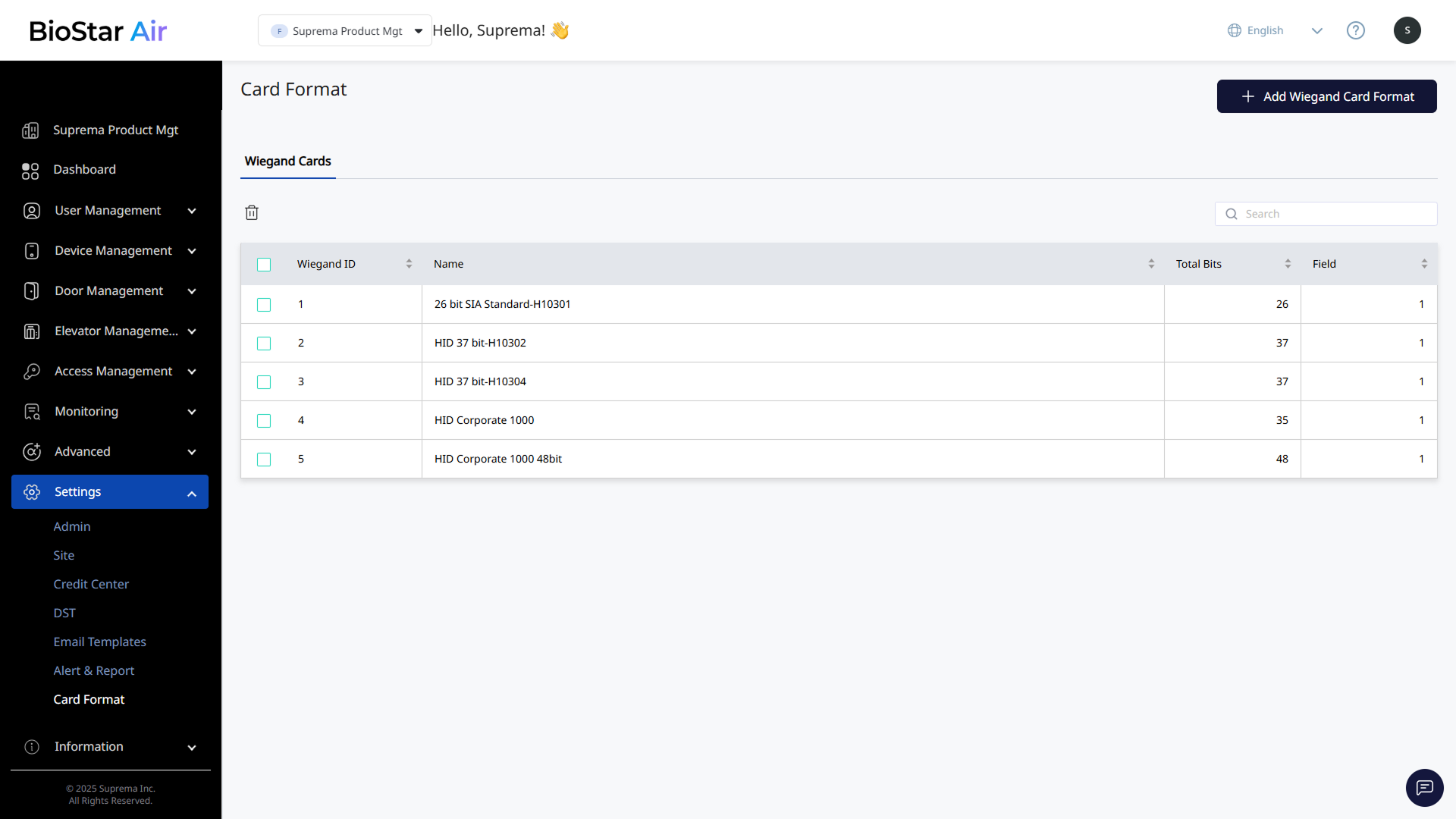
Click Settings → Card Format in the left sidebar. Create, manage, and view special card formats, including Wiegand, SIA, and HID formats. Useful for sites migrating from an existing access control solution with pre-issued cards.
-
View all registered Wiegand card formats, including the default formats included in BioStar Air.
-
Check the format's name, description, total bits, bit preview, and detailed bit assignments.
-
Configure a new custom card format, including its name, description, total bits, and detailed bit assignments. The system provides a bit preview for visual verification.
Add a card format
Add a new custom Wiegand card format in addition to the built-in formats.
-
Click Settings → Card Format in the left sidebar.
-
Click Add Wiegand Card Format at the top right of the screen.
-
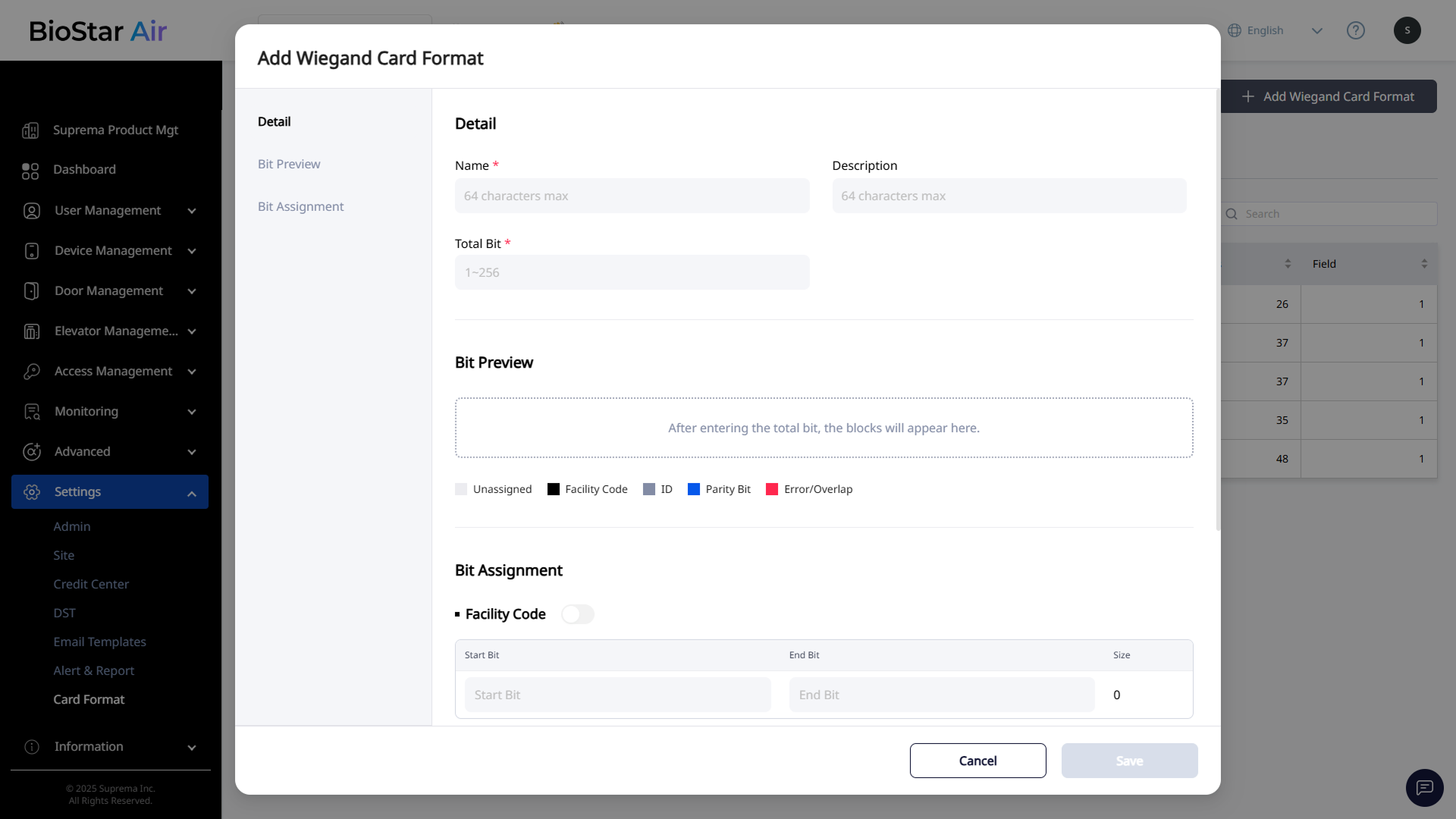
When the Add Wiegand Card Format window appears, enter the name, optional description, and total bits in the Detail section.
-
Enter the total bits to activate Bit Preview, then configure bit assignment in the Bit Assignment section.
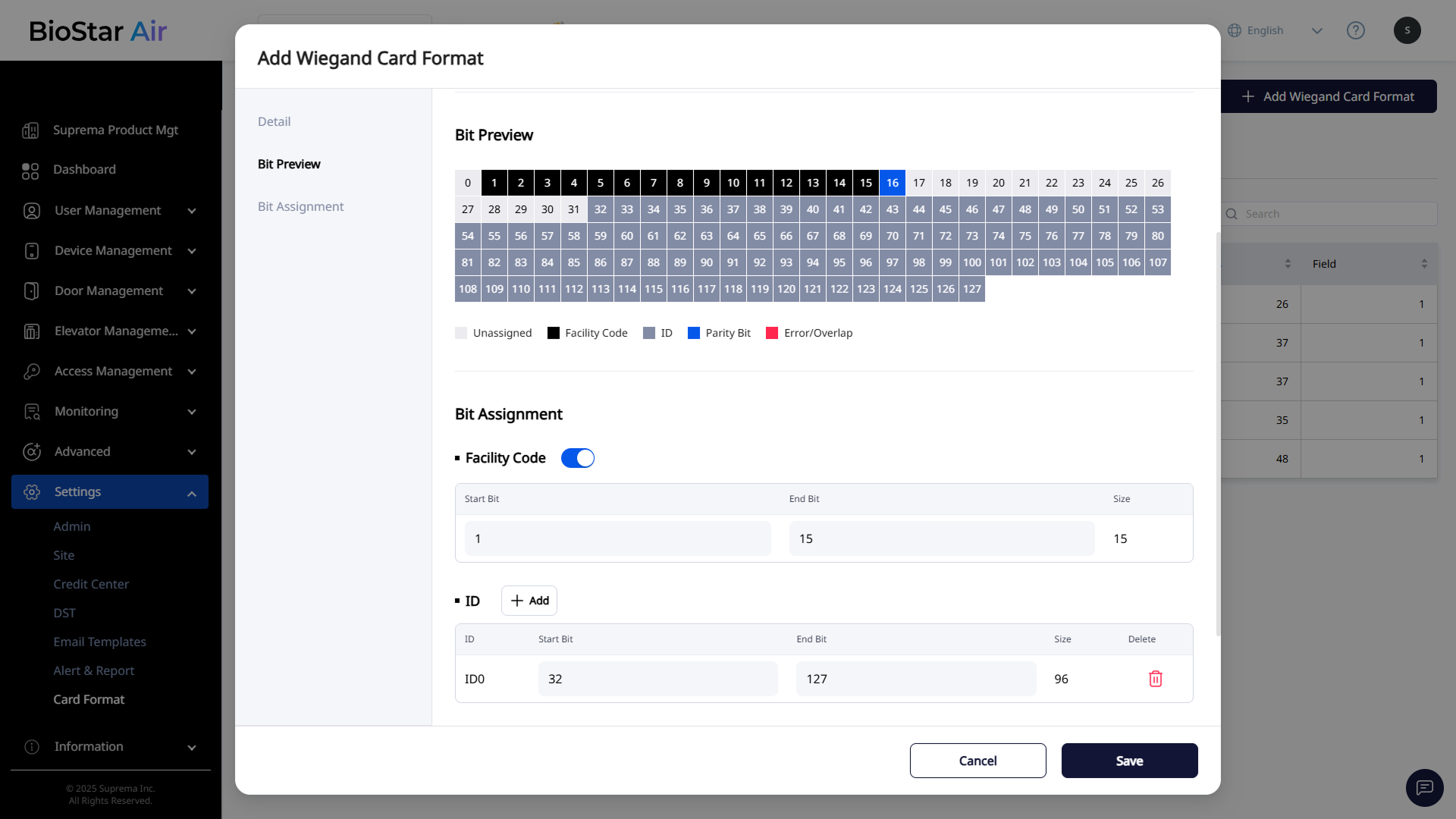
The image above is an example screen and may differ from the actual screen. -
Facility Code: Click the toggle switch to enable the facility code. Enter Start Bit and End Bit.
-
ID: Specify start and end bits to add one or more ID segments.
-
Parity Bit: Specify start and end bits to add odd/even parity bits.
-
-
Click Save to add the new card format.
Edit card format
Follow these steps to edit an existing Wiegand card format.
-
Click Settings → Card Format in the left sidebar.
-
Click the card format to edit.
-
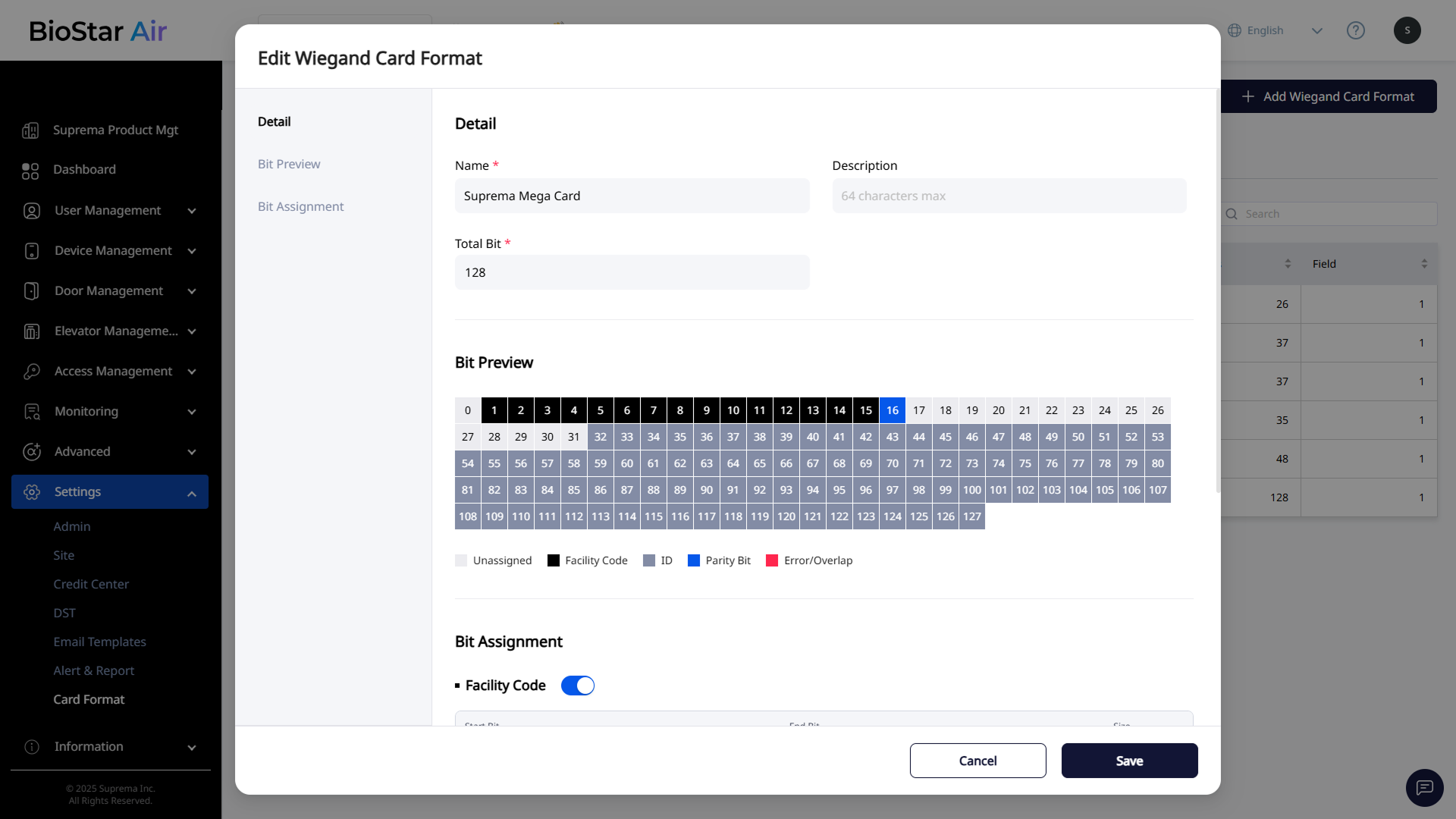
When the Edit Wiegand Card Format window appears, edit the required fields.
-
Click Save to save the edited card format.
Delete card format
-
Click Settings → Card Format in the left sidebar.
-
Click the checkbox for the card format to delete. Select one or more card formats.
-
Click at the top of the list.
-
When the message window appears, click Yes.
The five built-in Wiegand card formats cannot be deleted.