Wiring and Configuring the E200 QR Scanner
Step 1: Wire
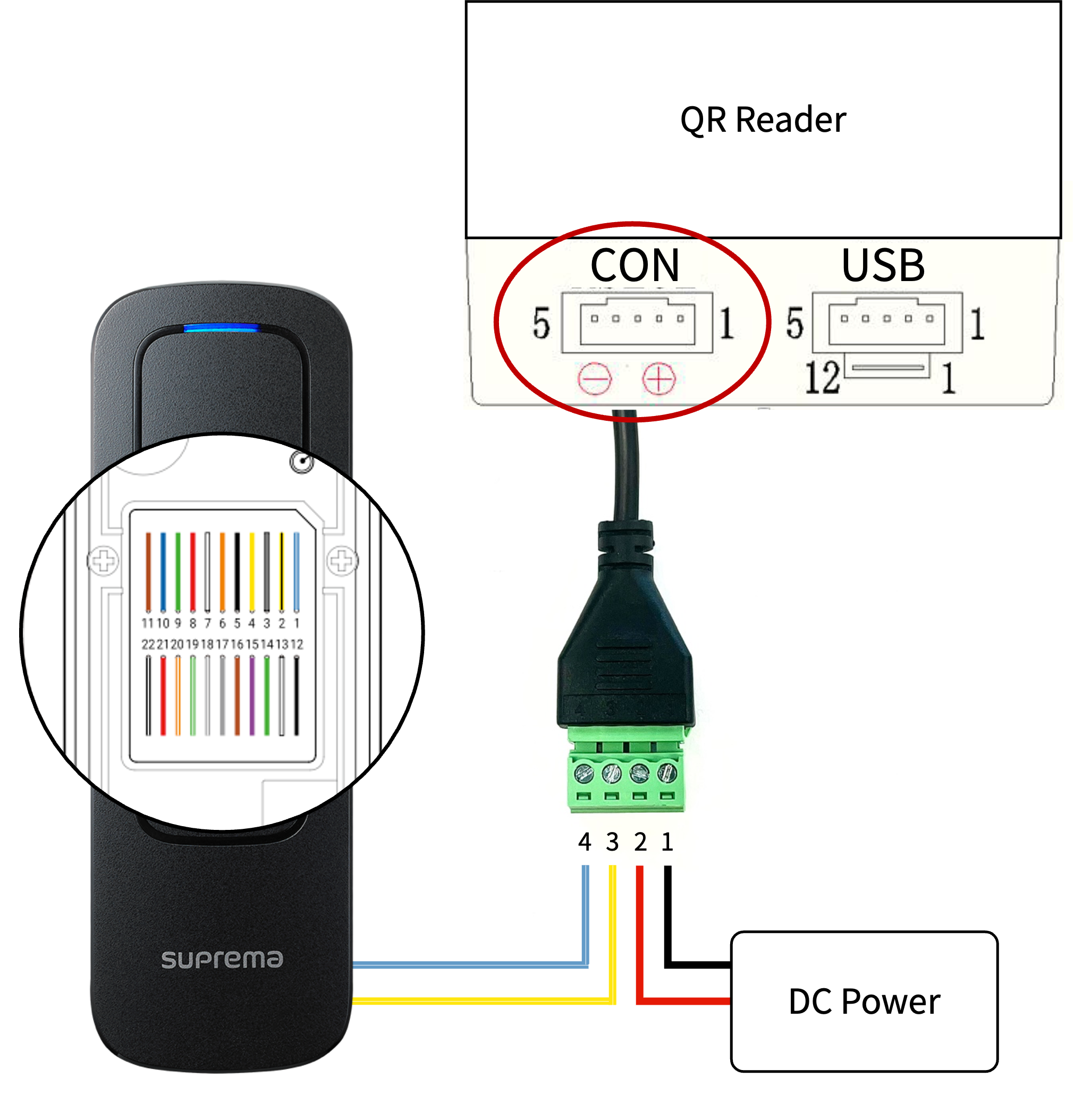
Connect the E200-series QR scanner using the included adapter cable as shown below.
-
The green terminal block has pins labeled 1 through 4, arranged right-to-left when you face the front of the connector.
Pin Wire color Feature 1 Black Negative / Ground 2 Red Positive (V+) 3 Yellow (white stripe) RS-485 TRXN 4 Blue (white stripe) RS-485 TRXP InfoThe wiring direction is the exact opposite of many other connectors. Check the orientation again before wiring.
-
Attach the 4-pin connector to the CON port on the bottom of the QR scanner. Because the connector is polarized (keyed), it fits only one way.
Step 2: Enable the QR reader
-
Sign in to the BioStar Air portal (web or app).
-
Click Device Management → Registered Devices in the left sidebar.
-
Click the device that has the connected E200 QR scanner.
-
Enable the QR Reader option in the Detail section.
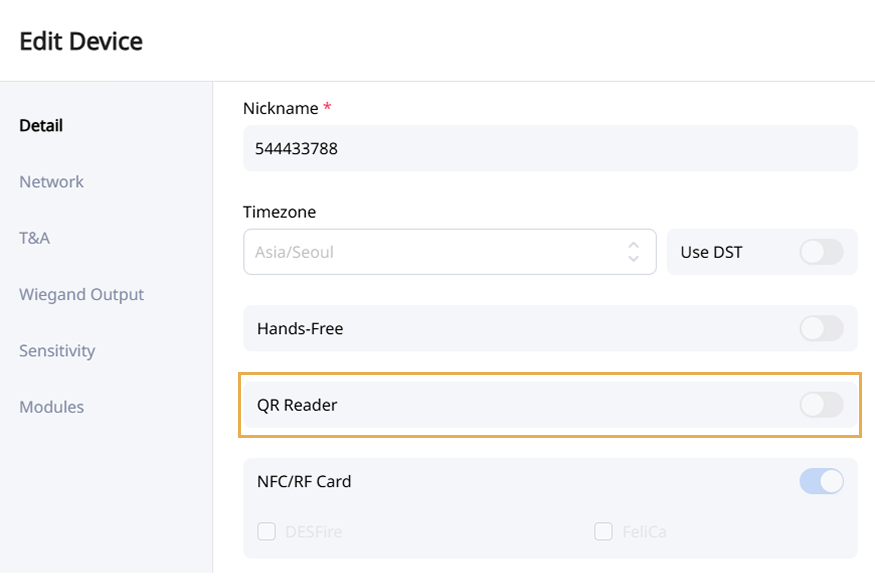
-
Click Save to save the changes.
Enabling the QR reader prevents you from using other RS-485 devices (for example, an SIO2) on the same reader.
Step 3: Configure the QR scanner
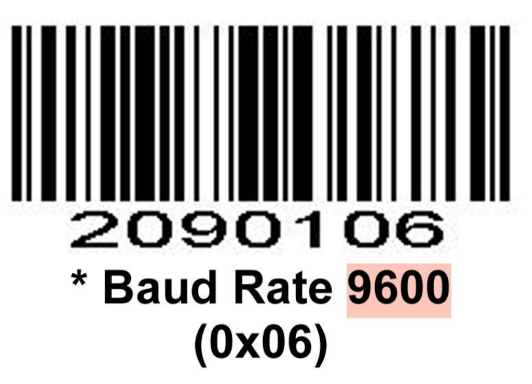
By default, the E200 QR scanner is set to a baud rate of 115,200. Change the baud rate to 9,600 to use it with Suprema devices.
Connect the QR scanner to the device and scan the barcode below to apply the new baud rate.
When the wiring is correct and the Suprema device is connected to the network, use the dynamic QR credentials provided through BioStar Air.