Manage Device Groups
BioStar Air lets you efficiently manage multiple devices by grouping them. Device groups allow you to apply the same setting to multiple devices at once or easily monitor the status of devices in a certain group.
Add a device group
-
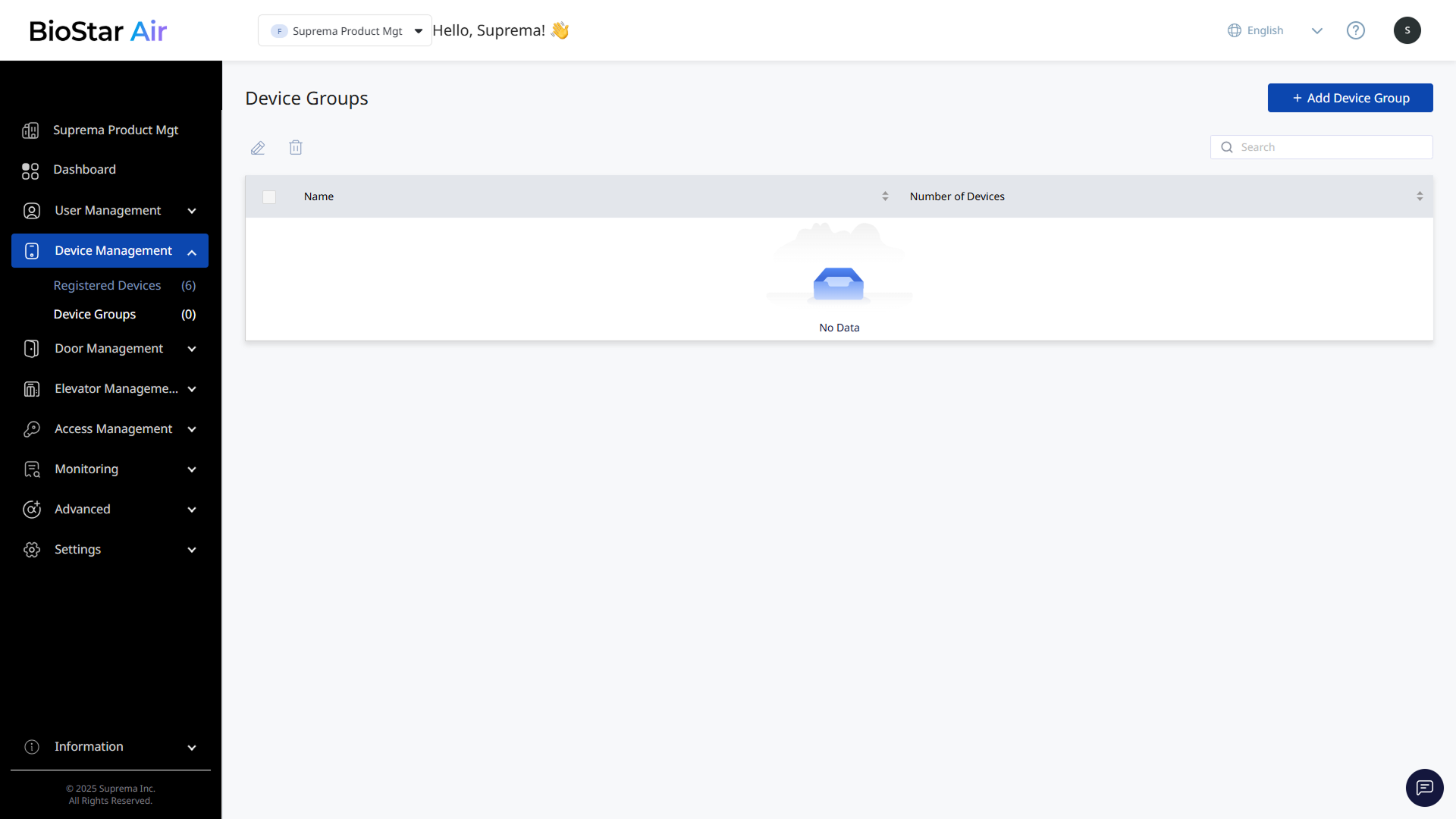
Click Device Management → Device Groups in the left sidebar.
-
Click Add Device Group at the top right of the screen.
-
When the Add Device Group window appears, enter the group name.
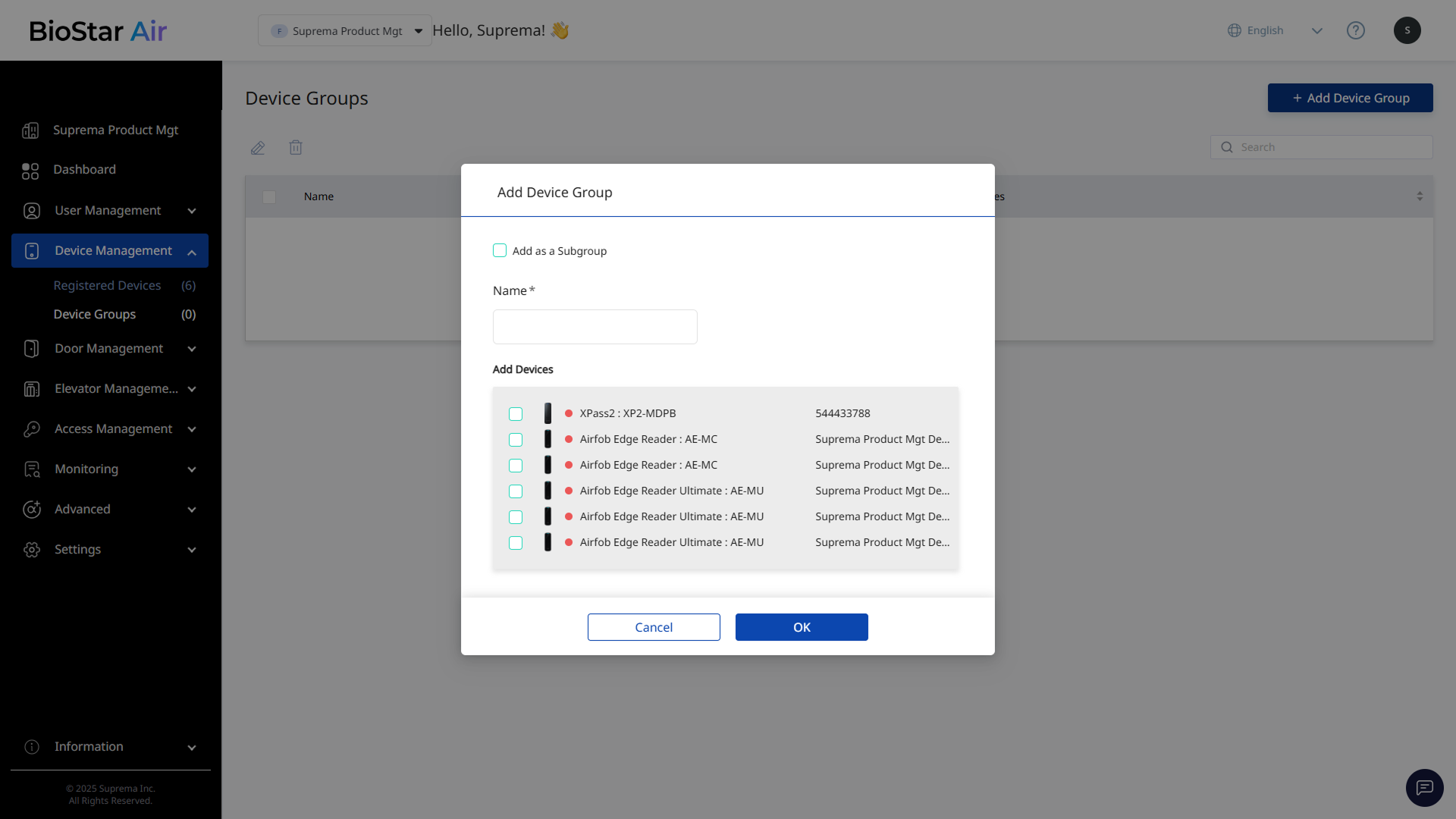
Click Add as a Subgroup, and then select the parent group to add the device group as a subgroup.
-
In Add Devices, select the devices to include in the group.
-
After selecting all devices, click OK.
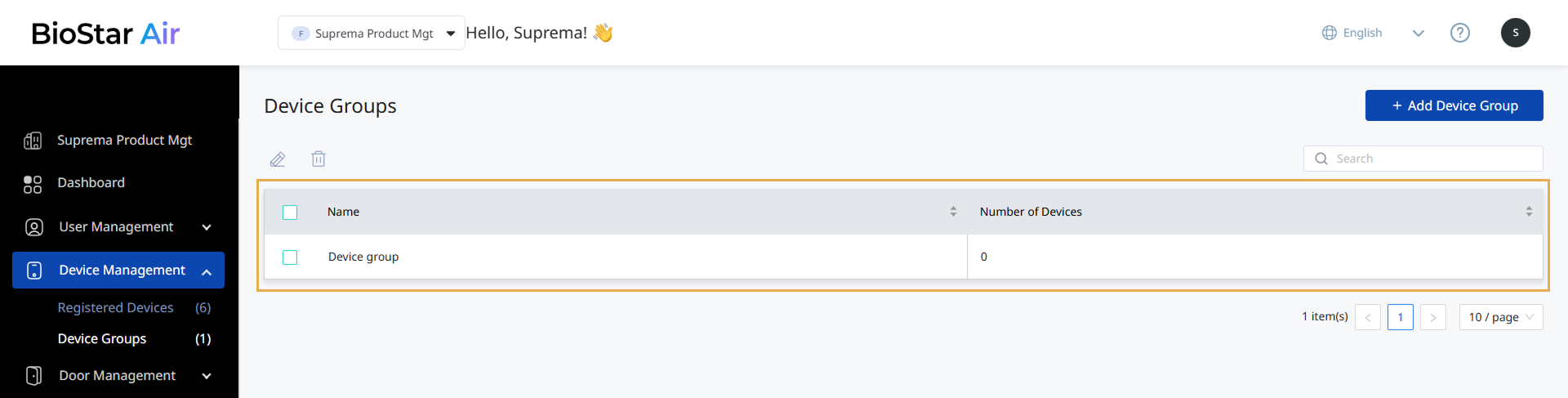
The device group list shows the newly added group and the number of devices in that group. Click a device group to view the devices in that group.
For more information on how to add devices to a group or remove them from an existing group, see Manage Registered Devices.
Rename a device group
-
Click Device Management → Device Groups in the left sidebar.
-
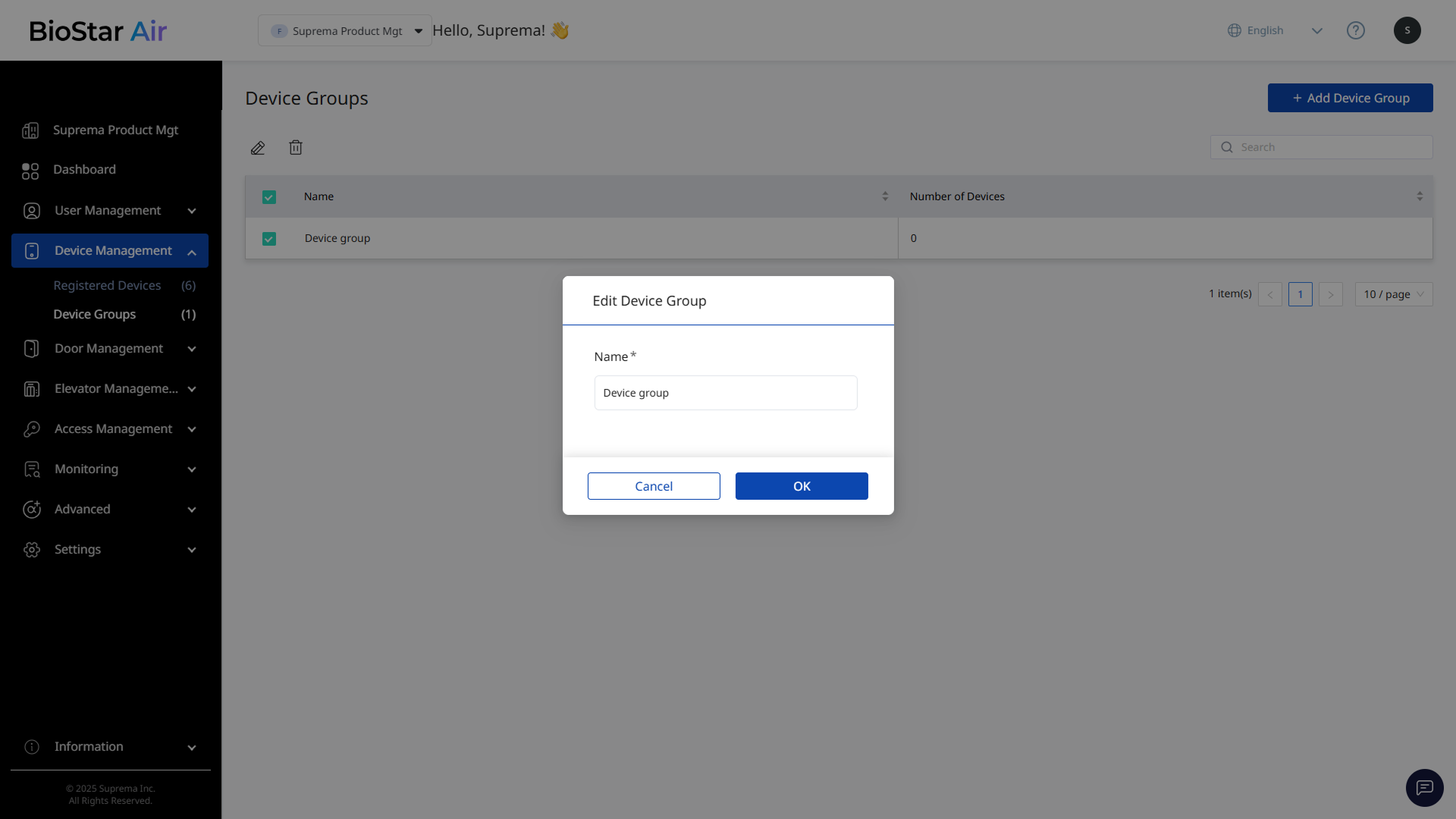
Select the checkbox for the device group to rename.
-
Click at the top of the device group list.
-
When the Edit Device Group window appears, enter the new group name.
-
Click OK to save the new group name.
Delete a device group
-
Click Device Management → Device Groups in the left sidebar.
-
Select the checkbox for the device group to delete.
-
Click at the top of the device group list.
-
When a warning message appears, click Yes.
The selected device group is deleted from the list. Its subgroups are also deleted. Deleting a group does not delete the devices.