Register and Delete Devices
To add devices to BioStar Air, use the BioStar Air mobile app. Use the mobile app to register new devices, delete existing ones, and upgrade firmware over a wireless connection.
Register Device
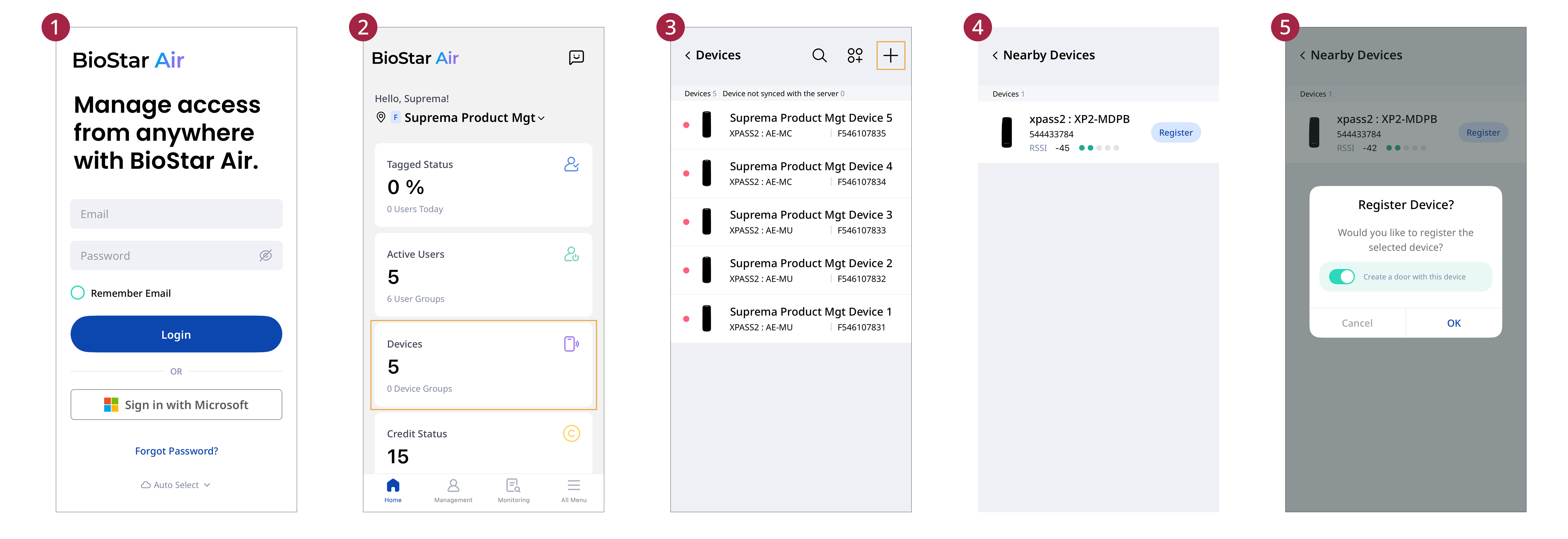
Use the BioStar Air mobile app to register devices. Register devices using Bluetooth Low Energy (BLE), and manage them through the BioStar Air portal.
-
Open the BioStar Air app on your mobile device and log in.
-
Tap the Devices card.
-
Tap at the top right of the screen.
-
In the device search screen, tap Register for the device to register.
-
When the device registration window appears, tap OK.
Return to the device list and confirm the added device.
-
Devices cannot be registered on the web portal. Register the device via the BioStar Air mobile app.
-
When registering a device, keep the device close to the mobile device and ensure that Bluetooth is enabled on the mobile device.
-
Disable the Create a door with this device option in the device registration window to avoid setting the registered device as a door.
Delete Devices
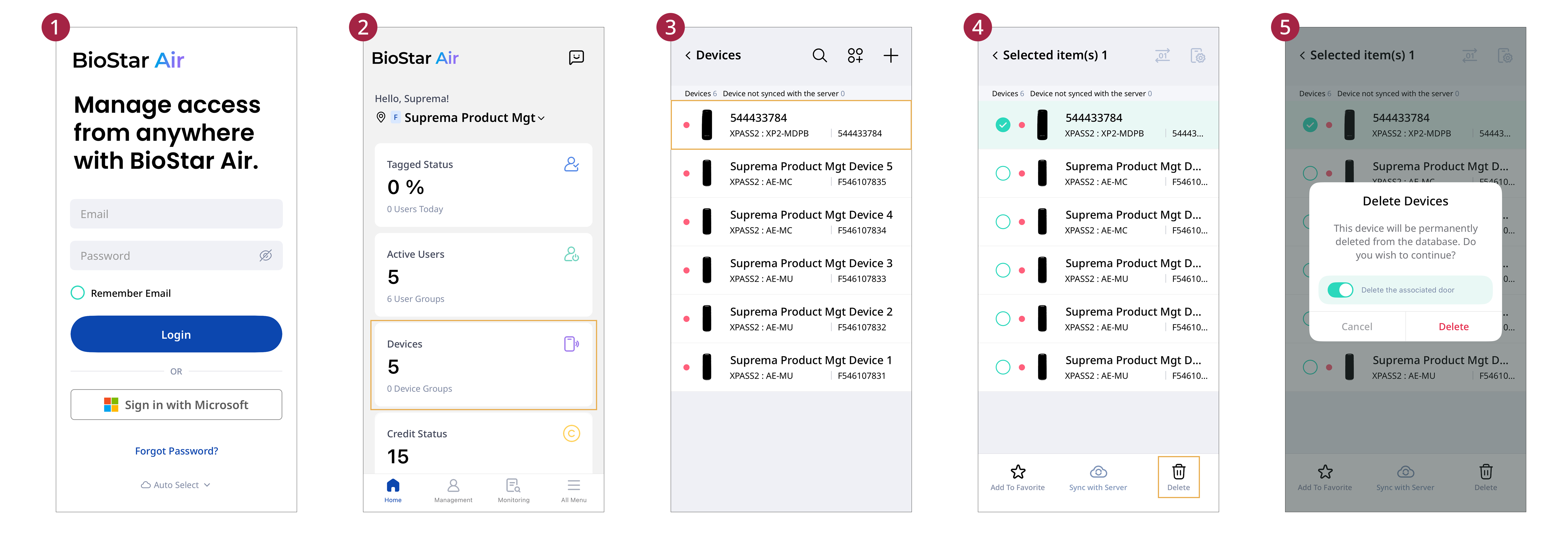
If a device appears offline in the device list on the BioStar Air portal, delete it using the mobile app.
-
Open the BioStar Air app on your mobile device.
-
Tap the Devices card.
-
Touch and hold the device you want to delete. Select any additional devices to delete.
-
Tap the button at the bottom right.
-
In the pop-up, choose whether to delete the linked door.
-
Tap Delete.
Devices other than X-Station 2 can be deleted from the BioStar Air portal. However, the device must be online. It is recommended deleting the device using the BioStar Air mobile app.