Manage Holiday Groups
In BioStar Air, a holiday group is used to adjust access rules for specific dates or periods. By configuring a holiday group, administrators can restrict or change access permissions on public holidays or special days. This approach maintains security while providing flexible access control.
Watch the following video for a guide on access control management.
Add a holiday group
A holiday group defines holidays that recur annually and holidays within specific periods, and is used to restrict or change access permissions during those periods.
-
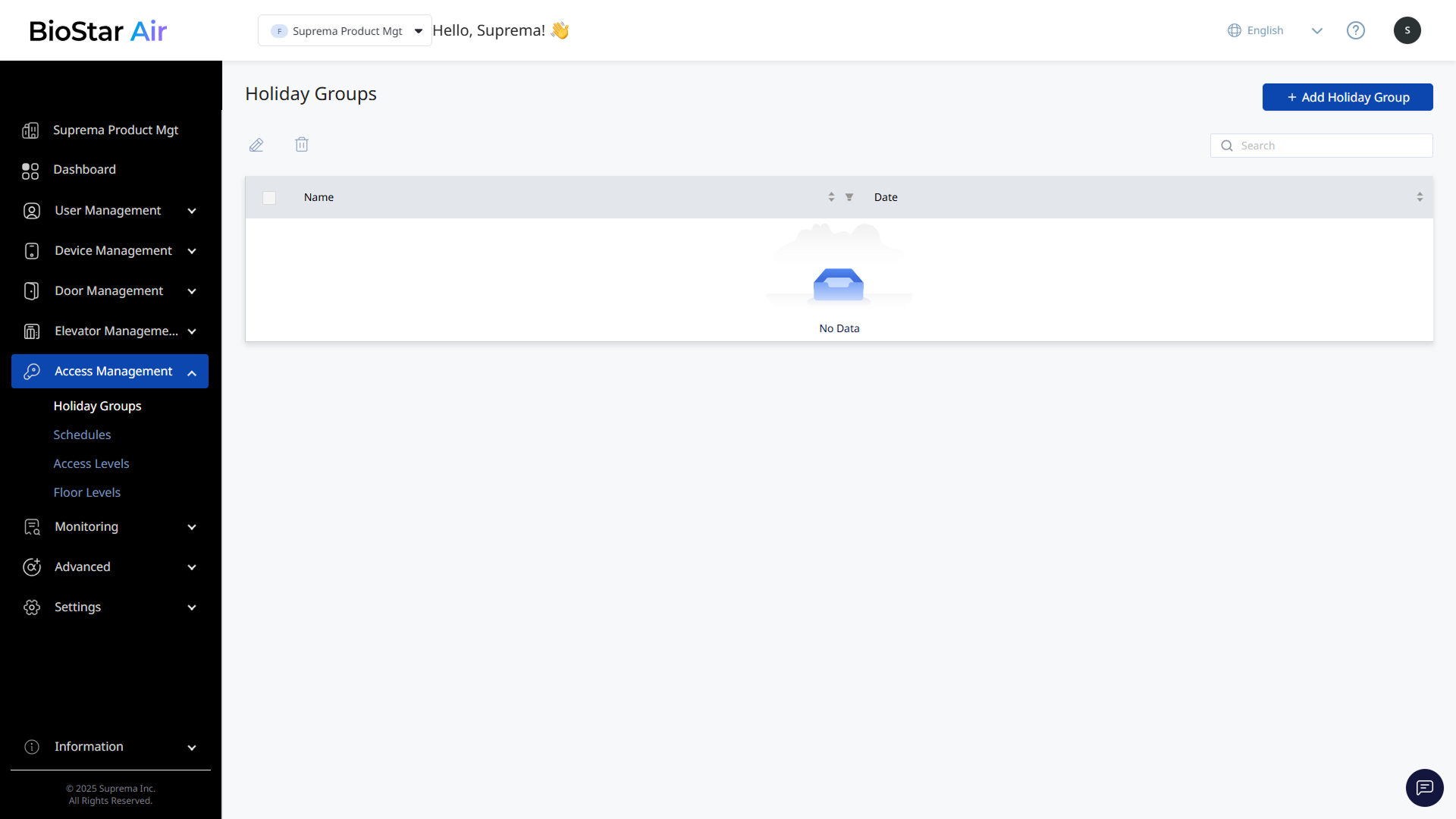
Click Access Management → Holiday Groups in the left sidebar.
-
Click Add Holiday Group at the top right of the screen.
-
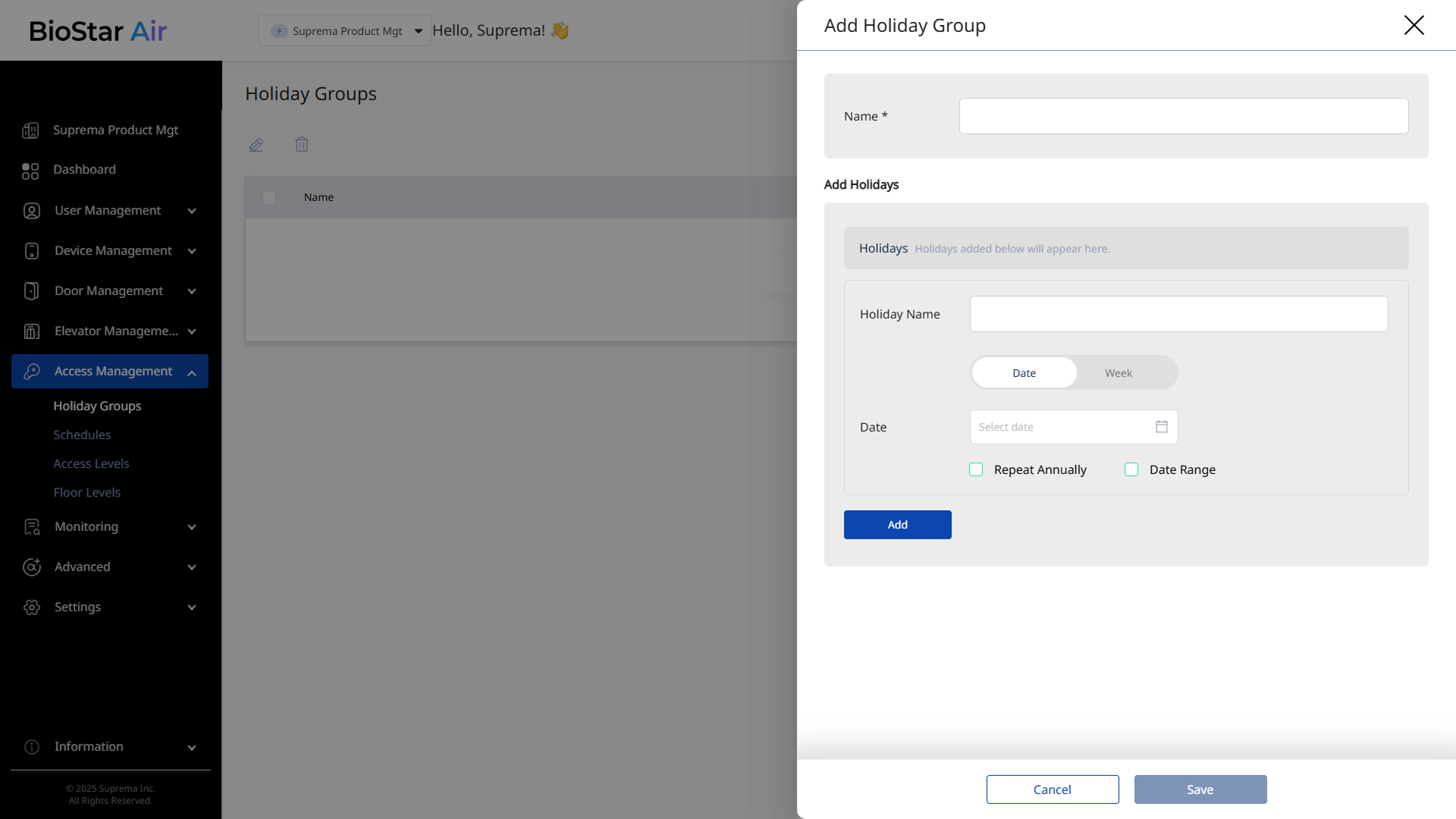
Enter the group name when the Add Holiday Group panel appears.
-
In the Add Holidays section, specify the holiday name and date, and click Add.
-
Set the name and date, and select the Repeat Annually option to add a fixed-date public holiday.
-
Set the name and date, and select the Date Range option for holidays that recur annually but span a specific period.
-
-
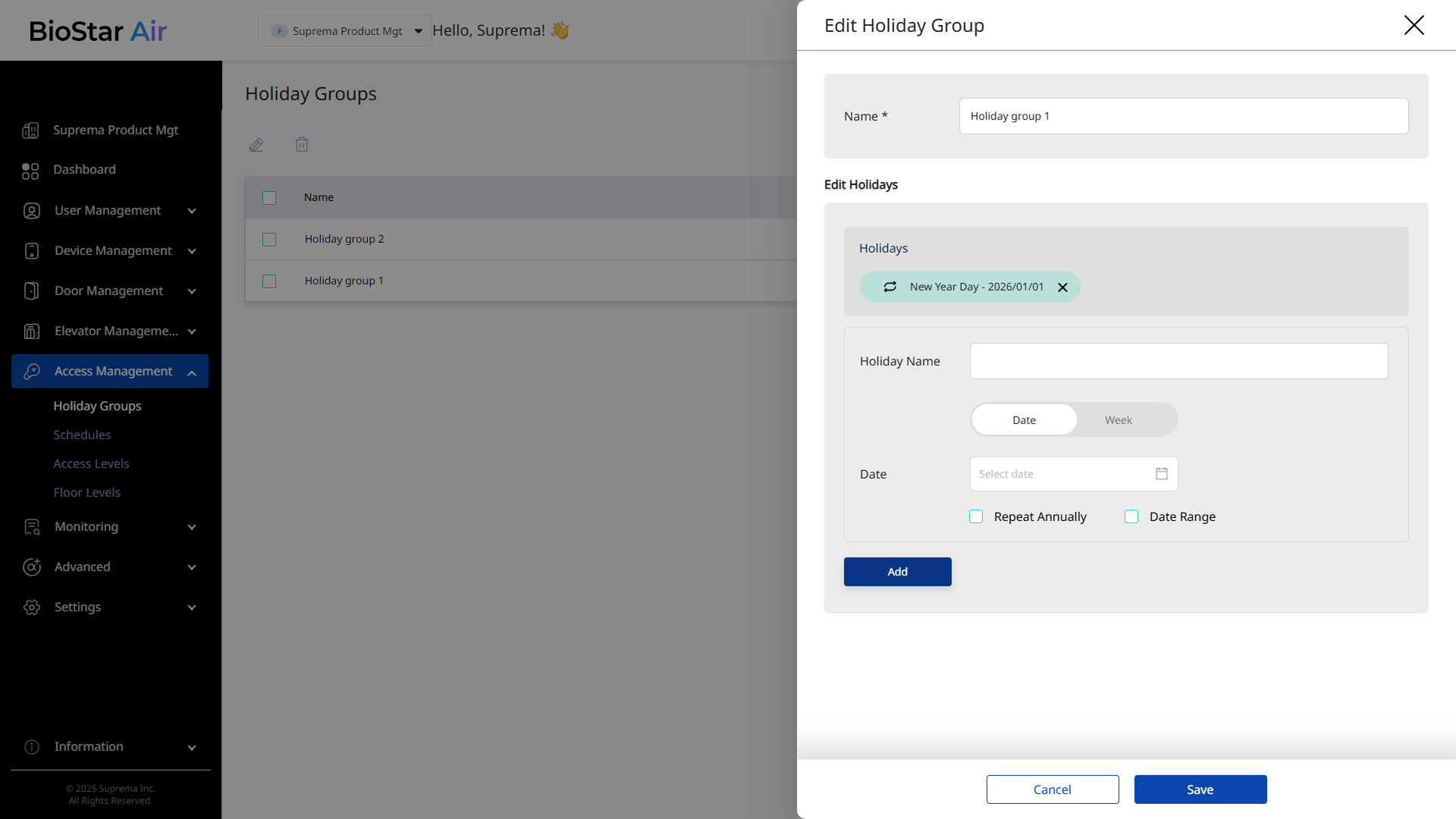
Add other holidays in the same way.
-
Click Save to save the holiday group settings.
-
Holiday groups take precedence over schedules. Grant unrestricted access to users who always need entry.
-
Only one holiday group can be applied to a single door.
Edit a holiday group
-
Click Access Management → Holiday Groups in the left sidebar.
-
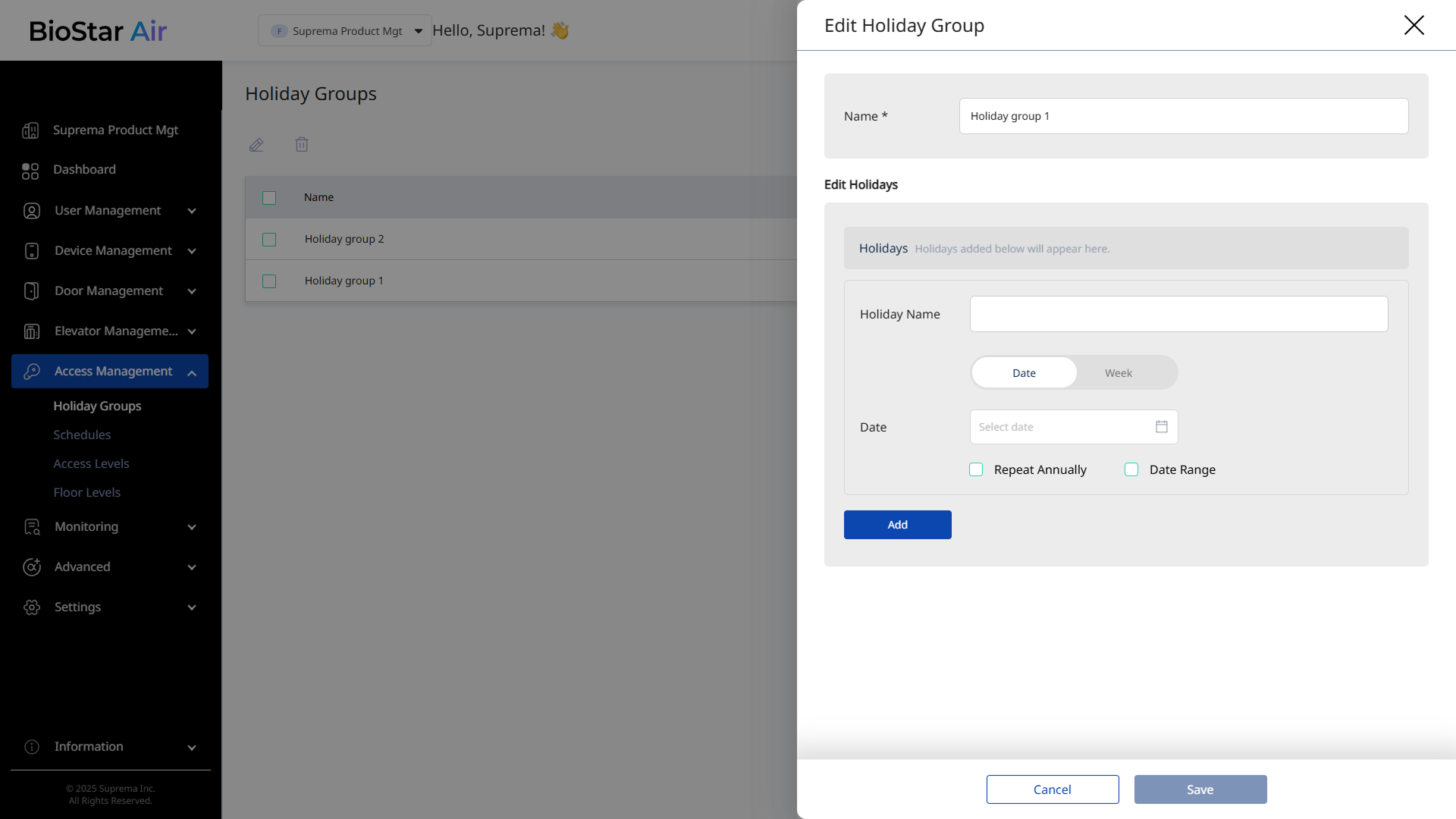
Click the holiday group you want to edit from the list. Alternatively, select the holiday group's checkbox, and then click at the top of the list.
-
When the Edit Holiday Group panel appears, edit the necessary items.
-
Click Save to save the changes.
Delete a holiday group
-
Click Access Management → Holiday Groups in the left sidebar.
-
Select the holiday group's checkbox in the list. Multiple holiday groups can be selected.
-
Click at the top of the list.
-
When a warning message appears, click Yes.