Manage Users in Mobile App
With the BioStar Air mobile app, administrators manage users, edit details, and assign credentials directly from a mobile device.
Customers who began using BioStar Air access control before May 2025 may still be using the Airfob Space app, which has since been rebranded as the Suprema Pass app. Both apps offer identical functionality and are fully compatible. There is no need for existing users to switch — mobile credentials work seamlessly across both.
Watch the following video guide to learn about the user management feature in the BioStar Air mobile app.
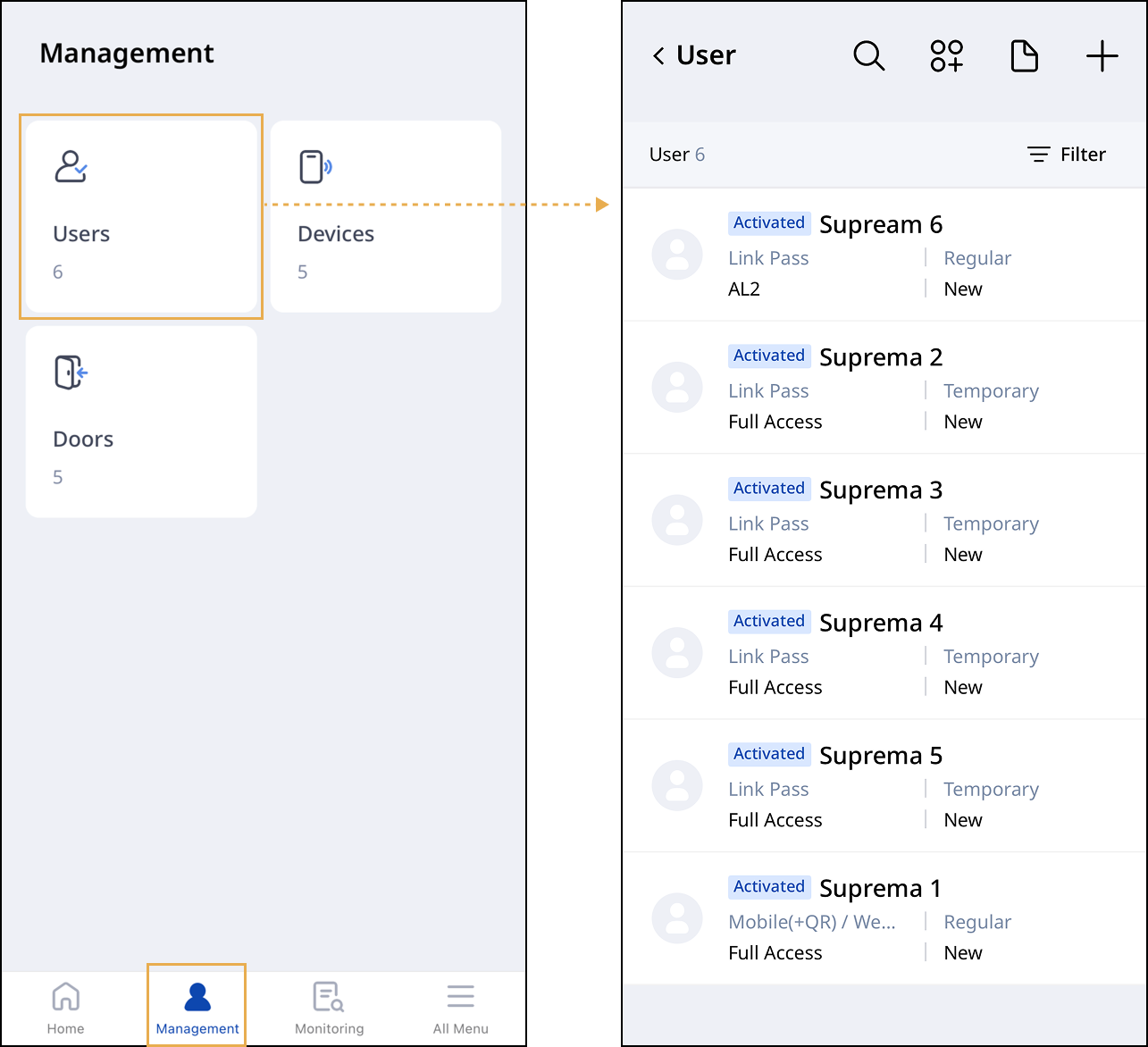
Go to user management
Use the user management feature in the BioStar Air app.
-
Run BioStar Air on your mobile device.
-
Tap Management in the bottom navigation bar.
-
Tap Users.
A list of users appears. Add new users or edit existing user details.
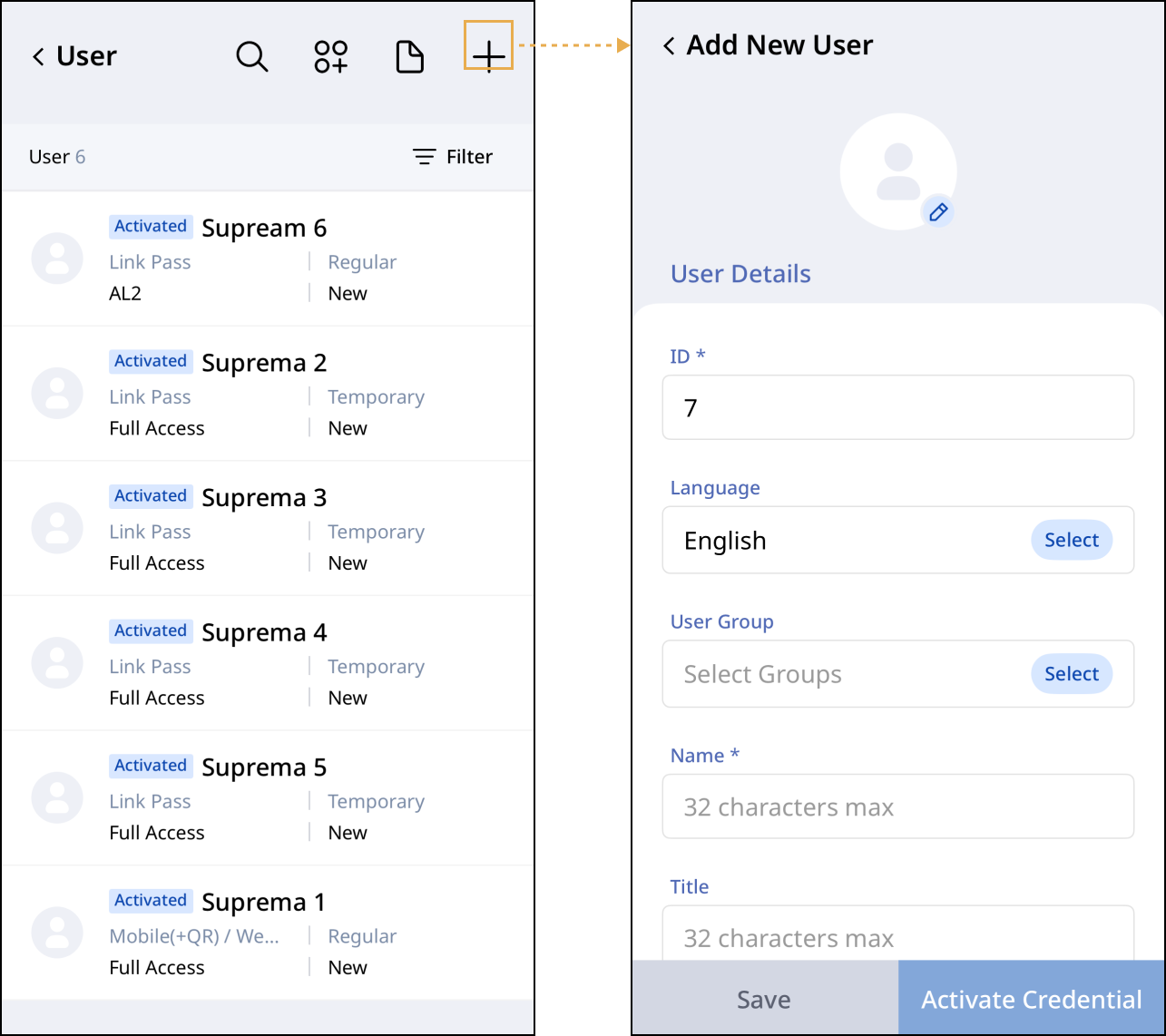
Add users
The mobile app also allows adding new users.
-
Tap at the top of the user list.
-
Enter the required details in Add New User(s).
-
Select whether the user is regular or temporary in User Type.
-
Issue credentials for access in Credential Detail.
-
Enter the user's email address or mobile phone number in Send Invitation By.
-
Set the validity period and access level.
-
To issue the card later, tap Save, or tap Activate Credential to issue the credentials immediately.
For more information about adding users, refer to the following.
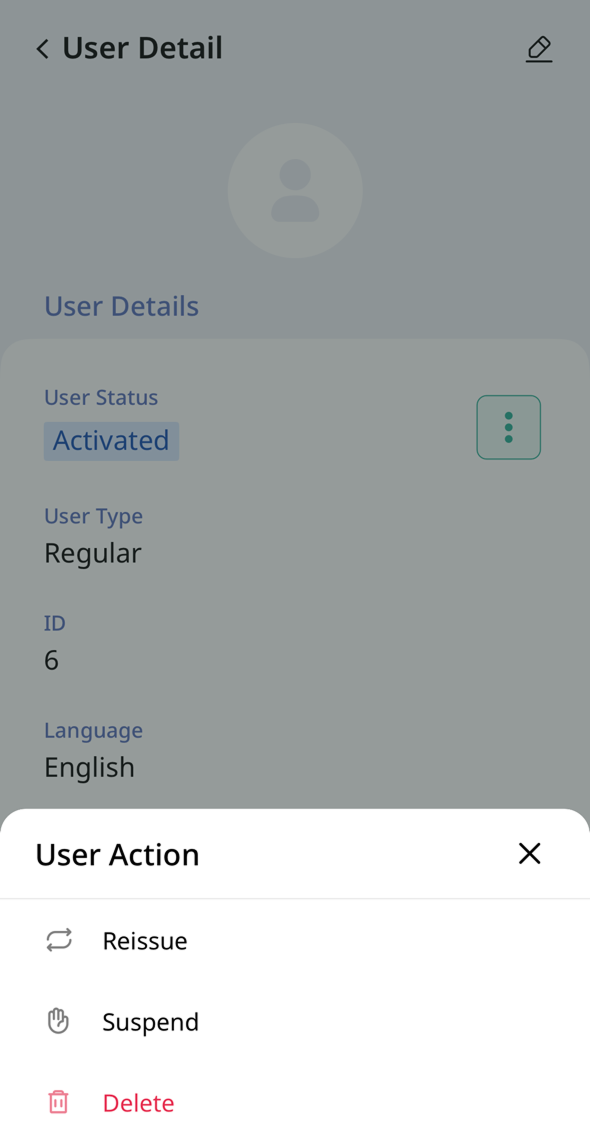
User actions
Tap a user in the user list. In the User Detail screen, tap . The User actions menu appears.
-
Reactivate: Reactivates suspended users.
-
Reissue: Reissues the user's credentials.
-
Suspend: Temporarily deactivates the user. Suspended users cannot access.
-
Delete: Deletes the user from the system.
The Reactivate option appears only for suspended users.
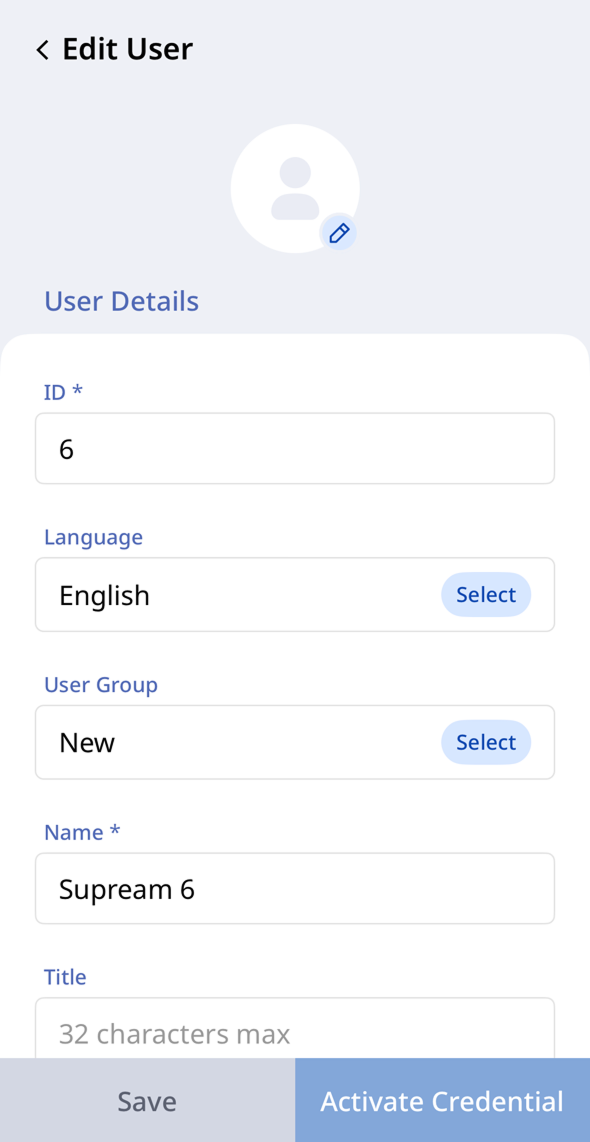
Edit user information
Edit user details.
-
Tap the user to edit in the user list.
-
Tap in the top right.
-
Edit the necessary information on the Edit User screen.
-
To save the changes, tap Save.
Use Activate Credential to issue credentials.
Filter users
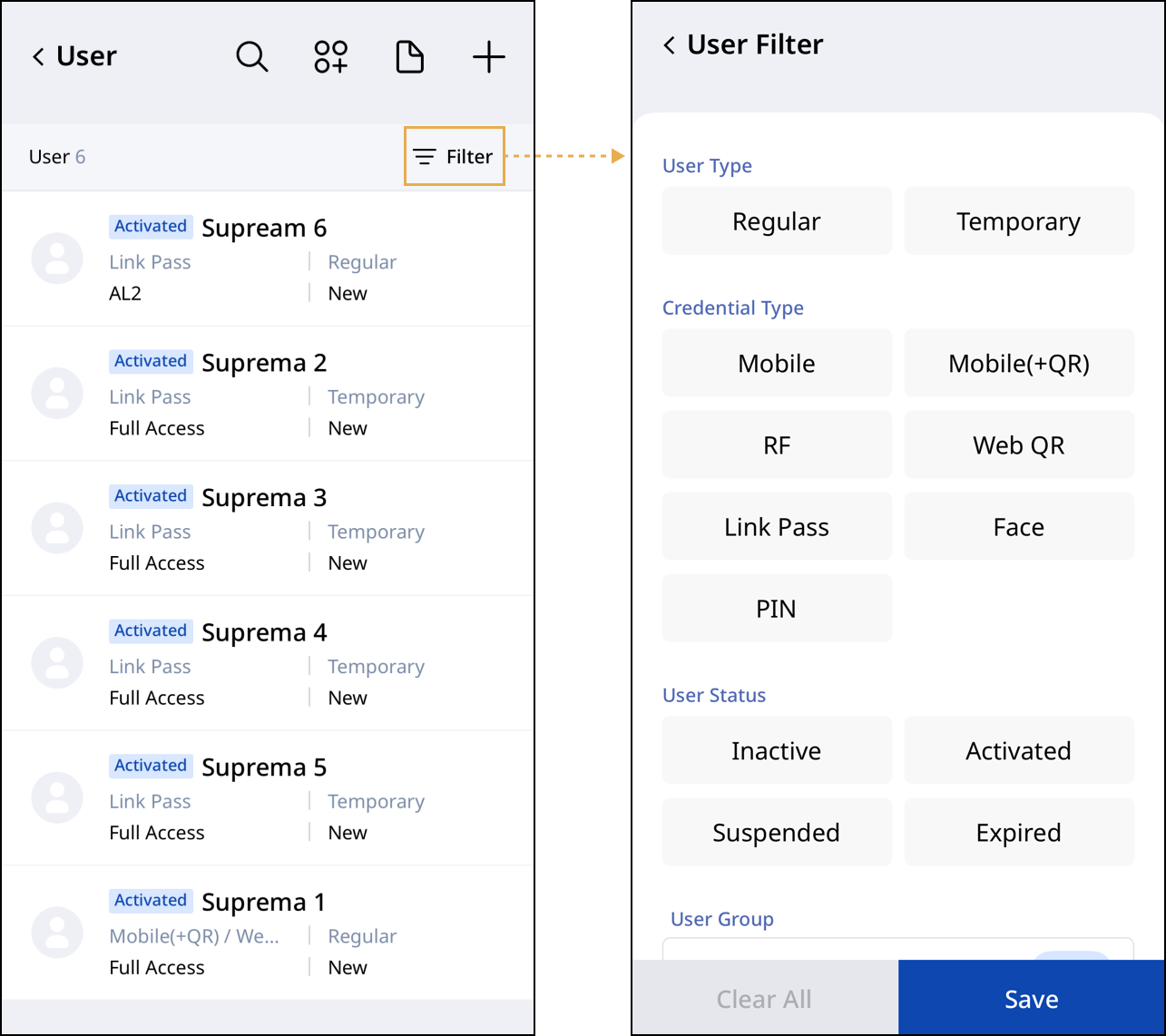
Filter the user list by the desired criteria. Tap Filters at the top right of the user list. Users can be filtered by the following criteria.
-
User Type: Filters by user type (regular or temporary).
-
Credential Type: Filters by credential type.
-
User Status: Filters by activation status.
-
User Group: Filters by user group.
Perform batch actions
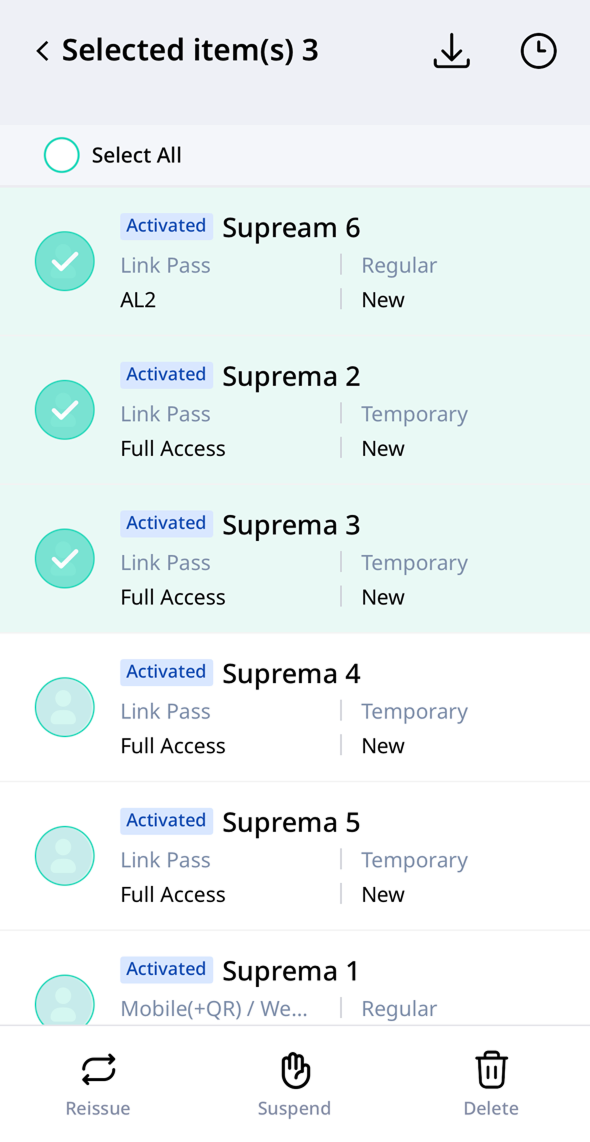
Select multiple users to perform user actions in batch.
-
Long-press a user in the user list.
-
Tap additional users to select them.
-
Tap one of the User actions provided at the bottom of the screen.
For more information on the User actions feature, refer to the following.
Manage user groups
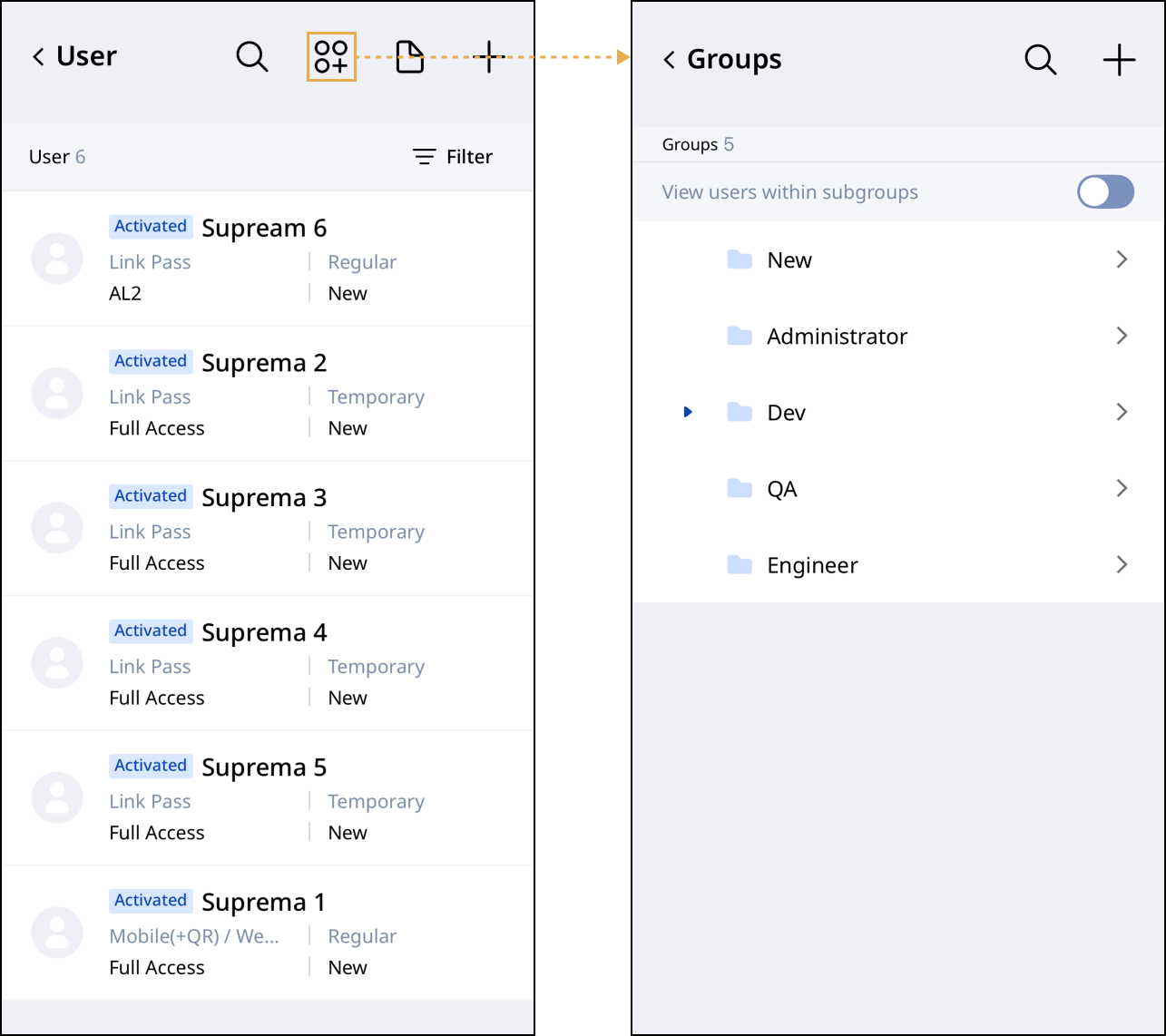
Manage user groups. Tap at the top of the user list. The user group list appears.
-
To view users in a group, tap to the right of the desired group.
-
To add a new group, tap in the top right.
-
To edit a group name, long-press the desired group and tap at the bottom.
-
To delete a group, long-press the desired group and tap at the bottom. Select one or more groups to delete them.
For more information on user group management, refer to the following.