Manage Administrator Accounts and Roles
Use the administrator feature in BioStar Air to manage administrator accounts, assign roles, and control access levels within your organization. This enables you to maintain security and administrative control while granting the appropriate privileges to the right personnel.
Watch the following video for a guide on managing administrators.
View administrators
Click Settings → Admin in the left sidebar.
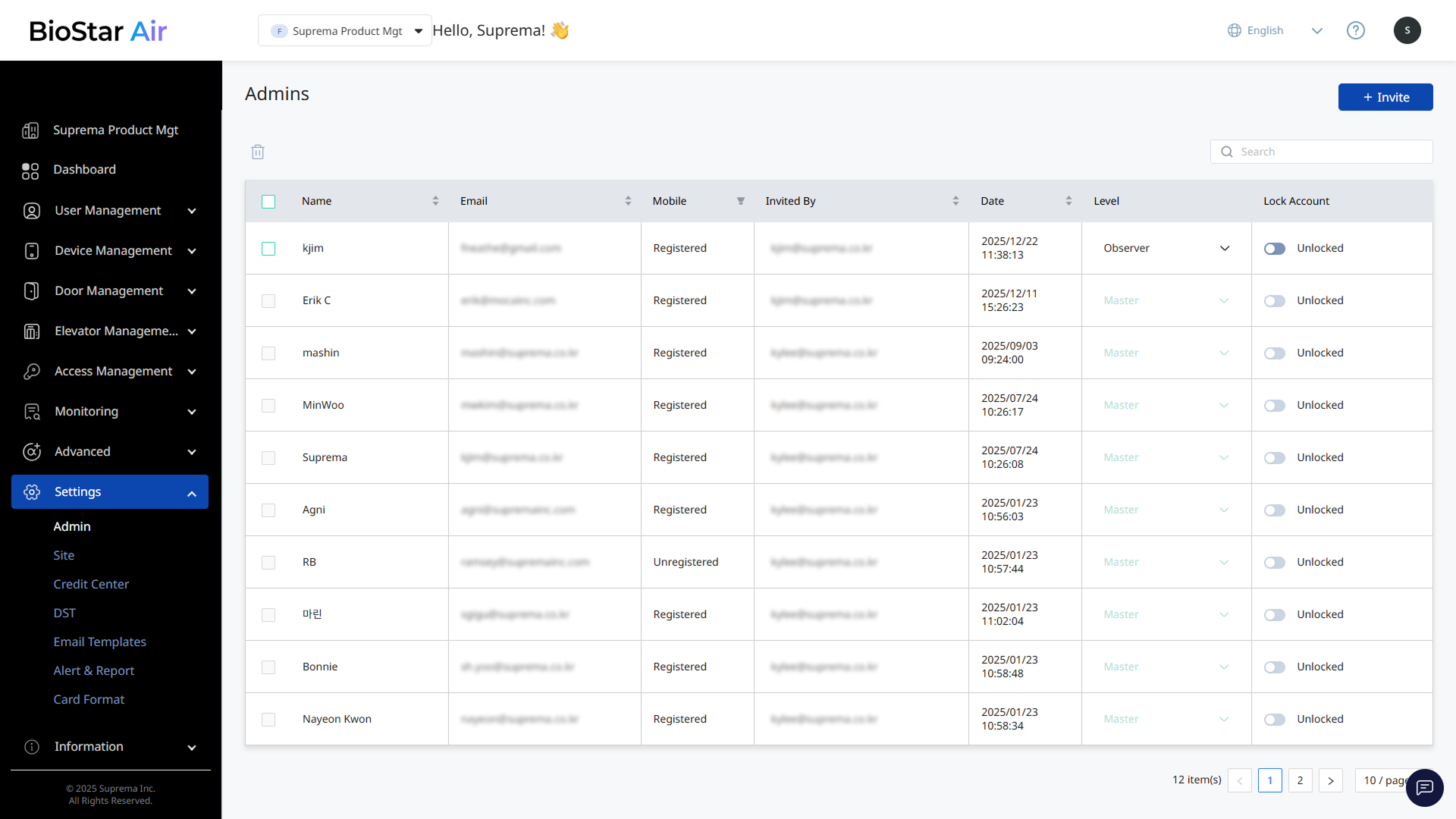
The Admin menu shows a list of all active administrators. The administrator list includes the following information.
-
Name
-
Email address
-
Phone number
-
Inviter
-
Invitation date
-
Administrator role
-
Account status (active/inactive)
Deactivate administrators
Instead of deleting an administrator, deactivate the account and reactivate it when needed.
-
Click Settings → Admin in the left sidebar.
-
Find the administrator to deactivate in the list.
-
Click the toggle switch in the Lock Account column.
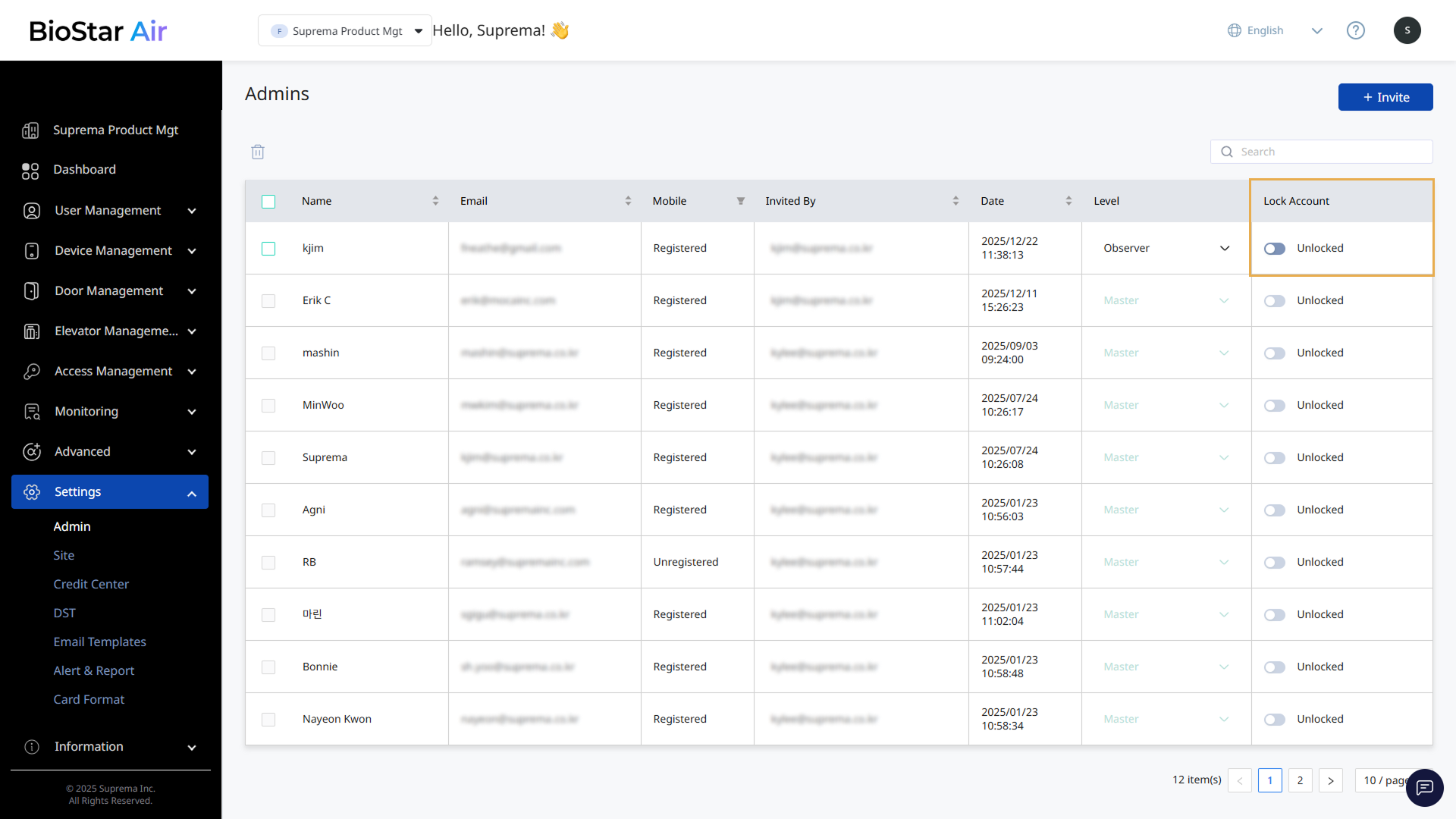
-
When the message window appears, click the Confirm button.
The status in the Lock Account column changes to Locked.
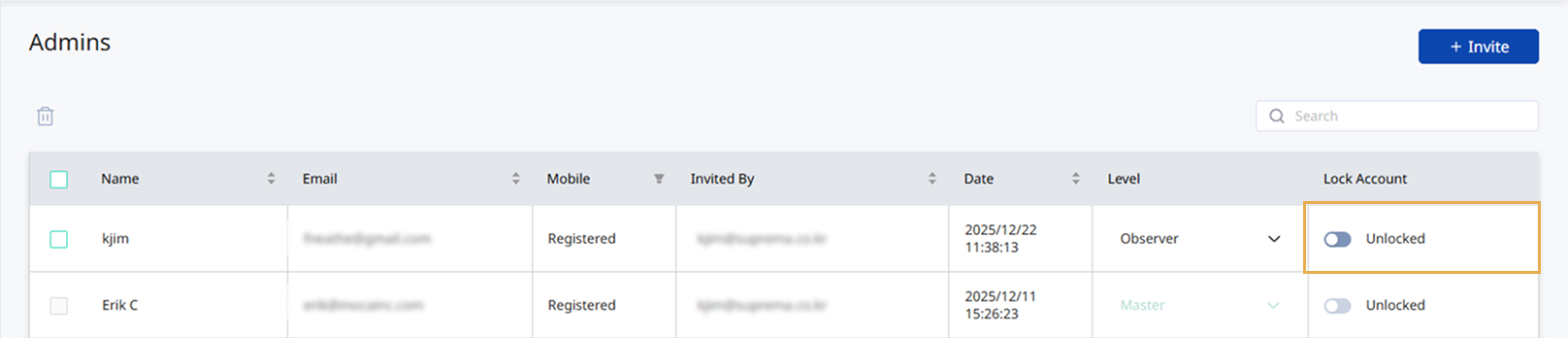
The ability to deactivate administrators may be restricted by the administrator's role. Administrators with the Master role cannot deactivate other Master administrators.
Change an administrator's role
Administrators can change the roles of administrators at a lower level.
-
Click Settings → Admin in the left sidebar.
-
Find the administrator to change in the list.
-
Select the new administrator level in the Level column.
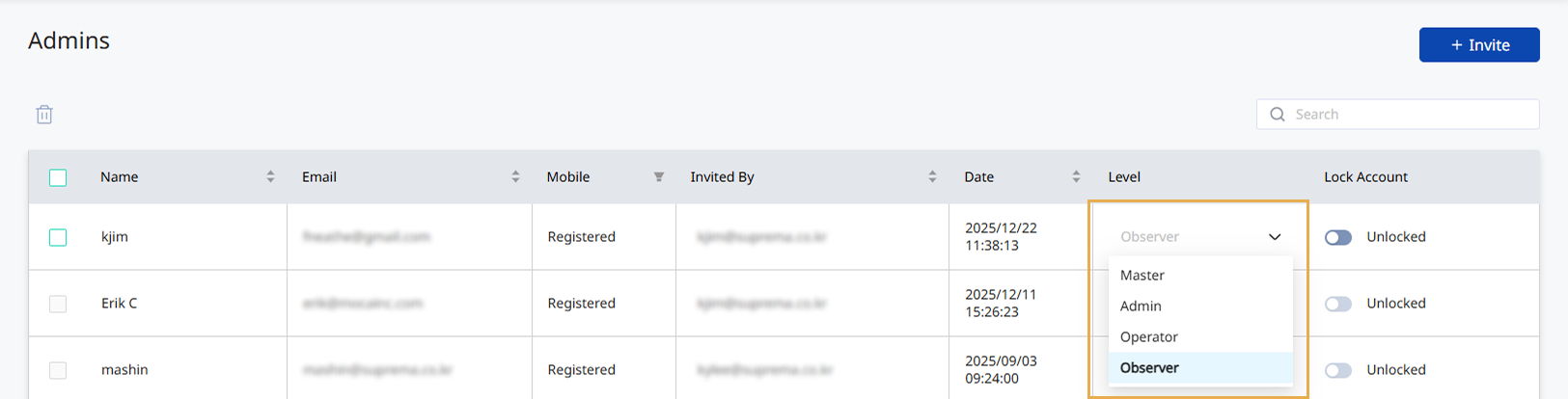
-
When the message window appears, click the Confirm button.
Only Master administrators can assign or modify the Master role for other administrators.
Invite new administrators
Add new administrators.
-
Click Settings → Admin in the left sidebar.
-
Click Invite at the top right of the screen.
-
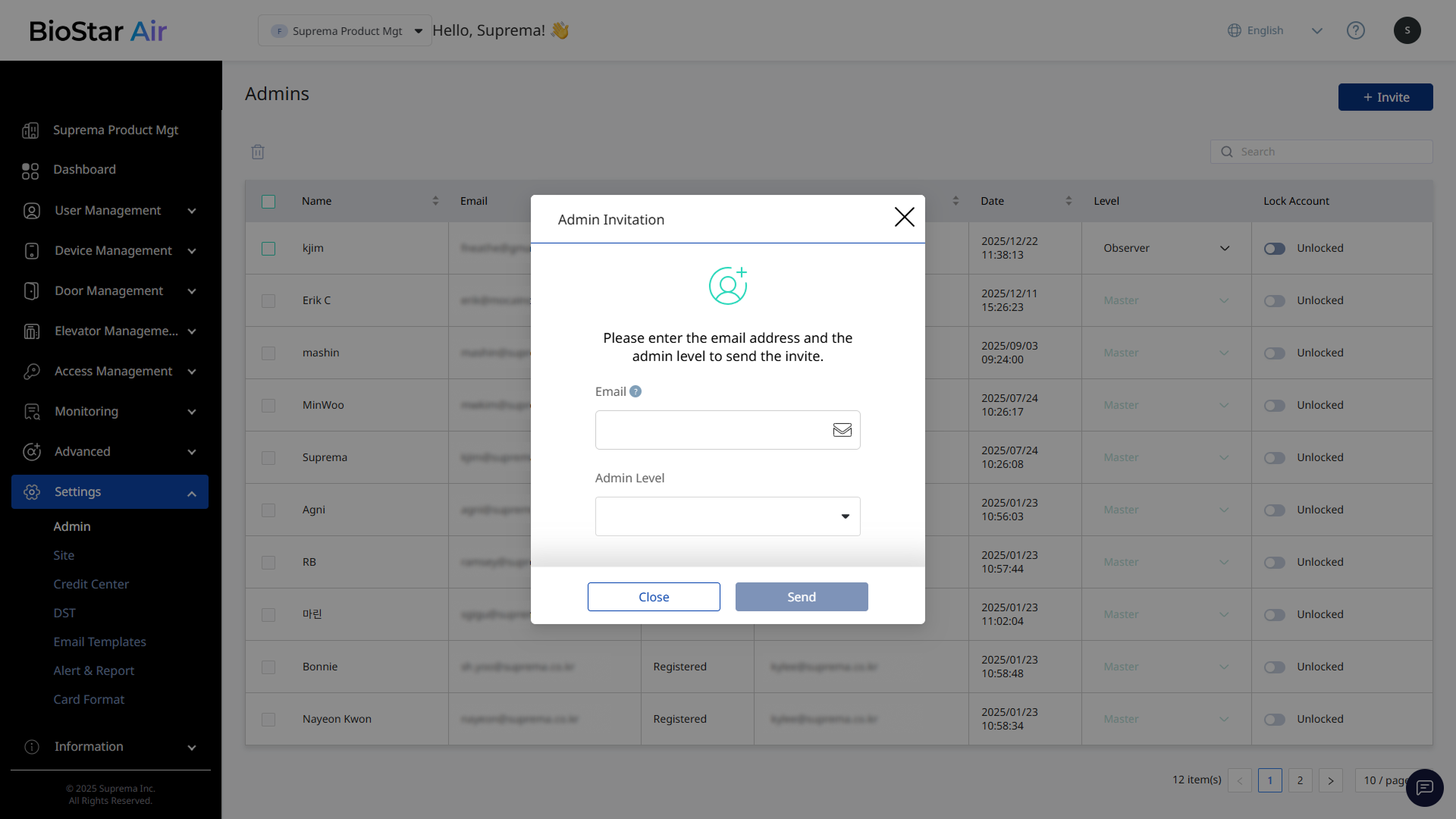
When the Admin Invitation window appears, enter the email address.
-
In Admin Level, select the role to assign to the new administrator.
-
Click Send to send the invitation.
-
Each administrator must have a unique email address. If necessary, use an alias address (for example, erik+training@example.com).
-
Click the link in the invitation email. Sign up if the administrator does not have an account. If the administrator already has an account, log in to access the site directly.
Administrator levels
Each administrator level in BioStar Air has specific permissions, and higher levels inherit the permissions of lower levels.
Each administrator role has different permissions across BioStar Air. Observer has the most restricted access and some menus are hidden.
Observer (Lowest Level)
-
Dashboard dashboard and logs can be viewed.
-
Export logs and generate reports.
-
Cannot modify settings, users, or devices.
-
Access to menus is restricted. Most menus do not appear on the screen.
Operator
-
Can manage Users, User Groups, Access Levels, Schedules, and Holiday Groups.
-
No access to device control or management settings.
-
Suitable for managing everyday user and access configurations.
Admin
-
Can invite new administrators. However, cannot assign the Master role.
-
Has full device control authority to modify settings and manage connected devices.
-
Cannot delete or modify administrators with the Master role.
-
This role is typically recommended for IT staff responsible for system management.
Master (Highest Level)
-
Has full access to all settings and features.
-
Cannot be deleted or modified by administrators.
-
Can create subsites to manage different locations or organizations.
-
Can configure site settings, including critical system-wide configurations.
-
Responsible for accepting the terms before other administrators log in.
-
Usually assigned to the company owner or a highly trusted executive.