Manage Card Templates
With card templates in BioStar Air, administrators design and customize mobile cards for users. The templates enhance branding by including corporate colors, logos, and personalized details. Card templates apply to mobile cards used in the Suprema Pass app.
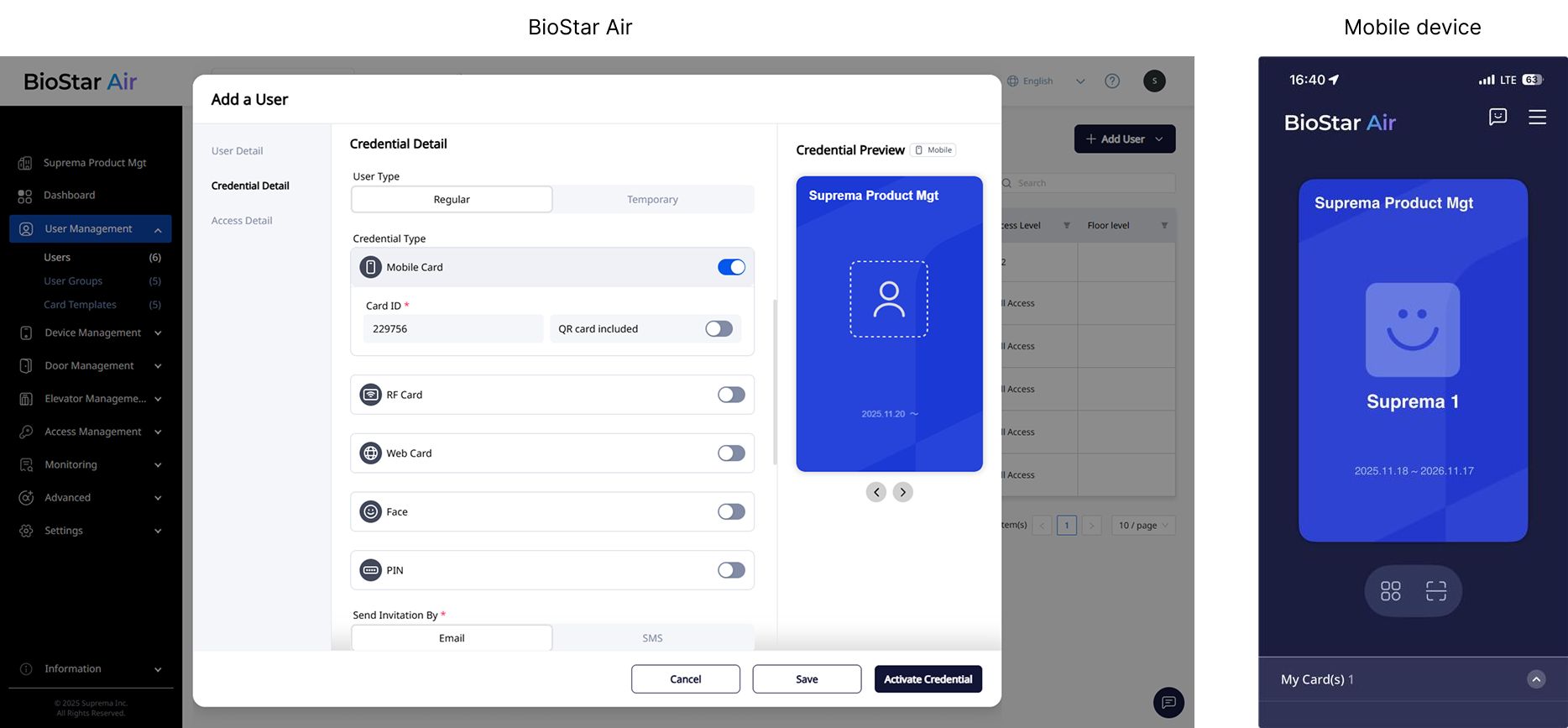
Every site in BioStar Air includes default templates. Click User Management → Card Templates in the left sidebar.
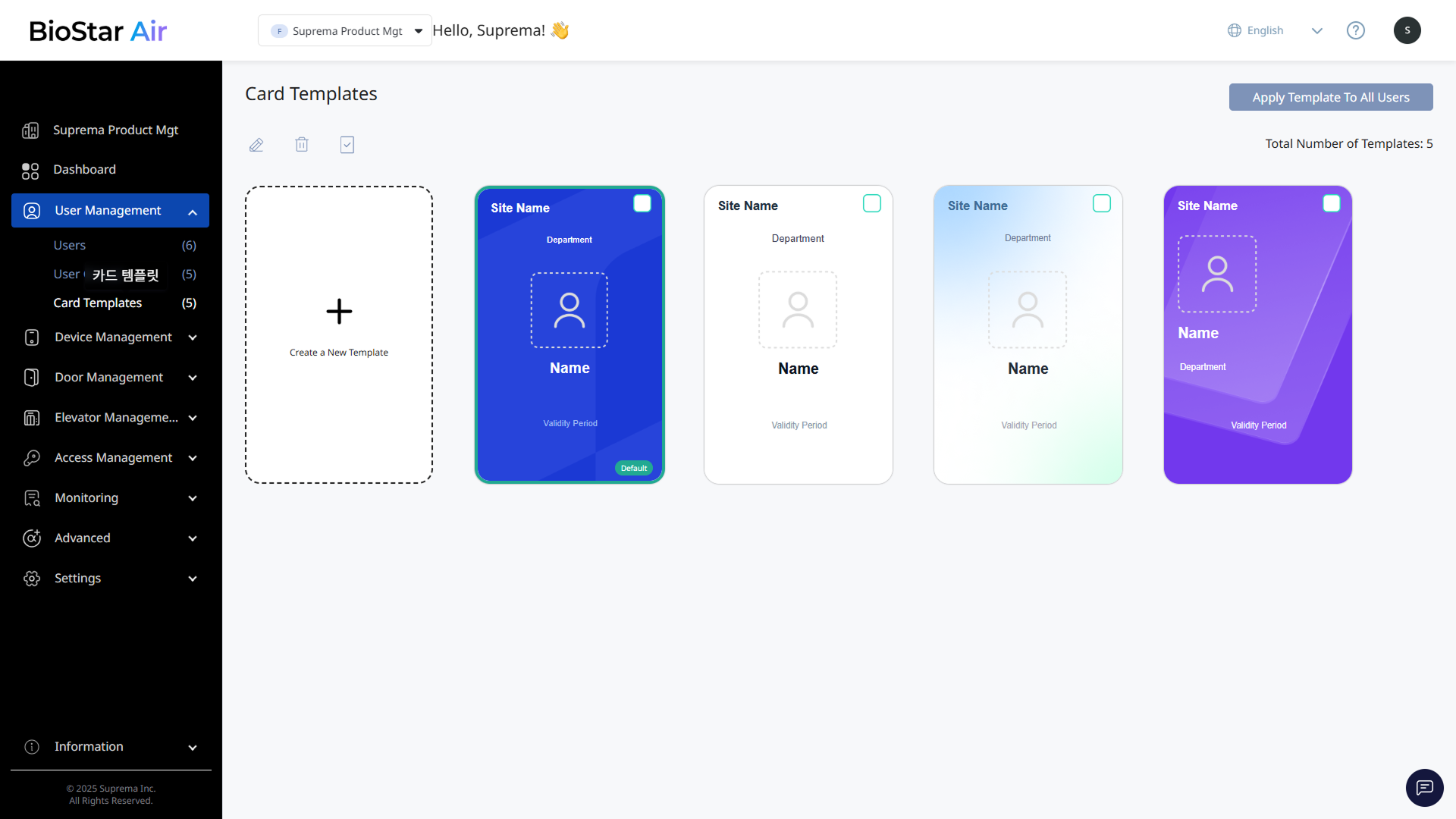
View the default templates. Administrators apply mobile card templates in one of the following three ways.
-
Apply the default card template to a user's mobile card
-
Modify parameters of an existing template to apply a customized mobile card
-
Create a new custom template and apply it instead of the existing template
Refer to the following video to learn how to manage card templates.
Create a new card template
Create a new card template.
-
Click User Management → Card Templates in the left sidebar.
-
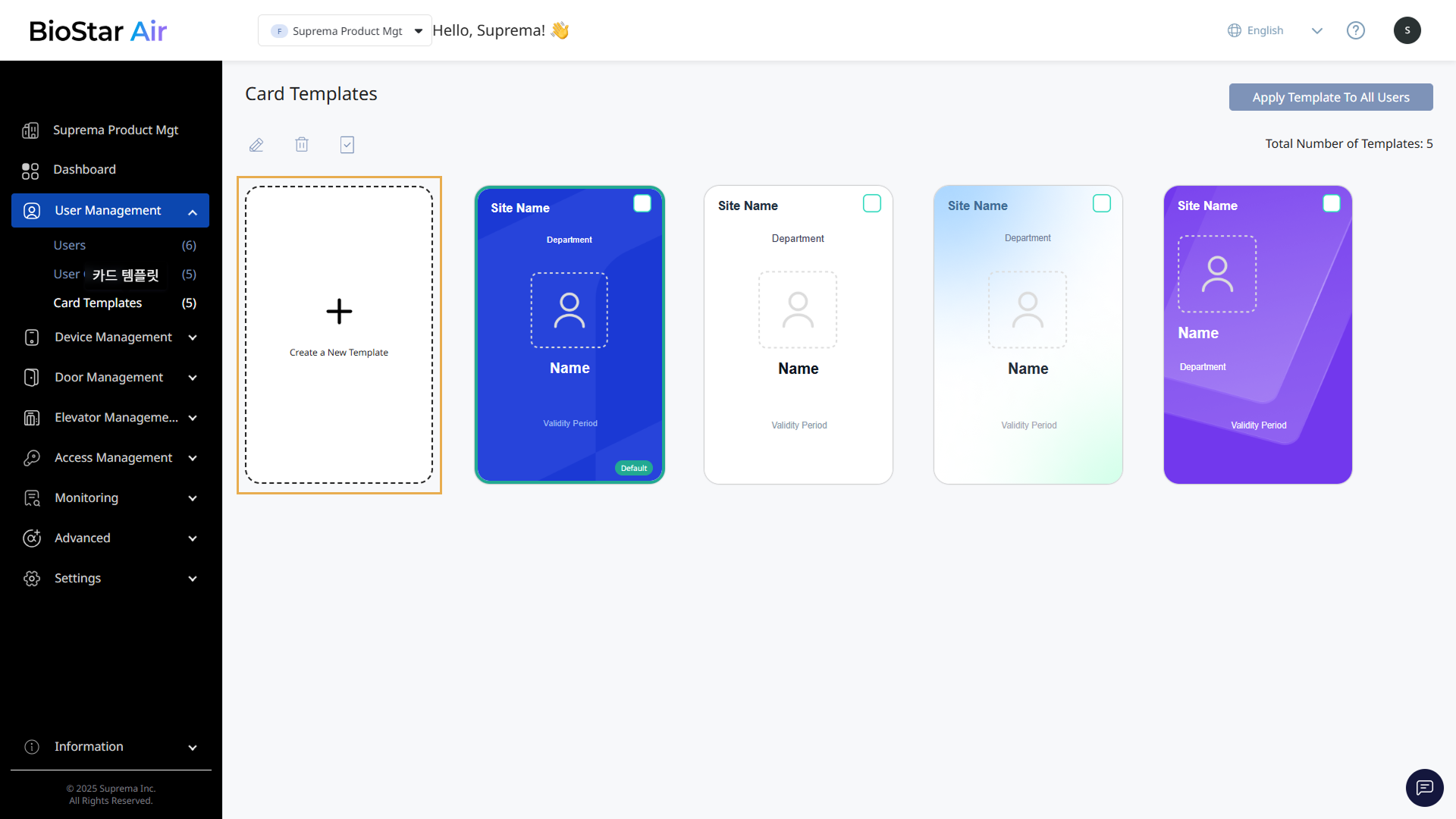
Click Create a New Template.
-
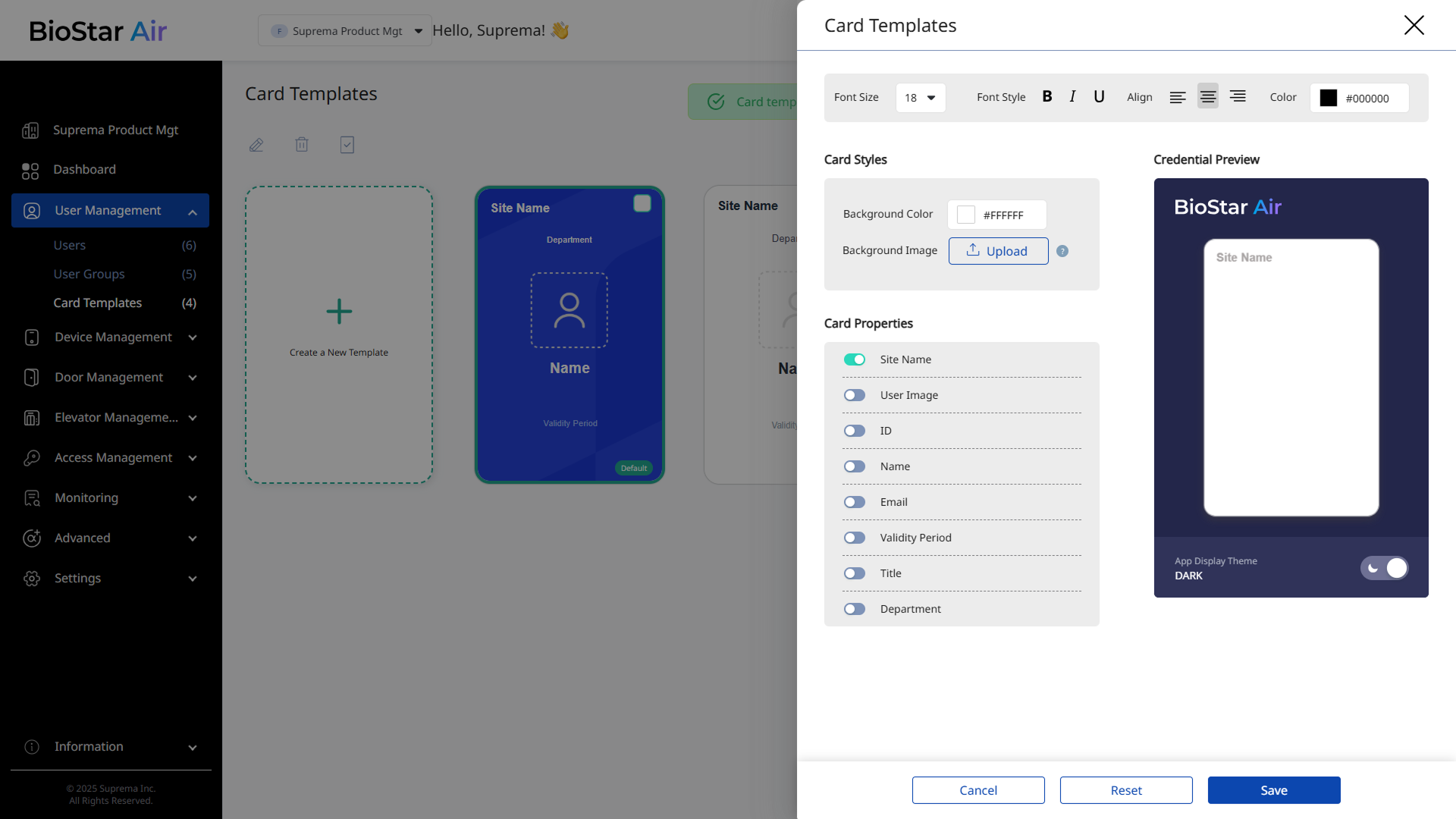
When the Card Templates panel appears, set the card design and layout.
-
After applying the desired settings, click Save to save the mobile card template.
Card Styles
In the Card Styles section, you can set the card's background color or background image.
-
Background Color: Set the background color of the mobile card.
-
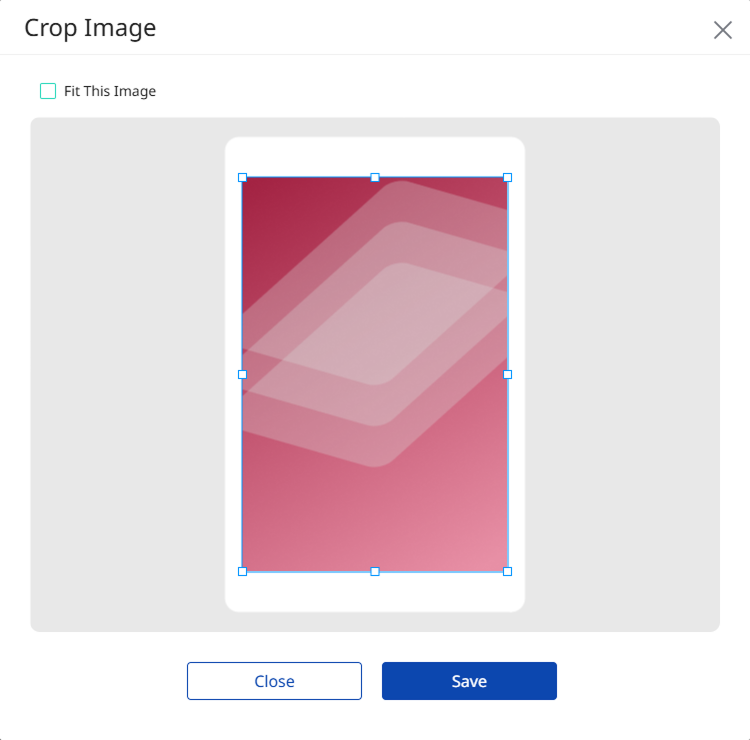
Background Image: Upload a background image for the mobile card. Click Upload, and then select a background image file stored locally. When the Crop Image window appears, click the Fit This Image option or manually adjust the size. After completing the image adjustments, click Save.
Card Properties
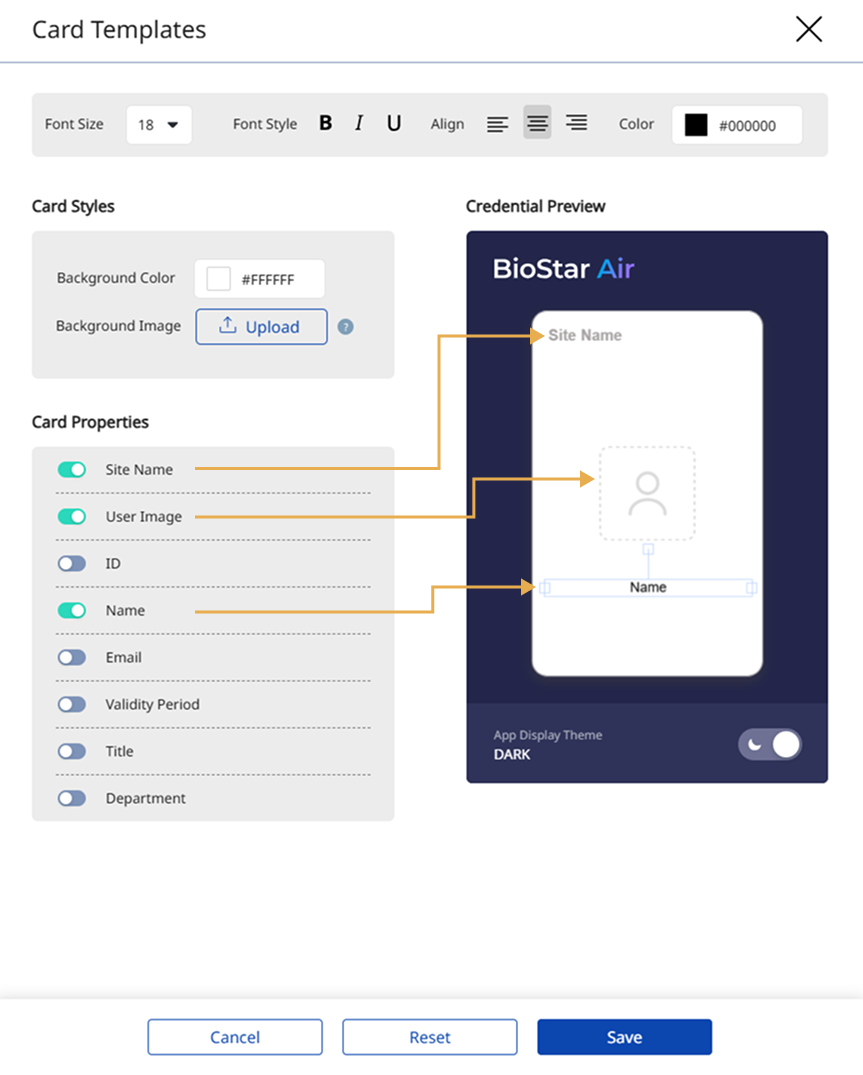
In the Card Properties section, you can select which attributes to include in the mobile card. Click the toggle switch to show the selected attributes in the Credential Preview on the right.
-
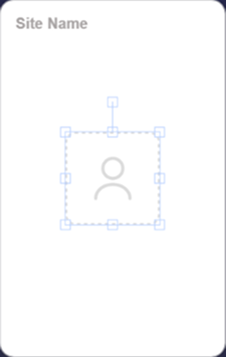
After placing an attribute, click it in the Credential Preview to reveal handles for resizing, repositioning, and rotating.
-
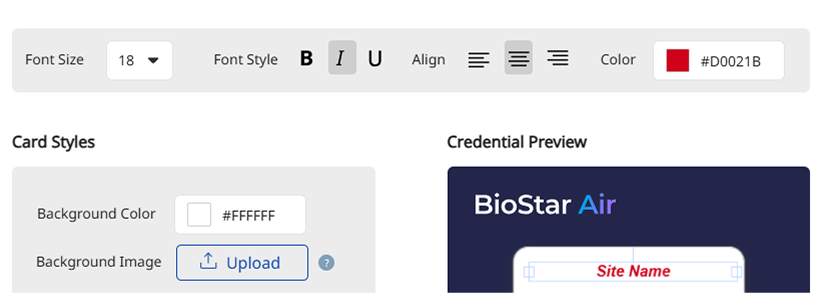
Customize the font of each attribute. Click a placed attribute, and then use the font options at the top. Adjust the font size, style, alignment, and color.
-
Select dark mode or light mode in App Display Theme.
-
Click Reset to initialize the configured design.
-
After completing all settings, click Save to save the mobile card template.
Set the default card template
Set a newly added mobile card template as the default.
-
Click User Management → Card Templates in the left sidebar.
-
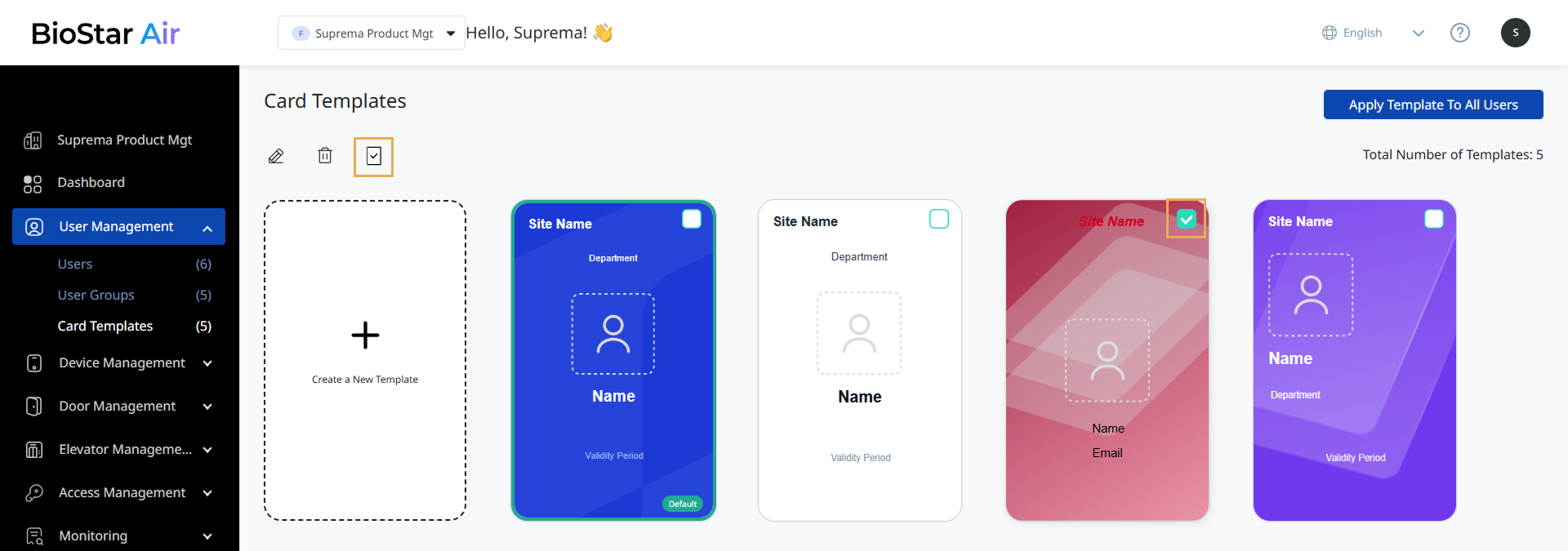
Click the checkbox in the upper right corner of the desired template.
-
Click at the top left of the template list.
-
When the message window appears, click Yes.
The default mobile card template is automatically applied when a new user is added.
Only one template can be set as default.
Edit card templates
-
Click User Management → Card Templates in the left sidebar.
-
Click the template you want to edit in the template list. Alternatively, select the checkbox at the top right of the template, then click the button.
-
When the Card Templates panel appears, modify the card design and layout.
-
Click Save to save the changes.
-
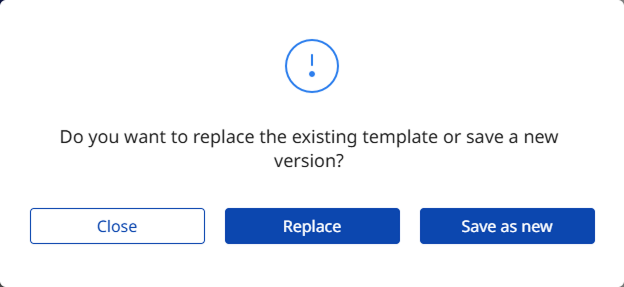
When the message window appears, click Replace or Save as new.
-
Replace: Save the changes to the existing template.
-
Save as new: Save the changes as a new template.
-
Delete card templates
-
Click User Management → Card Templates in the left sidebar.
-
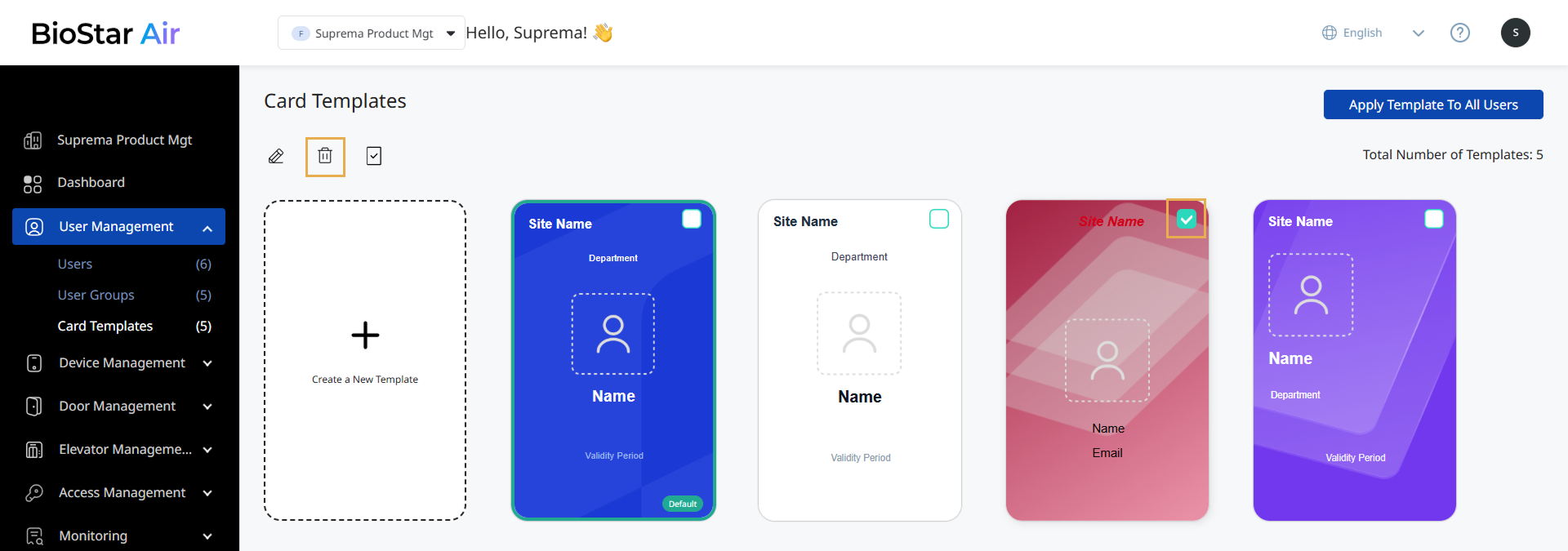
In the template list, click the checkbox in the upper right of the template you want to delete. Select one or more templates.
-
Click at the top left of the template list.
-
When the message window appears, click Yes.
Default templates cannot be deleted.
Apply templates to all users
-
Click User Management → Card Templates in the left sidebar.
-
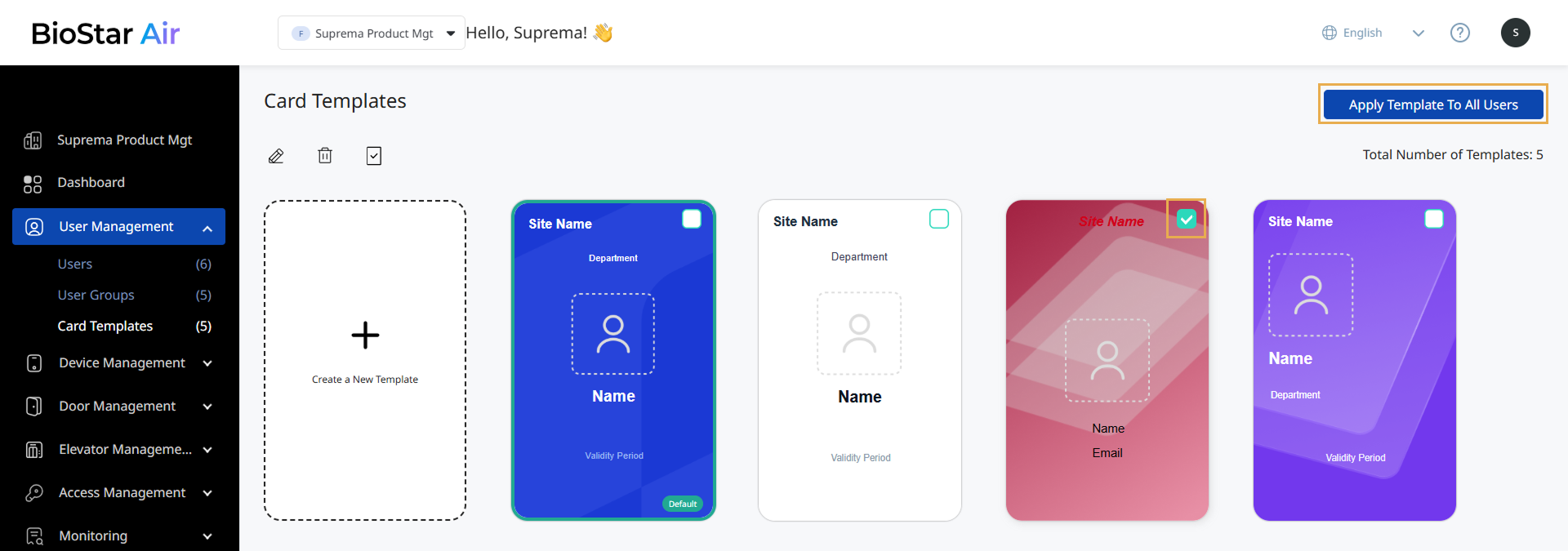
In the template list, click the checkbox in the upper right of the template you want to apply.
-
Click Apply Template To All Users at the top right of the screen.
-
When the message window appears, click Yes.
-
Applying the selected card template to all users replaces any template previously set.
-
Only one card template can be applied to all users.
Change a user's card template
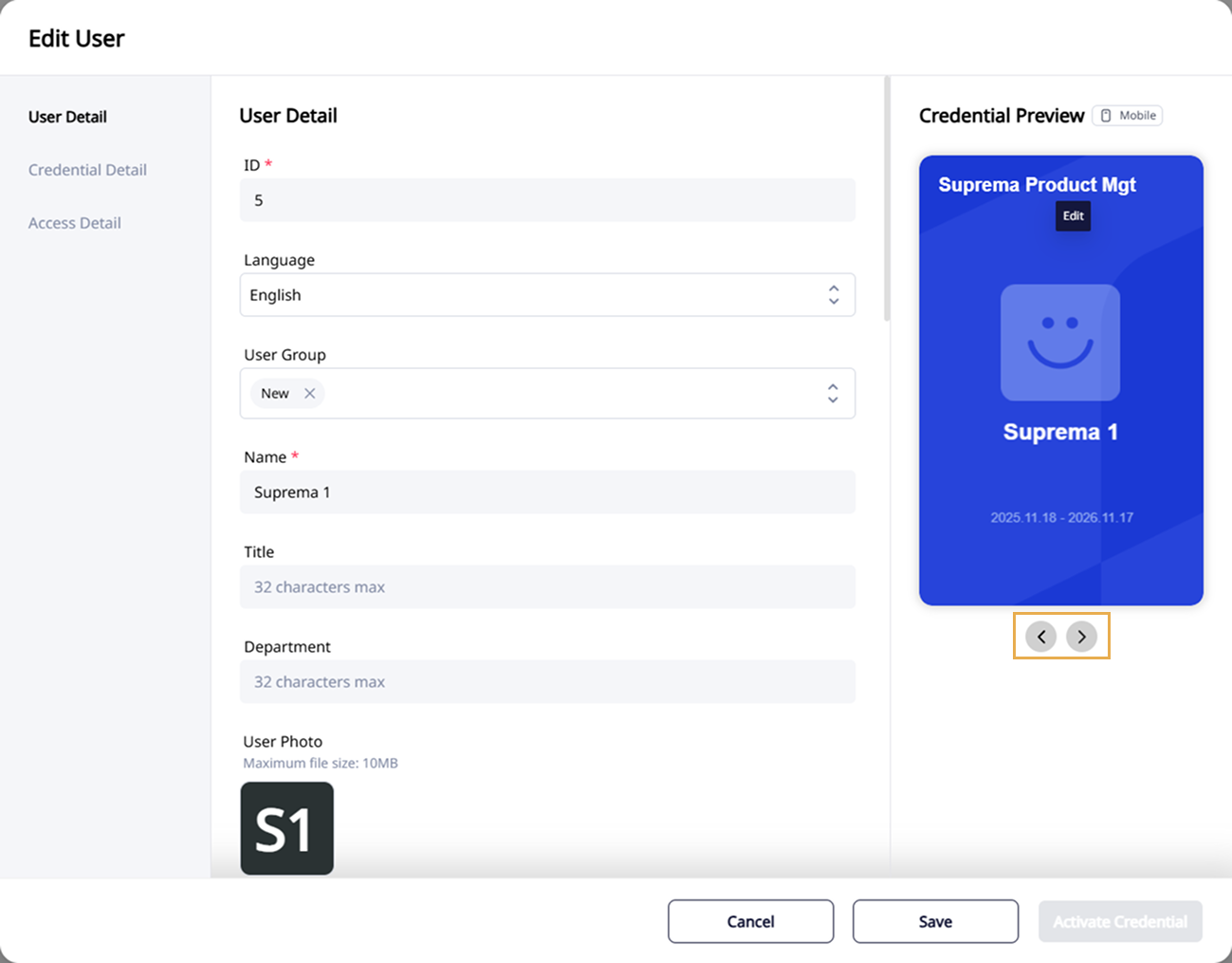
Follow these steps to change an individual user's card template.
-
Click User Management → Users in the left sidebar.
-
Click the user in the user list to apply a card template.
-
Click in the top right of the user details.

-
When the Edit User window appears, click or under Card Template in the right panel to select the desired card template.
-
Click Save to apply the changes.