Manage Registered Devices

Monitor the status of registered Suprema devices and configure detailed settings in the BioStar Air portal. Operate the security system effectively by managing various features such as facial authentication, card authentication, network, and firmware updates individually or in bulk.

Info

Internet access is required to use certain features such as Remote Access, Facial Authentication, QR code access, and Firmware Upgrade.

Caution

Starting with BioStar Air 2.10 (including BioStation 3), several new device configuration features were added. Because not all devices support every feature, menu options vary by device and firmware version.

Tip

Refer to the following video to watch the device registration and management guide.

Register Device

Devices can be registered only in the BioStar Air mobile app for iOS or Android. You cannot register devices from the web portal. Refer to the following for detailed instructions on registering devices in the mobile app.

Customers who began using BioStar Air access control before May 2025 may still be using the Airfob Space app, which has since been rebranded as the Suprema Pass app. Both apps offer identical functionality and are fully compatible. There is no need for existing users to switch — mobile credentials work seamlessly across both.

Device connection status

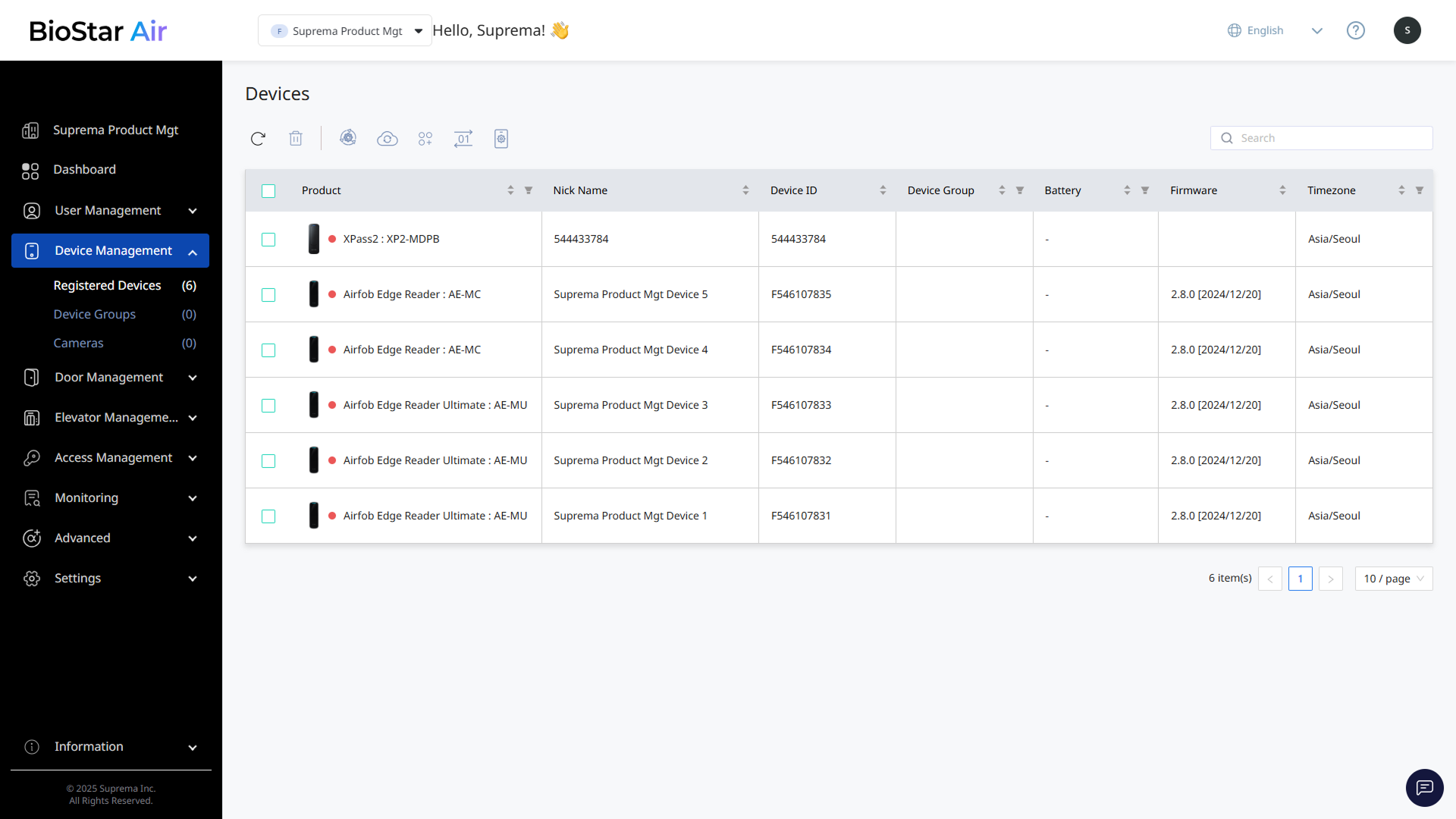
Click Device ManagementRegistered Devices in the left sidebar. Check each device’s connection status from the status icons in the device list.

  • Green: The device is online, can be controlled remotely, and can accept and update QR authentication.

  • Red: The device is offline.

  • Orange: Firmware is updating.

  • No dot: The device has no network connection. (e.g., Airfob Patch)

  • ⚠️ Warning icon: Synchronization is required between the server and the biometric device.

Device list information

Each column in the Registered Devices device list includes the following information.
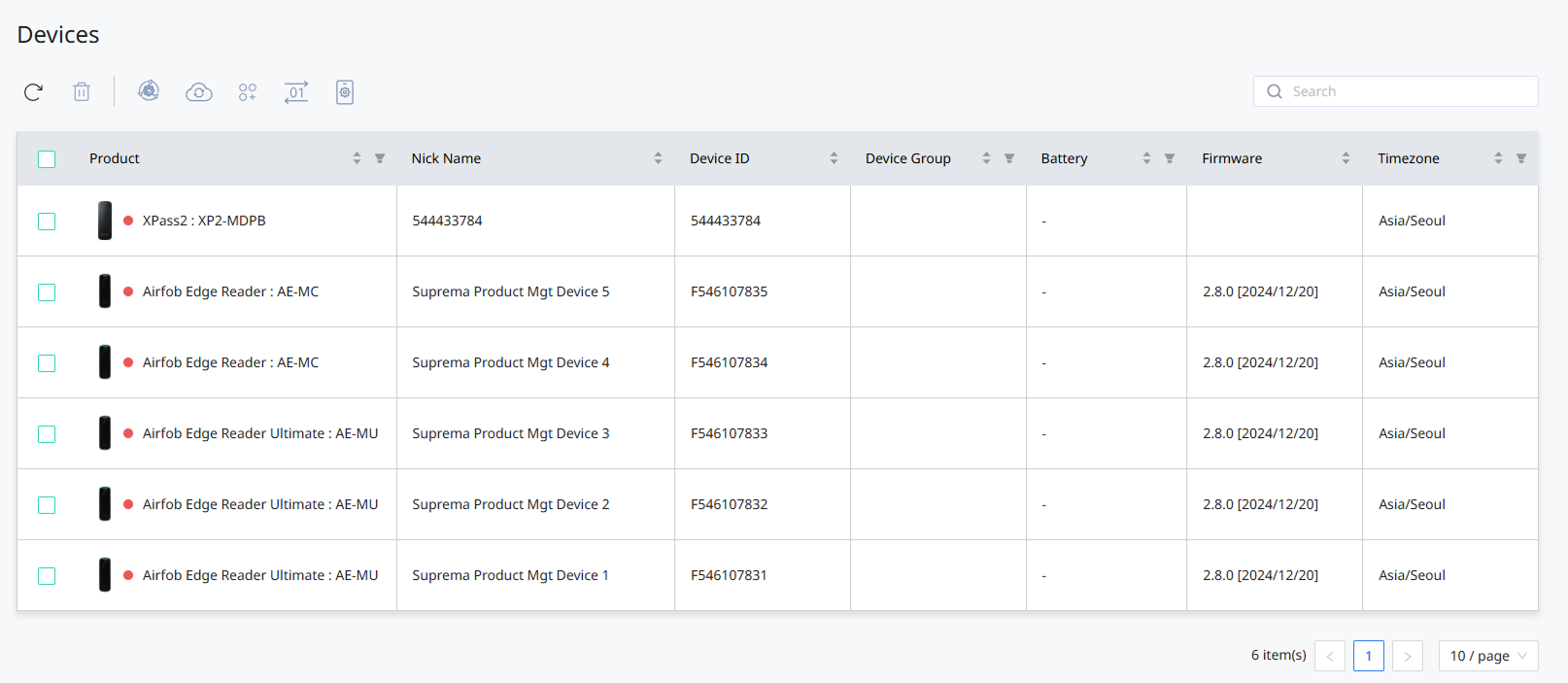
  • Product: The device name and model retrieved from the Suprema database.

  • Nick Name: A user-editable field for easier identification. Edit it in the Edit Device window that appears after clicking the device in the list.

  • Device ID: The unique identifier assigned to the device.

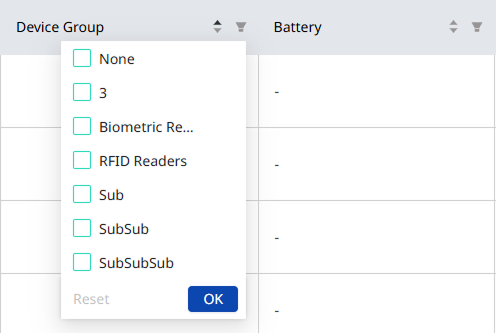
  • Device Group: The group to which the device belongs.

  • Battery: Available only on battery-powered devices.

  • Firmware: The currently installed firmware version.

  • Timezone: The time zone set on the device.

Editing individual device information and settings

  1. Click Device ManagementRegistered Devices in the left sidebar.

  2. Click the device you want to edit in the list.

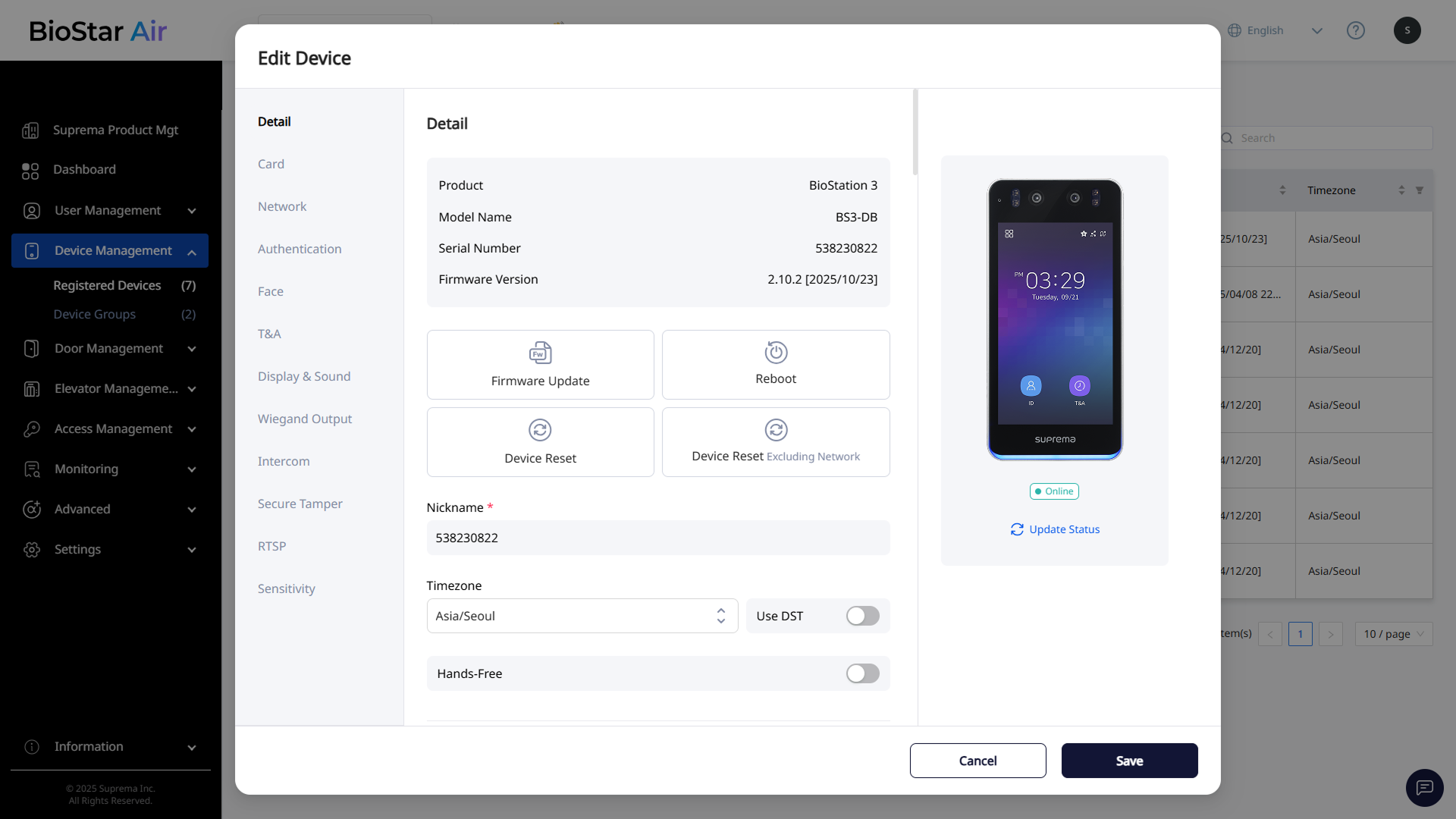
  3. The Edit Device window appears.

  4. Edit the device’s details or settings.

  5. Click Save at the bottom to save the changes.

Refer to the sections below for details on each field and setting option.

Device Info

The Device Info section shows basic information such as device name, model, serial number, and firmware version.

Below the basic information, use the Action functions to manage the device.

  • Update Firmware: Update the device firmware to the latest version.

  • Reboot: Reboot the device remotely when an issue or anomaly occurs.

  • Device Reset: Initialize all settings stored on the device. This action deletes all settings and data on the device.

  • Device Reset Excluding Network: Initialize all settings except the network settings. This action deletes all settings and data but keeps the network settings.

Use the settings below the Action section to configure basic options.

  • Nickname: The alias shown in the device list and logs. You can edit this field directly.

  • Timezone: Set the device time zone to keep logs consistent when the site and device clocks differ. Activate the Use DST option to apply daylight saving time (DST).

  • Hands-Free: Extend the BLE range.

  • QR Reader: Confirm that an RS-485 QR reader is connected to the device.

    Info
    • When a QR reader is connected to the device, you cannot use another RS-485 device.

    • When using an SIO2, you cannot use a QR reader on the device connected to that door.

  • NFC/RF Card: Activate or deactivate card authentication. DESFire and Felica card formats are supported.

    Info

    This feature is supported only by XPass 2 and X-Station 2 devices.

  • Beep Setting: Configure the success beep for access authentication.

    Info

    Support may vary by device.

Card

Caution

On XPass 2 and X-Station 2 devices, card settings appear in the Device Info section and have limited support. A firmware update scheduled for late 2025 will improve this limitation.

NFC/RF Card

Click the toggle switch to turn card access authentication on or off.

  • Card Type: MIFARE, DESFire, Felica, EM4100, iCLASS, SEOS, HID Prox

    Info
    • The EM4100 card format applies to BioStation 3 and BioEntry W3; more devices will be supported in late 2025.

    • The HID Prox card format may not be supported depending on the device.

  • Byte Order
    • MSB: Processes card data in order from large byte units to small byte units, sequentially storing the card serial number (CSN) from left to right.

    • LSB: Processes card data in order from small byte units to large byte units, storing the card serial number (CSN).

  • Data Reading Method: Select CSN (default) or Wiegand format.

Info

BioStar Air includes five default formats. Add more formats in SettingsCard Format.

Proprietary Cards

Activate iCLASS SE/SEOS and HID Prox card authentication.

Info

Support may vary by device.

Network

  • Use DHCP: Configure the device to obtain an IP address automatically.

    To set the network manually, disable Use DHCP and fill in the following fields.

  • IP Address
  • Gateway
  • DNS Address
  • Subnet Mask

WLAN settings may appear but are currently disabled.

Authentication

  • Auth Mode: Select single- or multi-factor authentication. Combine face, RF card, ID, and PIN.

  • Display User Name / Display User ID: Choose whether to show the user name or ID on the authentication screen. Select Hidden to hide them.

    This feature is available only on devices with a screen.

  • Auth Timeout: Authentication fails if the credential is not authenticated within the set time.

Info

The Authentication section appears only on biometric-only devices that support PIN or face/fingerprint authentication.

Face

Info

Available only on biometric devices.

Security

  • Fake Detection: Prevent user authentication with spoofed faces such as photos.

  • Duplicate Check: Check for duplicate registrations when enrolling facea.

Detection

  • Motion Sensor Sensitivity: Set the sensitivity for detecting movement around the device.

  • Maximum Head Pose Angle: Set the maximum rotation angle allowed for a face.

  • Wide Search: Expand the area in the camera view where faces are recognized.

  • Detection Distance (cm): Set the minimum and maximum recognition distance.

  • Enrollment Time (sec): If a face is not enrolled within the set time during enrollment, the process is canceled.

Mask Detection

Activate the Mask Detection option to configure mask detection.

  • Mask Detect Level: Select mask detection sensitivity.

  • If Mask Detection Fails
    • Deny Access: Users not wearing a mask are denied authentication, and a mask-non-compliance event log is recorded.

    • Allow Access After Logging: Users not wearing a mask can still authenticate, but a mask-non-compliance event log is recorded.

  • Mask Check
    • After Access: After authentication, check mask usage or measure temperature.

    • Before Access: Check mask usage or measure temperature before authentication. In this case, users not wearing a mask or exceeding the threshold temperature cannot authenticate.

    • Without Access: Use the device only to check mask usage or measure temperature. Users wearing a mask or having a temperature below the threshold can enter regardless of authentication.

Info

When using non-face credentials, the timing of "before" and "after" is usually important.

T&A(Time & Attendance, T&A)

When this feature is enabled, T&A Event is logged in Event Log and used in T&A Report.

  • Use T&A: Click the toggle switch to turn attendance management on or off.

  • T&A Mode: Select the desired attendance mode.

    • User Selects: When the attendance key appears on the screen, the user selects the attendance event during authentication.

    • By Schedule: Attendance events change automatically according to the set schedule. You can select a schedule to apply to attendance events.

    • Last Choice: The user continues to use the last selected attendance event.

    • Fixed: Only the selected attendance event is available.

    • Mobile: When presenting a mobile credential, the Suprema Pass app lets the user select the attendance event.

Display & Sound

Info

The Display & Sound section is available only on biometric-only devices. Other devices may show basic options such as Beep Setting in different sections.

Display

  • Use Screensaver: Reduce LCD brightness when the device is not in use to lower unnecessary power consumption.

  • Always On Backlight: Keep the backlight always on or dim it after inactivity.

  • Backlight Timeout: Set the time before the backlight turns off automatically.

  • Language: Set the language shown on the device screen.

  • Home Screen: Configure the items displayed on the device’s home screen background.

    • Normal: Display the default image on the home screen.

    • Logo: Display a user-registered image on the home screen.

    • Notice: Display administrator input on the home screen.

    After clicking Update and saving, the image or notice no longer appears in the edit screen but remains on the device.

Sound

  • Use Voice Instruction: Use voice guidance instead of notification tones.

  • Device Volume: Adjust the volume of sounds generated by the device.

  • Intercom Speaker Volume / Intercom Microphone Volume: Adjust the output or input volume when using the IP intercom feature.

    This feature is available only on the BioStation 3 device.

Wiegand Output

This feature integrates with external systems (e.g., alarm panels). Activate the Use Wiegand Output option to use this feature.

  • Output Mode: Configure the Wiegand signal output mode.

    • Regular: Scan cards using the configured Wiegand format. You can set error codes and select values to be sent if Wiegand card authentication fails.

    • Bypass: Send the CSN regardless of Wiegand authentication. Set this if you are using it as a device without door control functionality.

  • Output Info: Select the information output during authentication.

  • Pulse Width: Set the pulse width for the Wiegand signal.

  • Pulse Interval: Set the pulse interval for the Wiegand signal.

  • Mobile Consecutive Tag: Tag mobile cards consecutively without wait time.

  • Consecutive Tag Limit: Set the maximum number of consecutive mobile card tags.

Info

The Mobile Consecutive Tag feature is supported in Suprema Pass app 2.9.0 or later.

Intercom

  • Use Intercom: Activate or deactivate the IP intercom feature.

  • SIP Server Transport: Choose the SIP transport method when configuring the intercom’s SIP server.

  • SIP Server Address: Enter the SIP server address.

  • SIP Server Port: Enter the SIP server port.

  • Registration Duration: Enter the registration duration. The device attempts to register with the SIP server every time the registration duration expires.

  • SIP Username: Enter the SIP account username.

  • Password: Enter the SIP account password.

  • Authorization ID: Enter the SIP account authorization ID.

  • Outbound Proxy Server: Use a separate outbound proxy server for SIP services if required.

  • Extension Number: Add or edit extension numbers.

  • Video Resolution: Select the video resolution when using the intercom.

  • Open Door Button: Specify a button to unlock the door during a call.

Info

The IP intercom feature is supported only on BioStation 3.

Secure Tamper

If a tamper event occurs, configure the device to delete all user information, all logs, and security keys stored on the device.

RTSP

Configure details for Real Time Streaming Protocol (RTSP) streaming. The device's camera can stream live video.

  • Address: RTSP server address.

  • Port: Enter the RTSP server port.

  • ID / Password: Enter the RTSP server ID and password.

  • RTSP Video Resolution: Select the video resolution when using RTSP.

Info

The RTSP streaming feature is supported only on BioStation 3.

Sensitivity

Adjust the RSSI value to set how close the mobile device must be to unlock the door.

  • Lower values help block unintended activation.

  • Higher values improve detection in high-interference environments.

Bulk device actions

Use the controls at the top of the device list to manage multiple devices at once.
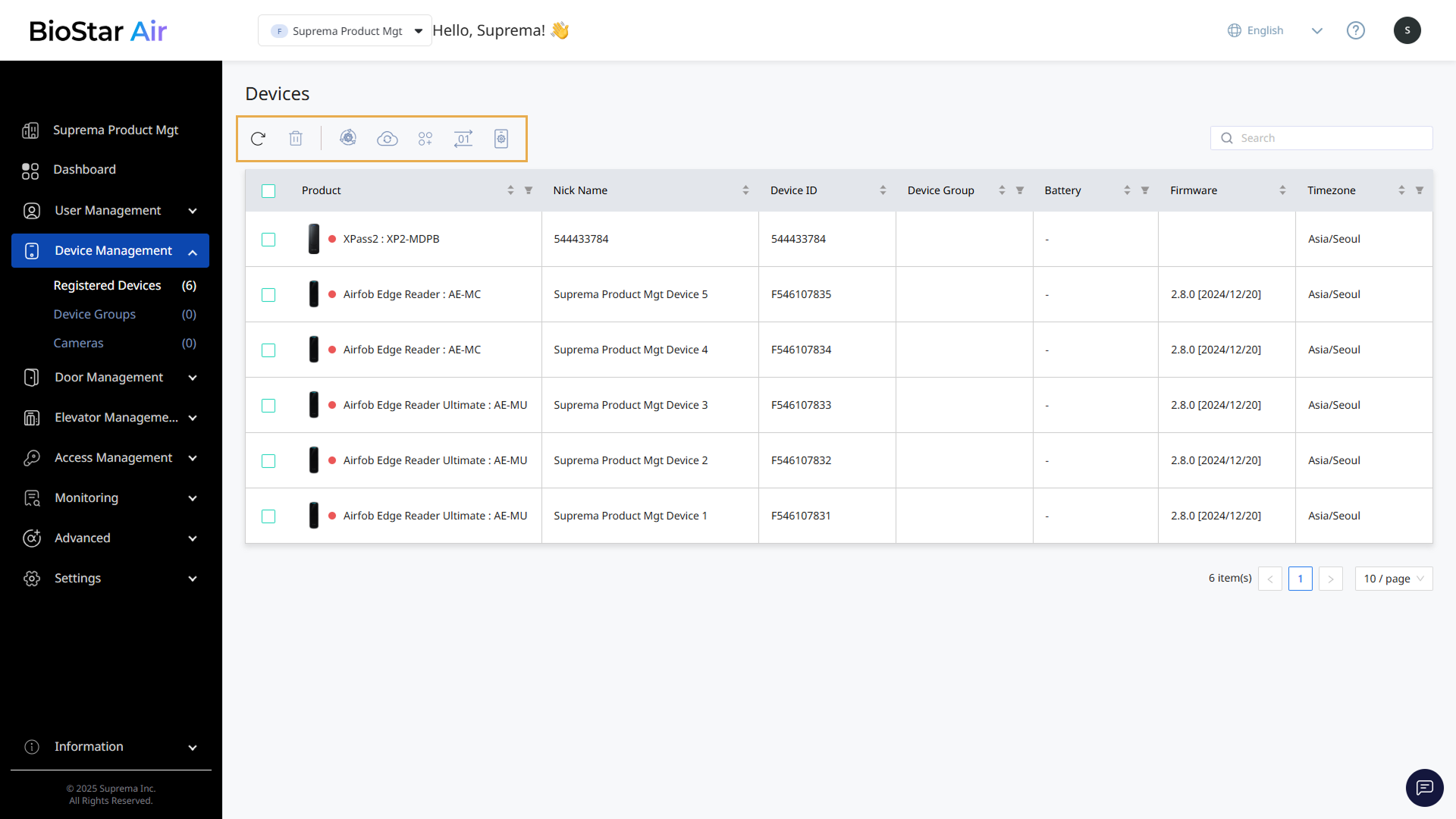
  • : Refresh the device list and device status.

  • : Delete devices registered to the site.

    Warning

    Only online devices can be deleted permanently. If the device is offline, delete it first in the BioStar Air mobile app before adding it to another site. Refer to the following for detailed instructions on deleting devices in the mobile app.

    Supported devices

    • BioStation 3, BioEntry W3: all firmware versions

    • XPass 2, X-Station 2: v2.11 or later

  • : Update the firmware of selected devices. Refer to the following for more information on upgrading firmware.

  • : Synchronize biometric templates from selected devices to the server.

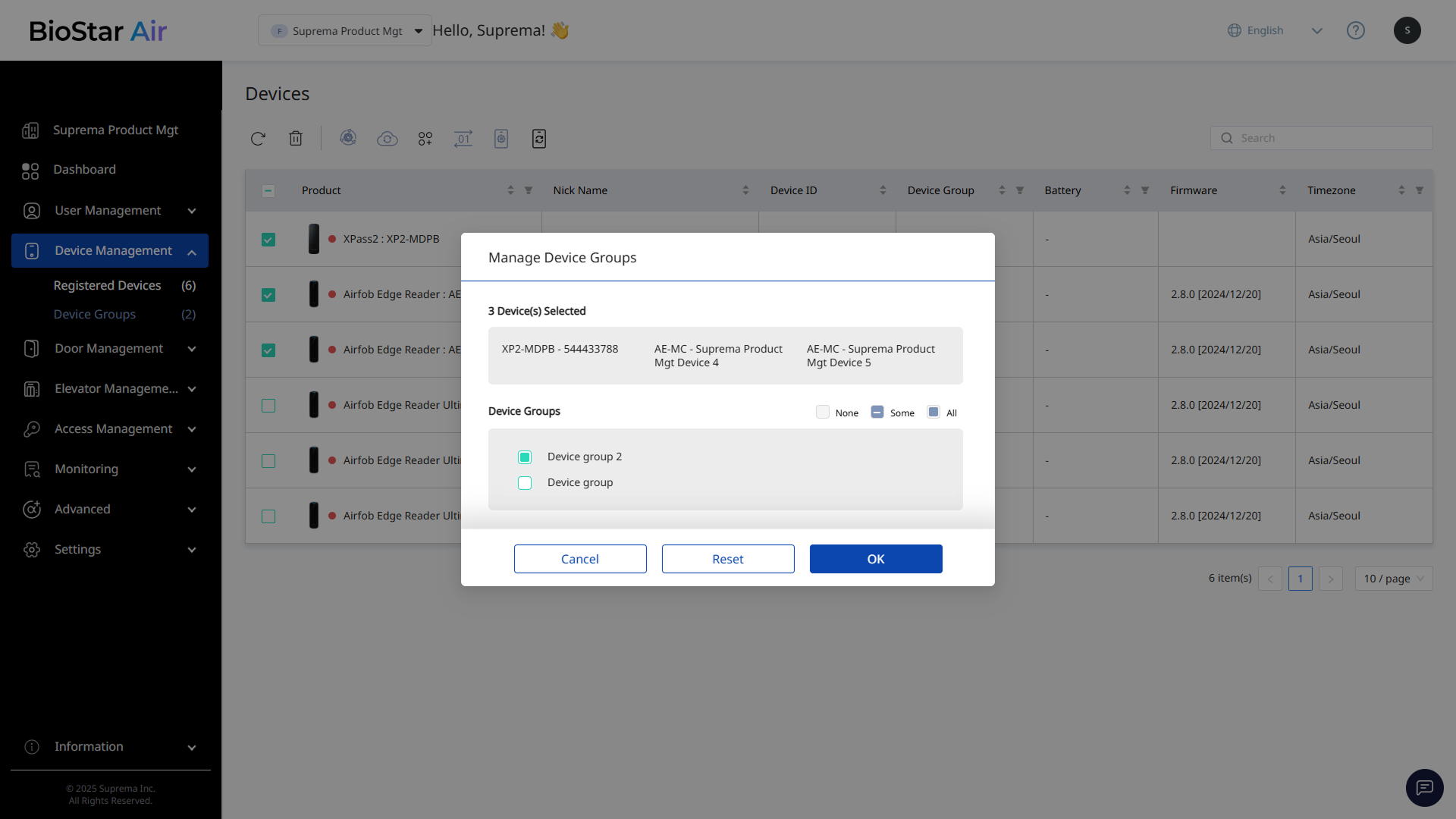
  • : Assign selected devices to a group. For more information on device group management, refer to the following.

  • : Switch the RF card byte order of the selected device in the list to MSB or LSB.

    • MSB: Processes card data in order from large byte units to small byte units, sequentially storing the card serial number (CSN) from left to right.

    • LSB: Processes card data in order from small byte units to large byte units, storing the card serial number (CSN).

  • : Import settings originally configured in standalone mode.

  • : Update the status of selected devices.

Deleting devices in the mobile app

  1. Open the BioStar Air app on your mobile device.

  2. Tap the Devices card.

  3. Touch and hold the device you want to delete. Select any additional devices to delete.

  4. Tap the button at the bottom right.

  5. In the pop-up, choose whether to delete the linked door.

  6. Tap Delete.

Was this page helpful?