Roll Call
With BioStar Air's roll call and fire evacuation guidance features, organizations can track which employees have safely evacuated the building during an emergency. By setting muster zones and using the BioStar Air mobile app, administrators can quickly account for all users and generate roll call history reports.
-
Ensure that muster zones are correctly assigned to user groups to avoid confusion.
-
Regularly test the roll call feature to ensure smooth operation during a real emergency.
-
Use access events to verify attendance for safety compliance.
Watch the following video for a roll call and muster zone guide.
Set muster zones
A muster zone is a designated location where users authenticate their credentials to indicate they are safe during an emergency.
-
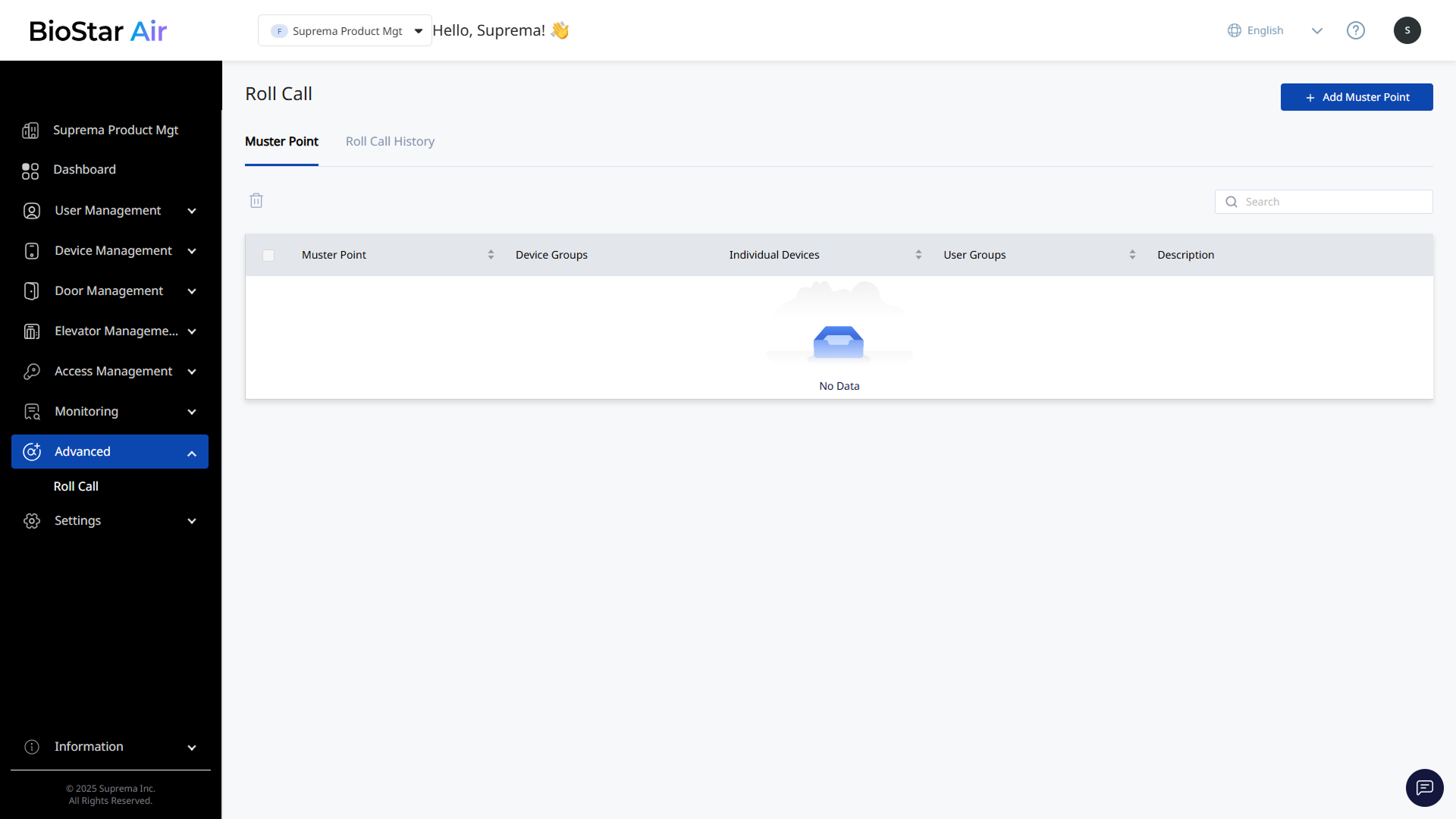
Click Advanced → Roll Call in the left sidebar.
-
Click Add Muster Point at the top right of the screen.
-
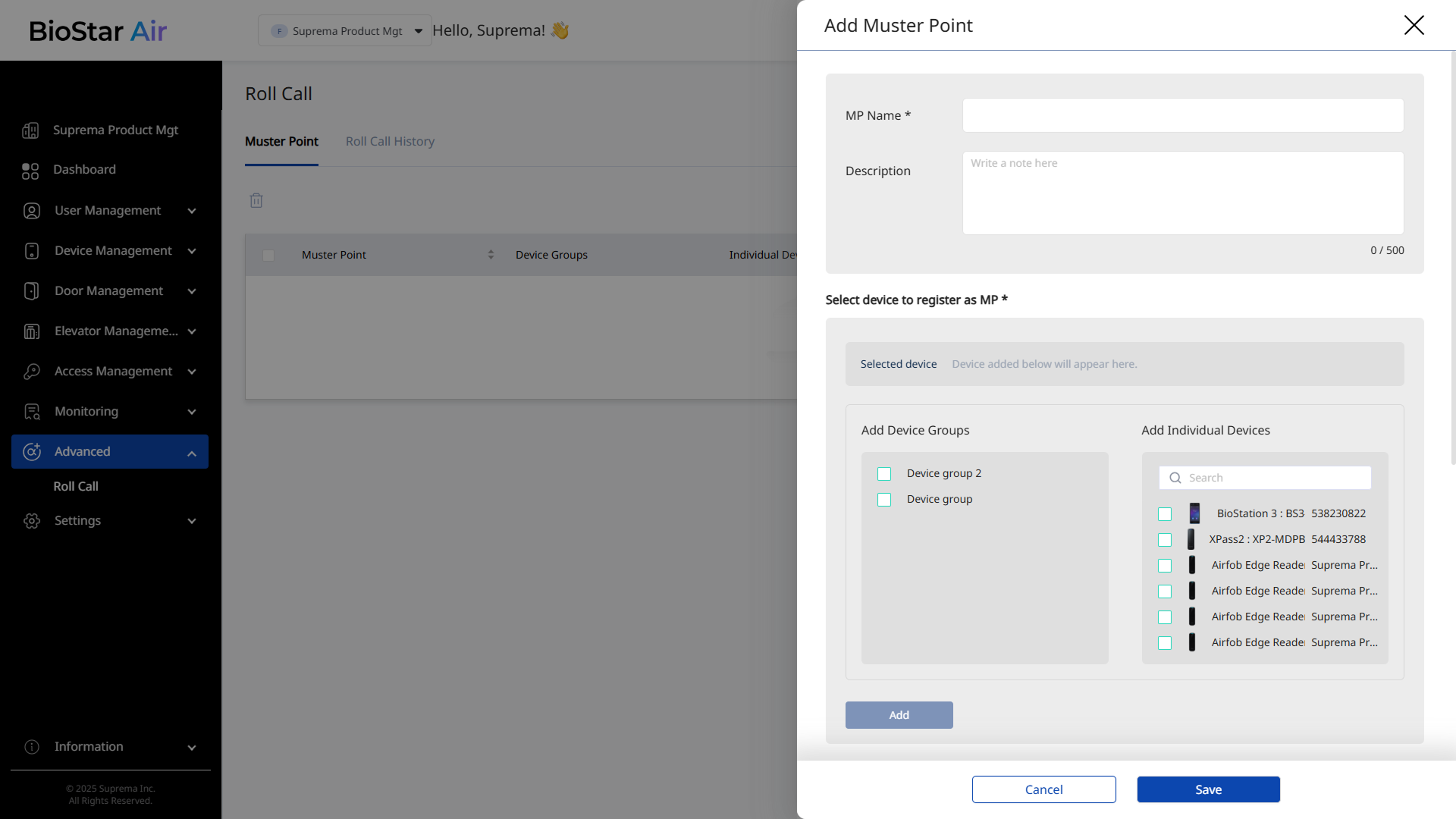
Enter a name and an optional description when the Add Muster Point panel appears.
-
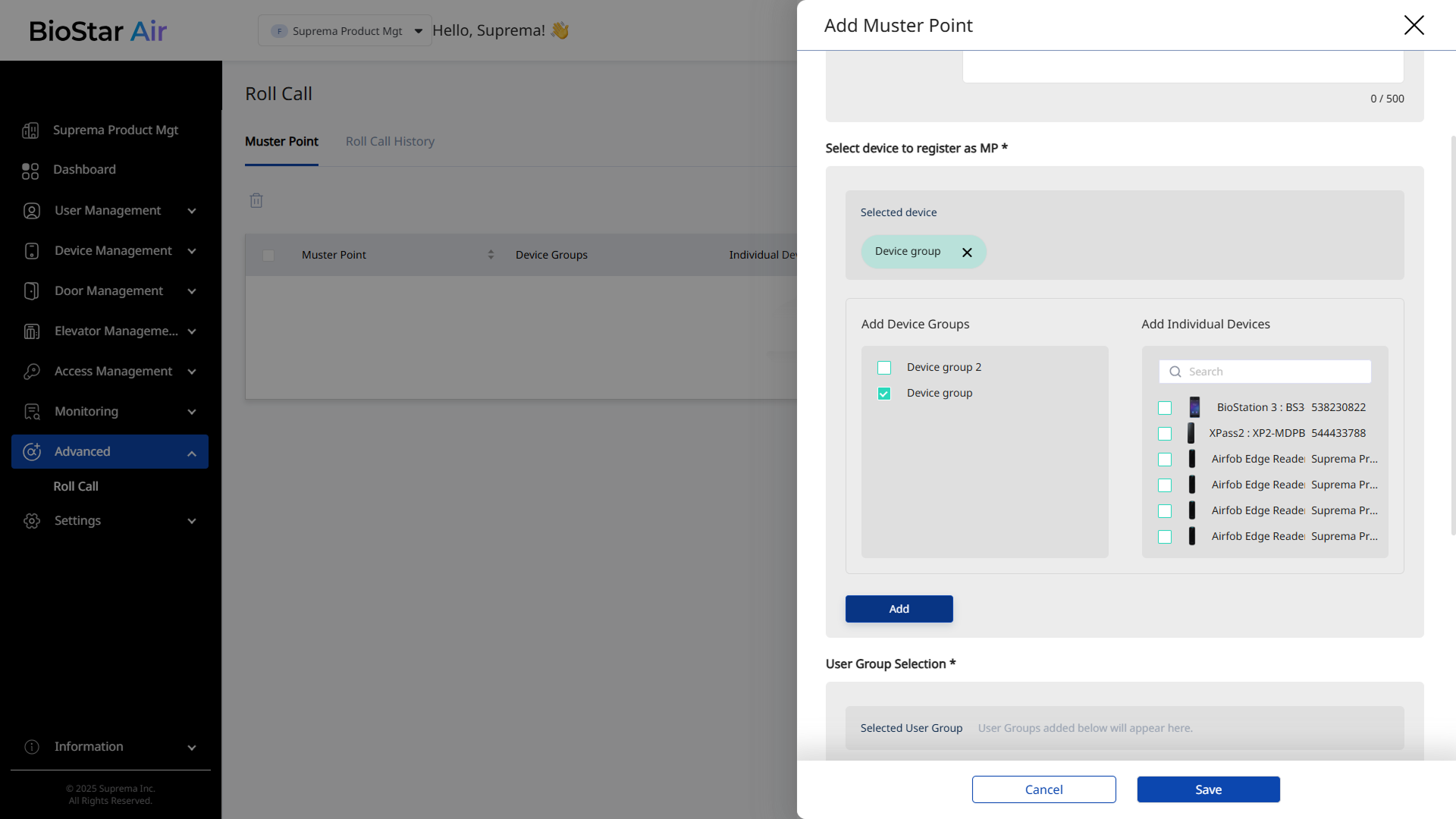
In the Select device to register as MP * section, add the device group or device to assign to the muster zone. Select the checkbox for the device group or device, and click Add.
-
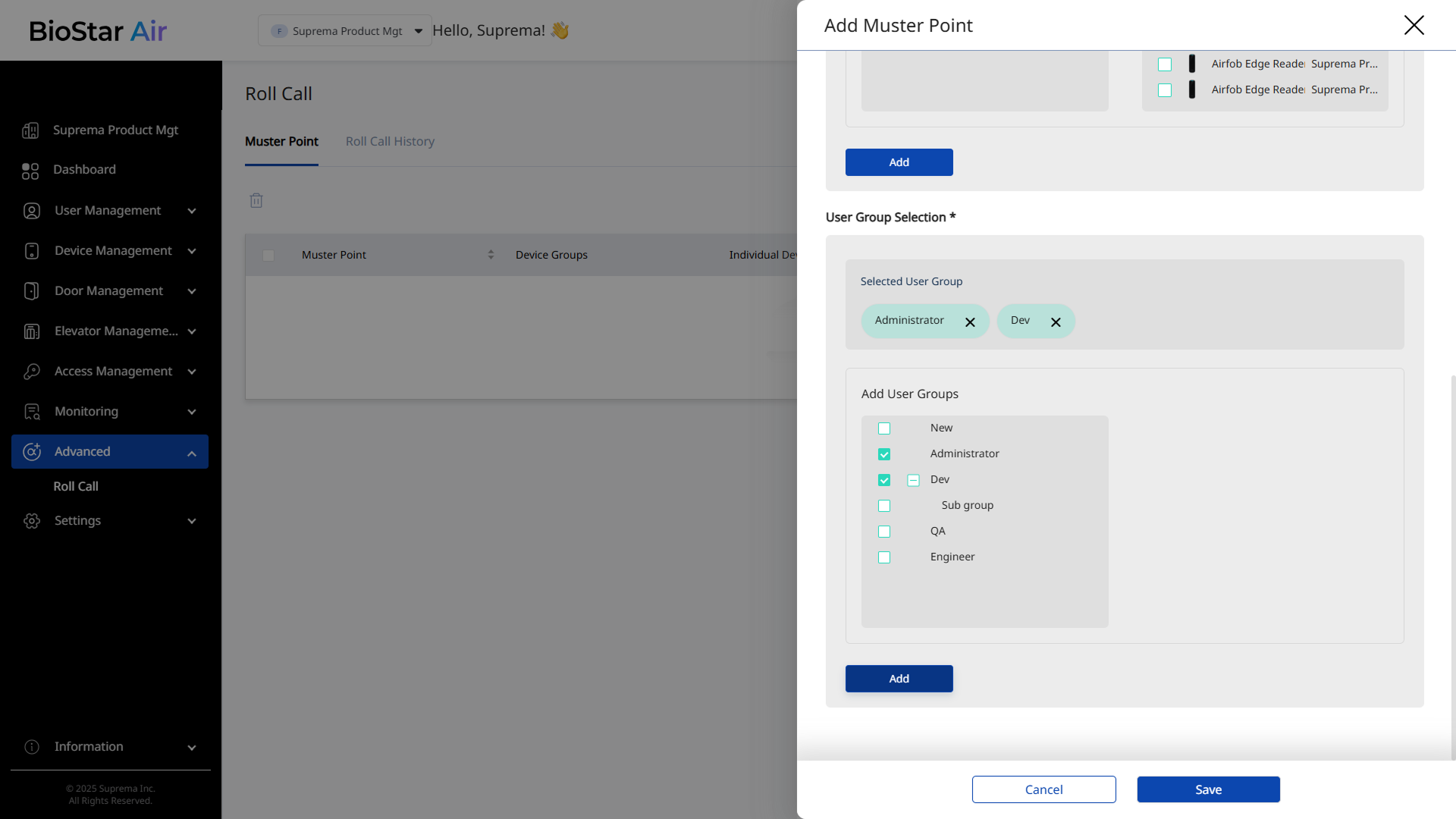
In the User Group Selection * section, select the user groups that must report when they arrive at the muster zone. Select the checkbox for the user group, and click Add.
-
Click Save to save the muster zone settings.
Best practices for muster zones
-
Make the muster zone name and description clear and easy to understand. For example, use names like 'East Parking Lot' or 'Main Building Lobby'.
-
When adding multiple devices to a muster zone, select a device group instead of individual devices. Device groups let you manage multiple devices at once. For more information on device group management, refer to Manage Device Groups.
-
In a large campus with multiple buildings, assign only relevant users to a specific muster zone.
-
Wired access control devices support both mobile and card authentication, whereas Airfob Tag and Airfob Patch support only mobile credentials.
Start roll call on mobile
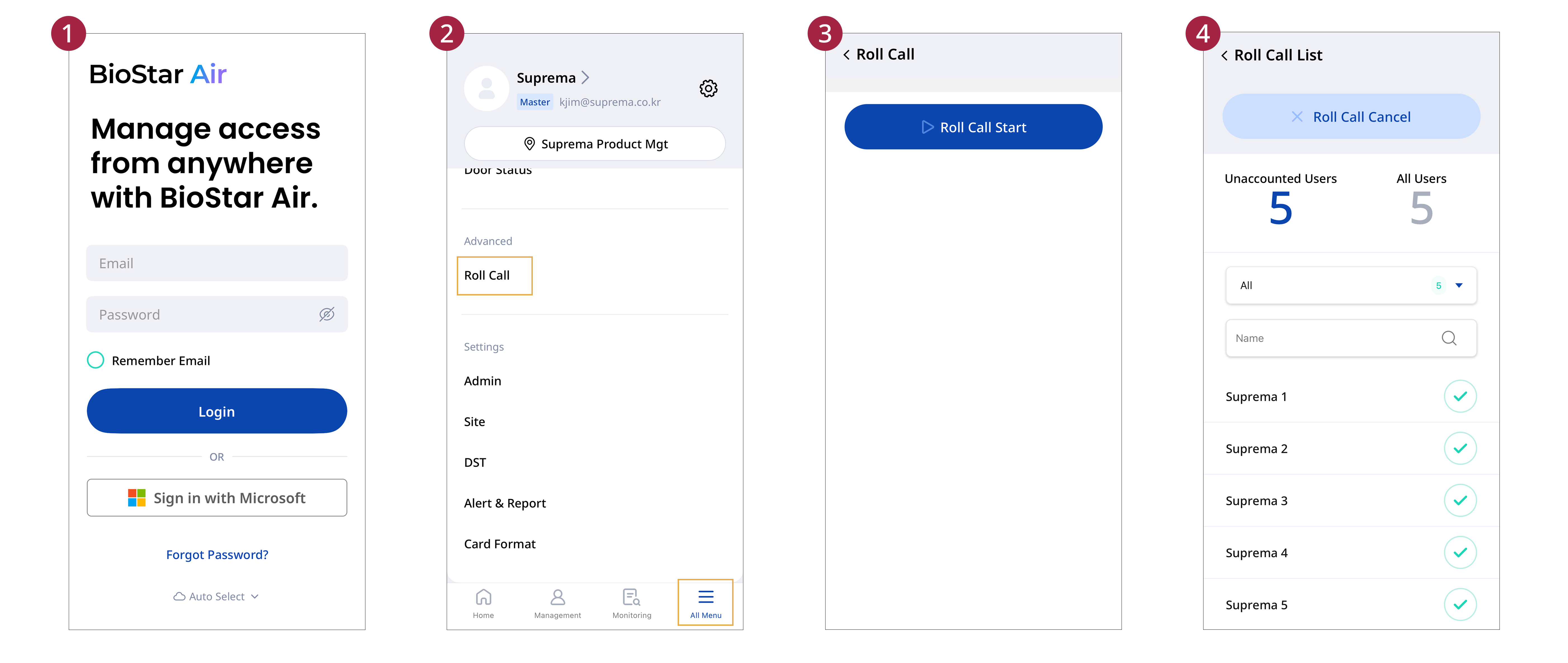
Start a roll call and check attendance in the BioStar Air mobile app.
-
Open the BioStar Air app on your mobile device and log in.
-
Tap All Menu → Roll Call at the bottom of the screen.
-
Tap Roll Call Start.
-
A list of all users who must gather at the muster location appears.
Mark users safe
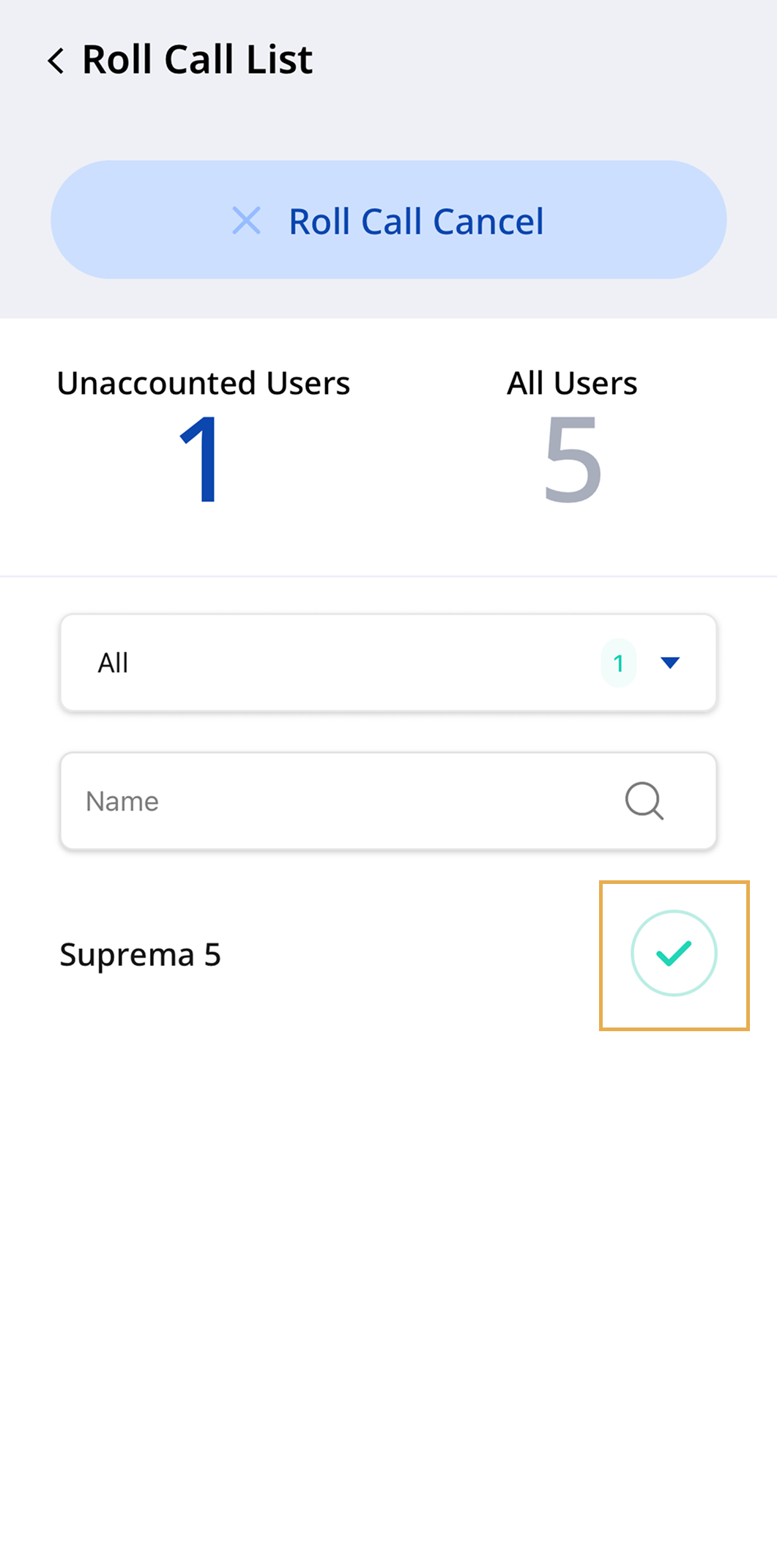
Administrators or users can mark themselves safe in the following ways.
-
An administrator can press and hold the check mark next to a user’s name in the mobile app to mark the user safe.
-
Users tag their credential on a device at the assigned muster zone.
-
Filter users by muster group.
-
Use search to find a specific person.
Complete roll call
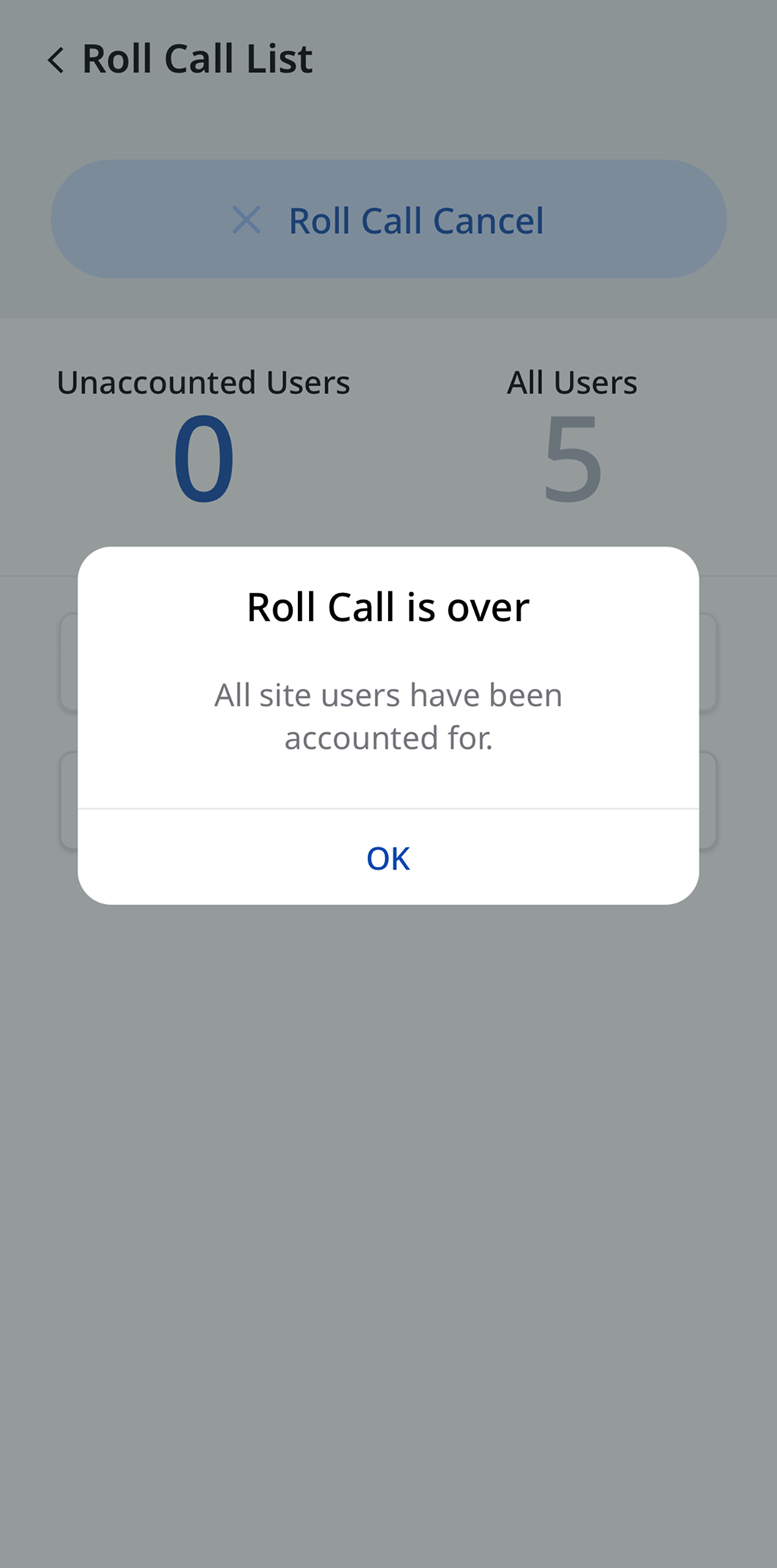
Complete the roll call when any of the following conditions are met.
-
All users have arrived at the muster zone and been marked safe
-
The administrator manually marks all users safe
-
24 hours have passed
View roll call history
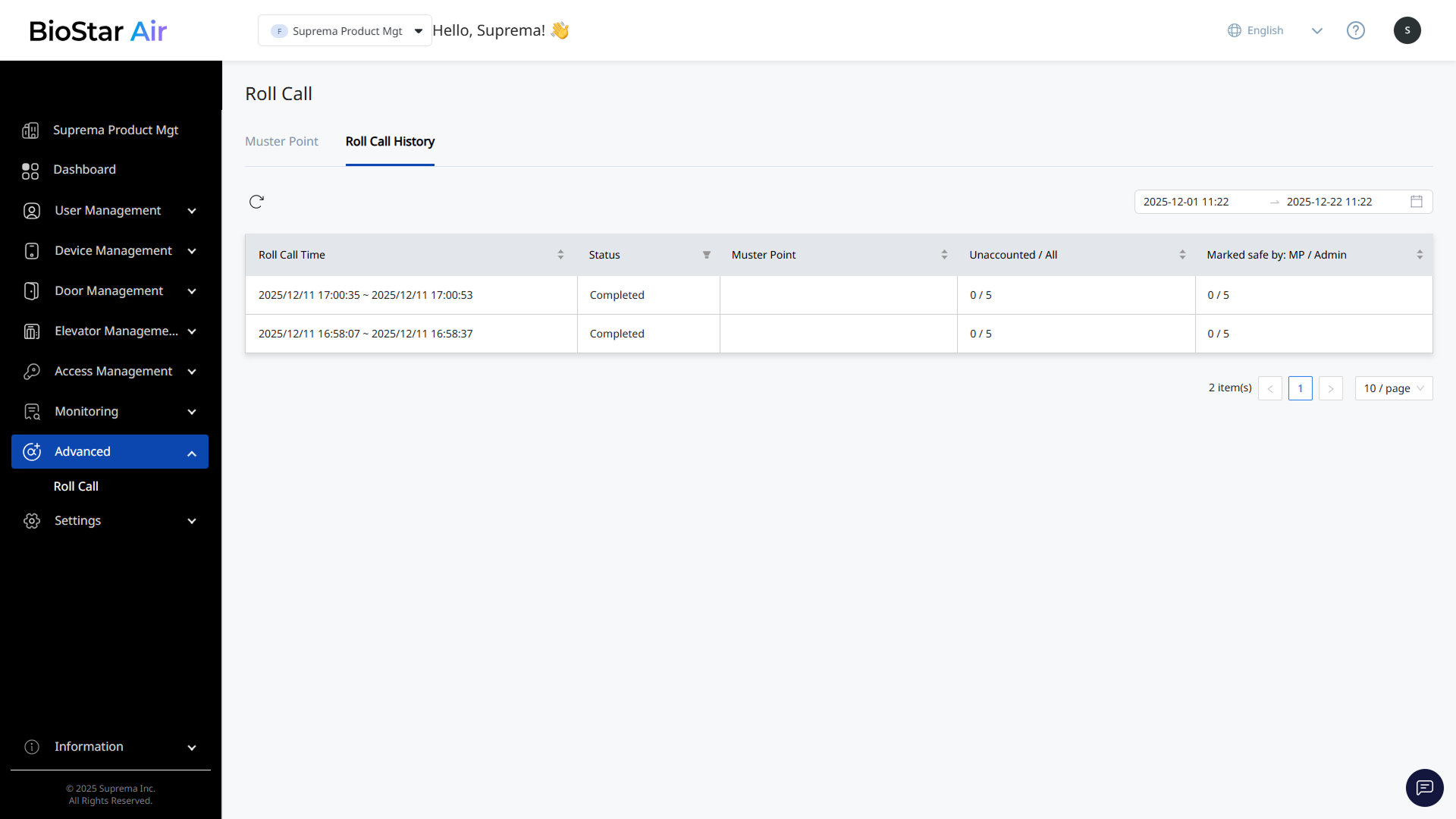
View the history of previous roll calls.
-
Click Advanced → Roll Call in the left sidebar.
-
Click the Roll Call History tab.
-
Click a completed roll call entry to view its details.
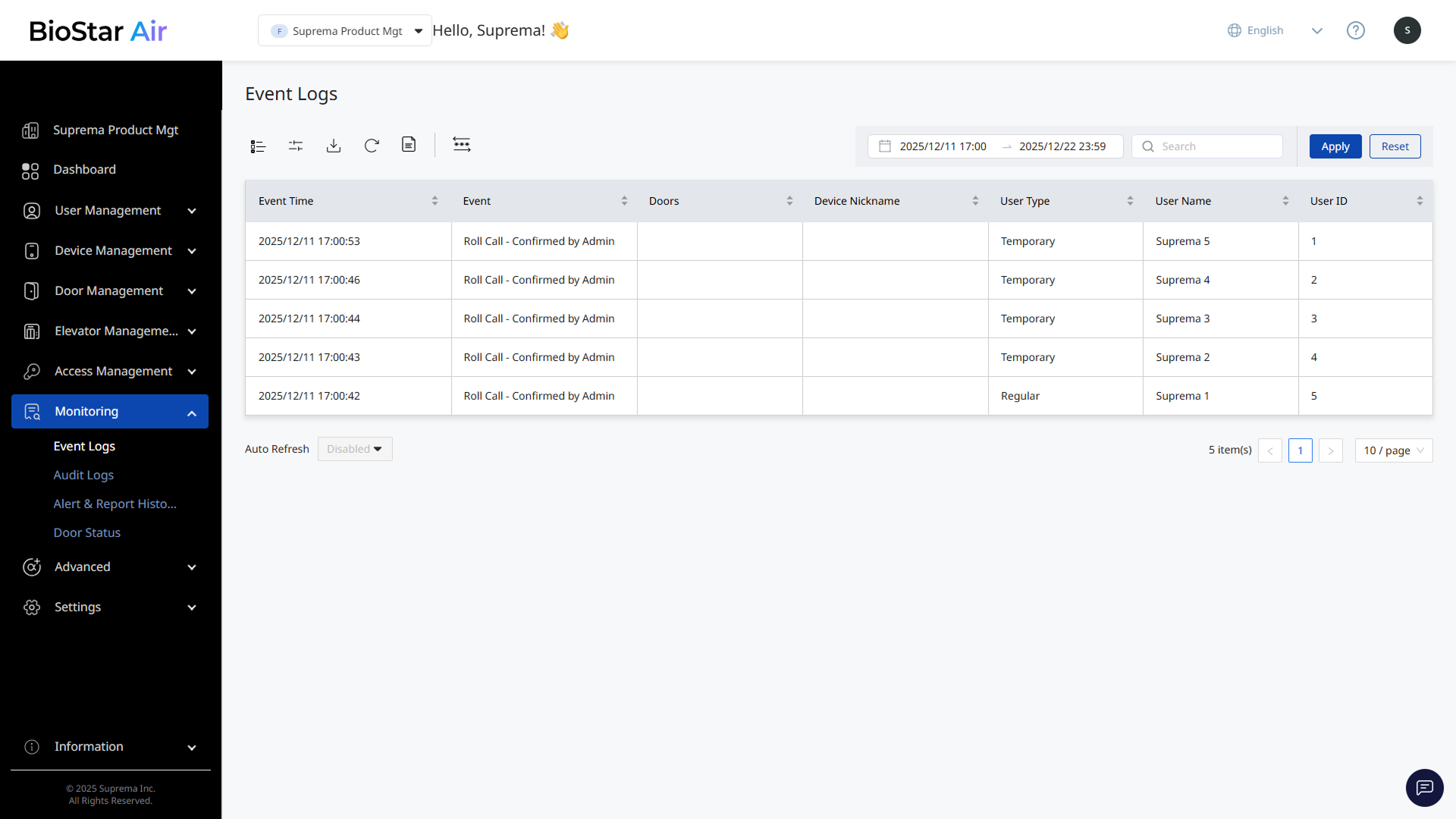
-
View the list of all access events recorded during the roll call.
-
Check whether each user was marked safe or unconfirmed.
-
Check the start and end times of the roll call.