Getting Started with the BioStar Air App
The BioStar Air app offers all the same features as the BioStar Air web portal. Users can manage access control, monitor event logs, control devices, and perform administrative tasks directly from a mobile device.
Download the mobile app
Download the BioStar Air app on your mobile device and log in.
-
Download and install the BioStar Air app on your mobile device.
-
Log in using the same ID and password you use for the BioStar Air web portal.
-
Verify that you logged in with the same credentials as the web version.
-
Stay close to the device to update it in BLE mode.
-
Certain features, such as real-time video monitoring, require a connected camera.
Dashboard
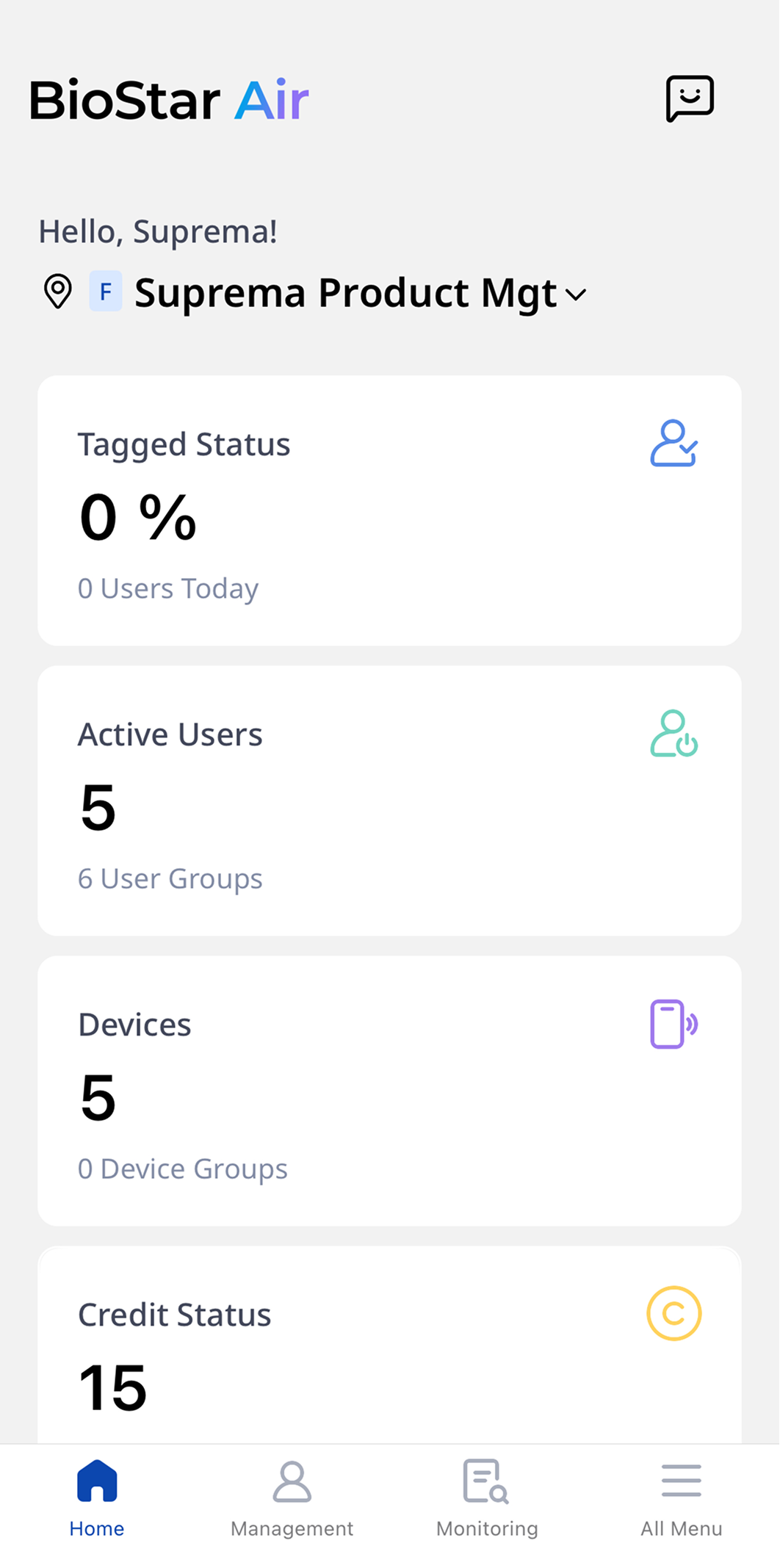
After logging in to the mobile app, Dashboard on the home screen provides the following information.
-
Daily user accesses
-
Total active registered users
-
Connected devices
-
Credit status
User management
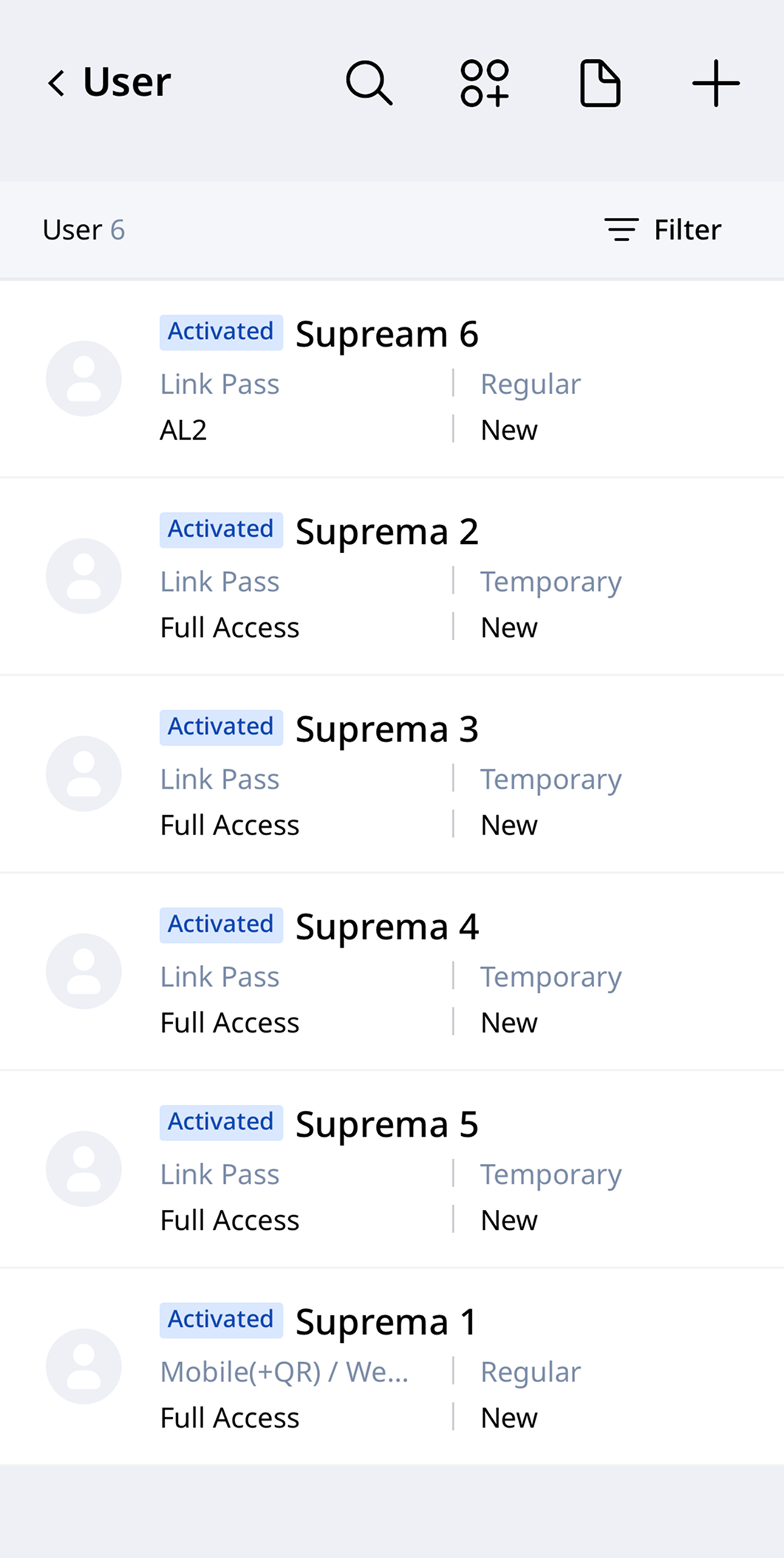
Tap the Active Users card on the home screen, or tap Management → Users in sequence.
-
Select a user and review the details.
-
Modify user status (reissue, suspend, delete, or activate).
-
Tap the button and enter the required details to add a new user.
-
To learn how to add users using the mobile app, see Add Users.
-
To learn how to add users through the BioStar Air portal, see Add Users.
-
For more information about user management, see Manage Users.
Monitoring
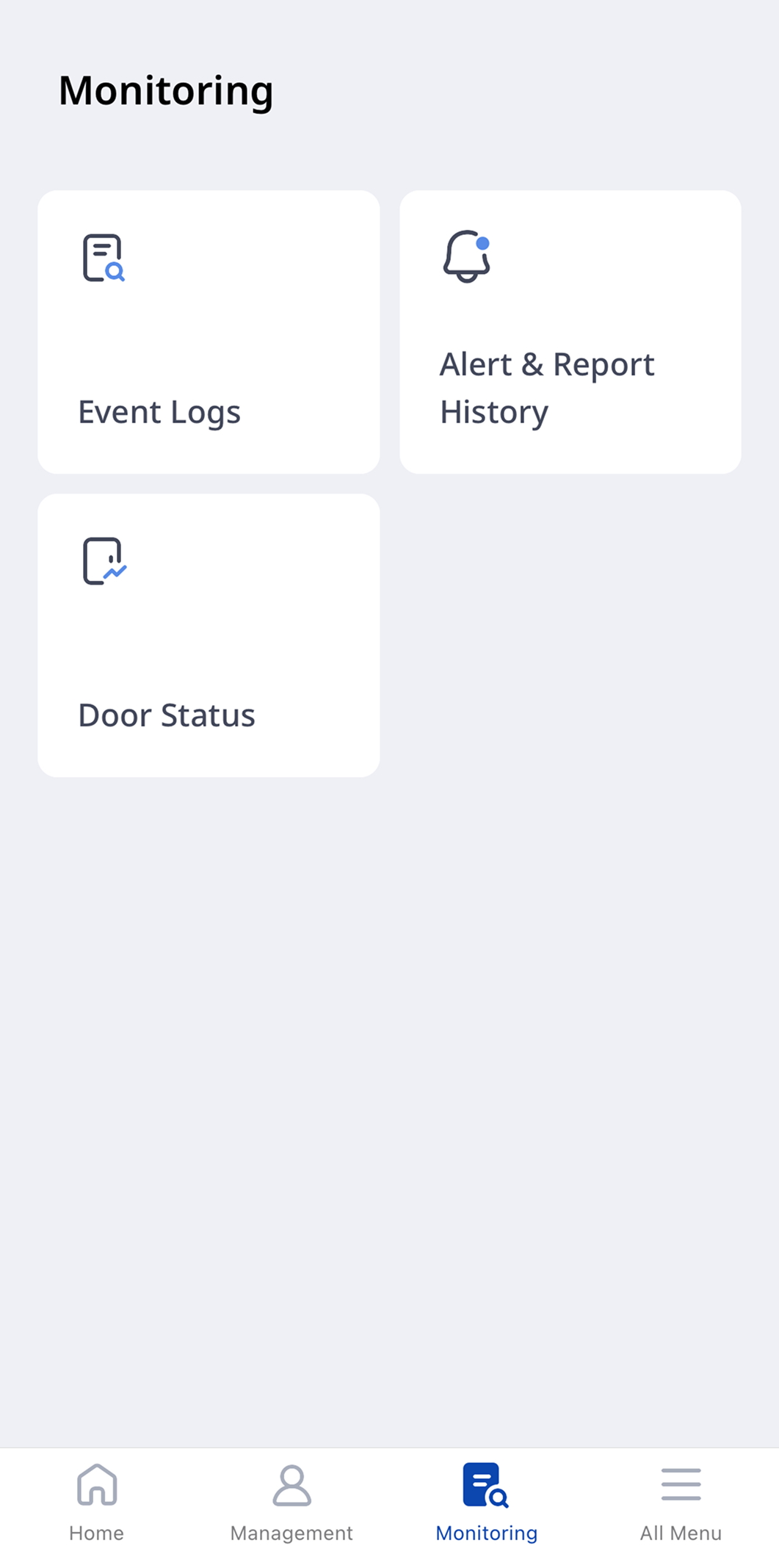
Monitoring provides the following information.
-
Event Logs: Monitor and analyze event logs and audit logs. For more information, see Use Event Logs and Use Audit Logs.
-
Alert & Report History: View past alerts and generated report history through the web portal and mobile app. For more information, see Check Alert & Report History.
-
Door Status: Monitor the real-time status of doors connected to the site. For more information, see Monitor Door Status.
-
Check door status and control it remotely.
-
Tap a door once to edit it, or press and hold to select multiple doors and perform batch actions.
-
Setting a door to Unlock Mode or Lock Mode overrides relay settings or schedules.
-
Delete unused doors as needed.
-
-
Real-time video (if a camera is connected)
Devices
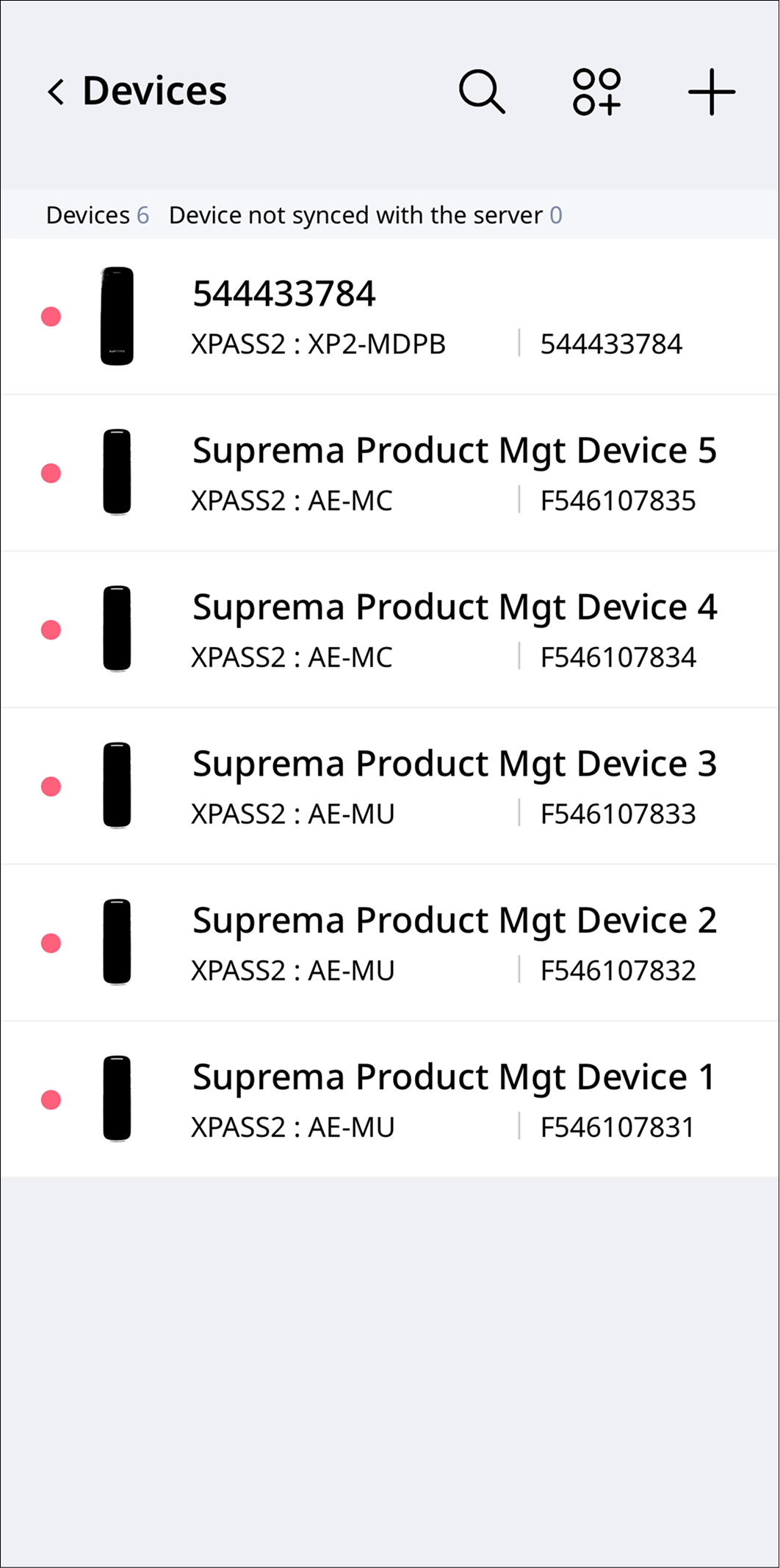
Tap the Devices card on the home screen, or tap Management → Devices in sequence.
-
View all registered devices.
-
Select a device to edit, update firmware, or reboot it.
-
If the device is not connected to the network, use BLE mode close to the device to update its firmware.
-
Tap the button to add a new device.
For more information about device management, see the following.
-
BioStar Air App: Register and Delete Devices
-
BioStar Air portal: Devices