Using Mobile Credentials
Use mobile credentials instead of plastic RFID cards to open doors with the Suprema Pass app. Tag the mobile device via Bluetooth or NFC, press and hold the card, or scan a QR code to open doors.
The Suprema Pass app serves as the user interface for the BioStar Air system and primarily acts as a digital wallet for mobile credentials. Users issue and store mobile access cards in the app to enter secure areas with their mobile devices.
Requirements and preparation
Meet the following requirements to open doors with mobile credentials.
-
An access control device compatible with Suprema Pass mobile credentials must be installed.
-
Install the Suprema Pass app on the mobile device.
-
Enable Bluetooth or NFC on the mobile device.
-
Enabling two-step authentication disables Background Mode.
-
The administrator must enable QR authentication in the BioStar Air portal.
-
Verify that the site supports the hands-free access method.
-
Location services are required to authenticate with the mobile access card in Suprema Pass. See the related FAQ at Why Am I Being Asked to Enable Location Services?.
-
Follow the provided guidance to troubleshoot the issue if the mobile card authenticates with the device but the door does not open. See the related FAQ at Fix Mobile Card Issues.
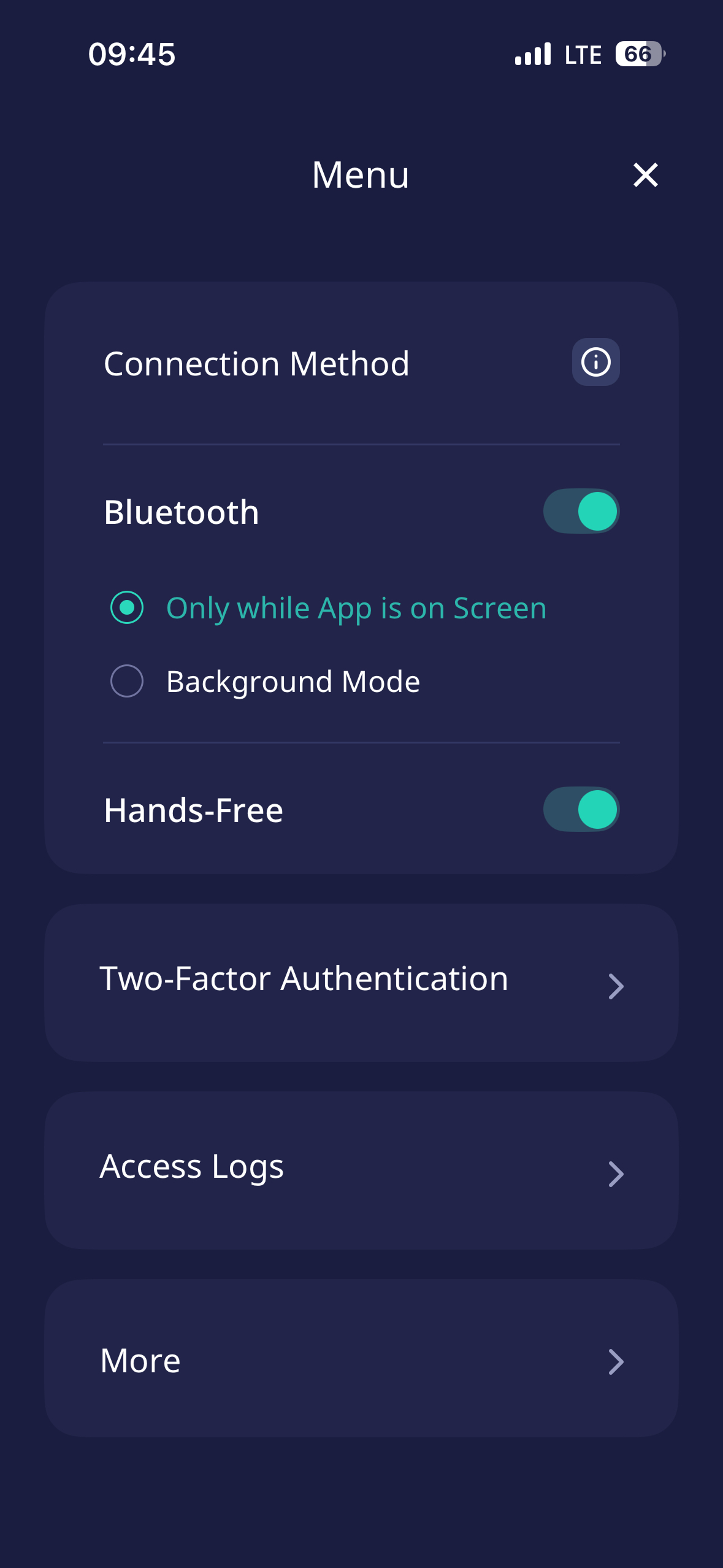
Set connection method
Select between two operating modes in the Suprema Pass app. On the Suprema Pass app home screen, tap in the upper right corner, then select the desired mode in Connection Method.
-
Only while App is on Screen: Open the door only when the app appears on the screen and the mobile card is visible.
-
Background Mode: Open the door even if the phone is locked when the app is running in the background.
Regardless of the mode, tag the mobile device on the reader to authenticate.
Open doors
Use the Suprema Pass app to open doors in several ways.
Tag your mobile device to a reader
Bring the mobile device close to a reader compatible with BioStar Air and authenticate via Bluetooth or NFC to open the door.
-
Make sure the Suprema Pass app is running.
-
Hold the Bluetooth or NFC antenna area of the mobile device close to the reader.
-
The door opens when the mobile credential authenticates.
-
Choose between two communication modes. For more information, see Set Up Advanced Features.
-
Bluetooth mode: The mobile device communicates wirelessly with the reader.
-
NFC mode: Available only on Android devices; tag the mobile device on the reader to authenticate.
-
-
The Bluetooth or NFC antenna location varies by model. Refer to the device specifications for the optimal touch point.
Press and hold mobile card
Press and hold the mobile card in the Suprema Pass app to open the door.
-
Display the home screen of the Suprema Pass app.
-
Press and hold the mobile card near a reader compatible with BioStar Air for 2–3 seconds.
-
The door opens when the mobile credential authenticates.
-
Select Background Mode in Connection Method to use this feature. For more information, see #setCoonection.
-
For security reasons, the site administrator may disable this feature.
-
Effective range varies depending on mobile device Bluetooth strength.
-
Nearby access control readers may trigger unintended authentication.
QR authentication
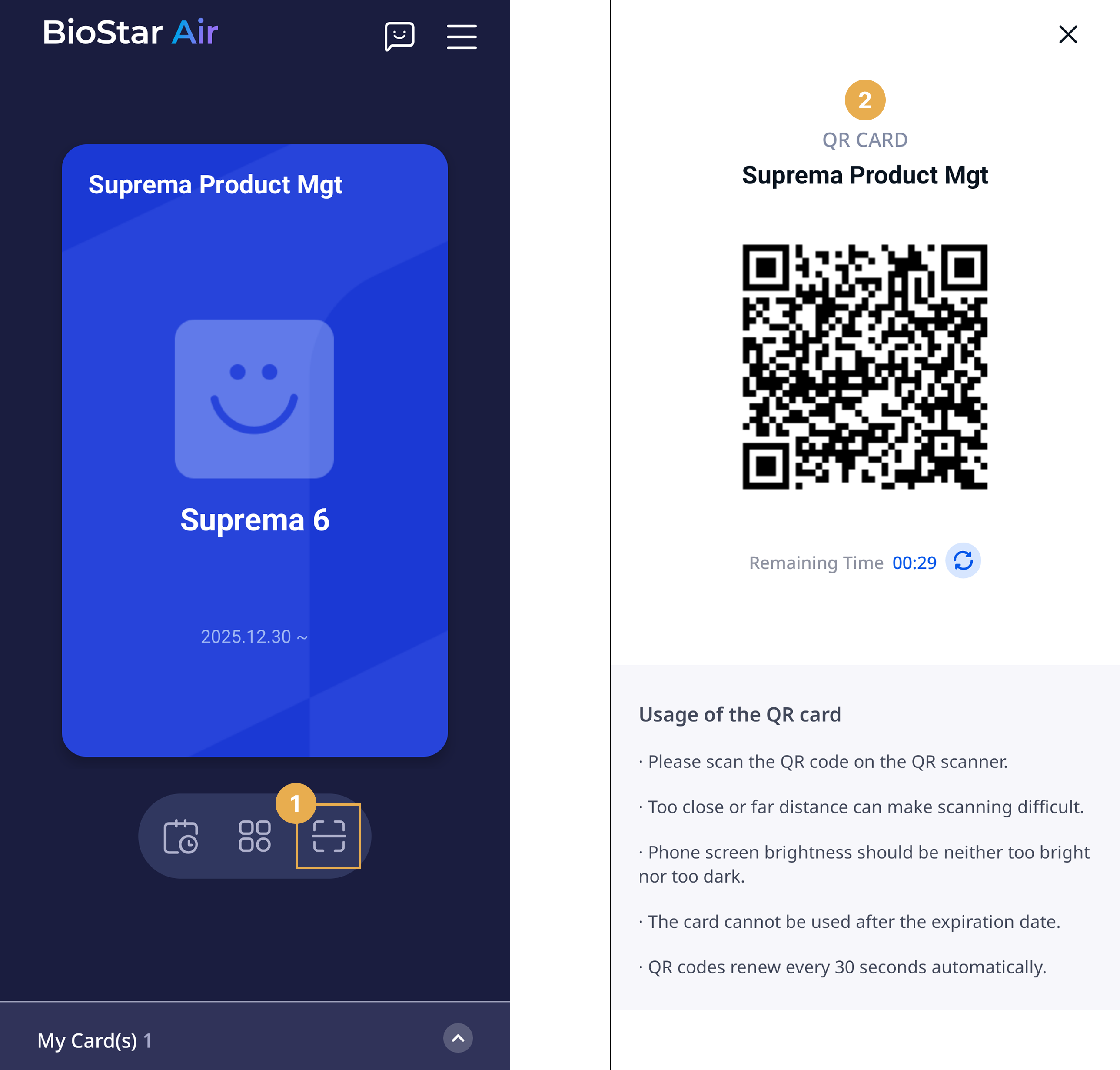
If the administrator enables the QR Reader option in the BioStar Air portal, you can open the door by scanning the QR code in the Suprema Pass app with a QR reader. On the home screen of the Suprema Pass app, tap the icon under the mobile card.
-
For more information about the QR Reader option, see Settings for Additional Features.
-
QR authentication is available only at doors equipped with a QR reader.