Time and Attendance Report
The time and attendance (T&A) report in BioStar Air is a simple on-site work hour report. It shows employees' start and end times based on event logs.
This feature is designed for basic reporting without complex configuration options. Time and attendance systems can have various requirements depending on local regulations. If the built-in time and attendance report does not meet your organization's needs, use a third-party T&A solution. Export event logs to CSV or integrate directly with third-party T&A software by using the BioStar Air API.
-
The built-in time and attendance report is intentionally simple and may not meet all compliance requirements.
-
If complex T&A rules exist (for example, local labor laws or shift patterns), use a third-party T&A solution.
-
Export event logs to CSV for manual processing or use the API to integrate automatically with other systems.
Follow these steps to generate a time and attendance (T&A) report.
-
Click Settings → Site in the left sidebar.
-
In the Settings tab, click T&A Report → Setting.
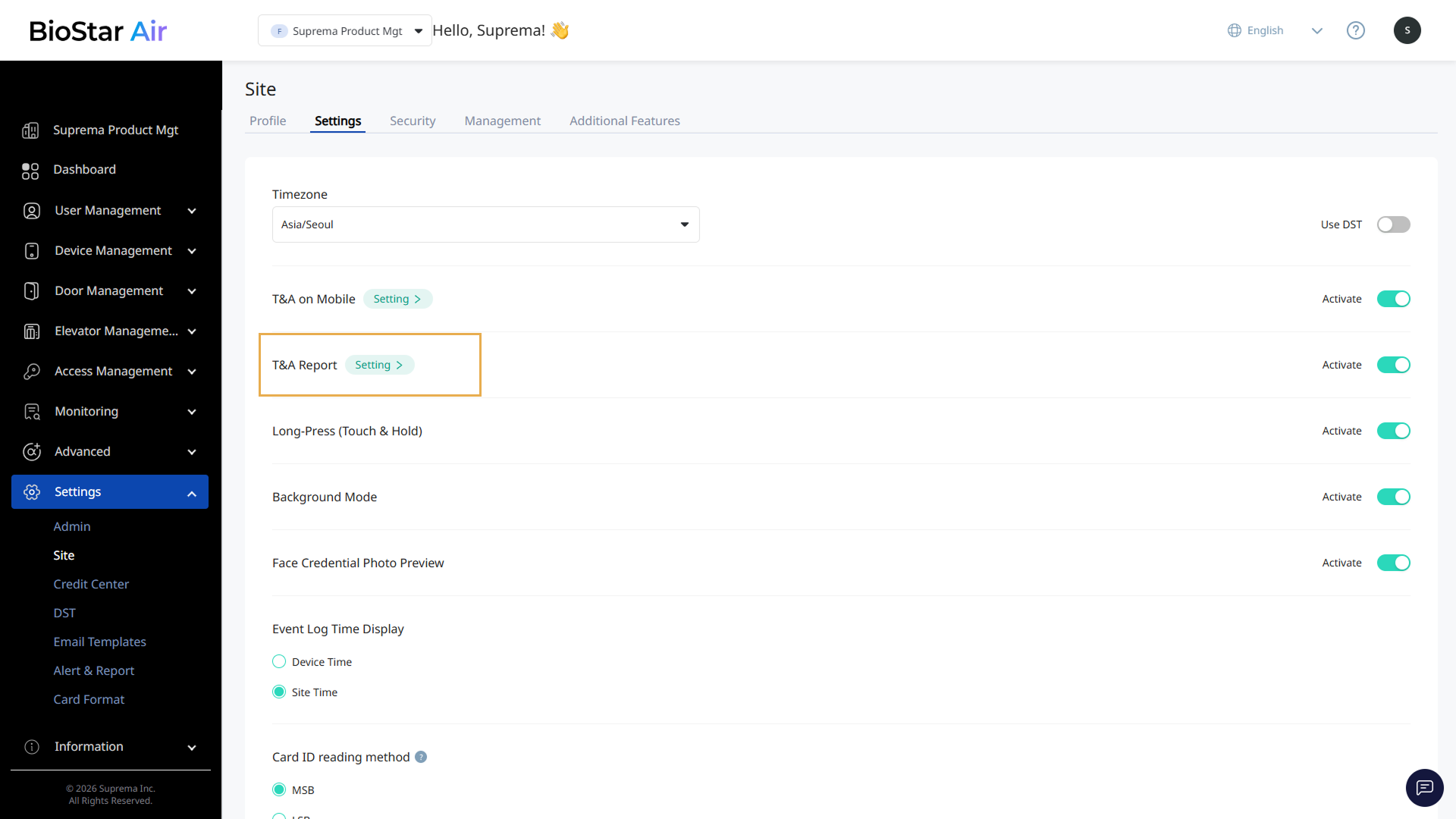
Click the toggle on the right to enable T&A Report.
-
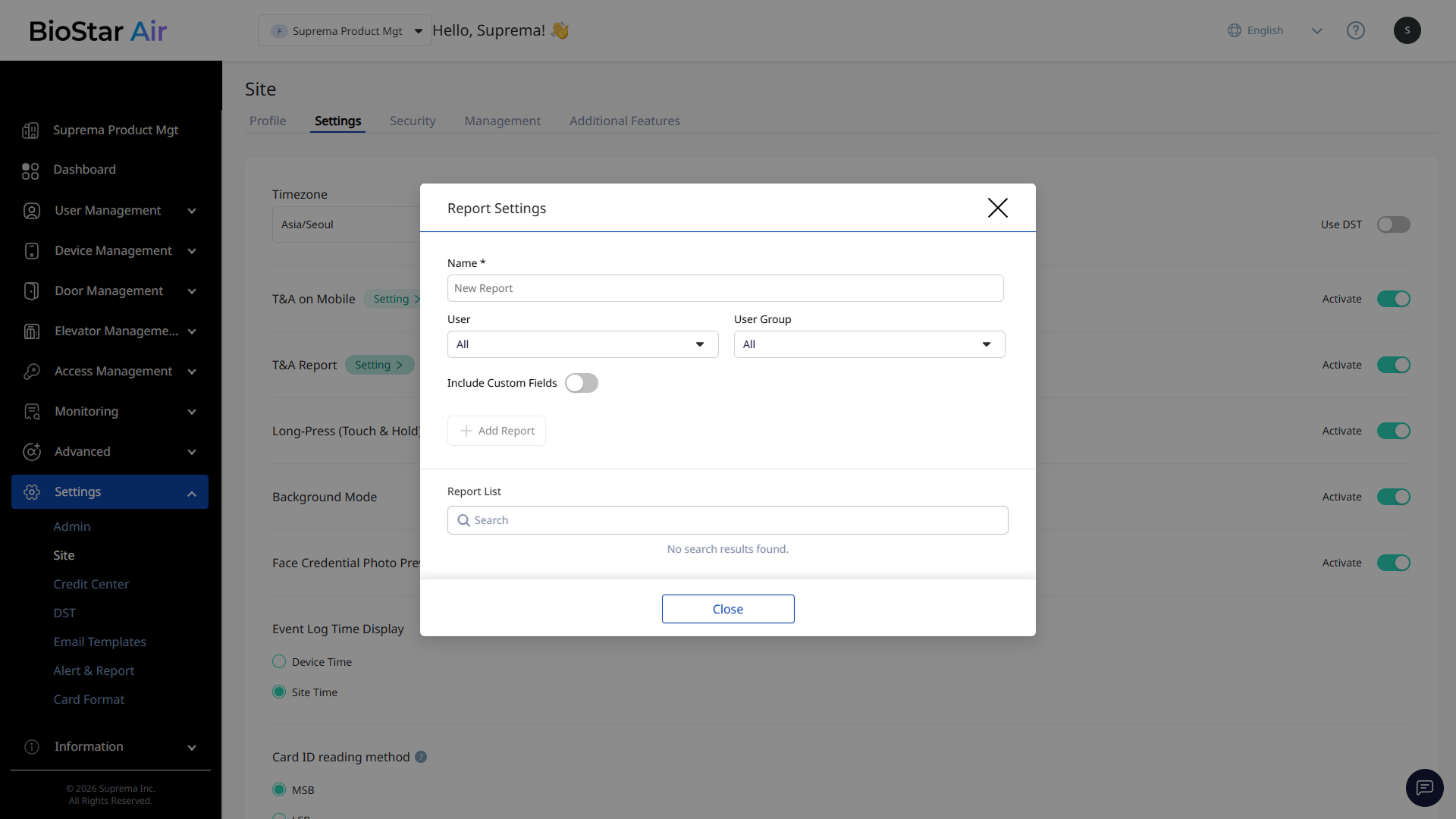
When the Report Settings window appears, enter a name for the report.
-
Select the users or user groups to include in the report.
-
Click Add Report.
-
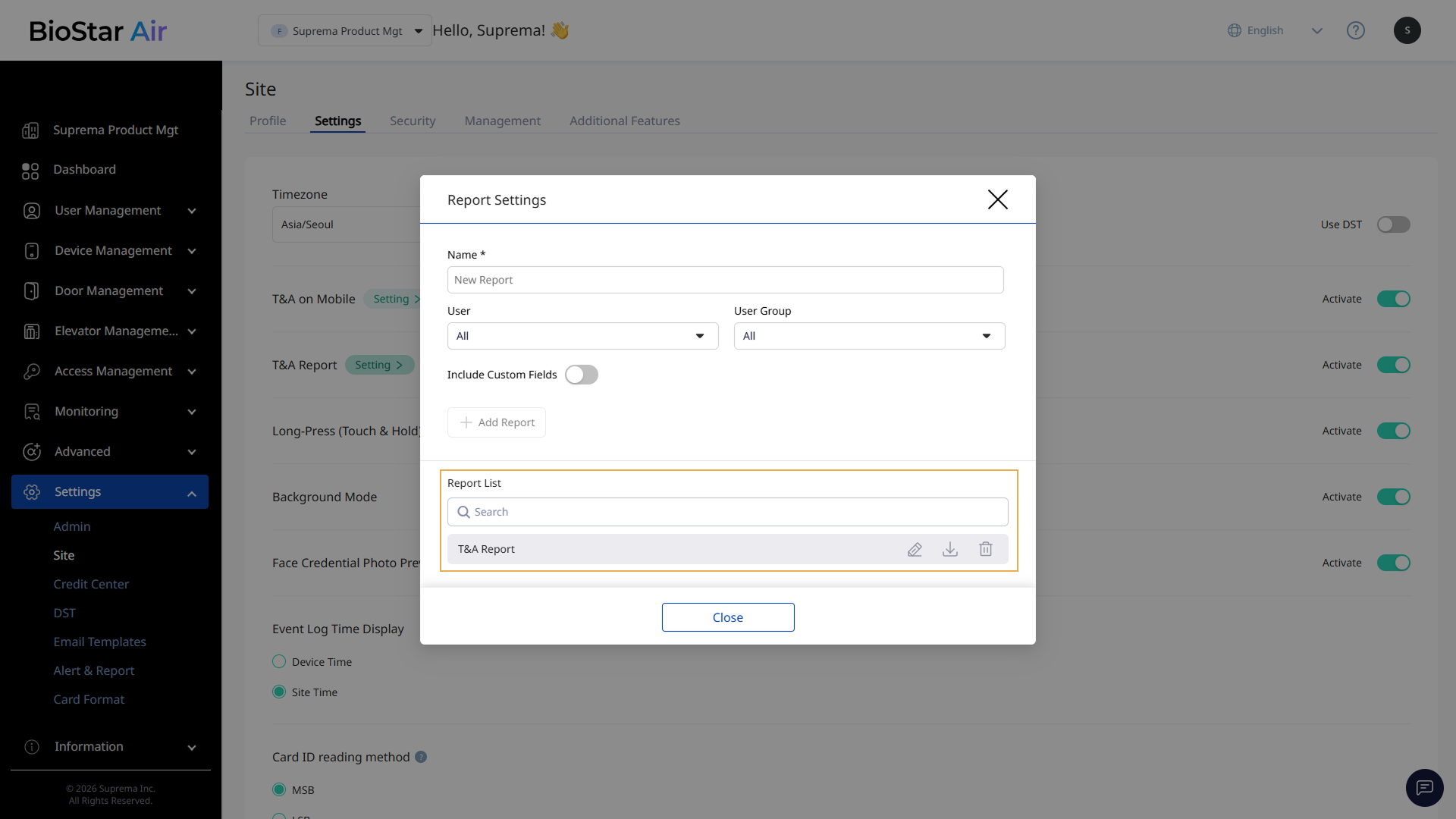
A downloadable report is generated in Report List.
-
Click to download the report.
-
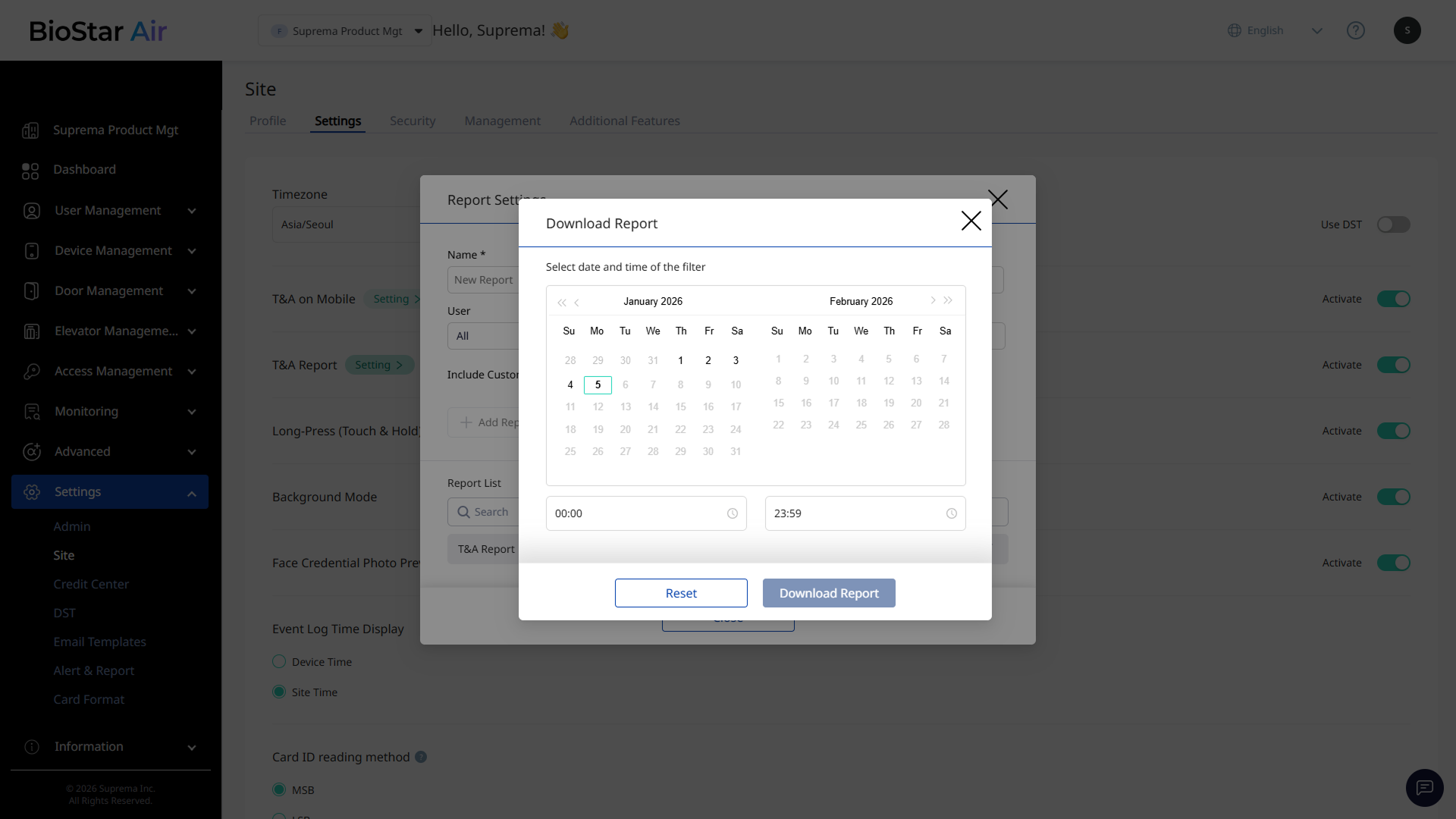
When the Download Report window appears, select a date and time range.
-
Click Download Report.
After the report is generated, a download link is sent to the administrator's email. Download the report from the email in PDF or CSV format.
-
Enable Include Custom Fields and select the desired template items to include user templates in the report.
-
The report is available for download for 24 hours after the download email is received. After that period, the report is no longer available.
-
Configure an automated schedule in Alert & Report. For more information, refer to Set Up Alerts and Reports.