Set Up Alerts and Reports
Setting up alerts and reports enables automatic detection and tracking of system events and security situations. This article explains how to configure alert and report settings in BioStar Air.
Alert and report settings provide the following benefits.
-
Immediately detect security threats or system issues and send real-time alerts to administrators.
-
Automatically generate reports on system status and user activity to improve management efficiency.
Add alerts
Configure alerts for specific event logs and system status on the site.
-
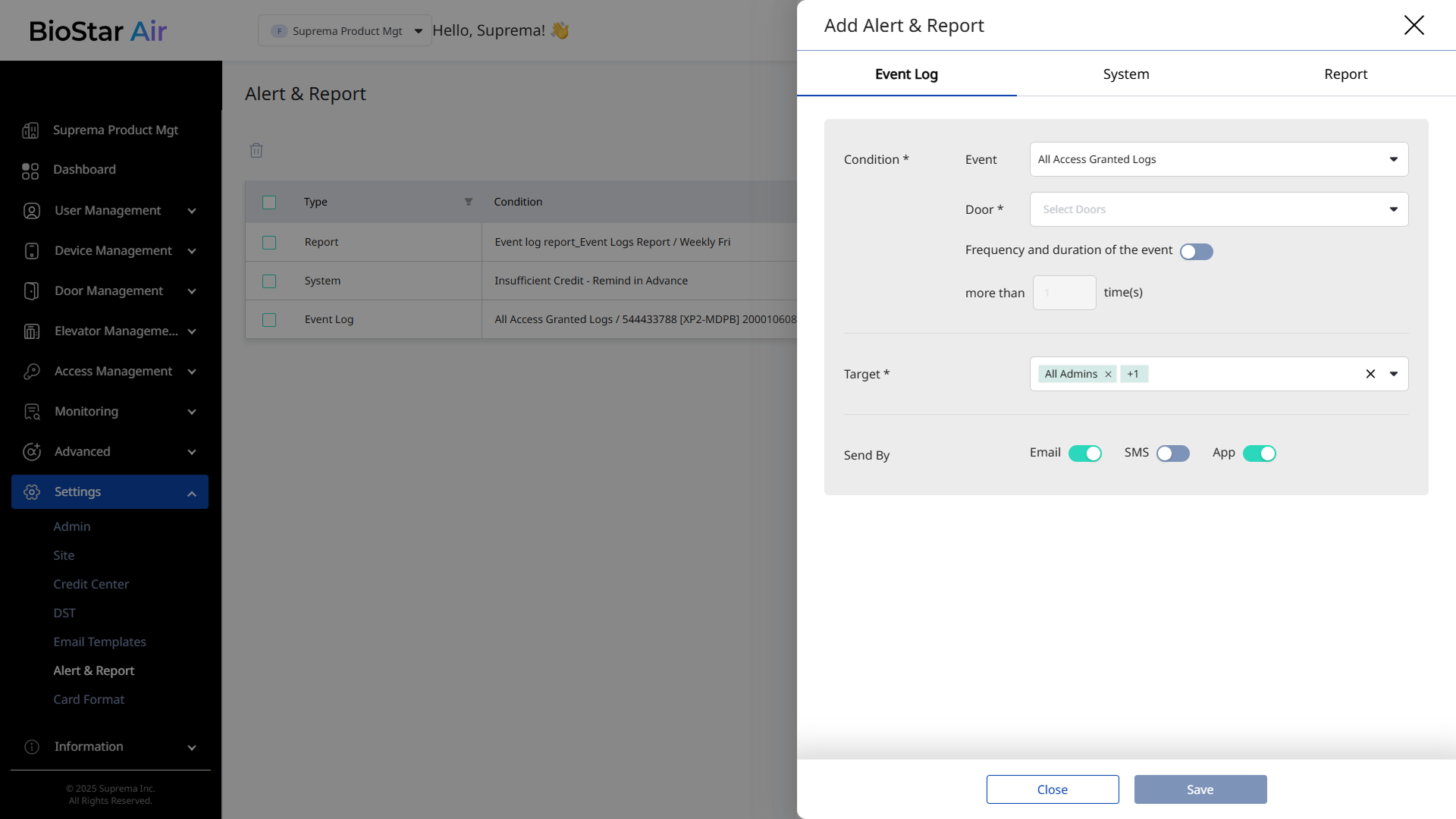
Click Settings → Alert & Report in the left sidebar.
-
Click Add Alert & Report at the top right of the screen.
-
When the Add Alert & Report panel appears, choose either the Event Log or System tab.
-
After configuring each item, click Save to save.
Set conditions
Event log
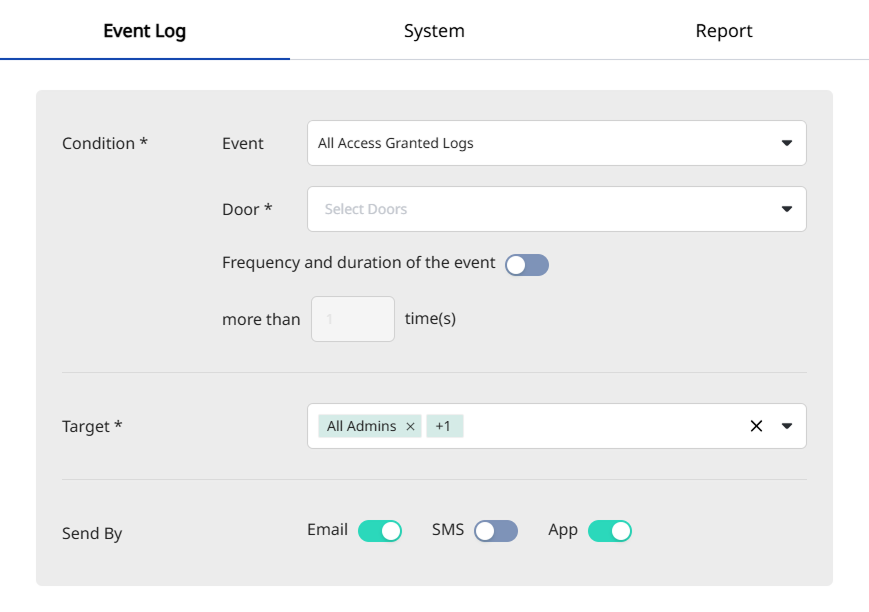
In the Event Log tab, set alert conditions by event type.
-
Events: Select the event types to alert. A predefined Preset Events can also be selected.
-
Door: Select door. Send an alert when an event occurs at the selected door. More than one door can be selected.
-
Frequency and duration of the event: Send an alert when events occur at a specified frequency within the defined time period. For example, configure the system to send an alert if an event occurs three times within five minutes.
System
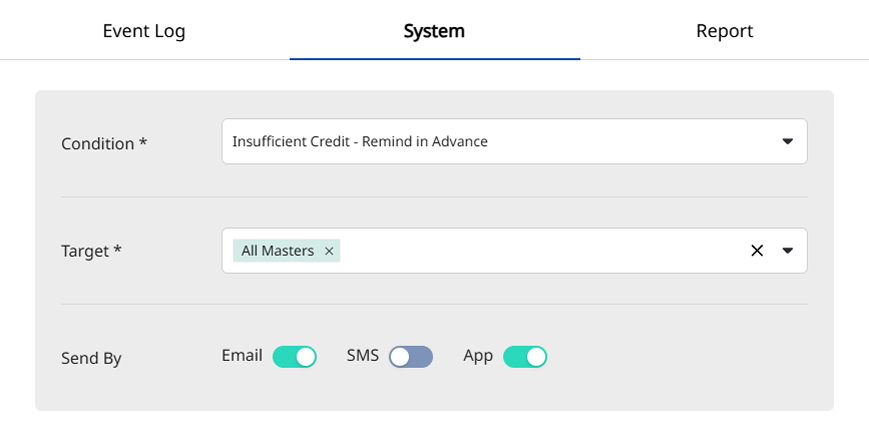
In the System tab, set alert conditions based on system status. The available options are as follows.
- Insufficient Credit - Remind in Advance
- Insufficient Credit - Site Suspended
- Insufficient Credit - SMS (Less than 10)
- APB battery is low
- A new Firmware is available
Set alert recipients
Use Target to designate alert recipients. Select users by administrator role or select individual users.
Set delivery method
Choose the delivery method in Send By. Alerts are delivered by email, SMS, or app push notification.
You can send text messages only after recharging your SMS credits. Remaining SMS credits can be checked in Settings → Credit Center.
Generate reports
Automatically generate reports at defined intervals and send them to administrators. Generate reports on event log activity and user status.
-
Click Settings → Alert & Report in the left sidebar.
-
Click Add Alert & Report at the top right of the screen.
-
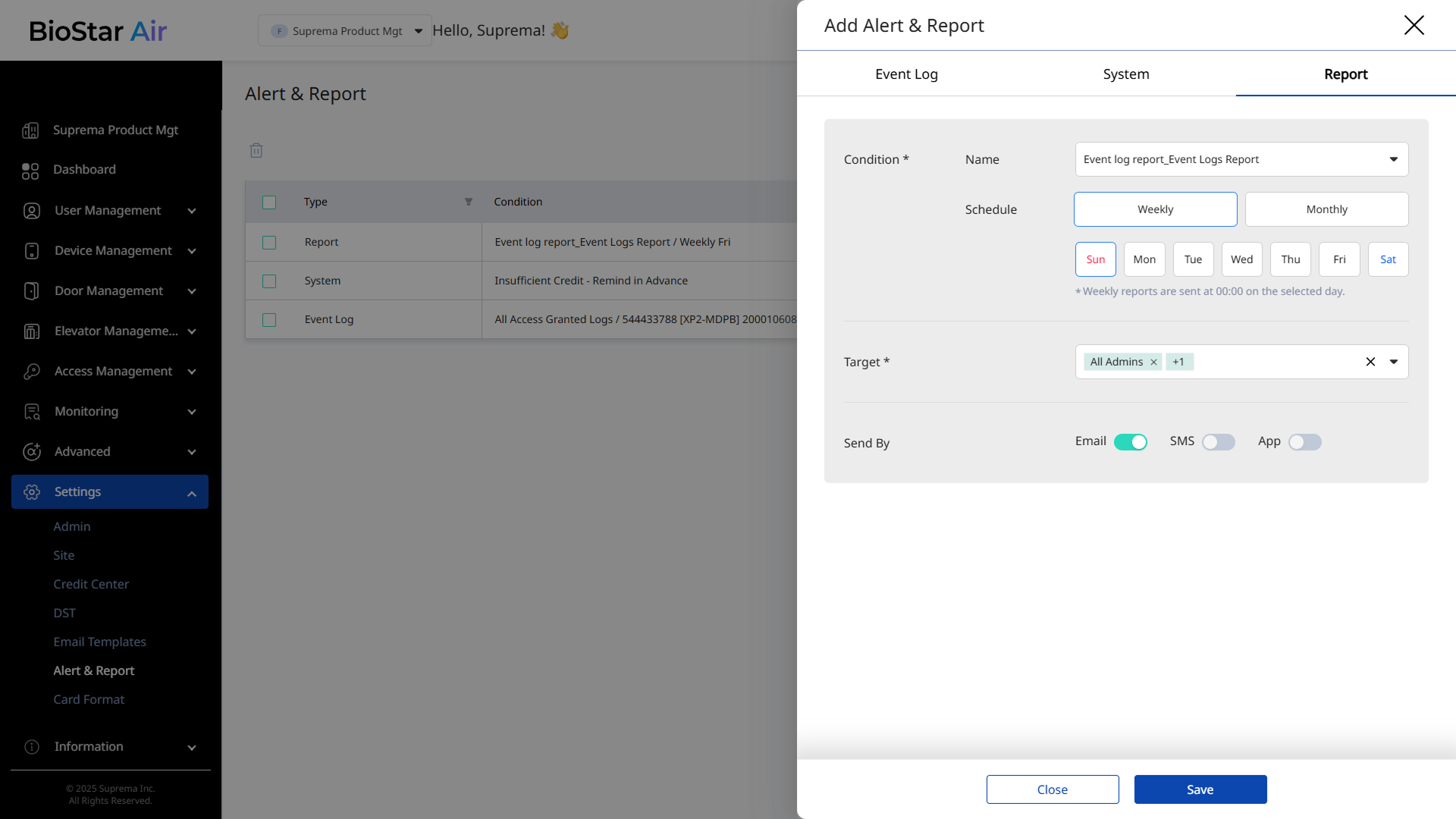
When the Add Alert & Report panel appears, select the Report tab.
-
After configuring each item, click Save to save.
Set conditions
Configure report type and generation interval.
-
Name: Select the report type to generate.
-
T&A Report: Generates a report on user Time & Attendance status for the selected period.
-
Audit Logs Report: Generates a report on audit log status for the selected period.
-
Event Logs Report: Generates a report on event log activity for the selected period.
-
User Report: Generates a report on user status for the selected period.
-
-
Schedule: Select the report generation interval. Choose between Weekly and Monthly.
Set report recipients
Use Target to designate alert recipients. Select users by administrator role or select individual users.
Set delivery method
Choose the delivery method in Send By.
Reports are delivered by email only. They are not delivered by SMS or app push notification.
Edit alerts and reports
-
Click Settings → Alert & Report in the left sidebar.
-
Click the alert or report to edit in the list.
-
When the Edit Alert or Edit Report panel appears, edit the necessary items.
-
Click Save at the bottom to save the changes.
Delete alerts and reports
-
Click Settings → Alert & Report in the left sidebar.
-
Select the checkbox of the alert or report to delete in the list. More than one item can be selected.
-
Click at the top left of the list.
-
Click Delete when the message window appears.