Configure Site Settings
Managing site settings in BioStar Air is essential for effective administration. This article describes the available settings and how to configure them.
Refer to the following video to watch a guide on site settings.
Customers who began using BioStar Air access control before May 2025 may still be using the Airfob Space app, which has since been rebranded as the Suprema Pass app. Both apps offer identical functionality and are fully compatible. There is no need for existing users to switch — mobile credentials work seamlessly across both.
Set site information
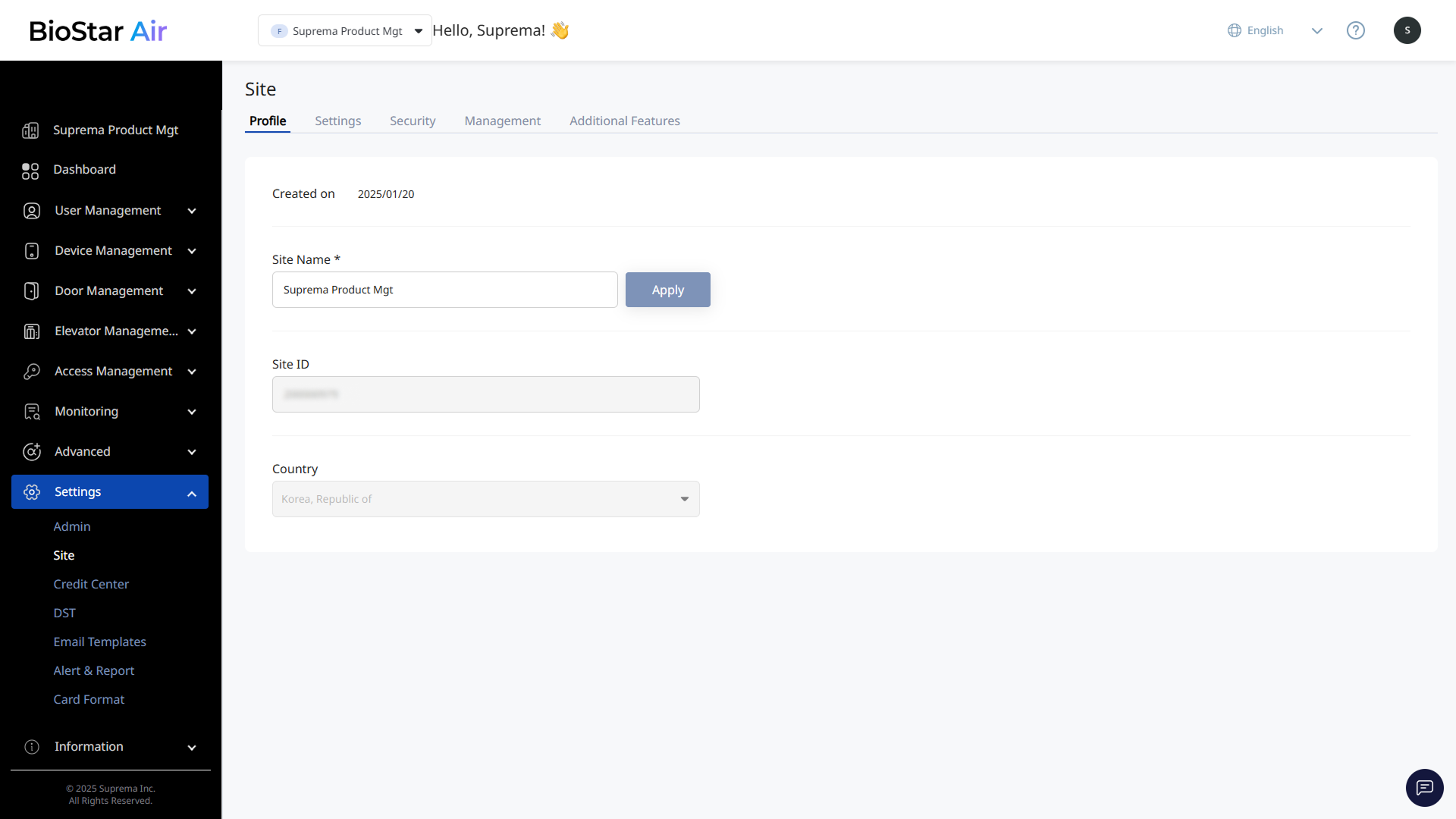
Click Settings → Site in the left sidebar. Use the Profile tab to modify the site's basic information.
-
Site Name: The site name. Enter a new name and click Apply. Change it at any time.
-
Site ID: A unique identifier required for support requests. Copy and provide the site ID when communicating with the MOCA team.
-
Country: Set when the site is created and cannot be changed later. Request changes through the BioStar Air Partner Portal.
Configure site settings
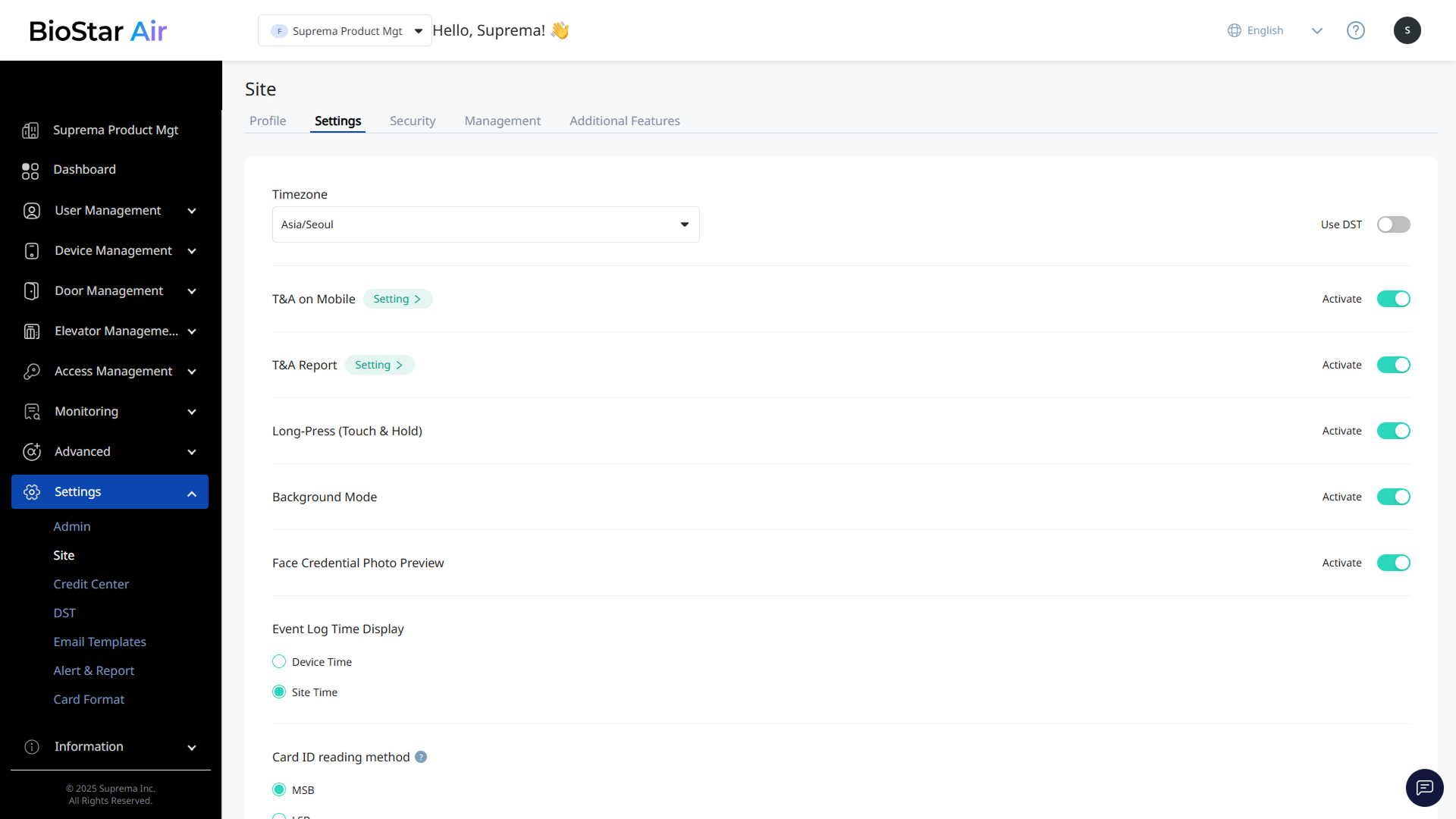
Click Settings → Site in the left sidebar. Use the Settings tab to configure site settings.
-
Timezone: Change the time zone at any time. Logs and events are recorded according to the configured time zone.
- Use DST: Enable or disable daylight saving time for specific regions.
-
T&A on Mobile: Enable the time and attendance (T&A) feature. After enabling the T&A feature, click Setting to configure detailed settings. For more information on details, refer to the following.
-
T&A Report: Generate time and attendance (T&A) reports. After enabling the report feature, click Setting to configure report conditions. For more information on details, refer to the following.
-
Long-Press (Touch & Hold): Enable the Long Touch feature to remotely open doors from a certain distance.
-
Background Mode: Allow mobile cards while the Suprema Pass app runs in background mode. When enabled, users can open a door without launching the app.
-
Face Credential Photo Preview: Show a face preview when issuing face credentials.
-
Event Log Time Display: Set how event log times are displayed.
-
Device Time: Show event logs based on each device's time zone.
-
Site Time: Show logs according to the site's time zone. Useful when all devices are in one location. See the Timezone option.
-
-
Card ID reading method: Configure how card data is transmitted when using Airfob Patch with third-party readers.
This setting applies only to patch devices and can be adjusted to match the type of third-party device to which the patch is attached.
-
Validity Period for Mobile Access Card Activation/Reissue Link: Set the default validity period for mobile credentials.
InfoAdmins can set a separate expiration date for each user's credentials. For more information on details, refer to the following.
Security settings
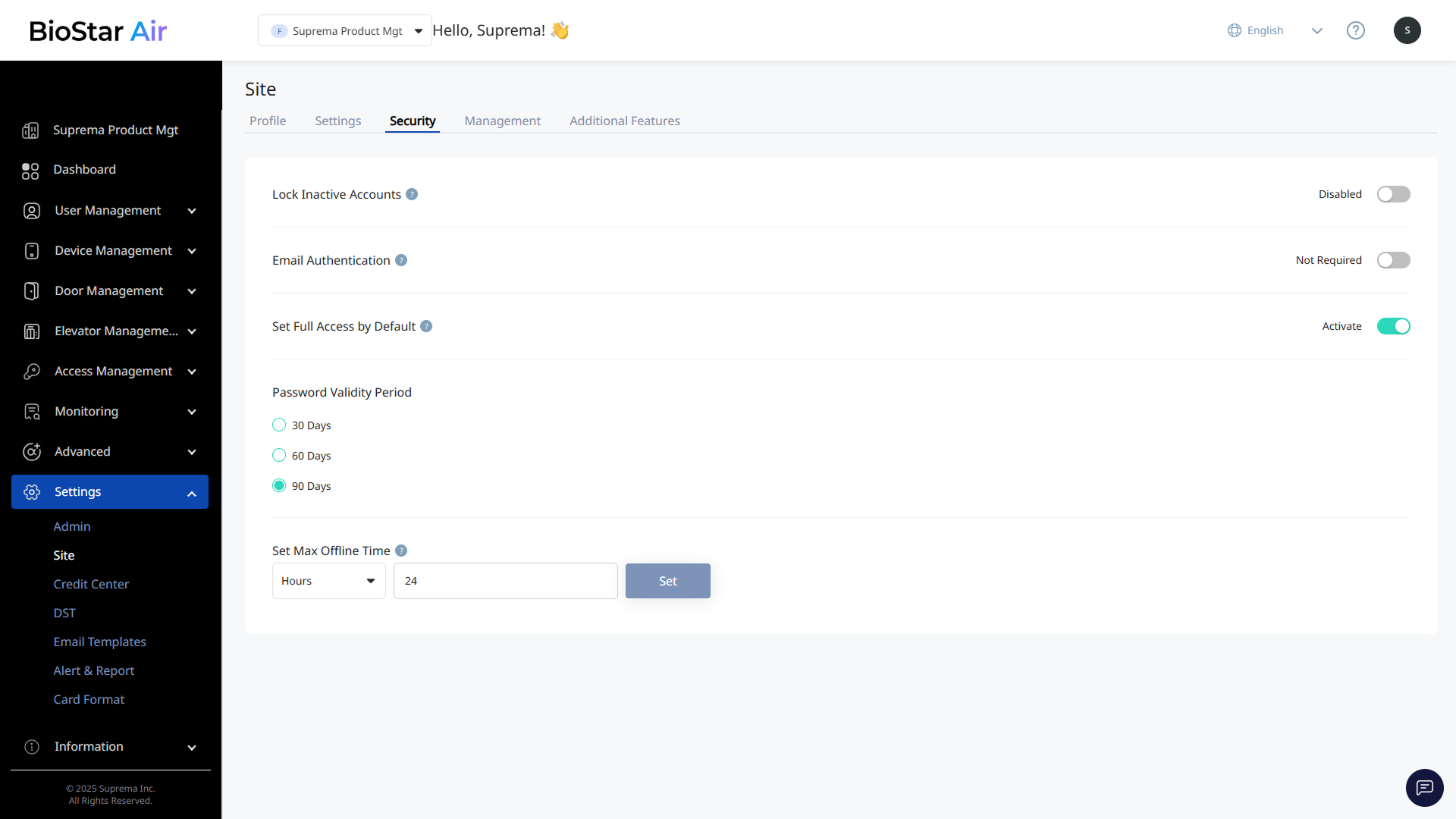
Click Settings → Site in the left sidebar. Use the Security tab to configure site security settings.
-
Lock Inactive Accounts: Lock administrator accounts that have been inactive for more than 90 days.
-
Email Authentication: Require email two-factor authentication each time an administrator signs in.
-
Set Full Access by Default: Grant 'full access' to new users by default when no other access rights are selected. If this setting is disabled, assign access levels manually. Temporary users are not granted full access automatically even if the setting above is enabled.
For more information on managing access levels, refer to the following.
-
Password Validity Period: Require password reset every 30, 60, or 90 days.
-
Set Max Offline Time: Set how long mobile credentials remain valid when the device is offline.
-
The default is 5 minutes and can be set from 1 minute to 8 days.
-
This helps balance security and convenience, especially at remote sites with limited network connectivity.
-
Management
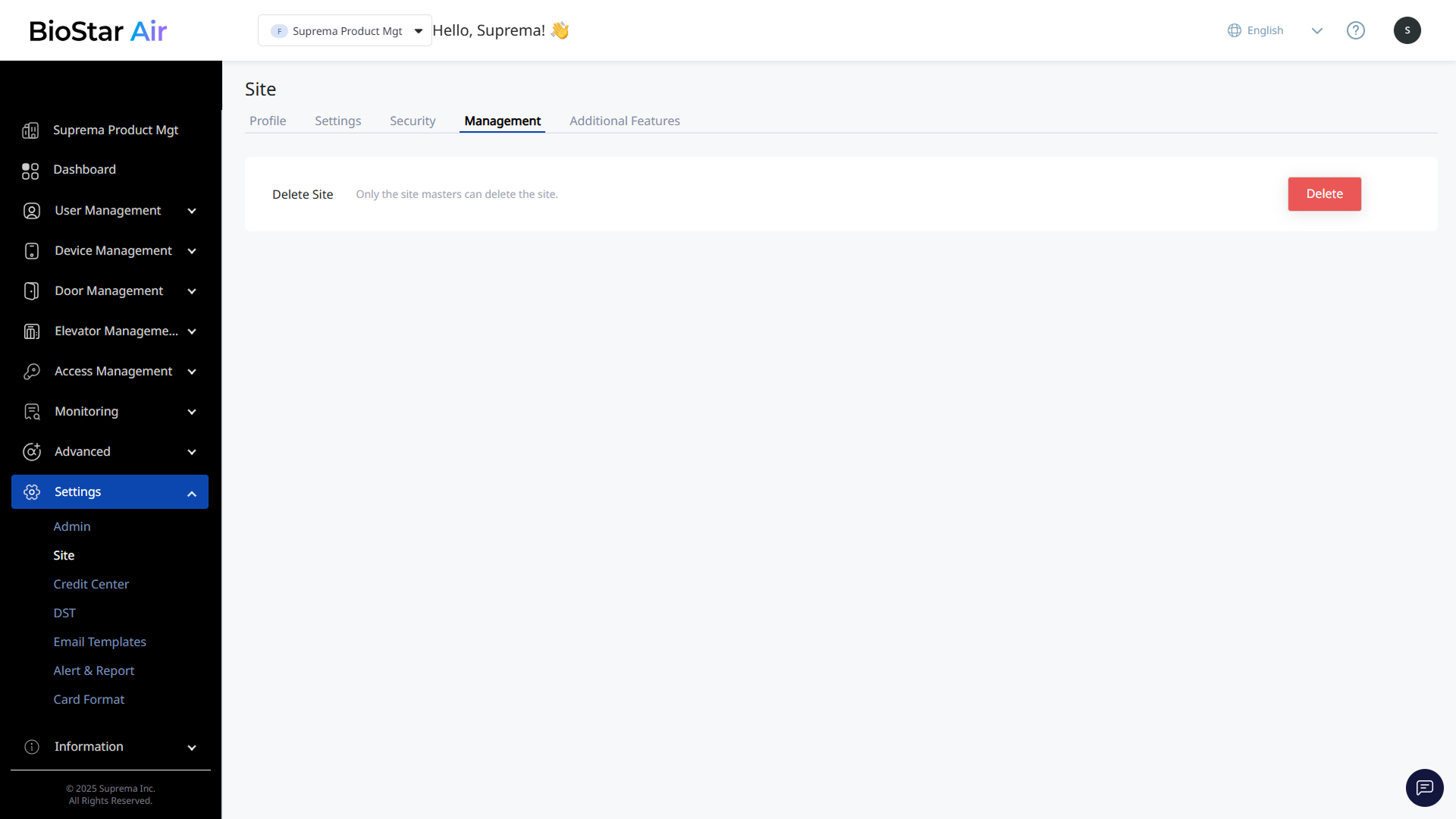
Click Settings → Site in the left sidebar. The only option available in the Management tab is Delete Site. This action is irreversible, and only the master administrator can delete a site.
Options
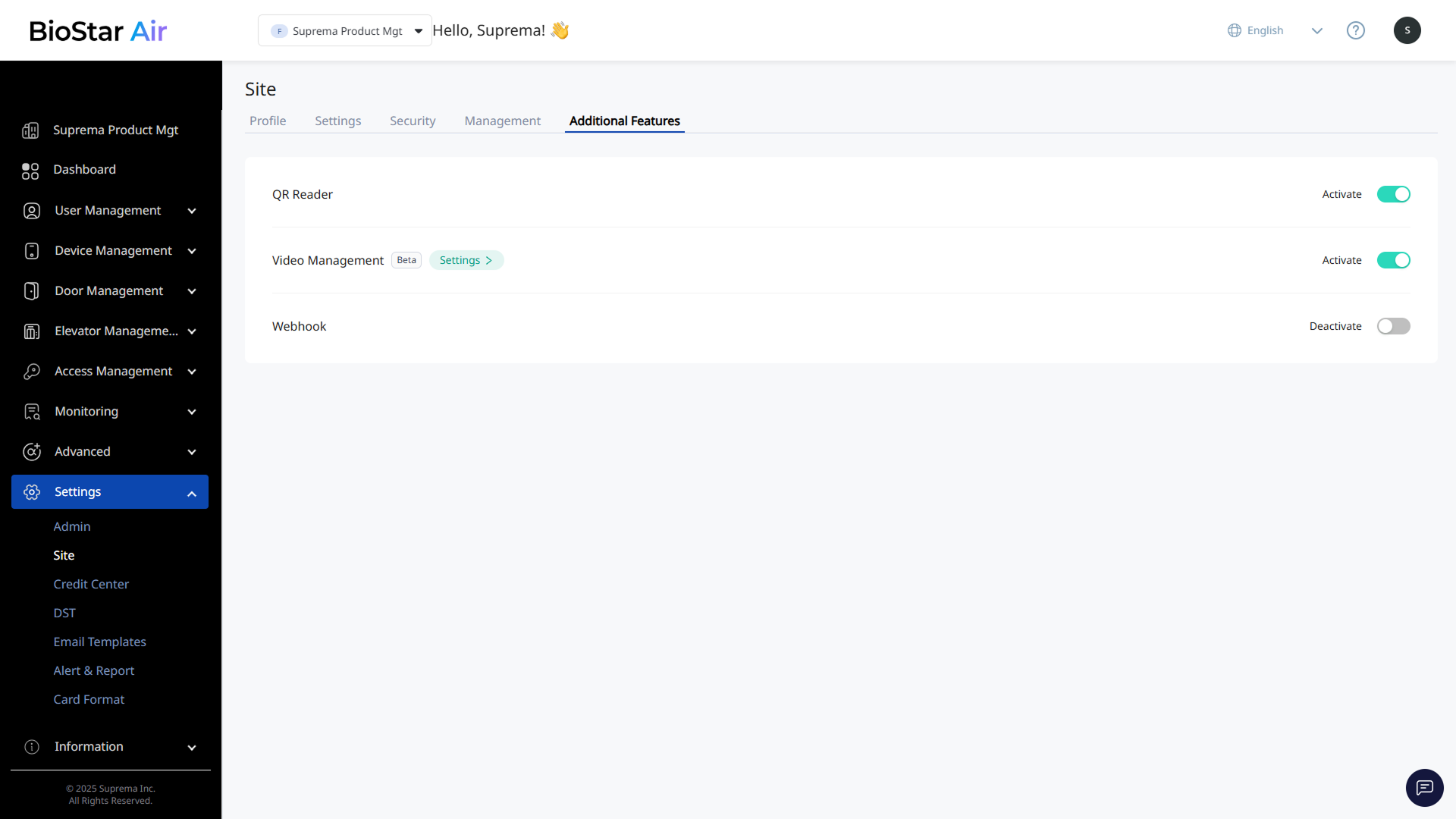
Click Settings → Site in the left sidebar. Use the Additional Features tab to enable or disable additional features.
-
QR Reader: Supports QR code readers. Disable this option if you do not use a QR reader.
-
Video Management: Supports ONVIF-compliant IP cameras. Enable this feature to integrate BioStar Air with video surveillance. After enabling the feature, click Settings to set the event log playback time.
For more information on video management, refer to the following.
-
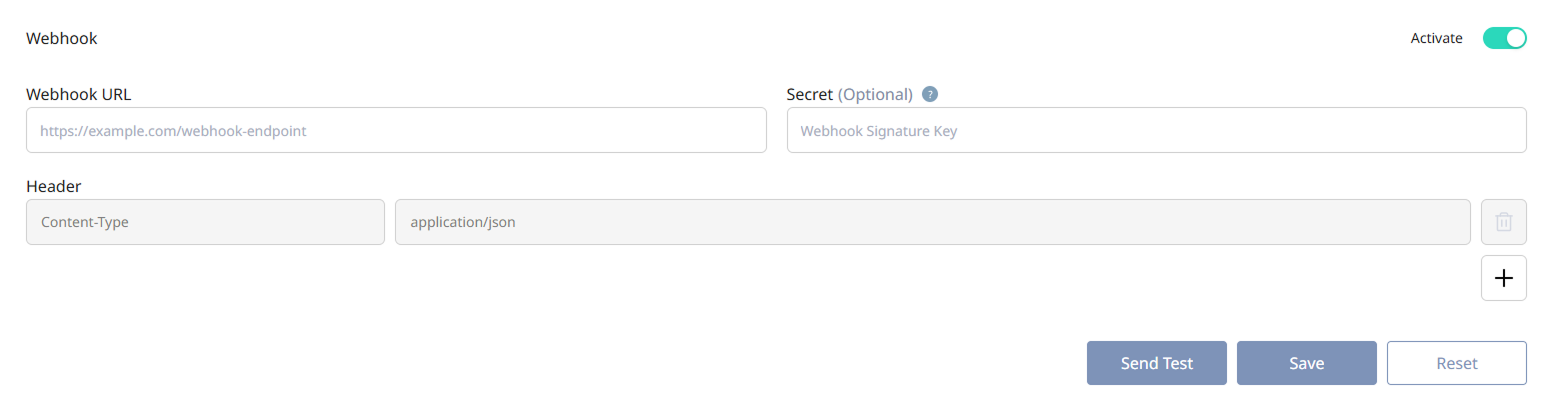
Webhook: Enable webhooks to send BioStar Air events to external systems. After enabling the feature, configure the fields below.
-
Webhook URL: Enter the endpoint address of the external server that will receive events. Example:
https://example.com/webhook-endpoint -
Secret: A security token used to verify that the webhook request originated from a trusted server. The sending server encrypts the payload with the security key using SHA-256 and sends it in the
X-Signatureheader. -
Send Test: Verify that the webhook works correctly. Send a test message to confirm that the external server receives and responds to the request.
Info-
After entering all required information, click Save.
-
Click Reset to initialize the entered information.
-