Set Up Advanced Features
The Suprema Pass app includes advanced settings and security options to enhance the user experience and access control features. Users can configure authentication methods, enable two-factor authentication, review access logs, report issues, and use support features.
Configure connection method
Select a preferred connection method to communicate with the access control device. On the Suprema Pass app home screen, tap in the upper right corner, then select the desired mode in Connection Method.
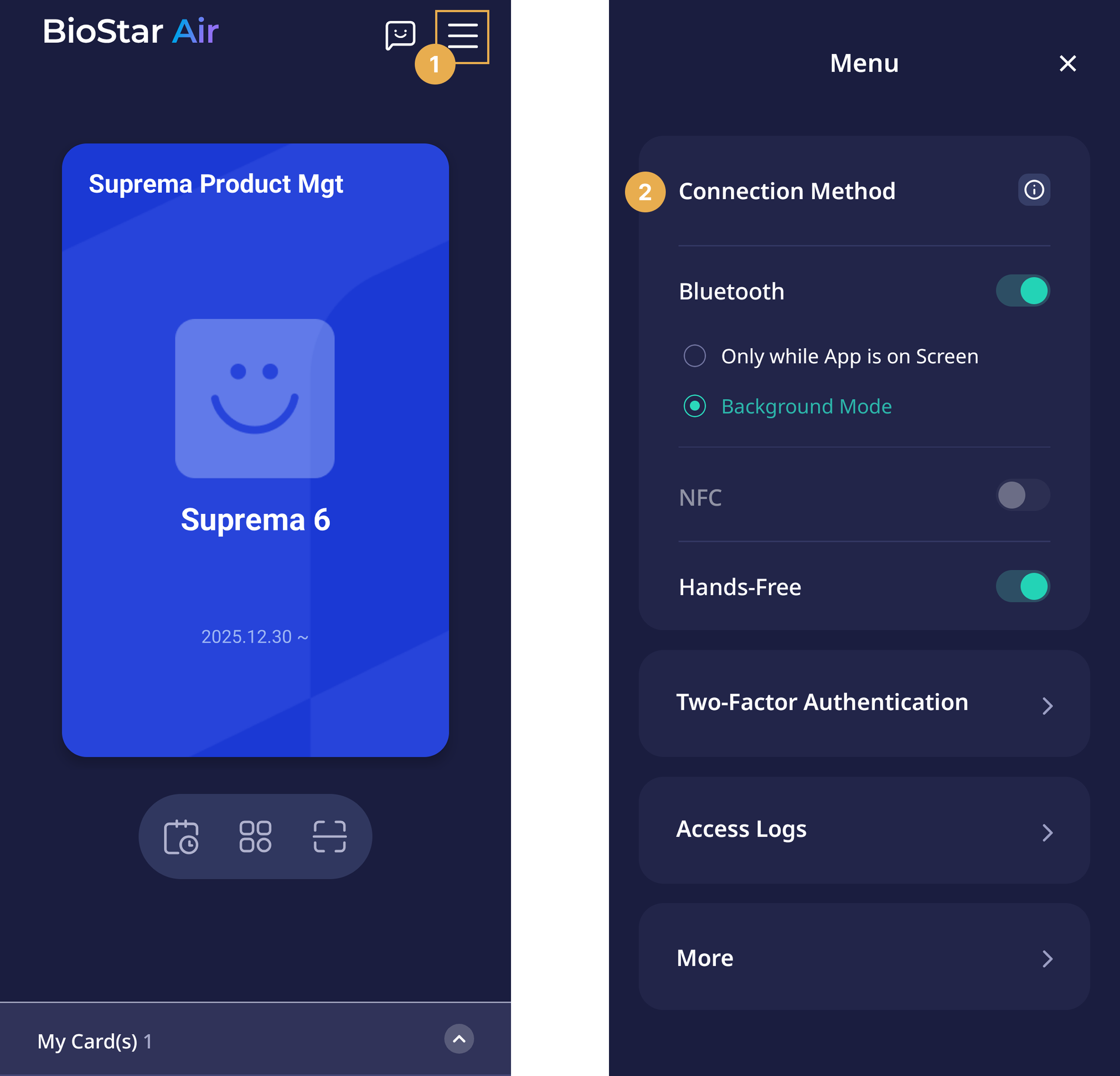
Bluetooth
Choose between two Bluetooth authentication modes.
-
Only while App is on Screen: Authenticate with a mobile card only when the app is open on the mobile device. This mode saves battery but requires manually launching the app before approaching the door.
-
Background Mode: Authenticate with a mobile card even if the device screen is off when the app runs in the background. This mode is more convenient but consumes more battery. If the app closes, relaunch it to resume background functions.
NFC
NFC authentication is available only on Android devices. Use NFC alone or with Bluetooth for faster entry.
Android users with an NFC-compatible device can use NFC with Bluetooth.
Two-factor authentication (2FA)
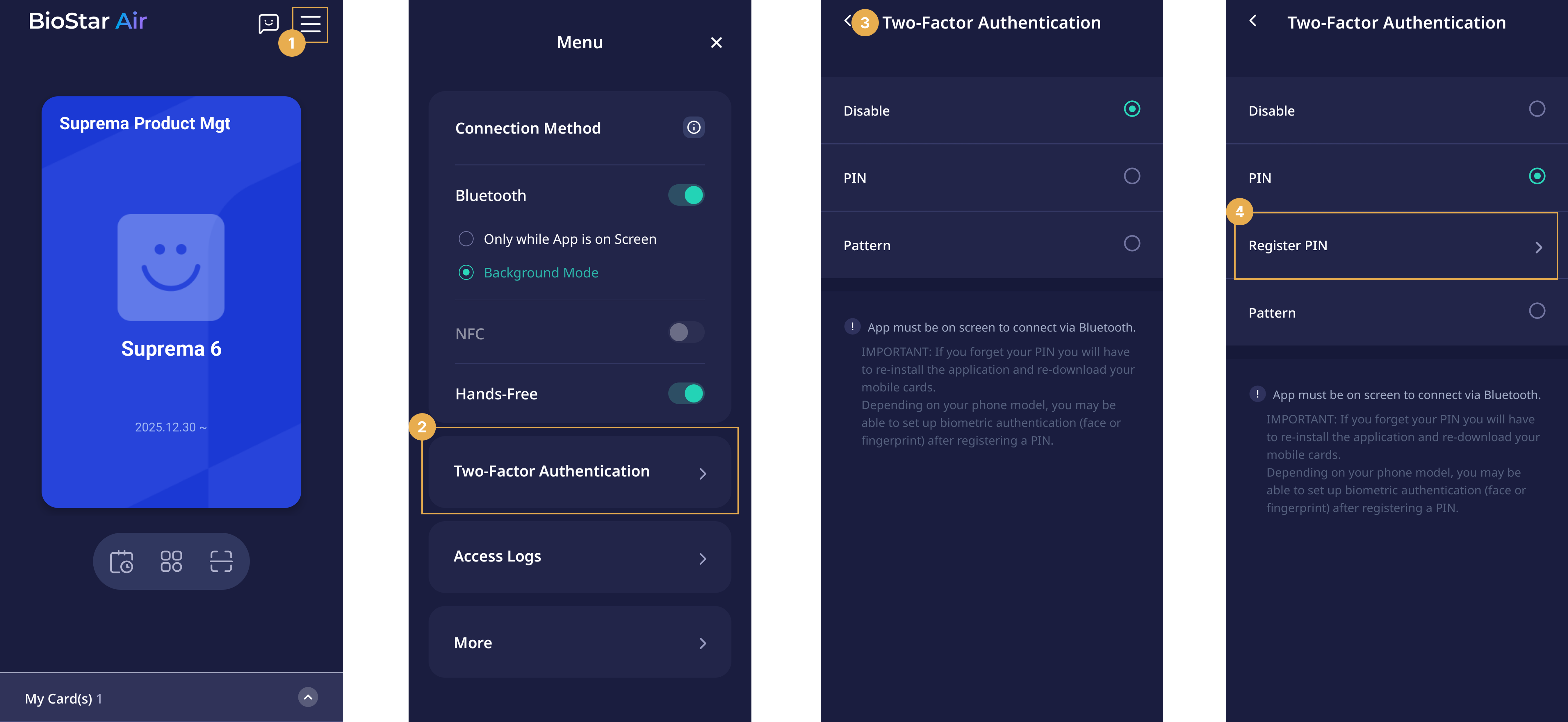
Enable two-factor authentication with a PIN, pattern, or biometric authentication (face or fingerprint) for additional security.
-
This feature is not supported in Background Mode connections because the app screen must remain open during access authentication.
-
If the PIN or pattern is forgotten, reinstall the app and reactivate the mobile card.
-
Supported features may vary depending on the mobile device.
iOS users
-
On the Suprema Pass app home screen, tap in the upper right corner.
-
Set the connection method to Only while App is on Screen.
-
Tap Two-Factor Authentication.
-
Tap Register PIN.
-
Enter the six-digit PIN.
-
When the success notification appears, tap OK.
-
Tap Change PIN, then enter the new PIN to change the PIN.
-
Enable Biometric Authentication and follow the setup instructions to use biometrics.
Android users
-
On the Suprema Pass app home screen, tap in the upper right corner.
-
Set the connection method to Only while App is on Screen or NFC.
-
Tap Two-Factor Authentication.
-
Tap PIN → Register PIN or Pattern → Register Pattern.
-
Enter the selected PIN or pattern.
-
When the success notification appears, tap OK.
-
Tap Change PIN, then enter the new PIN to change the PIN.
-
Tap Change Pattern, then enter the new pattern to change the pattern.
-
Enable Biometric Authentication and follow the setup instructions to use biometrics.
Access logs
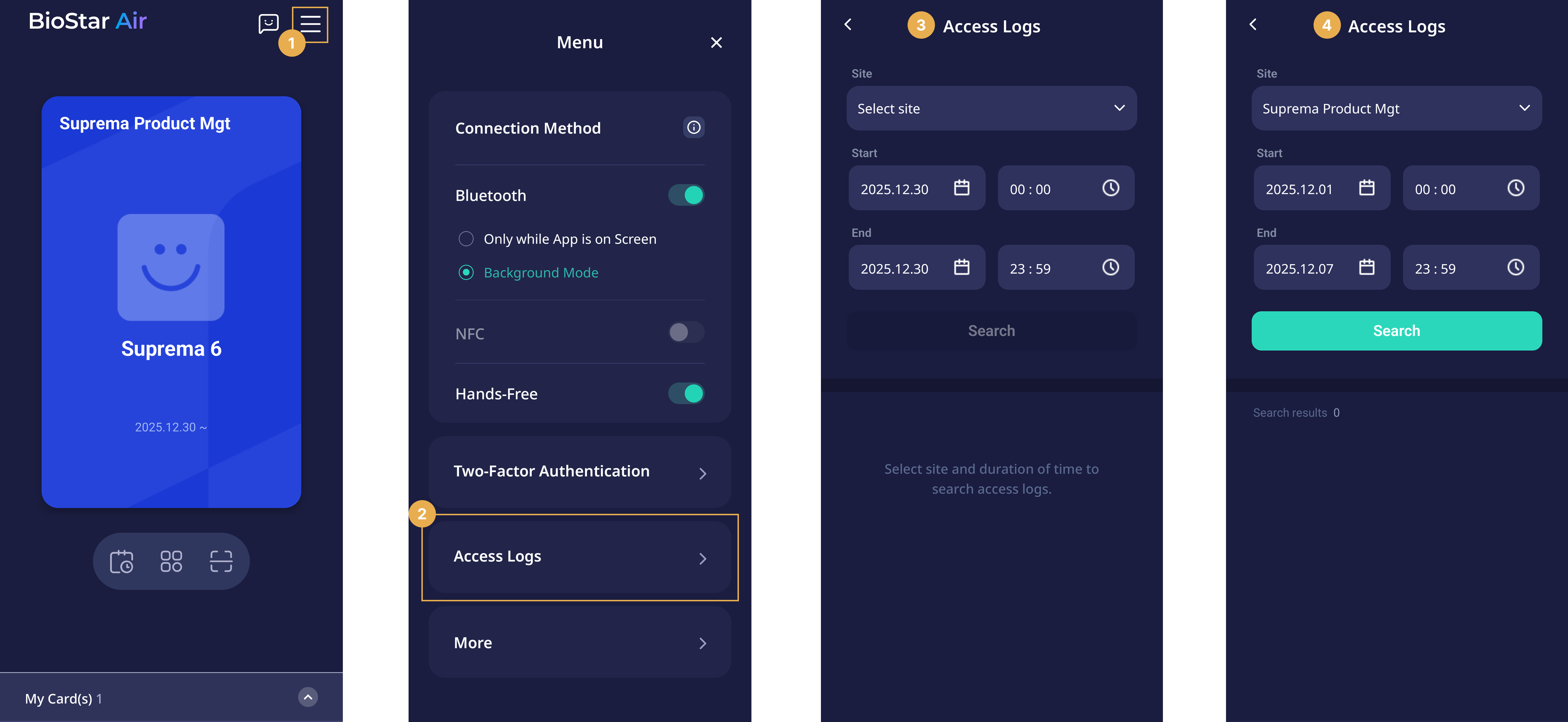
Use access records to track entry attempts and troubleshoot entry-related issues.
-
On the Suprema Pass app home screen, tap in the upper right corner.
-
Tap Access Logs.
-
Select a site, then set the start and end dates.
-
Tap Search.
Support center
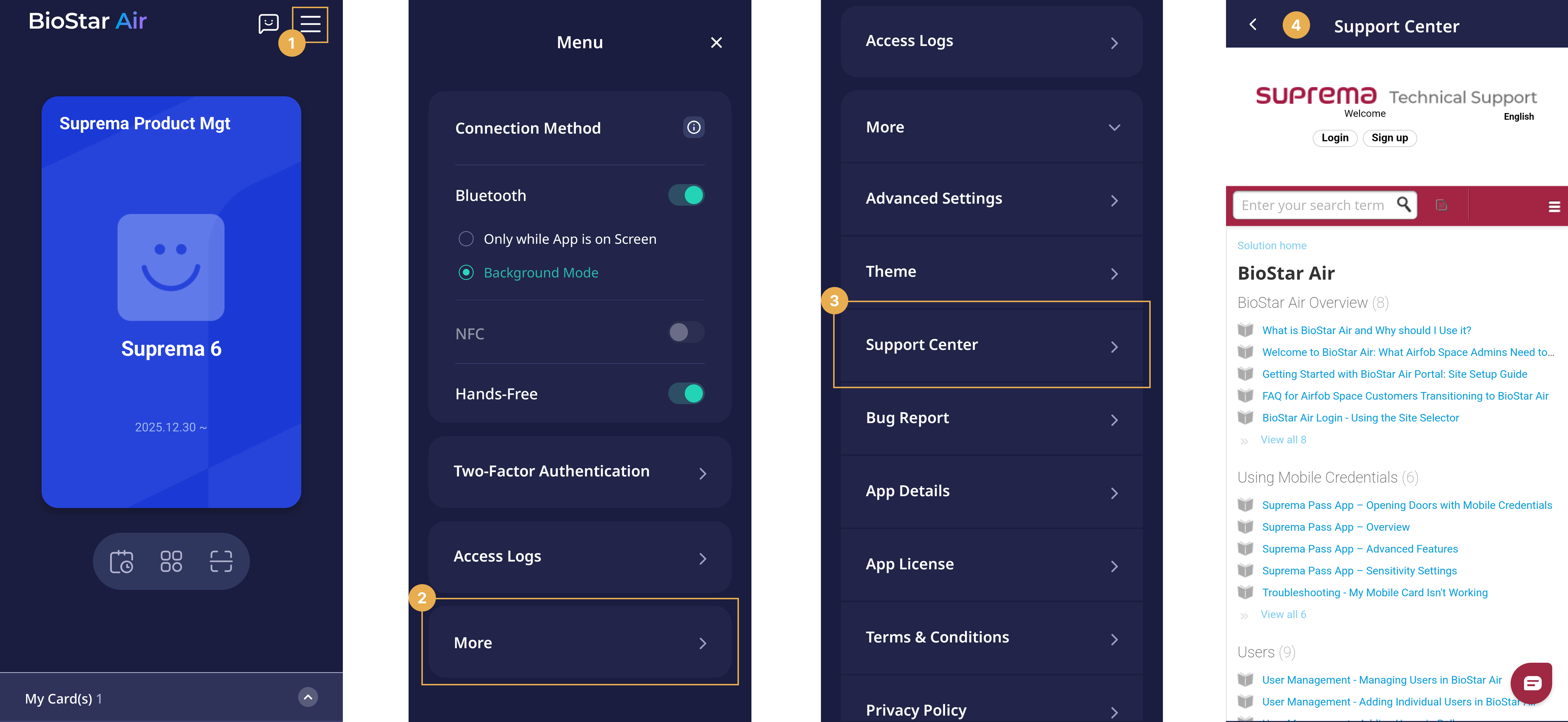
Go to Support Center for additional support.
-
On the Suprema Pass app home screen, tap in the upper right corner.
-
Tap More.
-
Tap Support Center.
-
Go to the Suprema Technical Support page.
-
Search questions or review FAQs.
-
If support is needed, tap the chat icon in the lower right corner to submit a ticket to the MOCA Systems team.
Advanced Settings
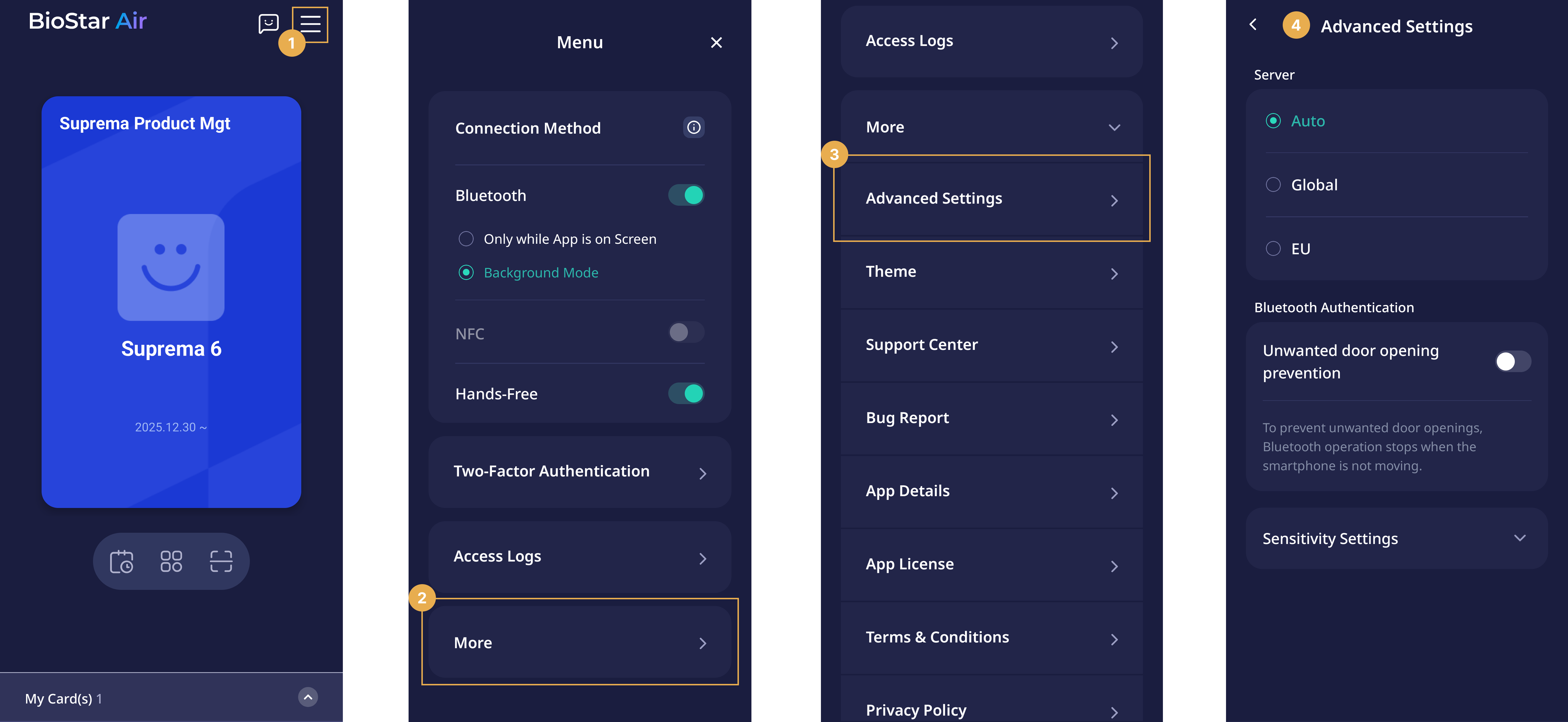
Tap in the upper right corner on the Suprema Pass app home screen, then select More → Advanced Settings to use the following additional features.
-
Location setting: Select Global or EU server based on your location. Select Auto to have the app detect your location and choose the appropriate server.
-
Bluetooth Authentication: Enable Unwanted door opening prevention to block Bluetooth authentication when the mobile device is stationary.
-
Sensitivity Settings: Adjust the Bluetooth sensitivity between the mobile device and the reader compatible with BioStar Air. For more information, see Set Bluetooth Sensitivity.
Additional features
Tap in the upper right corner on the Suprema Pass app home screen, then select More to use the following additional features.
-
Theme: Set the app's color mode. Select Light, Dark, or System mode.
-
Bug Report: Write detailed information, such as the error occurrence context and reproduction steps, to submit the bug report to the developer.
-
App Details: Check the model name, OS version, BLE support and status of the mobile device.
-
App License: View the open-source license information used in the Suprema Pass app.
-
Terms & Conditions: View the terms of use for the BioStar Air platform.