Fix Bulk User Addition Issues
Several customers and partners have reported issues when adding user lists in bulk. Most issues arise from incorrectly formatted CSV files. Follow the instructions below exactly to ensure the bulk addition feature works as expected.
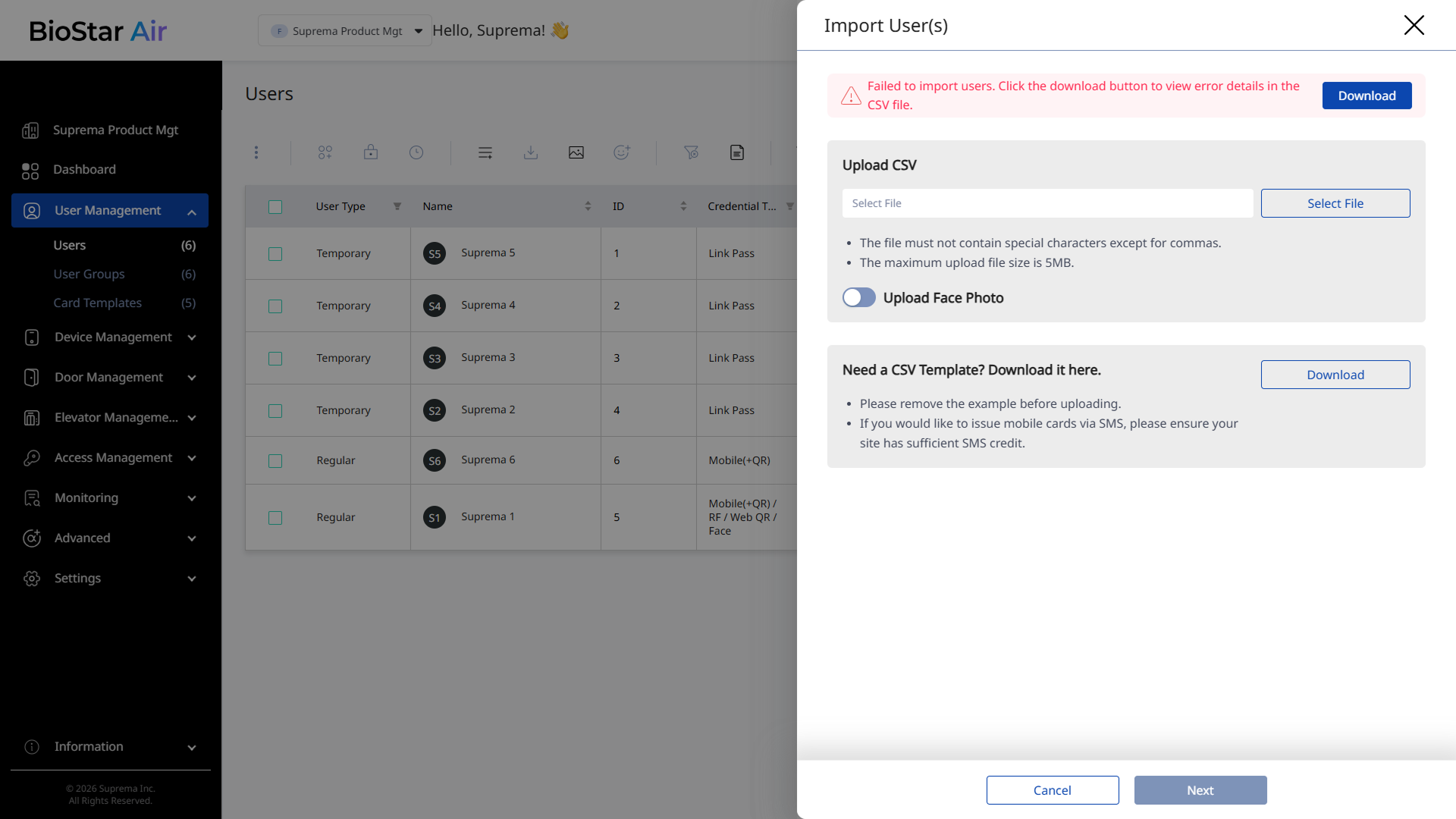
Starting with v2.10, BioStar Air returns a validation report when a CSV file containing invalid entries is uploaded. Correct the errors, and then upload the file again.
Prepare the CSV file
Download the CSV template
-
Go to User Management → Users in the left sidebar.
-
Click Add User → Import User(s) at the top right of the screen.
-
When the Import User(s) panel appears, click Download.
-
Save the CSV template file (biostar-import-user-csv-example.csv) locally.
Use the exact CSV template format
-
Do not manually add or delete columns. An unexpected column can cause an error.
-
If you need to include additional fields (for example, employee ID or department), use the User Template() feature at the top of the user list to add them. When a field is added, the downloaded CSV file automatically includes the corresponding column.
Enter data correctly by referring to the requirements of each column.
User Key
-
A unique numeric ID for each user.
-
The User Key column can be left blank, and the system assigns a value automatically.
-
If you enter user IDs manually
-
Use numbers only.
-
Use a unique value.
-
Do not include letters, spaces, hyphens, or special characters.
-
If you need to use a company-specific employee ID that includes letters, do not use the User Key field. Instead, create a custom user field with the User Template feature.
Email
-
Use a valid email format. Refer to the validation formulas to verify the email format.
-
No spaces are allowed.
-
It must include the at sign (
@). -
The domain must include a period (
.) and a top-level domain.Example: example.com, gmail.com, suprema.co.kr
-
There must be no additional period after the address.
-
No special or hidden characters are allowed.
-
It must be an email address. Errors such as 'Not provided' may occur.
-
-
The email address must be unique. Duplicates are not allowed within the file or among existing users.
-
An email address is required when issuing the credentials below.
- Mobile Card
- Web QR
- Link Pass
-
Users with only an RFID card do not need to enter an email address.
Mobile
-
Providing a phone number is optional when the credential is not delivered via mobile SMS.
-
Like the email address, it must be unique, and duplicates are not allowed within the file or among existing users.
-
Use email to deliver credentials when possible. SMS messages incur additional charges.
Dates (Start Date / End Date)
All date fields must follow the exact format shown below.
YYYY-MM-DDTHH:MM:SS.sssZ

Example:
1995-05-09T00:00:00.000Z
Even minor differences—such as omitting the 'Z', using slashes (/) instead of dashes (—), or leaving out the time—can cause the upload to fail.
Credential requirements
| Credential type | Email or phone number |
|---|---|
| RF Card Only | No. |
| Mobile Card / Web QR / Link Pass | Yes, one is required. |
-
Credentials must be delivered by email address or phone number.
-
Both can be provided, but mobile credentials require at least one.
-
Email is free. SMS is charged.
Excel formulas for pre-validation
Before uploading data, use the following formulas in helper columns to verify the data.
Duplicate email or phone number validation
=IF(E2="", "", IF(COUNTIF(E$2:E2, E2)>1, "Duplicate", "First Occurrence"))
Date format validation
=IF(Q2="", "", IF(AND(LEN(Q2)=24,
  ISNUMBER(VALUE(MID(Q2,1,4))), MID(Q2,5,1)="-",
  ISNUMBER(VALUE(MID(Q2,6,2))), MID(Q2,8,1)="-",
  ISNUMBER(VALUE(MID(Q2,9,2))), MID(Q2,11,1)="T",
  ISNUMBER(VALUE(MID(Q2,12,2))), MID(Q2,14,1)=":",
  ISNUMBER(VALUE(MID(Q2,15,2))), MID(Q2,17,1)=":",
  ISNUMBER(VALUE(MID(Q2,18,2))), MID(Q2,20,1)=".",
  ISNUMBER(VALUE(MID(Q2,21,3))), RIGHT(Q2,1)="Z"),
  "Valid", "Invalid"))
Email format validation
=IF(TRIM(E2)="", "", IF(AND(
  ISNUMBER(FIND("@", E2)),
  ISNUMBER(FIND(".", E2)),
  FIND("@", E2) > 1,
  FIND(".", E2, FIND("@", E2)) > FIND("@", E2) + 1,
  LEN(E2) - LEN(SUBSTITUTE(E2, "@", "")) = 1,
  ISERROR(FIND(" ", E2))
), "Valid", "Invalid"))
Encountering errors?
-
Did you download the correct template and not add additional columns?
-
Are all required fields completed for users receiving a mobile credential?
-
Are the email address and phone number unique between the file and existing users?
-
Are the date and email formats correct as specified above?
-
The service team does not provide file-editing services. If the file fails to upload, use the validation tools above to identify and resolve the issue.
-
This document is designed to enable successful uploads without manual troubleshooting by the service team.