Fix Mobile Card Issues
If the mobile card authenticates with the device but the door does not open, follow these steps to resolve the issue.
Contact your BioStar Air administrator
The site administrator can help with mobile card reissuance, temporary mobile device issues, and setting issues.
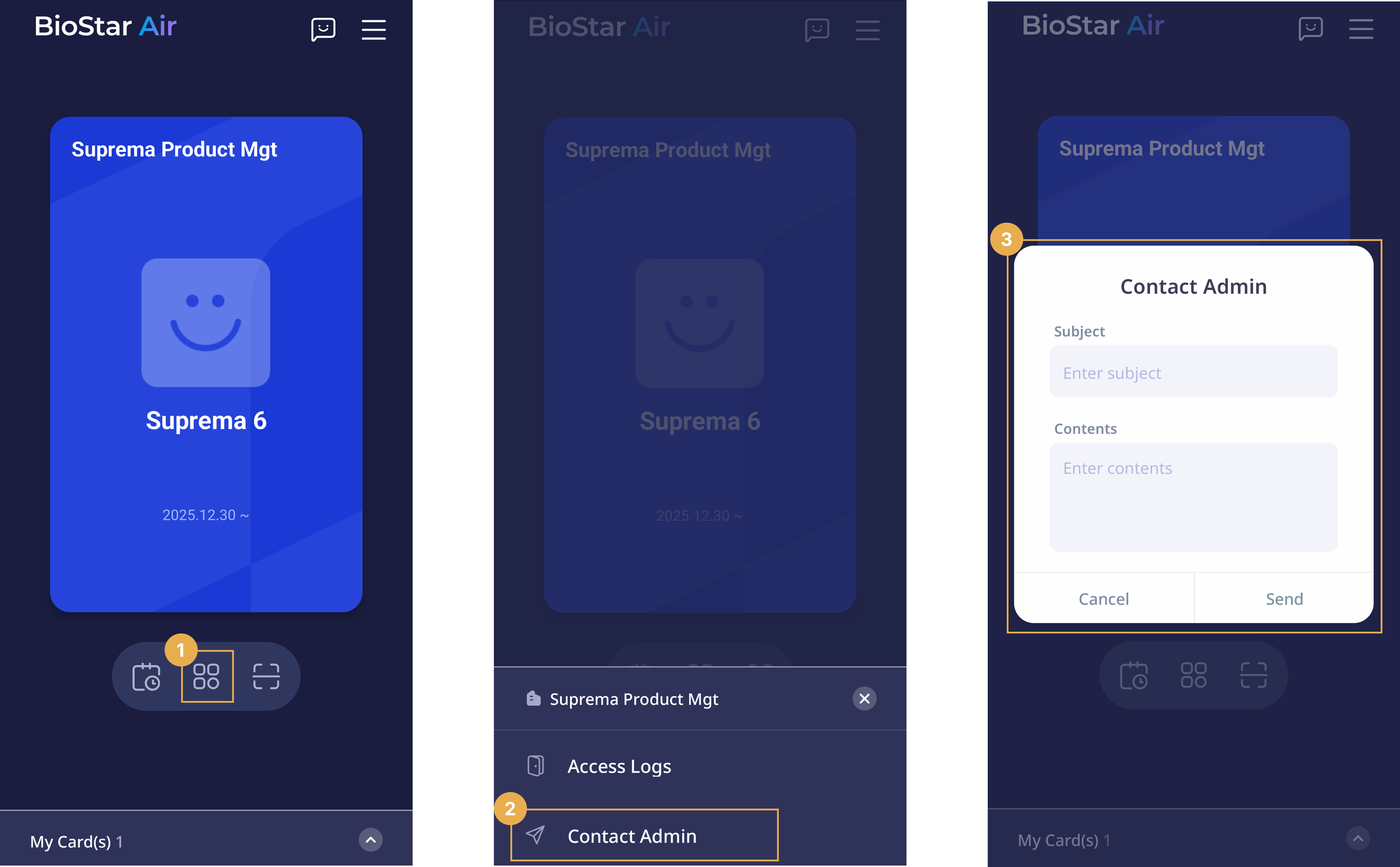
-
In the Suprema Pass app on your mobile device, tap the icon below the mobile card.
-
When the bottom panel appears, tap Contact Admin.
-
When the pop-up window appears, enter a title and message.
-
Tap Send to send a message to the administrator.
Was the mobile card deleted?
If you changed your mobile device or reinstalled the Suprema Pass app, all mobile cards were deleted for security reasons. Contact the following for mobile card reissuance.
-
Company Spaces: HR, IT, security, or operations team
-
Shared Spaces: regional administrator or customer service team
Step-by-step troubleshooting guide
Did an error message appear in the Suprema Pass app?
-
If the door does not open, try authenticating again in the Suprema Pass app.
-
If an error message appears, capture a screenshot and share it with your site administrator.
Is Bluetooth enabled on your mobile device?
The mobile card relies on Bluetooth communication between the mobile device and the access controller.
-
Make sure Bluetooth is enabled.
-
Turn Bluetooth off and back on.
-
Restart the mobile device if necessary.
Allow location permission for the Suprema Pass app
Bluetooth and NFC authentication require location permission.
-
Go to Settings → Apps on the mobile device.
-
Select the Suprema Pass app.
-
Under Permissions → Location, set location access to Allow all the time or Allow only while using the app.
Check cellular network and Wi-Fi connections
A stable cellular network or Wi-Fi connection is required for mobile card authentication.
Are you using the selected connection method?
Check the connection method in the Suprema Pass app.
-
On the Suprema Pass app home screen, tap in the upper right corner.
-
Check authentication mode in Connection Method.
-
Keep the app open in the background when using Background Mode.
Did the mobile device vibrate during authentication?
-
If the mobile device vibrated but the door did not open, open the Suprema Pass app and try authenticating again.
-
If an error message appears, capture a screenshot and share it with your site administrator.