Face Migration
You can upgrade the faces enrolled in the previous version of BioStar X to enhance recognition performance using the latest algorithm. The synchronization protocol has been improved to only transmit templates, excluding the actual images during user synchronization. Additionally, this helps significantly reduce synchronization time and prevent privacy-related issues.
Before start
Before running the face migration feature, check the following items.
What is face migration?
It is a feature that generates two types of face templates from user images already stored on the BioStar X server. To synchronize only the template for facial authentication during user synchronization, proceed with Face Migration.
Supported device and firmware version
Please refer to the list below for the devices that can synchronize the face with the template.
-
BioStation 3 Max firmware v1.0.0 or later
-
BioEntry W3 firmware v1.0.0 or later
-
BioStation 3 firmware v1.3.1 or later
-
FaceStation F2 firmware v2.2.0 or later
Notice on FaceStation F2 v1.x.x Firmware Support Discontinuation
BioStar X optimized synchronization performance by changing to send only templates when synchronizing the user's face to the device. Therefore, support for the FaceStation F2 v1.x.x firmware, which can only extract templates from the device, will be discontinued. If you are currently using FaceStation F2 firmware version 1.x.x, upgrade to the latest firmware to use BioStar X with FaceStation F2.
The latest firmware can be downloaded from the Suprema Download Center.
Notes on face template types
Differences in face template types for BioStation 3 Max, BioEntry W3, BioStation 3, and FaceStation F2.
-
NPU Type: BioStation 3 Max, BioEntry W3, BioStation 3
-
GPU Type: FaceStation F2
-
Synchronization Time Between Devices with Different Face Template Types
Before you run Face Migration, note that if you add BioStation 3 Max, BioEntry W3, or BioStation 3 to an environment that previously used only FaceStation F2 and then synchronize, the template type will change and NPU-type templates will be extracted from the images. This may take a considerable amount of time depending on the number of faces registered on the server.
-
Face Enrollment Recommendations in BioStar X
When enrolling faces without using the option to Store Face Image on the device, only the template is synchronized with BioStar X. As a result, it cannot be synchronized to devices with different face template types. Therefore, it is recommended to enroll faces through BioStar X.
Device related notices
The user data file exported from BioStar X contains only templates without images, so the user data file cannot be imported into FaceStation F2 and BioStation 3 that are using existing firmware.
When data file export from FaceStation F2 and BioStation 3, the data files can only be exported using firmware versions above the following:
-
FaceStation F2 firmware v2.2.0 or later
-
BioStation 3 firmware v1.3.1 or later
When using FaceStation F2 or BioStation 3, it is recommended to upgrade to the latest firmware version. The latest firmware can be downloaded from the Suprema Download Center.
How to face migration
-
Click User on the Launcher page.
-
Select the button at the top right of the screen and click the Face Migration button.

-
Check the contents of the warning popup and click Continue.
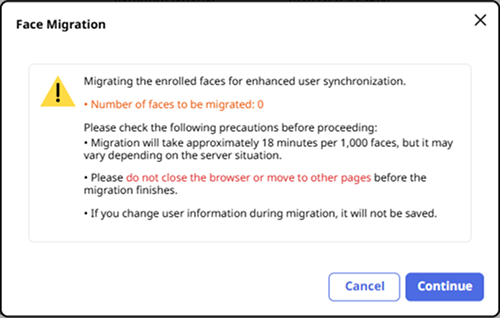
Proceeding with face migration. When face migration is complete, a result pop-up will appear. It will show the total number of faces enrolled, as well as the number of faces that were successfully migrated and those that failed.
-
After a successful migration, sync the user information to the device to apply the changes. For more information on how to transfer user information to the device, see Transfer User Information to the Device.
-
If face migration fails, you can download a list of failed users as a CSV file. To delete all faces that failed migration, click the Delete button.
-
Only the admin account with user ID 1 can use this feature.
-
Do not navigate away from the current page while the migration is in progress.
-
The larger the size of the enrolled face images for each user, the longer it may take to generate the templates.
-
For approximately 1,000 faces, the process takes about 18 minutes, although this may vary depending on server performance.
-
For more information on how to store only the template, without saving the user's facial image to the server, see Server Detailed Settings.