Set IR Face Group Matching
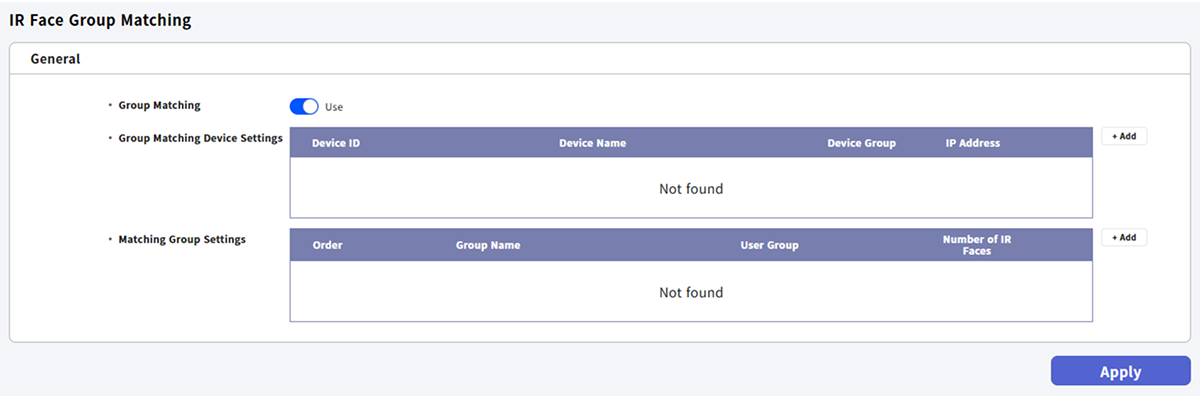
IR Face Group Matching authenticates users by setting matching groups based on user groups. Use this feature to allow access via IR face authentication only to users in certain user groups.
-
Click Settings on the Launcher page.
-
Click Credential → IR Face Group Matching in the left sidebar.
-
Change the Group Matching option to Use.
-
Click + Add in the Group Matching Device Settings.
-
When the Group Matching Device Settings window appears, select the device and click Add.
Only the FaceStation 2 model can be selected.
-
Click + Add in the Matching Group Settings.
-
Set the Group Name and User Group fields.
-
Click Apply at the bottom right of the screen to save the settings.
-
Up to 10 matching groups can be created.
-
Each group can contain up to 3,000 IR face templates.
-
Multiple user groups can be assigned to a single matching group.
-
The total number of IR face templates in a matching group cannot exceed 5,000.
-
If a user group contains more than 3,000 IR face templates, it cannot be set as a matching group.
-
This feature is supported only by the FaceStation 2 model.
-
Delete all configured devices and group settings to disable the group matching feature.