Directory Integration Settings
This document provides guidance on how to synchronize and manage users by integrating Microsoft Entra ID (hereafter Entra ID) or Active Directory with BioStar X.
Integrating with Entra ID or Active Directory provides the following convenient features, enhancing both security and usability. This enhances both security and convenience.
-
You can log in to BioStar 2 using your Entra ID account via Single Sign-On (SSO) provided by Entra ID.
-
You can log in to BioStar X using Lightweight Directory Access Protocol (LDAP) authentication provided by Active Directory.
-
Users and groups configured in Entra ID or Active Directory can be synchronized with BioStar X.
-
You can map user information such as job title, department, and group used in Entra ID or Active Directory to the custom fields of BioStar X.
The Entra ID or Active Directory settings feature is available through additional options on the Advance license and above. For more information on licensing policies, see License Policy.
Directory Integration Settings
- Entra ID
- Active Directory
-
Log in to BioStar X with an administrator account.
-
Click Settings on the Launcher page.
-
Click Directory Integration in the left sidebar of the screen.
-
Select Microsoft Entra ID in Directory Service.

-
Set each item as instructed below.
Directory Server
Enter the server information for Entra ID and click Connect in Directory Server.

-
Client ID: Enter the Client ID of the application registered in Entra ID.
-
Client Secret: Enter the Client secret added in Certificates & secrets of the application registered in Entra ID.
-
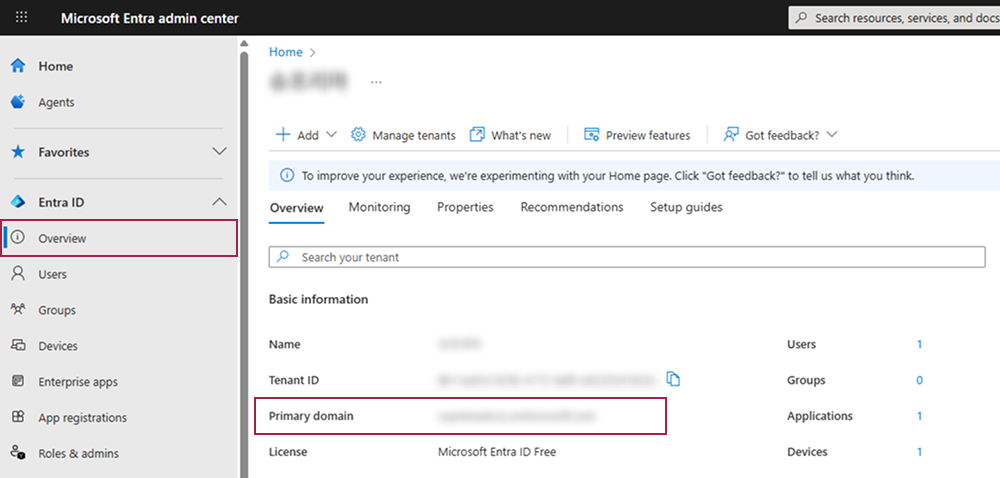
Primary Domain: Enter the primary domain name that you input when creating your organization in Entra ID.
-
For more information about registering an application in Entra ID, refer to the following link.
-
For more information about configuring Certificates & secrets in Entra ID, refer to the following link.
-
Tenant ID can be found in the Overview of the registered application in Entra ID.
-
You can check the information for Primary Domain in the Overview of Entra ID.
User Group Filter
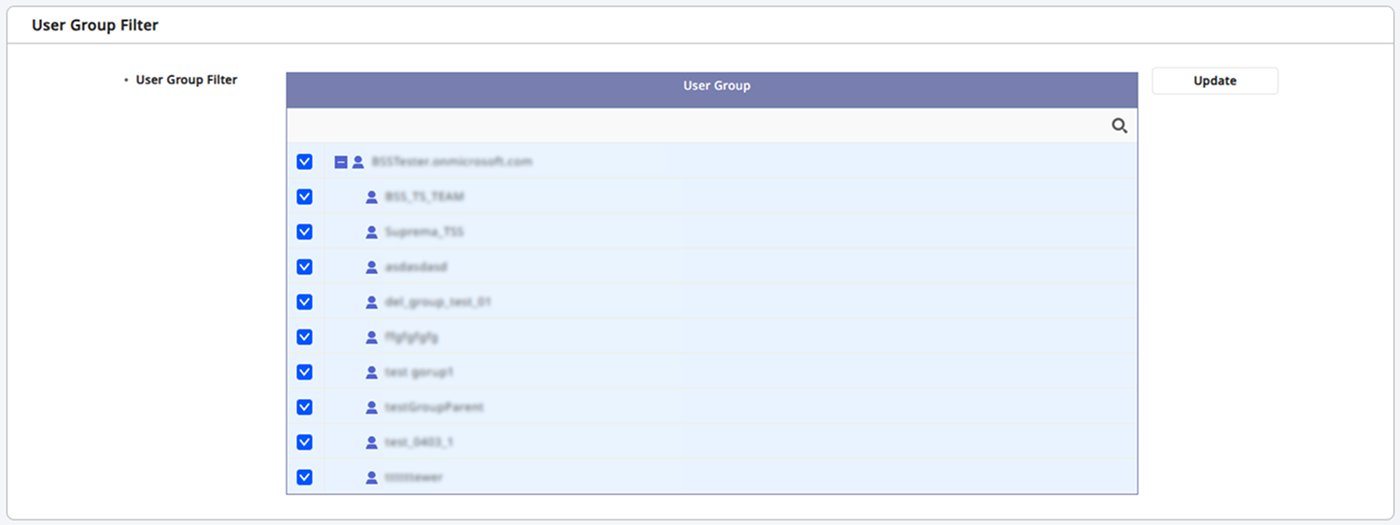
After completing the settings in Directory Server and clicking Connect, user group information from Entra ID will be retrieved in User Group Filter. Deselect the user groups that will not sync with BioStar X.
-
Update: Click to refresh the user group information.
-
Click the icon to search for the desired user group.
User Field Configuration
You can set the field for Entra ID to map to the user fields of BioStar X. Select the field for Entra ID to use as the user field for BioStar X in the User Field Configuration section.
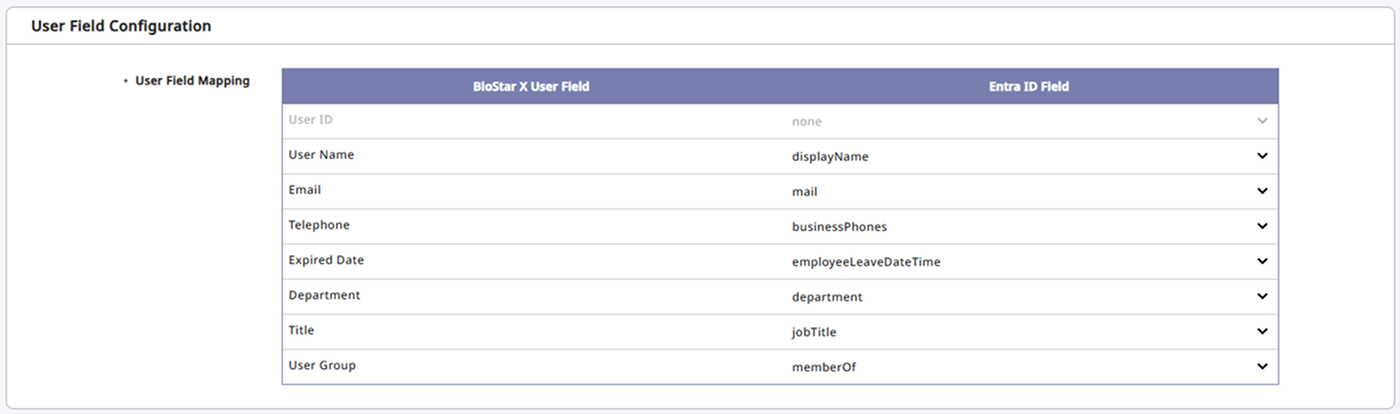
Each user field of BioStar X is set by default to map to items that match the user information of Entra ID. To select a field value other than the default, click the field in Entra ID Field and select the desired field value.
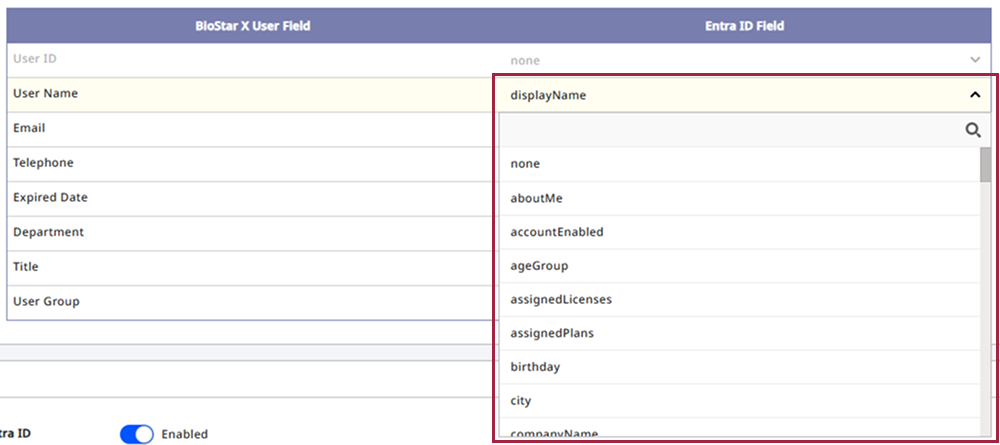
The User ID field cannot be mapped when integrating with Entra ID. User ID is automatically generated and applied by BioStar X.
BioStar X Login with Entra ID
Change the BioStar X Login with Entra ID to Enabled to enable login to BioStar X using Entra ID SSO.

Copy the redirection URI from the Redirection URI field() and paste it into the SSO redirection settings in the Entra ID portal. When a user successfully logs in with Entra ID, they will be redirected to this address.
-
For more information about registering an application in Entra ID and adding a redirection URI, refer to the following links.
-
The redirection address can be found in the Overview of the registered application in Entra ID.
Synchronization
This feature allows you to synchronize user information changed in Entra ID.
-
Sync Mode: Select the desired synchronization mode.
-
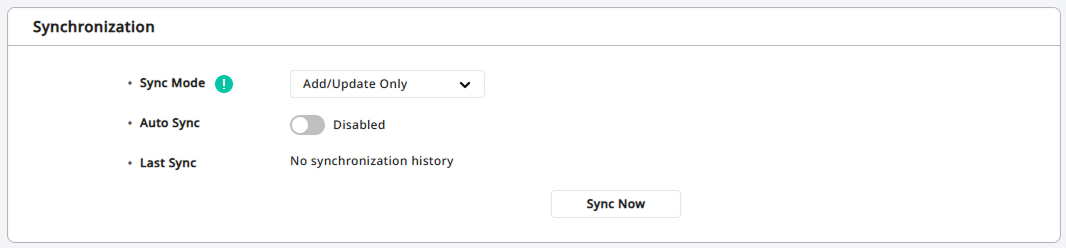
Add/Update Only: When synchronizing users from the linked directory service, add users who don't exist in BioStar X and update users whose information has changed, without deleting any.
-
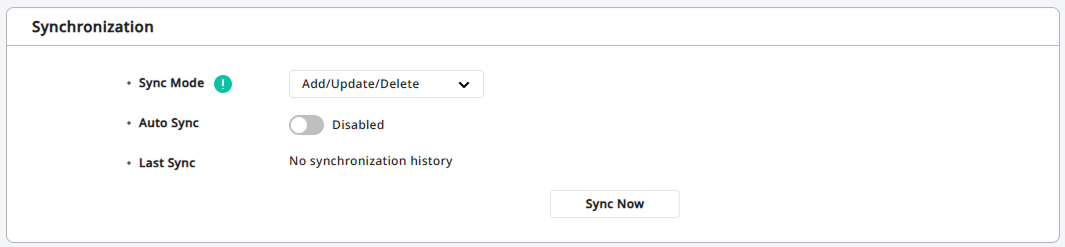
Add/Update/Delete: Synchronize BioStar X user information to match the linked directory service. Unlike Add/Update Only mode, users deleted in the directory service are also removed.
-
-
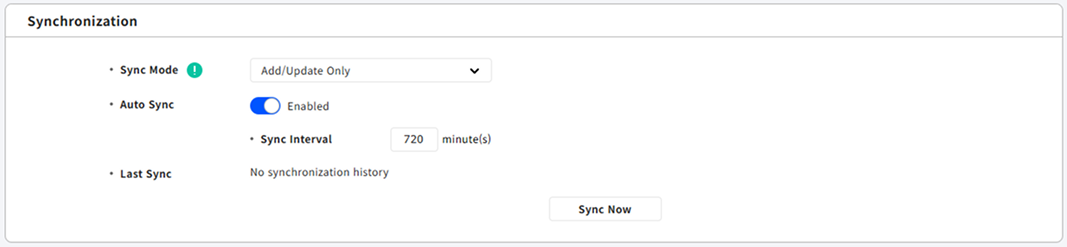
Auto Sync: Set the automatic synchronization interval. Synchronization runs automatically at the interval set in Sync Interval. Enter the interval in minutes. The minimum value is 30 minutes, and the maximum value is 10,080 minutes (7 days).
-
Last Sync: You can check the date and time of the most recent synchronization.
-
When using Add/Update Only mode, if a group with the same name exists, it is retained rather than deleted.
-
When using Add/Update/Delete mode
-
If a group with the same name already exists: the group is not created, and the existing group's information is retained. However, all users in that group are removed and then re-added to reflect the directory service's latest information. However, users in that group who share the same name are retained.
-
Users created in BioStar X: Users created directly in BioStar X are not linked to the directory service. When synchronizing, update these users so their information is linked to the directory service.
-
Limitations: After synchronization, if a group with the same name already exists, that group's information and members may not synchronize properly.
-
-
If you upgrade to BioStar X v1.0.2 with directory integration enabled, the synchronization mode defaults to Add/Update/Delete.
-
Each time you click Sync Now, user information is synchronized with the directory service using the selected synchronization mode.
-
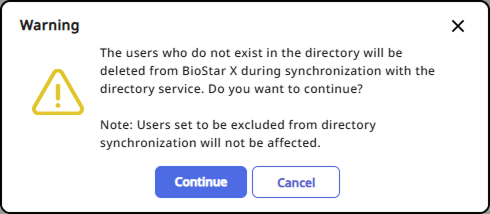
When you select Add/Update/Delete mode, a warning message will appear. To continue, click Continue. To cancel, click Cancel.
-
To exclude specific users from synchronization when integrating, see #excludeintegration.
Save Settings
After completing all settings for Directory Integration, click Apply at the bottom of the screen to save. To view the settings results, see #checksettings.
-
Log in to BioStar X with an administrator account.
-
Click Settings on the Launcher page.
-
Click Directory Integration in the left sidebar of the screen.
-
Select Microsoft Active Directory in Directory Service.

-
Set each item as instructed below.
-
The Active Directory is available for a system environment with Windows Server 2008 R2 or later.
-
To use the Active Directory server, set the User ID Type to Alphanumeric in the Settings → Server.
Directory Server
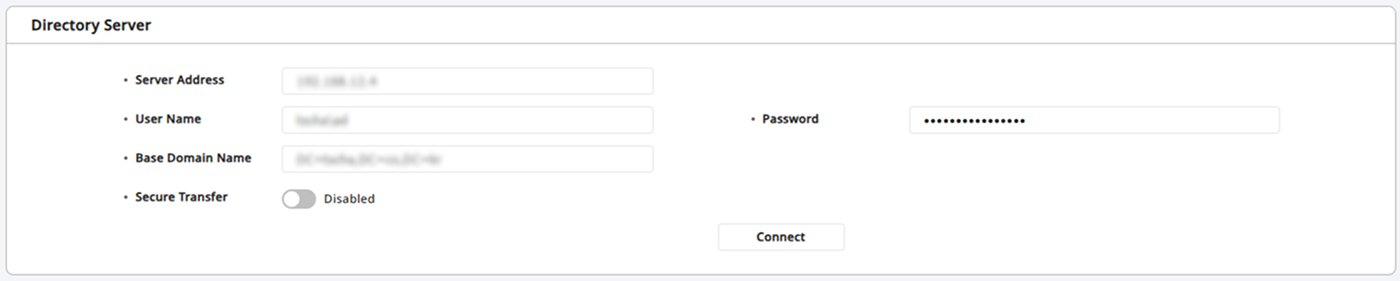
Enter the server information for Active Directory and click Connect in Directory Server.
-
Server Address: Enter the server address for Windows Active Directory.
-
User Name: Enter the user name used by Windows Active Directory.
-
Password: Enter the password used by Windows Active Directory.
-
Base Domain Name: Enter the base domain name for Windows Active Directory. You can find the base domain name in the following steps:
-
Run the Active Directory Administrative Center.
-
Right-click on the node where user data is stored, and then click Property.
-
In the property window, select Expand and then click Attribute Editor.
-
View the value of distinguishedName.
-
-
Secure Transfer: You can use encryption when communicating with the Windows Active Directory server. To install Active Directory Certificate Services and configure the Keystore Password, see Active Directory Encryption.
- Keystore Password: Enter the password for the encryption key store of the Windows Active Directory server. You can enter the password when the Secure Transfer is set to Enabled.
User Group Filter
After completing the settings in Directory Server and clicking Connect, user group information from Active Directory will be retrieved in User Group Filter. Deselect the user groups that will not sync with BioStar X.
-
Update: Click to refresh the user group information.
-
Click the icon to search for the desired user group.
User Field Configuration
You can set the field for Active Directory to map to the user fields of BioStar X. Select the field for Active Directory to use as the user field for BioStar X in the User Field Configuration section.
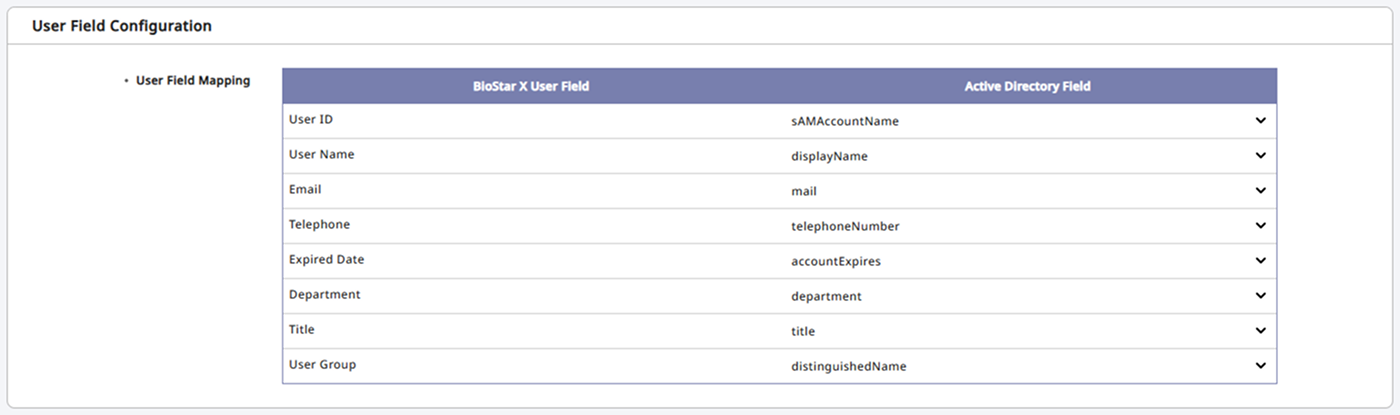
Each user field of BioStar X is set by default to map to items that match the user information of Active Directory. To select a field value other than the default, click the field in Active Directory Field and select the desired field value.
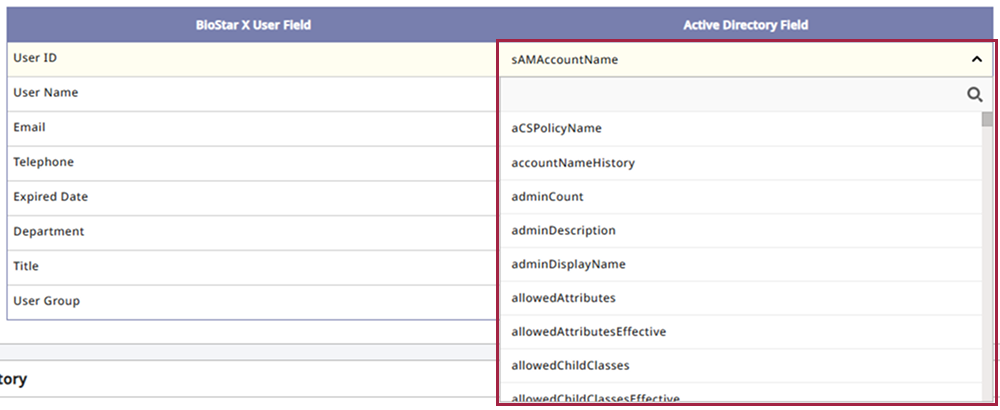
BioStar X Login with Active Directory
To configure login to BioStar X using the user ID of the Active Directory server, change the BioStar X Login with Active Directory to Enabled. The value of the sAMAccountName field from the Active Directory server will be mapped to the BioStar X login ID.
The sAMAccountName field cannot contain special characters. You may fail to log in if it does not comply with the login ID policy of BioStar X.

Synchronization
This feature allows you to synchronize user information changed in Active Directory.
-
Sync Mode: Select the desired synchronization mode.
-
Add/Update Only: When synchronizing users from the linked directory service, add users who don't exist in BioStar X and update users whose information has changed, without deleting any.
-
Add/Update/Delete: Synchronize BioStar X user information to match the linked directory service. Unlike Add/Update Only mode, users deleted in the directory service are also removed.
-
-
Auto Sync: Set the automatic synchronization interval. Synchronization runs automatically at the interval set in Sync Interval. Enter the interval in minutes. The minimum value is 30 minutes, and the maximum value is 10,080 minutes (7 days).
-
Last Sync: You can check the date and time of the most recent synchronization.
-
When using Add/Update Only mode, if a group with the same name exists, it is retained rather than deleted.
-
When using Add/Update/Delete mode
-
If a group with the same name already exists: the group is not created, and the existing group's information is retained. However, all users in that group are removed and then re-added to reflect the directory service's latest information. However, users in that group who share the same name are retained.
-
Users created in BioStar X: Users created directly in BioStar X are not linked to the directory service. When synchronizing, update these users so their information is linked to the directory service.
-
Limitations: After synchronization, if a group with the same name already exists, that group's information and members may not synchronize properly.
-
-
If you upgrade to BioStar X v1.0.2 with directory integration enabled, the synchronization mode defaults to Add/Update/Delete.
-
Each time you click Sync Now, user information is synchronized with the directory service using the selected synchronization mode.
-
When you select Add/Update/Delete mode, a warning message will appear. To continue, click Continue. To cancel, click Cancel.
-
To exclude specific users from synchronization when integrating, see #excludeintegration.
Save Settings
After completing all settings for Directory Integration, click Apply at the bottom of the screen to save. To view the settings results, see #checksettings.
View settings results
After completing the integration settings with Entra ID or Active Directory, click Apply at the bottom of the screen. Refer to the following to check the synchronized settings.
-
You can check the synchronized user list in the User menu.
-
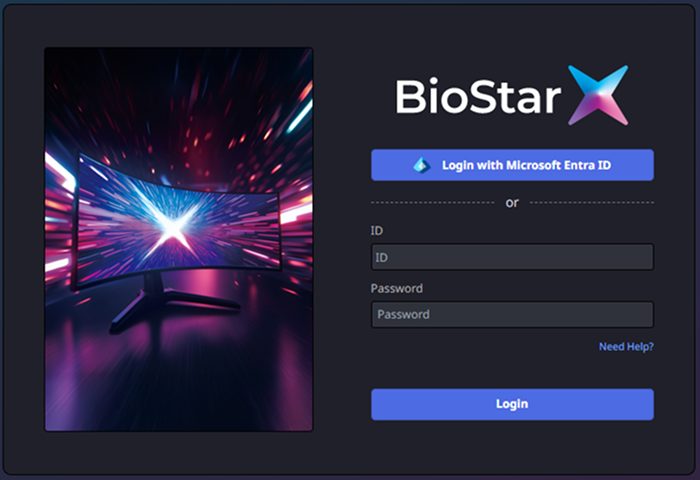
After completing the login settings with Entra ID or Active Directory, you can see Login with Microsoft Entra ID when logging in to BioStar X.
Exclude from directory integration
When integrating with Entra ID or Active Directory via the Directory Integration feature, users who do not exist in the directory service may be deleted from BioStar X. If there are users that you do not want to be deleted, you can exclude them from the integration using the following method.
-
Log in to BioStar X with an administrator account.
-
Go to the User menu.
-
Click on the user you want to exclude from the integration in the All Users list.
-
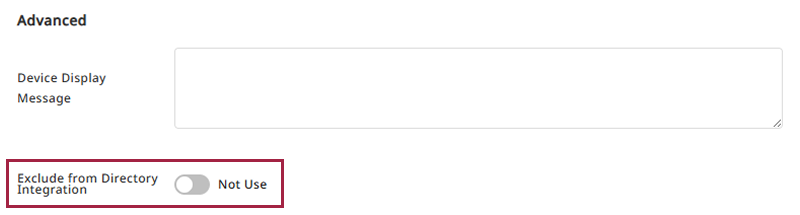
When the selected user's details screen appears, in the Advanced section, enable the Exclude from Directory Integration option.
-
Click the Apply button.
The selected users will be excluded from integration when using the Directory Integration feature.
Disable Directory Integration
To disable the Directory Service feature, follow the steps:
-
Log in to BioStar X with an administrator account.
-
Click Settings → Directory Integration.
-
Select Not Use in Directory Service.

-
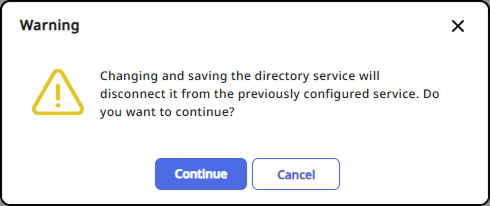
When the Warning message appears, click Continue.
-
Click Apply at the bottom of the screen.
When the Directory Service is set to Not Use, all integration settings with Entra ID or Active Directory in BioStar X will be removed. The integrated user and group information will not be deleted, but will no longer be synchronized. Please make sure to check before disabling the integration.