Remote Access Settings
Remote access via ngrok allows secure access to internal networks from external networks. This feature enables access to the BioStar X server remotely without firewall settings or port forwarding.
-
The Remote Access feature is available as an additional option. For more information on licensing policies, see License Policy. The remote access license is an annual subscription.
-
When purchasing the remote access license, Suprema generates a bot account, endpoint, and license document for remote access use on the ngrok Suprema site.
-
Remote Access is provided through ngrok’s third‑party tunneling service. Before using this feature, please review Remote Access Feature Agreement.
-
BioStar X simply supports the connection by calling the ngrok API, but the security, safety, and continuity of internet connectivity entirely depend on the ngrok service. Therefore, Suprema assumes no responsibility for any security incidents, data loss, or system breaches that may occur during the use of this feature.
When to use this?
Use the remote access feature in the following situations.
-
When you need to connect to the BioStar X server from an external network
-
When it's challenging to connect directly due to firewalls or NAT environments
-
When you want to quickly set up remote access without complex network setups
-
When you need to temporarily provide outside access rights
Remote access setup
Activate remote access license
-
Log in with your BioStar X admin ID.
-
Click Settings on the Launcher page.
-
Click License → BioStar X License in the left sidebar.
-
Enter the remote access license key and admin name provided by Suprema, then click Activate.
For more information on license registration, see BioStar X License.
Activate remote access
-
Log in with your BioStar X admin ID.
-
Click Settings on the Launcher page.
-
Click Remote Access in the left sidebar.
-
In the Remote Access with ngrok section, change the Remote Access option to Use.
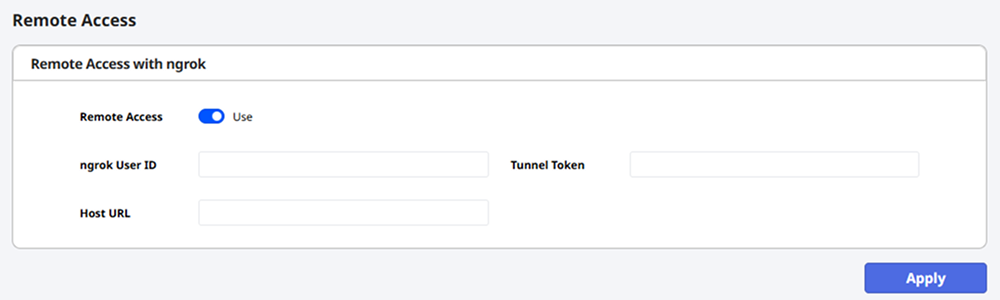
Enter ngrok setup information
Enter the ngrok setup information provided by Suprema.
-
Authtoken: Enter your Authtoken.
-
URL: Enter the endpoint URL. The URL is in the format
https://subdomain.bsx.ngrok.app.
The subdomain (subdomain) must follow the rules below. Subdomains that do not comply with the rules cannot be used.
-
Only English letters (A-Z, a-z), numbers (0-9), and hyphens (
-) are allowed. -
Special characters and spaces are not allowed.
-
After entering all the information, click the Apply button.
-
When the Remote Access Feature Agreement window appears, review the contents.
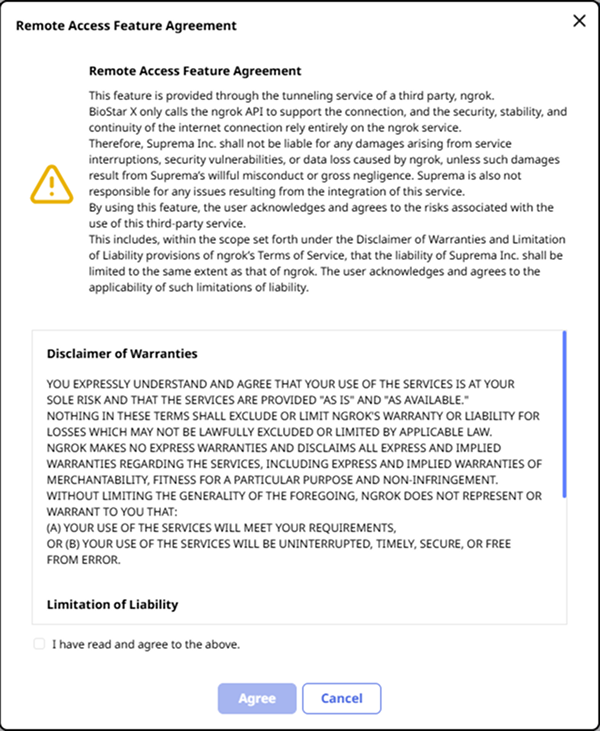
-
Select the checkbox to agree to the terms, then click Agree.
Access endpoint URL
After completing the setup, verify whether you can access the BioStar X server from an external network using the endpoint URL you entered in URL.
-
Access the endpoint URL, then go to Settings → System → Audit Trail to check access logs.
Example: [Remote Access] 192.168.1.100
-
If you cannot access via endpoint URL from an external network, contact the sales point or distributor that issued your license.