Edit T&A Report
Click the generated report table to modify attendance records.
-
You must first generate a report to modify the attendance records. For more information on generating reports, see View the Report.
-
Records of users without an attendance schedule cannot be modified.
-
Click the item in the list of generated reports to modify the record.
-
Modify the attendance records or add absences as desired.
Edit in the list
-
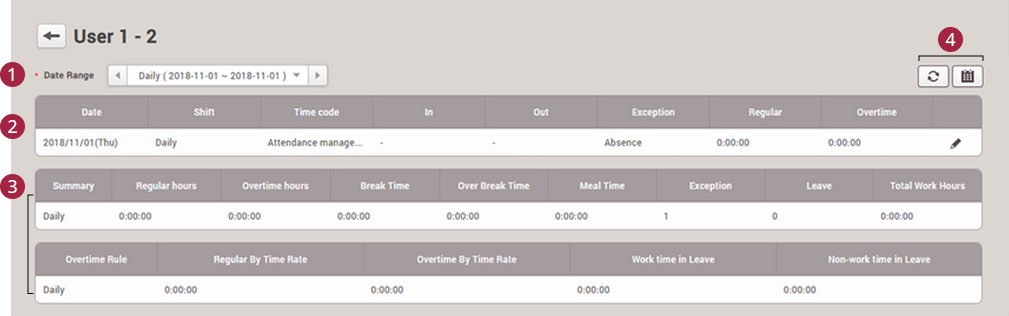
Date Range: Set the period for attendance records to display in the list.
-
Daily attendance record: Shows the daily attendance record.
-
Click in/out times to add/modify/delete attendance records. After clicking the in/out times, click the button to modify the registered attendance record, and click the Apply button to save changes.
-
Click the button to add an absence. You need a time code set as absence to add vacation. Click for the added user absence to delete it.
-
-
Attendance record summary: You can check attendance records for the specified period.
-
Refresh / View in calendar
-
: Refresh the attendance record list.
-
: View attendance records in a calendar format.
-
For more information on creating time rules, see Set Time Code.
Edit in the calendar
-
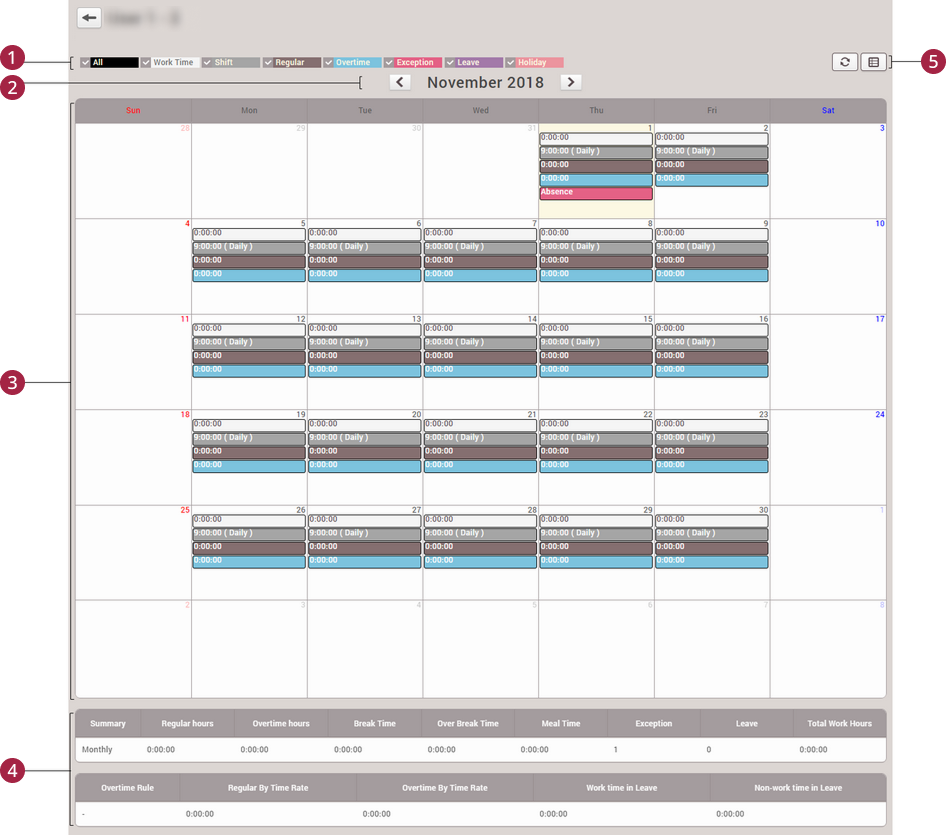
Event type: You can select or hide event types to appear on the calendar.
-
Month: Click or to move to the previous or next month.
-
Daily attendance record: Shows the daily attendance record.
-
Click working hours (in white) to add/modify/delete attendance records. Click the button to modify the registered attendance record, and click the Apply button to save changes.
-
Click working rules (in gray) to add user absence management. You need a time code set as absence to add user absence. Click for the added user absence to delete it.
-
-
Attendance record summary: Shows the monthly attendance record.
-
Refresh / View in list
-
: Refresh the attendance record list.
-
: View attendance records in a list format.
-
For more information on creating time rules, see Set Time Code.