Set Daily Shift
Create work rules by applying different time rules based on time for a 24-hour period. Choose from fixed, flexible, or floating work options, and set the start time of the day, rounding rules, etc.
ADD SHIFT
-
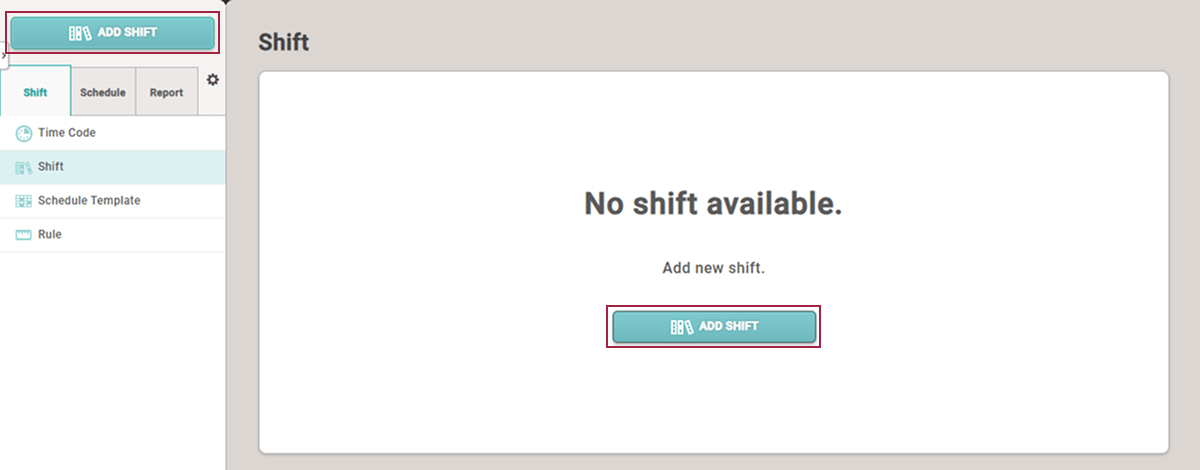
Click T&A on the Launcher page.
-
Click Shift → Shift in the left sidebar.
-
Click ADD SHIFT.
-
When the ADD SHIFT screen appears, set each item.
-
Click Apply at the bottom of the screen to save the settings.
-
To continue adding weekly work rules, click Apply & Next.
-
After saving the settings, click Apply & Add New to add another Shift.
Setting options guide
Depending on the type of work rule, you can select either Fixed, Flexible, or Floating. Setting options may vary depending on the selected type of work rule.
Fixed
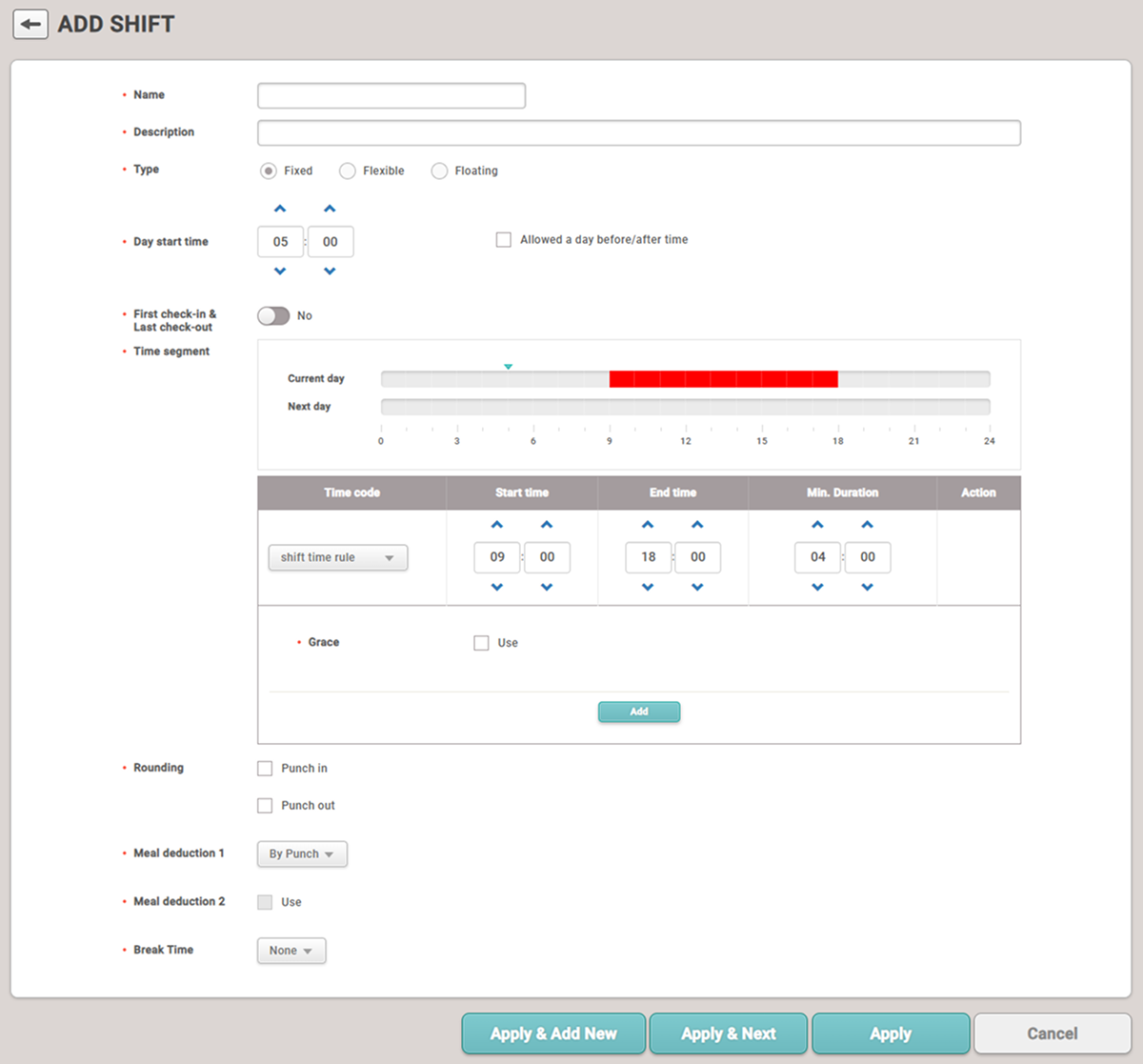
This is a work rule for arriving and departing at set times. Enter the name and description of Shift and select Type as Fixed.
-
Day start time: Set the start time for the workday.
Allowed a day before/after time allows you to set work rules for hours worked in excess of 24 hours based on the set day start time. It can be set for a maximum of 6 hours.

-
First check-in & Last check-out: When this option is activated, the first authenticated time is recorded as the start time, and the last authenticated time is recorded as the end time.
InfoWhen this option is activated, you must set Break by Punch to record user break times.
-
Time segment: After selecting the items set in the Time code column for attendance records, set Start time, End time, Min. Duration.
-
Grace: Set grace time to allow for normal work when arriving late or leaving early compared to the set time.

-
-
Rounding: Automatically round the start and end times. Set units and standards for both start and end times.

-
Unit(min): Set rules to round registered time when clock-in events are recorded earlier or later than the set start time.
-
Point(min): Set rules to round registered time when clock-out events are recorded earlier or later than the set end time.
TipFor example, if the clock-in time is set to 09:00, and Unit(min) is set to 15 minutes and Point(min) is set to 8 minutes, it will round as follows.
-
09:07 clock-in → rounded down to 09:00 (less than 8 minutes)
-
09:08 clock-in → rounded up to 09:15 (8 minutes or more)
InfoThe Rounding rule takes precedence over Grace.
-
-
Meal deduction 1 / Meal deduction 2: Set deductions for meal times from daily working hours.
-
By Punch: Set to deduct based on time records registered on the attendance device without setting fixed meal deduction times.
-
Auto: Set to automatically deduct meal times by defining Deduction time and Minimal hours before deduction.
-
Fixed: Set to deduct fixed times by defining Start time and End time.
Info-
Using Meal deduction 2 allows for deductions of two meal times from daily working hours.
-
If the meal deduction types are Auto or Fixed, then Meal deduction 1 and Meal deduction 2 can only be set to the same type.
-
-
Break Time: Set break times.
-
By Punch: Set to follow the time records registered on the attendance device without setting fixed break times. When this option is activated, you can set Max. allowed break time(min.).
-
Fixed: Set Start time and End time as fixed times for user break time.
-
-
You can only add one time rule set as Attendance management to Shift.
-
You can set Start time, End time, Min. Duration, and Rounding for a time rule set as Overtime management.
Flexible work
This is a work rule that sets the daily working hours and flexibly adjusts the arrival and departure times based on the start time of the day. Enter the name and description of Shift and select Type as Flexible.
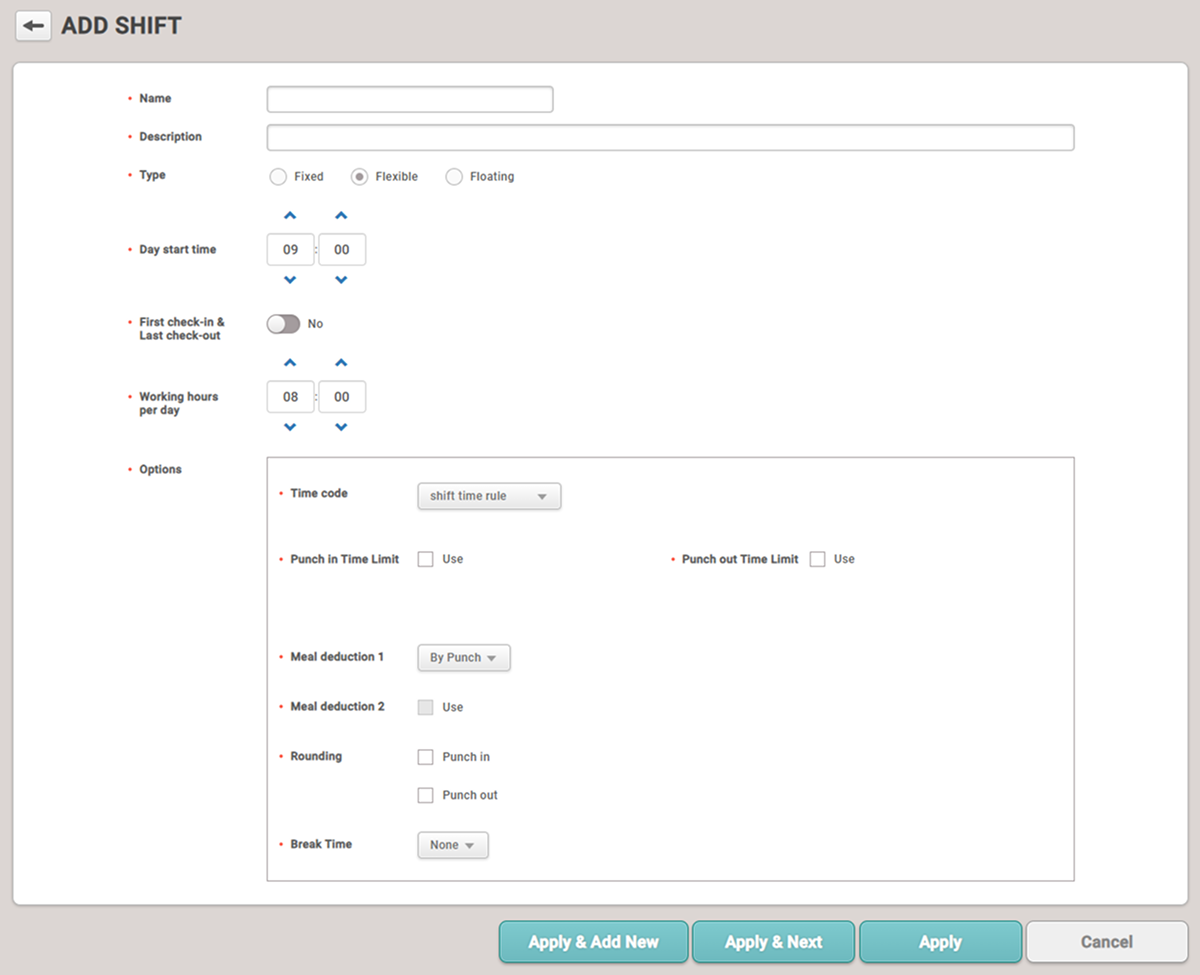
- Day start time: Set the start time for the workday.
-
First check-in & Last check-out: When this option is activated, the first authenticated time is recorded as the start time, and the last authenticated time is recorded as the end time.
InfoWhen this option is activated, you must set Break by Punch to record user break times.
- Working hours per day: Set the total working hours for the day.
-
Time code: Select the items for attendance records.
-
Punch in Time Limit / Punch out Time Limit: Set the time range in which users can authenticate their clock-in and clock-out times.

-
Meal deduction 1 / Meal deduction 2: Set deductions for meal times from daily working hours.
-
By Punch: Set to deduct based on time records registered on the attendance device without setting fixed meal deduction times.
-
Auto: Set to automatically deduct meal times by defining Deduction time and Minimal hours before deduction.
-
Fixed: Set to deduct fixed times by defining Start time and End time.
Info-
Using Meal deduction 2 allows for deductions of two meal times from daily working hours.
-
If the meal deduction types are Auto or Fixed, then Meal deduction 1 and Meal deduction 2 can only be set to the same type.
-
-
Rounding: Automatically round the start and end times. Set units and standards for both start and end times.
-
Unit(min): Set rules to round registered time when clock-in events are recorded earlier or later than the set start time.
-
Point(min): Set rules to round registered time when clock-out events are recorded earlier or later than the set end time.
TipFor example, if the clock-in time is set to 09:00, and Unit(min) is set to 15 minutes and Point(min) is set to 8 minutes, it will round as follows.
-
09:07 clock-in → rounded down to 09:00 (less than 8 minutes)
-
09:08 clock-in → rounded up to 09:15 (8 minutes or more)
InfoThe Rounding rule takes precedence over Grace.
-
-
Break Time: Set break times.
-
By Punch: Set to follow the time records registered on the attendance device without setting fixed break times. When this option is activated, you can set Max. allowed break time(min.).
-
Fixed: Set Start time and End time as fixed times for user break time.
-
A time rule set as Overtime management cannot be added.
Floating Shift
This is a work rule that allows flexible setting of arrival and departure times. Enter the name and description of Shift and select Type as Floating.
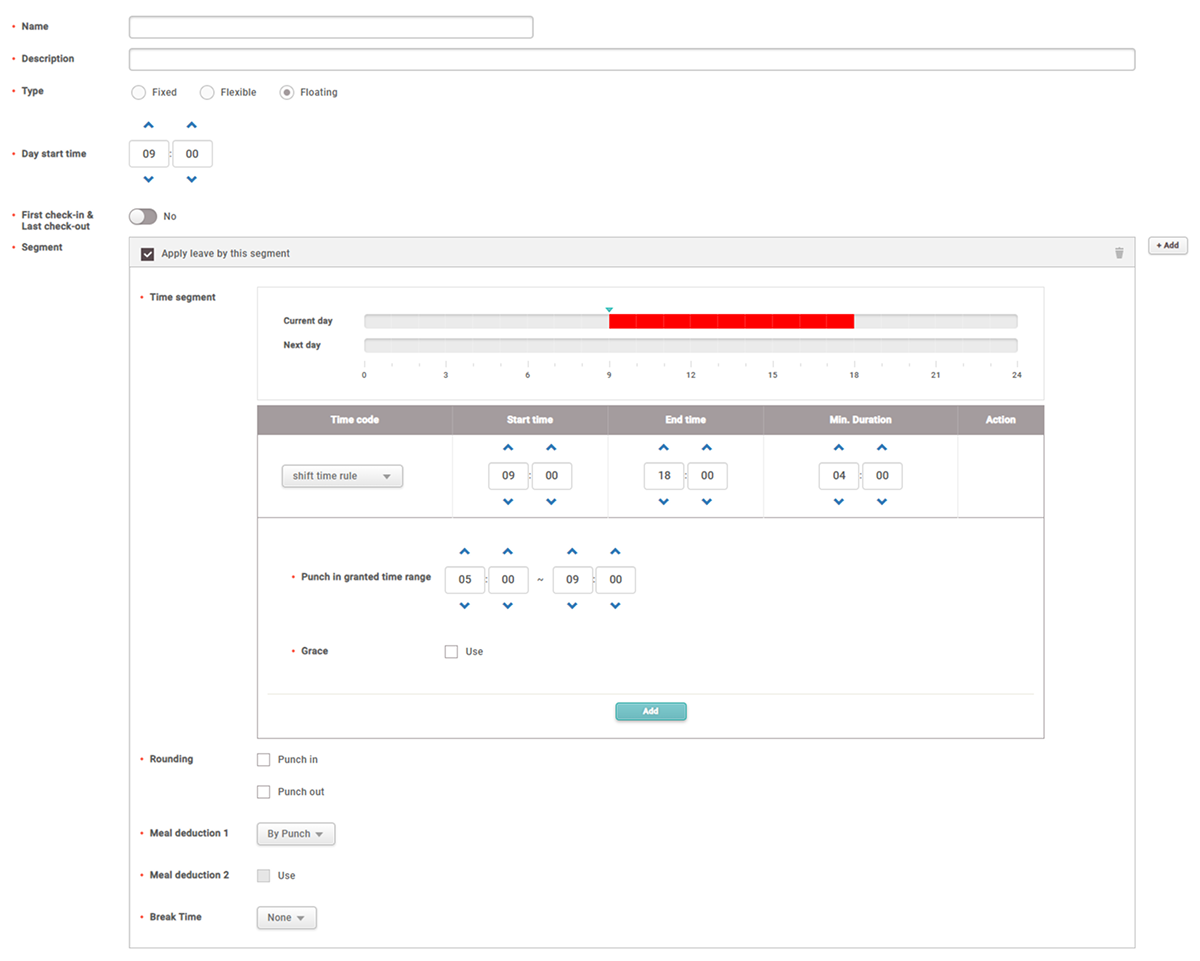
- Day start time: Set the start time for the workday.
-
First check-in & Last check-out: When this option is activated, the first authenticated time is recorded as the start time, and the last authenticated time is recorded as the end time.
InfoWhen this option is activated, you must set Break by Punch to record user break times.
-
Time segment: After selecting the items set in the Time code column for attendance records, set Start time, End time, Min. Duration.
- Punch in granted time range: Set the time range that will be considered normal work when arriving early or leaving late compared to the set start or end time.
-
Grace: Set grace time to allow for normal work when arriving late or leaving early compared to the set time.
-
Rounding: Automatically round the start and end times. Set units and standards for both start and end times.
-
Unit(min): Set rules to round registered time when clock-in events are recorded earlier or later than the set start time.
-
Point(min): Set rules to round registered time when clock-out events are recorded earlier or later than the set end time.
TipFor example, if the clock-in time is set to 09:00, and Unit(min) is set to 15 minutes and Point(min) is set to 8 minutes, it will round as follows.
-
09:07 clock-in → rounded down to 09:00 (less than 8 minutes)
-
09:08 clock-in → rounded up to 09:15 (8 minutes or more)
InfoThe Rounding rule takes precedence over Grace.
-
-
Meal deduction 1 / Meal deduction 2: Set deductions for meal times from daily working hours.
-
By Punch: Set to deduct based on time records registered on the attendance device without setting fixed meal deduction times.
-
Auto: Set to automatically deduct meal times by defining Deduction time and Minimal hours before deduction.
-
Fixed: Set to deduct fixed times by defining Start time and End time.
Info-
Using Meal deduction 2 allows for deductions of two meal times from daily working hours.
-
If the meal deduction types are Auto or Fixed, then Meal deduction 1 and Meal deduction 2 can only be set to the same type.
-
-
Break Time: Set break times.
-
By Punch: Set to follow the time records registered on the attendance device without setting fixed break times. When this option is activated, you can set Max. allowed break time(min.).
-
Fixed: Set Start time and End time as fixed times for user break time.
-
-
Work shifts can consist of up to five time slots. Click + Add to add a time slot.
-
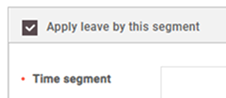
When setting absences, the Apply leave by this segment option must be selected. Apply leave by this segment can be selected from the time slots configured into work shifts.
-
You can set Start time, End time, Min. Duration, and Rounding for a time rule set as Overtime management.