Set Weekly Shifts
This guides how to create weekly shift rules based on the configured Shift.
ADD SCHEDULE TEMPLATE
-
Click T&A on the Launcher page.
-
Click Shift → Schedule Template in the left sidebar.
-
Click ADD SCHEDULE TEMPLATE.
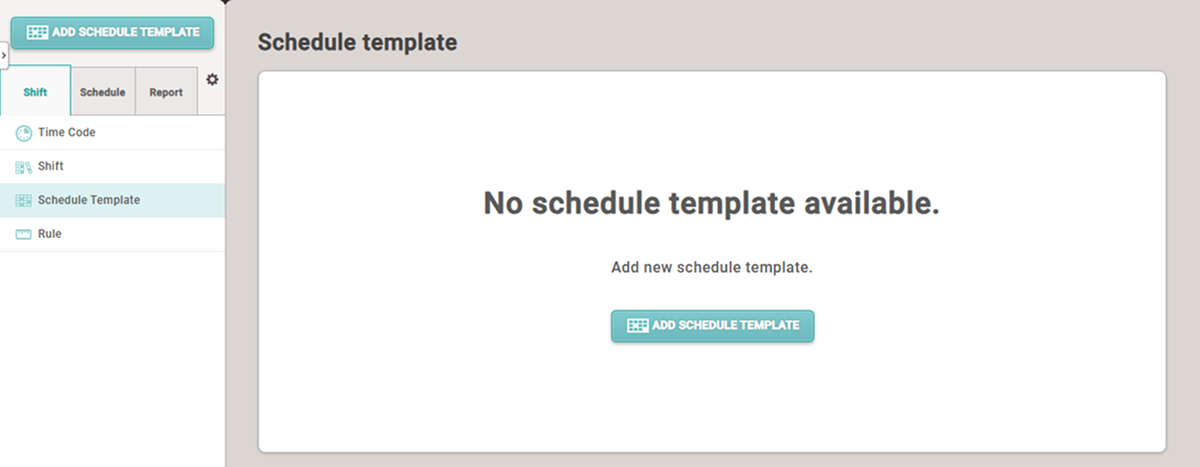
-
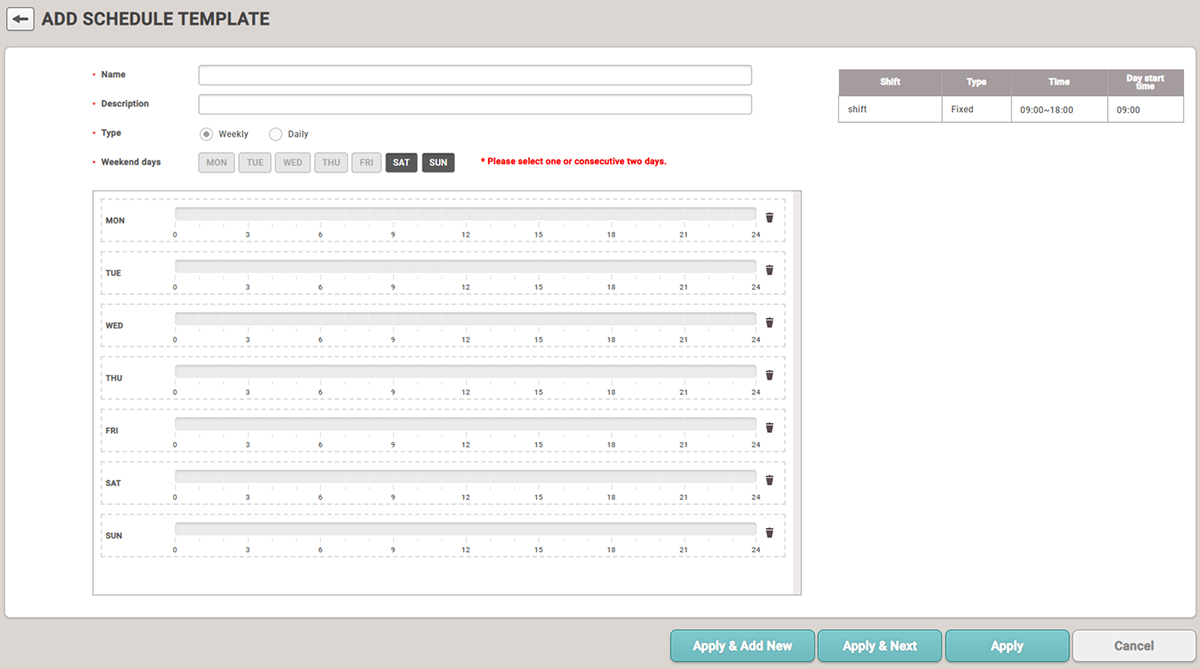
When the ADD SCHEDULE TEMPLATE screen appears, set each item.
-
Click Apply at the bottom of the screen to save the settings.
-
To continue adding the work schedule, click the Apply & Next button.
-
After saving the settings, click Apply & Add New to add another Schedule Template.
Setting options guide
-
Name: Enter the name of Schedule Template.
-
Description: Enter a description for Schedule Template.
-
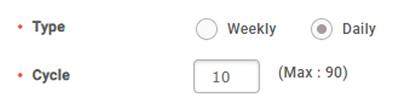
Type: Set Schedule Template to Weekly or Daily daily.
Selecting Daily allows you to set the repeating usage period (Cycle).
-
Weekend days: Set the days to designate as weekends.
-
Shift: View the list of configured Shift rules.
-
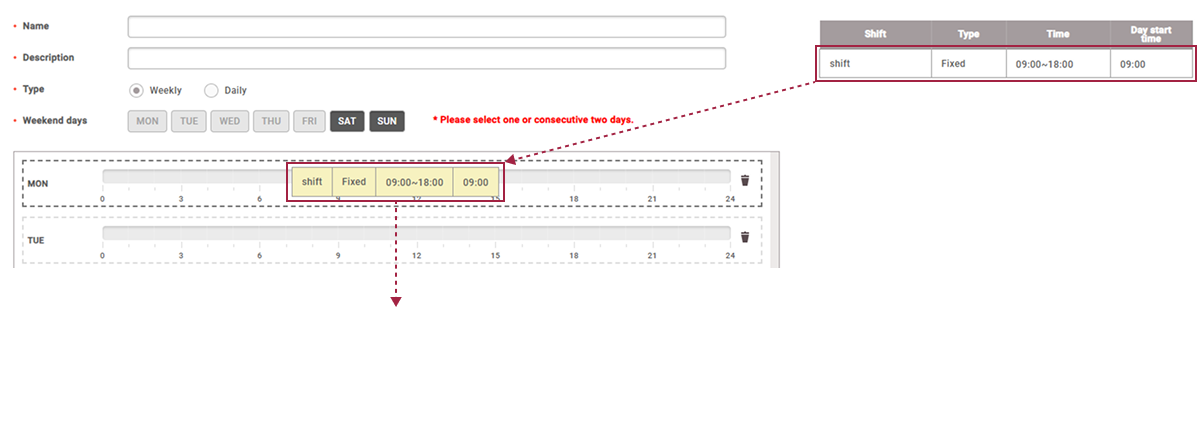
Weekly/daily schedule: Drag and drop the configured Shift.
 Info
Info-
To apply to all from Monday to Sunday, click Copy All.
-
To remove the applied Shift, click the button.
-
Applying the set Shift with Allowed a day before/after time cannot be set to have an excess time positioned more than 24 hours before the start time of the daily shift rules.
-