Set Time & Attendance
You can register devices to use for attendance management or set the sender information to be used when sending notification emails. You can also set the document delimiter for exporting attendance reports via CSV.
Access attendance management settings
-
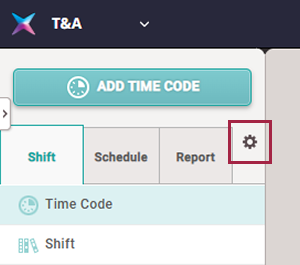
Click T&A on the Launcher page.
-
Click on the left sidebar.
-
Edit the necessary fields.
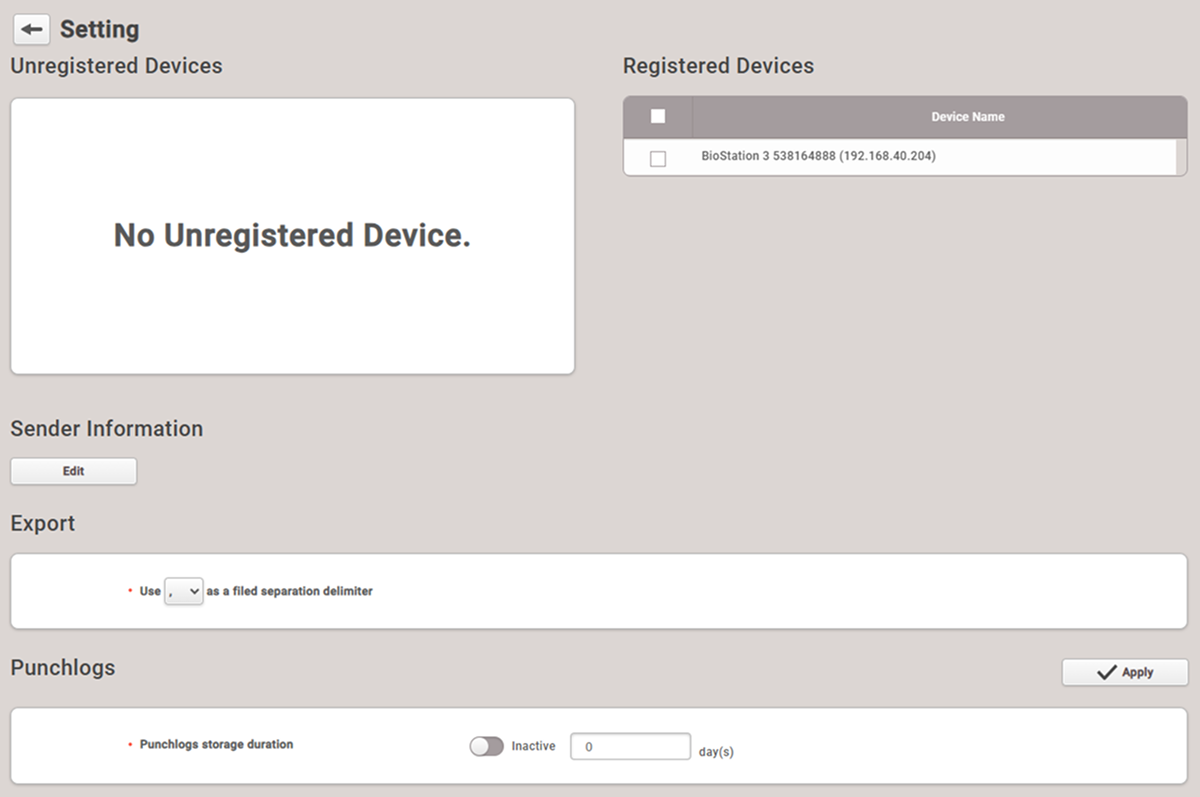
Attendance management settings
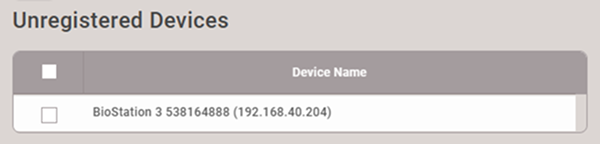
Unregistered Devices
List of devices that can be used for attendance management. To register as an attendance management device, select the desired device and click Register.
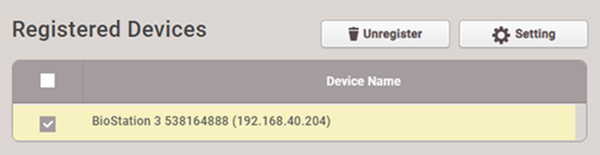
Registered Devices
List of devices currently used for attendance management.
-
To unregister, select the desired device and click Unregister.
-
To edit the attendance settings of a registered device, click Setting. For more information on attendance settings, see Advanced Settings.
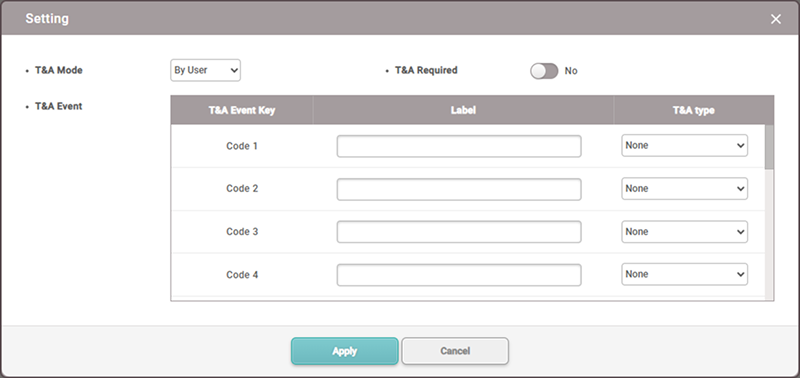
T&A type is a setting to map T&A Event Key with attendance event types. Attendance event types are as follows:
- Check In
- Check Out
- Break Start
- Break End
- Meal Time Start
- Meal Time End
-
You can only edit the attendance settings of a device when connected to the device.
-
If you delete a registered device from the Settings → Device menu, the registered attendance management device will also be automatically deleted.
Sender Information
You can set the sender information to be used when sending notification emails. Click Edit.
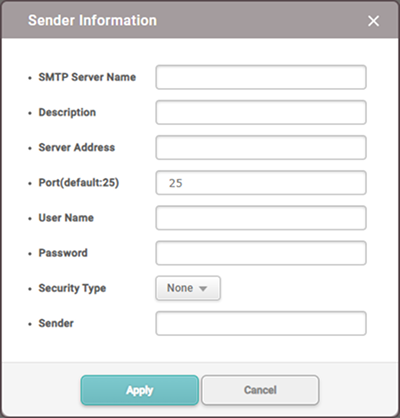
-
SMTP Server Name: Enter the SMTP server name.
-
Description: Enter the description.
-
Server Address: Enter the SMTP server address. The SMTP server address is in the format
smtp.{email-service-provider}.com, and you can confirm it on the settings screen of the email used as the SMTP server. -
Port(default:25): Enter the port number of the SMTP server. You can find this on the email settings screen of your SMTP service provider.
-
User Name: Enter the account of the SMTP service.
-
Password: Enter the password of the SMTP service.
-
Security Type: Select security type.
-
Sender: Enter the email address of the sender.
-
For more information about SMTP information, contact your system administrator.
-
When using the SMTP server as an email account with two-factor authentication and change the password of the account, note the following: Once you set up two-factor authentication, the SMTP password is the same as the app password generated using two-factor authentication, not the password of the email account.
-
When you set up two-step authentication, the SMTP password uses the app password generated by two-step authentication, not the password for the email account.
-
At this time, if the password of the email account is changed, the app password is automatically deleted, and the SMTP password is no longer available.
-
When changing the password for the email account, regenerate the app password and then set the SMTP password again.
-
Export
With the CSV Export feature, you can choose the document delimiter when exporting attendance reports.

Punchlogs
You can set the period to store attendance records. Set the Punchlogs storage duration option to Active and enter the period. To save the settings, click Apply.
