User
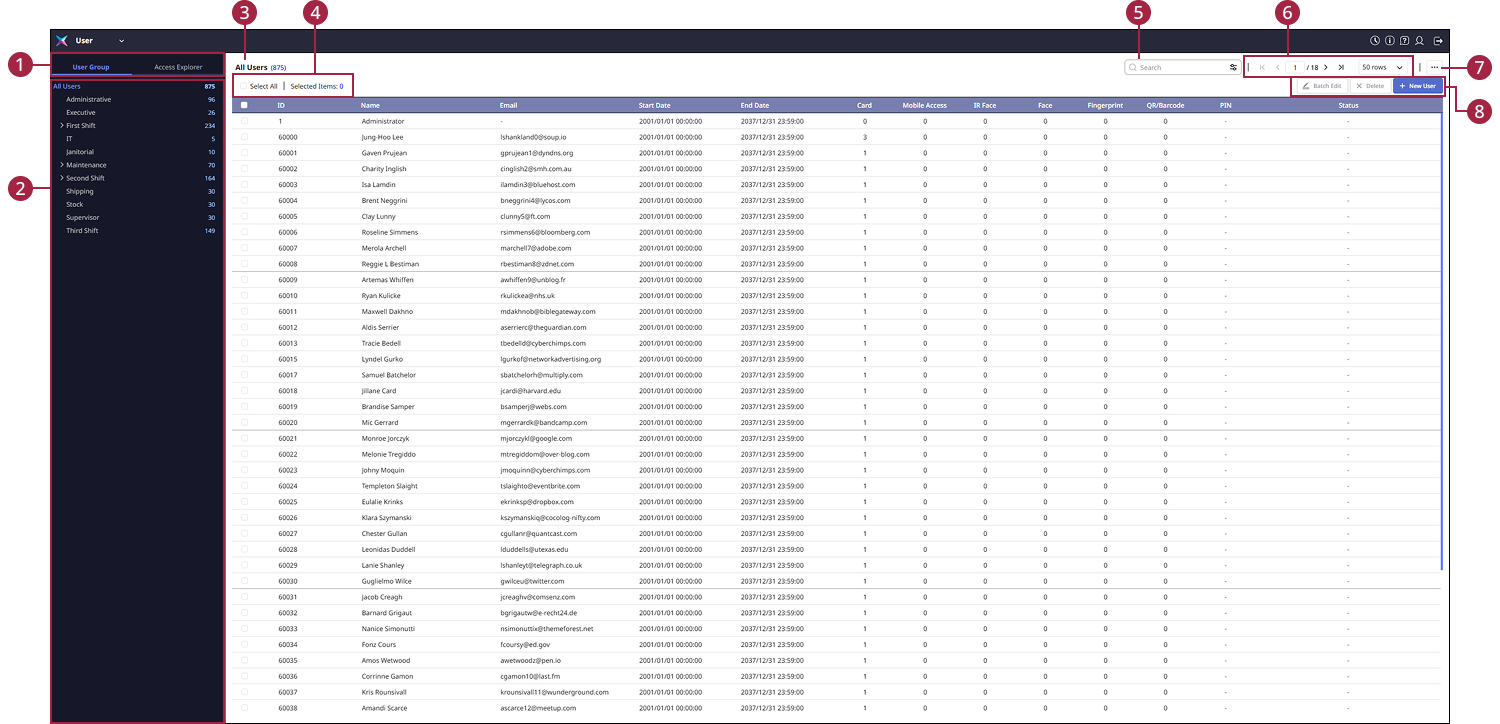
The User page's User menu allows efficient user management through various features such as managing user groups, managing users, and checking users by access rights, enhancing security through permissions. The UI components of the User page are as follows:
-
Check user groups or access groups.
-
For more information on user groups, refer to Manage User Groups.
-
For more information on access groups, refer to Manage Access Groups.
-
-
View user groups or access groups in tree structure format. You can expand or collapse the tree structure, and click each group to check the users belonging to that group.
-
Check the number of users in the selected user group from the side menu.
-
Click the Select All button to select all displayed users in the user list. The number of selected users appears in Selected Items.
-
Enter keywords to search for users. For more information on searching for users, see Explore Users.
-
Click the page navigation button provided at the top right of the screen to check the next or previous user lists. You can also specify a desired page to move to. For more information on selecting view options, refer to Explore Users.
-
Click the
 button to access various features related to users.
-
Export: Save the user list in CSV file or Data file format. For more information on exporting or importing user information, see Export/Import User Information.
-
Import: Import user lists in CSV file or Data file format or import facial authentication information. For more information on exporting or importing user information, see Export/Import User Information.
-
Transfer to Device: Function to send registered user information to the device. For more information on transferring user information to a device, see Transfer User Information to the Device.
-
Face Migration: You can enhance authentication performance by upgrading faces enrolled in older versions of BioStar X with the latest algorithm. For more information, see Face Migration.
-
Column Layout: Change header items of columns in the user list. For more information on user list column settings, refer to Explore Users.
-
Print: Print the user list.
-
-
Use the functions for user registration and batch modification or deletion.
-
Batch Edit: Modify information or access rights for multiple users at once. For more information on bulk editing user information, see Edit User Information.
-
Delete: Delete selected users. For more information on deleting users, refer to Delete User.
-
New User: Register new users. For more information, see Register Users.
-