Manage Visitors
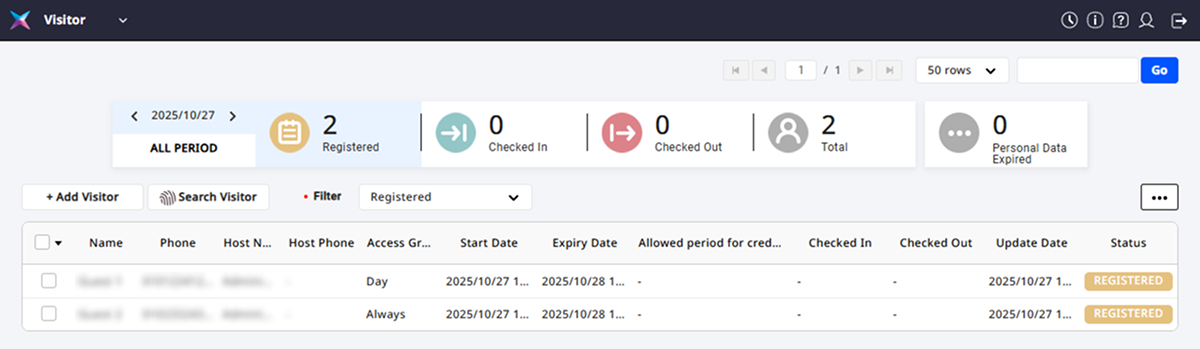
Use the Visitor feature to create a visitor application page on the application PC, and manage visitor access on the management PC.
-
The Visitor feature is available with additional options on Advanced or higher license. For more information on licensing policies, see License Policy.
-
After activating the visitor feature through licensing, see Visitor Settings for detailed setup instructions.
Applying visitor license
This guide explains how to apply the visitor license. After purchasing the Visitor license from the BioStar X retailer, follow the instructions below to apply the license.
-
Log in with the BioStar X administrator account.
-
Click Settings on the Launcher page.
-
Click License → BioStar X License in the left sidebar.
-
Enter License Activation in sequence with Activated by and License Key.

-
Click Activate.
You can check the licensed registered in Activated License.
To activate your license in a closed network environment or when internet access is restricted or unavailable, see BioStar X License.
Applying the visitor license activates the Settings → Visitor menu, and adds a link to the management page of Visitor in the shortcuts list on the top left of the screen.
Visitor application page settings
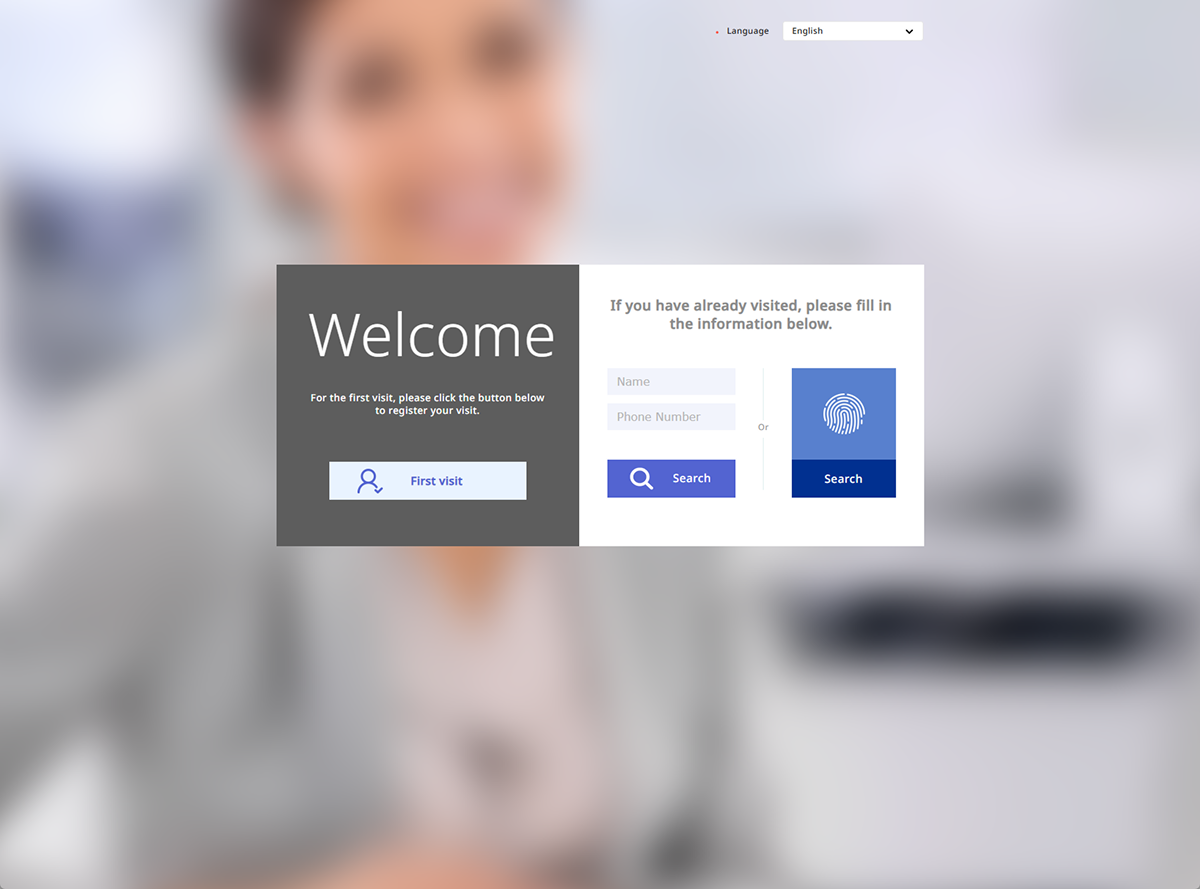
The visitor application page can be used after prioritizing visitor settings. For more information on setting up the visitor application page, see Visitor Settings.
The visitor application page can be accessed from a dedicated application PC, allowing visitors to submit access requests. For more information on visitor registration, see Apply to Visit.
Visitor access management
Check the visitor application history and manage visitor access. For more information on managing visitor access, see Manage Visitors.