Cardholder Management
Card Enrollment
-
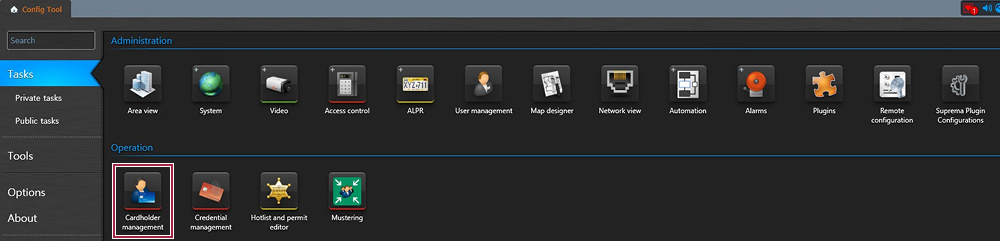
In the Config Tool, click the Cardholder management under Tasks.
-
Click the New button from the bottom.

-
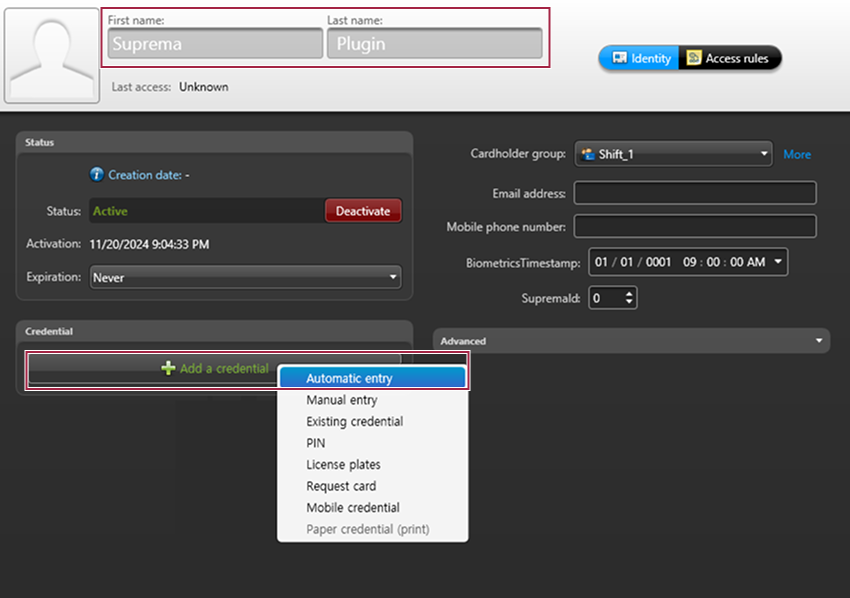
Enter the First name and Last name, then click the Add a credential button. In the popup that appears, click Automatic entry.
-
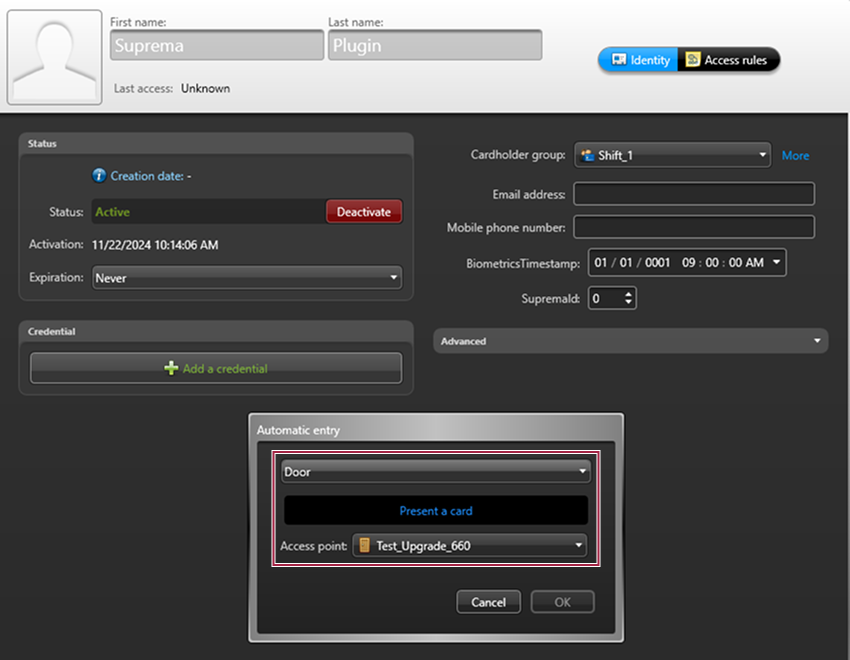
Select the Door assigned to the Suprema device as a reader, then tag a card to the device.
-
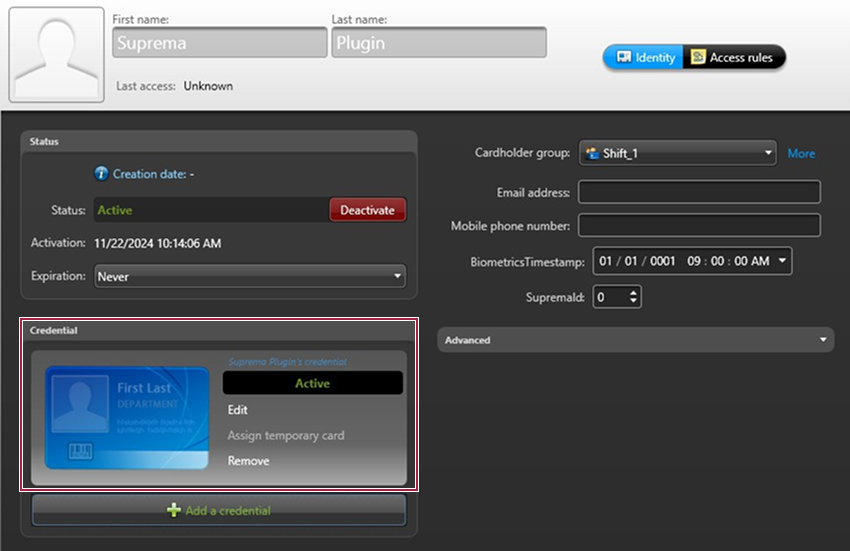
The card is automatically enrolled to the credential.
Face Enrollment
Precautions when Enrolling Face
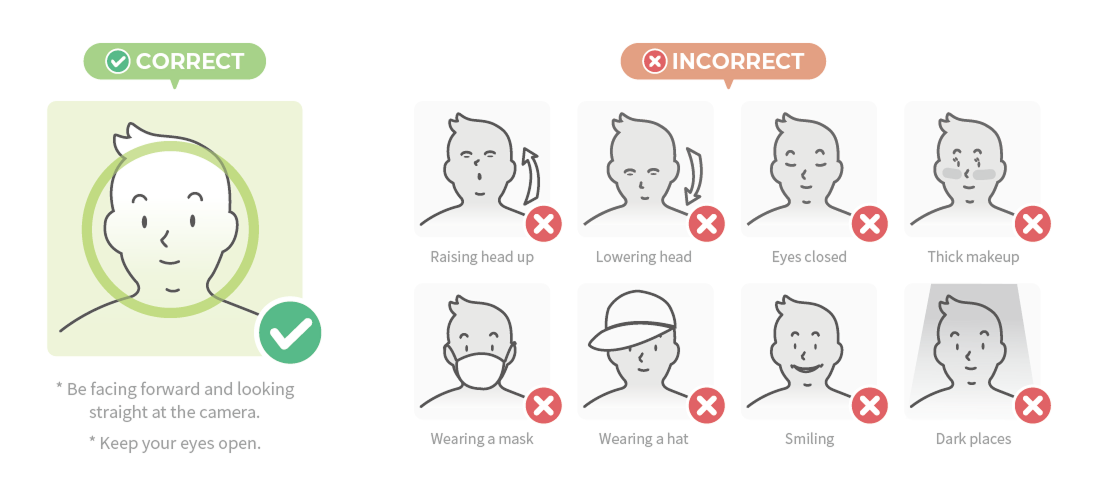
When enrolling your face for authentication, refer to the picture below to enroll your face correctly.
If you do not follow the on-screen instructions, face enrollment may take a long time or authentication may fail.
-
When enrolling a face, maintain a distance of 60-100 cm between the device and the face.
-
Make sure that your expression does not change.
-
Do not wear a mask, hat, sunglasses, or eye patches.
-
Do not raise head up or lower head.
-
Do not wear thick makeup.
-
Do not close your eyes.
-
Make sure that both of your shoulders correctly appear on the screen.
-
Do not use a corrected picture.
-
Stand still and enroll your face by staring at the screen.
-
Be careful not to display two faces on the screen. Make sure to enroll one face at a time.
-
Do not enroll your face in dark places.
-
Resolution: Larger than 250 x 250 pixels
-
Image size: Up to 10 MB
-
Supported format: JPG, JPEG or PNG only
Enroll from Device
-
In the cardholder details window, click Suprema Enrollment.
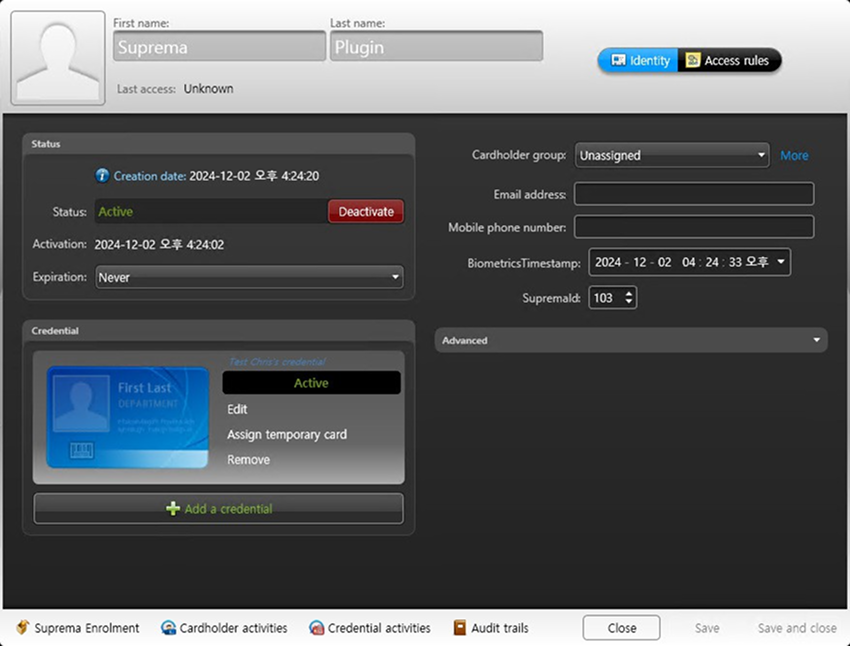
-
Click the Face-Scan.
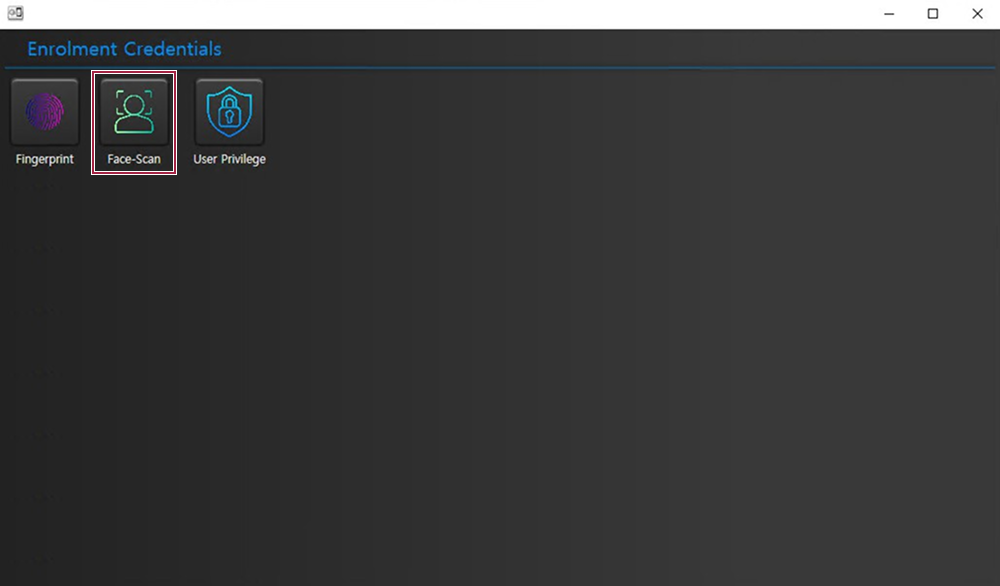
-
Select the Suprema face authentication device to enroll the face credential.
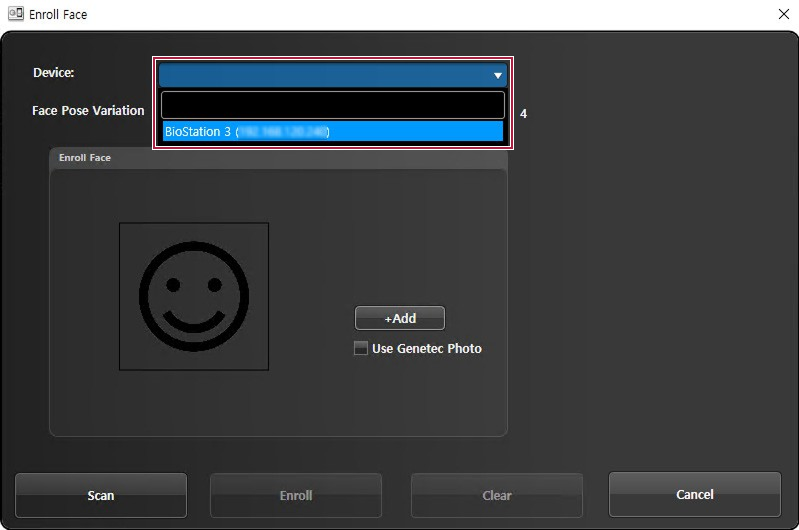
-
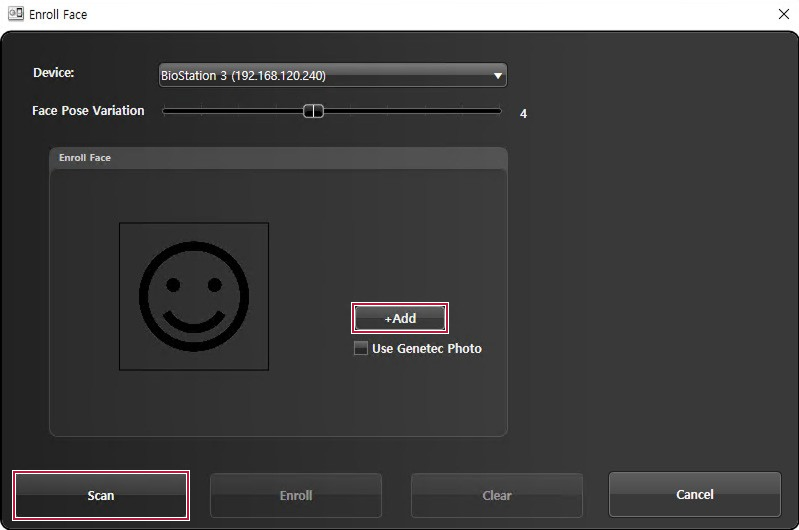
Click the +Add button to create a face template, then click the Scan button and scan the face on the device.
-
Check the face has been properly scanned, and then click the Enroll button to enroll the face.
Enroll Face Template with Genetec Profile Photo
-
In the cardholder details window, click Suprema Enrollment.
-
Click the Face-Scan.
-
Select the Suprema face authentication device to enroll the face credential.
-
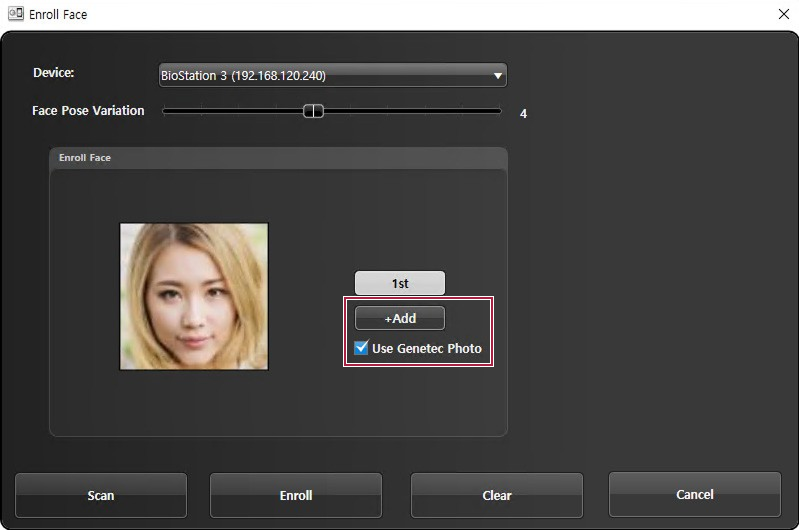
Click the +Add button to create a face template, then check Use Genetec Photo to automatically upload the user profile photo. The Suprema device extracts face templates from user profile photos.
-
Check the uploaded photo, and then click the Enroll button to enroll the face.
Bulk Enrollment
-
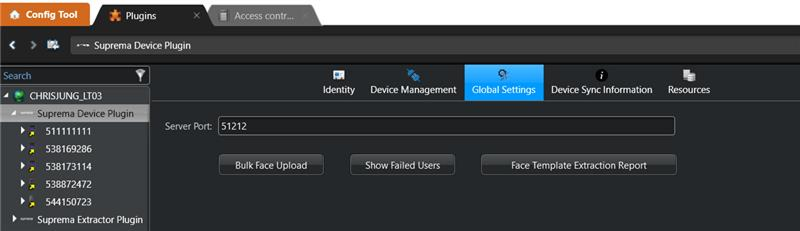
Go to Suprema Device Plugin → Global Settings.
-
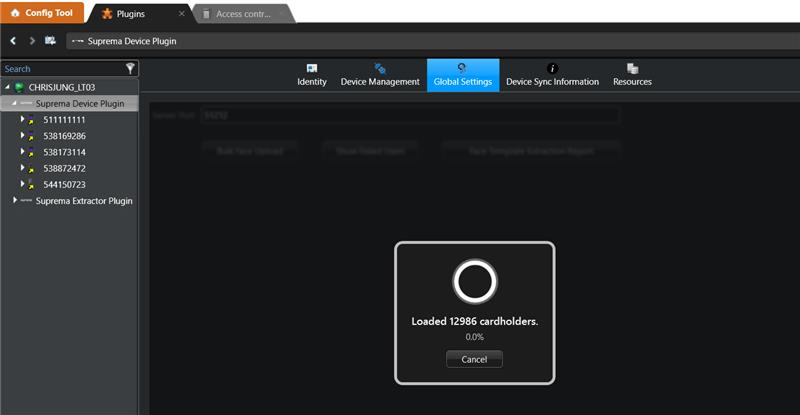
Click the Bulk Face Upload button. You can check the Face Extraction progress.
 알아두기
알아두기Face template extraction is performed only for GSC cardholders who have a profile image.
-
Once the process is completed, you can check the results.
-
Show Failed Users: View the list of users for whom face extraction failed.
-
Face Template Extraction Report: View the report related to face template extraction.
-
How to Search for a Cardholder with a Face Template
-
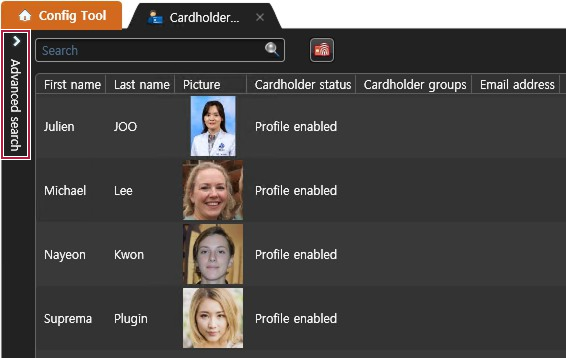
Click the Advanced search on the Cardholder management page.
-
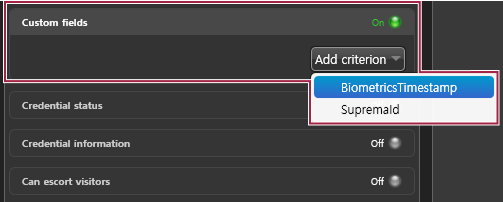
Click the Custom fields, switch it to On, and click Add criterion. Then, select the BiometricsTimestamp.
-
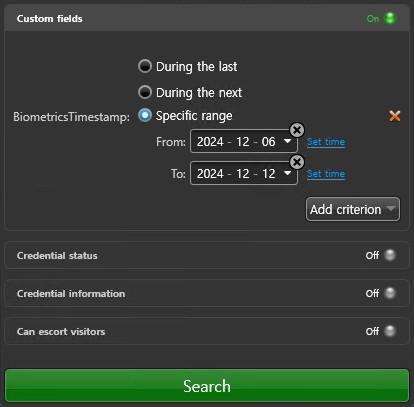
Select the Specific range and set the period to search.
Example
-
From: Plugin installation date
-
To: Today
To search by specific time, click Set time and enter the time.
-
-
Click the Search button.
-
All cardholders who have face templates appear.